The Status option allows you to change the default colors in the Gradebook. Each color is a default associated with a Gradebook status: late (blue), missing (red), resubmitted (green), dropped (orange), or excused (yellow). Colors can be adjusted by selecting a default color or using a supported hex code.
Colors are a per-user setting. Colors set in your course apply to any of your other courses that use the Gradebook, however, they do not apply to any other user who may view the Gradebook. Additionally, status names cannot be changed.
Some assignments may have multiple statuses applied (for example, dropped and resubmitted). In this case, some status colors may override other status colors.
Notes:
- Some colors may seem darker if they display in a Gradebook row that has an alternating gray background.
- Depending on your institution, custom gradebook statuses may display. You cannot make changes to the custom statuses.
- If the Gradebook Status Icons setting is enabled in the course, a symbol displays next to each status in the Gradebook to provide an additional visual indicator.
View the video transcript
00:05: How do I change the color for a grading status in the Gradebook?
00:09: In Course Navigation, click the Grades link.
00:12: Click the Settings icon. This opens the Gradebook Settings modal
00:17: To change the status colors, click the View Options tab and click the Edit icon. This opens the color pallete where you can change the status color.
00:27: Select the new color for the status, the checkmark indicates the selected color and the hex color code displays in the text field. If you want to use a color, not shown in the window, you can enter the colors hex code directly in in the text field, the hex field will display a warning icon, if the hex code is not valid
00:47: Click the apply button.
00:49: Click the Apply Settings button.
00:52: This guide covered how to change the color for a grading status in the Gradebook.
Open Grades
In Course Navigation, click the Grades link.
View Status Colors
Click the Settings icon [1].
To change the status colors, click the View Options tab [2] and click the Edit icon [4].
Change Color Status
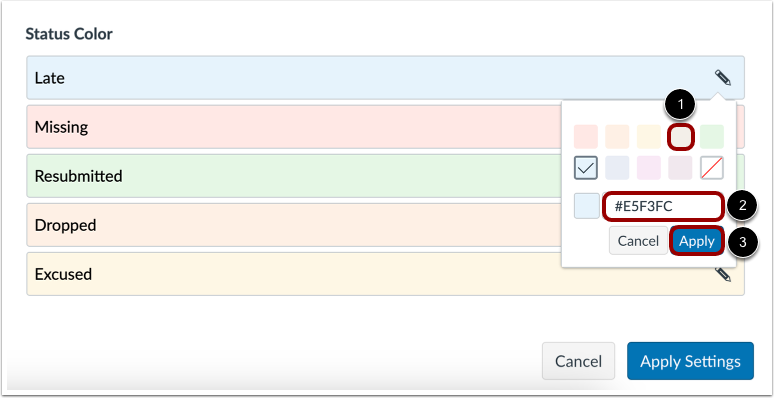
Select the new color for the status. The check mark indicates the selected color [1], and the hex color code displays in the text field [2].
If you want to use a color not shown in the window, you can enter the color's hex code directly in in the text field. The hex field will display a warning icon if the hex code is not valid.
Click the Apply button [3].
Apply Settings
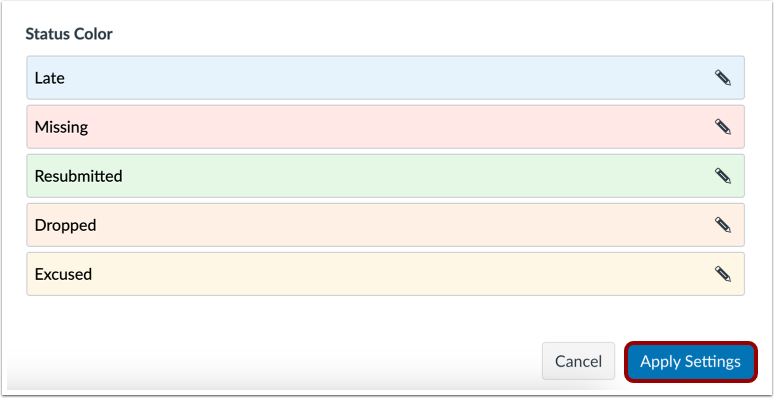
Click the Apply Settings button.
Note: If the Gradebook Status Icons setting is enabled in the course, a symbol displays next to each status in the Gradebook to provide an additional visual indicator.