If enabled by your institution, the Gradebook View menu in individual courses displays the Split Student Names option, which displays student names as last name first.
If a user has a preferred name that is different from their legal name, the legal name is displayed.
When student names are split, the Last Name column can still be sorted by type and order and supports secondary information.
Split names are respected and displayed in the Gradebook CSV export.
View the video transcript
00:05: How do I view the Split Student Names column in the Gradebook?
00:09: If enabled by your institution, the Gradebook View menu in individual courses displays the Split Student Names option, which displays student names as last name first. To view the Split Student Names column in the Gradebook, in Course Navigation, click the Grades link.
00:26: Click the Settings icon. This opens the Gradebooks Settings modal.
00:31: To separate the names, under Gradebook Settings, click the View Options tab and select the Split Student Names checkbox. Click the Apply Settings button.
00:41: View the separated last and first student names.
00:45: To combine the separated columns, click the View Options tab and deselect the Split Student Names checkbox.
00:53: Click the Apply Settings button.
00:56: This guide covered how to view the Split Student Names column in the Gradebook.
Open Grades
In Course Navigation, click the Grades link.
Split Student Names
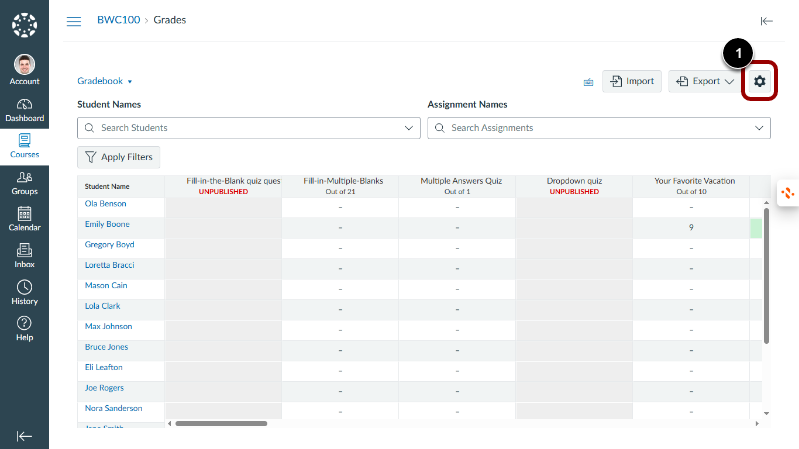
Click the Settings icon [1]. This opens the Gradebook Settings modal.
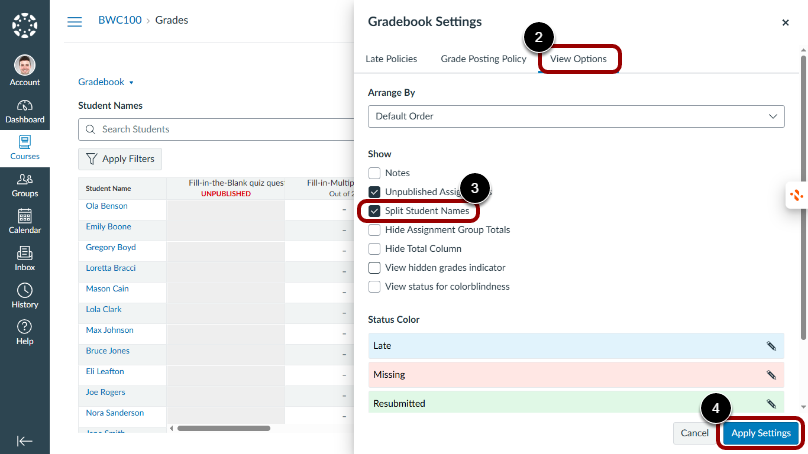
To separate the names, click the View Options tab [2] and click the Split Student Names checkbox [3]. Click the Apply Settings button [4].
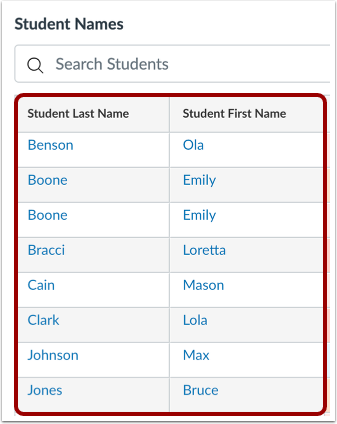
View the separated last and first student names.
Combine Separated Names
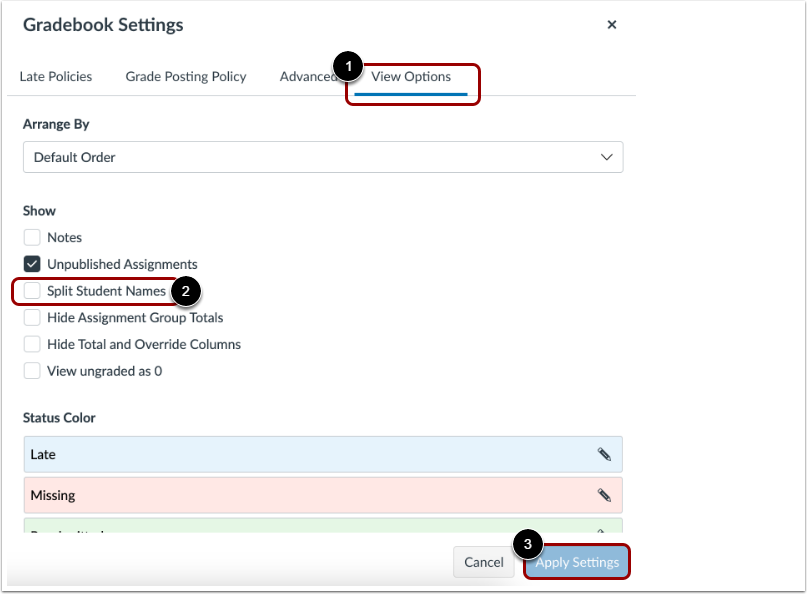
To combine the separated columns, click the View Options tab [1] and deselect the Split Student Names checkbox [2]. Click the Apply Settings button [3].