By default, you can view unpublished assignments in the Gradebook. This setting can be turned off at any time.
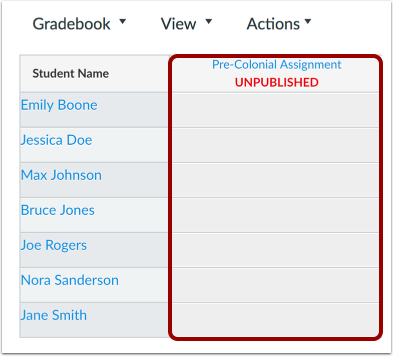
When unpublished assignments are visible in the Gradebook, unpublished assignments display with a gray background. Unpublished assignment columns do not include a dash indicating that grades cannot be entered. Additionally, assignment menu options are not available until the assignment is published.
Unpublished assignments are not visible to students.
View the video transcript
00:05: How do I view the Unpublished Assignments column in the Gradebook?
00:09: By default, you can view unpublished assignments in the Gradebook. This setting can be turned off at any time.
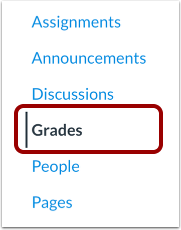
00:17: In Course Navigation, click the Grades link.
00:20: Click the Settings icon. This opens the Gradebook Settings modal.
00:25: To show the unpublished assignments column, click the View Options tab and click the Unpublished Assignments checkbox. Click the Apply Settings button.
00:35: View the unpublished assignment column. You can view the assignment name, but the cells are grayed out and are not editable until the assignment is published.
00:45: To hide the unpublished assignments column, click the View Options tab and click the Unpublished Assignments checkbox. Click the Apply Settings button.
00:56: This guide showed how to view the Unpublished Assignments column in the Gradebook.
Open Grades
In Course Navigation, click the Grades link.
Show Unpublished Assignments
Click the Settings icon [1].
To show the unpublished assignments column, click the View Options tab [2] and click the Unpublished Assignments checkbox [3]. Click the Apply Settings button [4].
View the unpublished assignment column. You can view the assignment name, but the cells are grayed out and are not editable until the assignment is published.
Hide Unpublished Assignments
Click the Settings icon [1].
To hide the unpublished assignments column, click the View Options tab [2] and click the Unpublished Assignments checkbox [3]. Click the Apply Settings button [4].