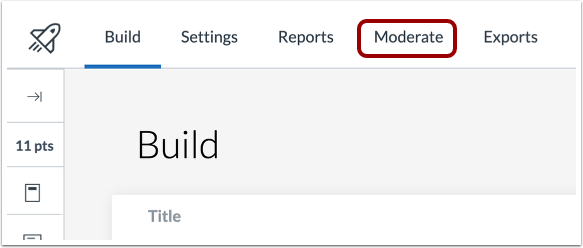
00:09: In New Quizzes, click the Moderate tab.
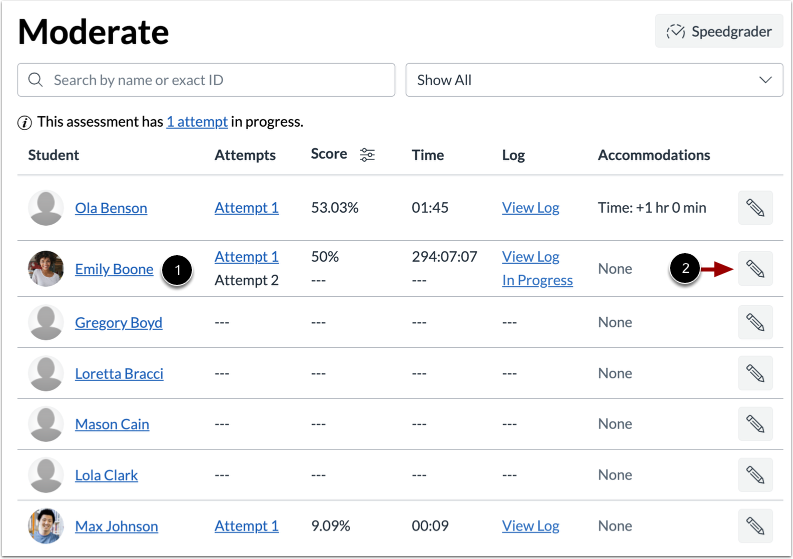
00:12: Find the student you want to moderate. You can also use the Search field to
00:16: find a specific student. Then click the Edit button.
00:20: To reopen the student's most recent quiz attempt, click the Reopen button.
00:26: A warning message displays to inform you that the student can resume their quiz
00:30: attempt from its previous position. To accept
00:33: and reopen the quiz, click the Reopen button.
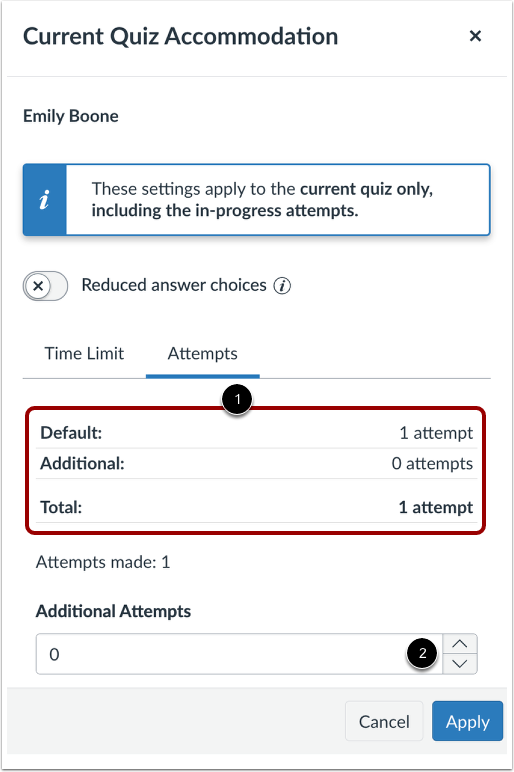
00:37: The Moderate panel displays the number of allowed attempts per the assessment settings.
00:43: The Moderate panel displays the number of allowed attempts per the assessment
00:47: settings.
00:48: To give the student additional attempts for the quiz, type a number or use the arrow
00:53: buttons in the Additional Attempts field.
00:56: To adjust the timer settings for the student,
00:58: select an option in the Time adjustments drop-down menu.
01:03: To add additional time to the quiz attempt, select the Give additional time option.
01:08: Then select the amount of time
01:11: . Time units can be set to minutes or hours.
01:15: To remove the time limit from the attempt, select the Remove time limit (unlimited)
01:19: option.
01:21: The Total allowed time field updates in real time as you adjust the time setting,
01:26: showing the combined total from the quiz base time, any course-level accommodation,
01:30: and the quiz-level adjustmentyou're making.
01:35: To save changes, click the Reopend and Apply button.
01:39: View the moderation timer settings in the accommodations column.
01:43: This column displays the cumulative effect.
01:46: Of course. Level accommodations. And moderation timer settings.
01:50: To moderate a student's quiz and reduce answer choices,
01:53: click the student’s name in the moderation list
01:57: Click the reduced answer. Choices toggle on this removes one incorrect
02:02: answer, from all multiple choice questions with four or more options.
02:05: You can also apply the changes to the in-progress attempts.
02:10: Click the Save button.
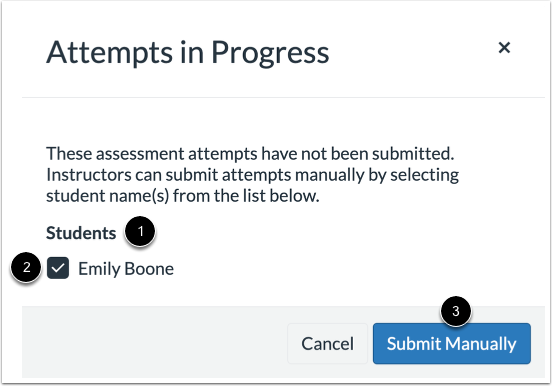
02:13: If students are currently taking a quiz, the moderate page displays
02:17: the number of in-progress attempts to manually submit in progress attempts,
02:21: click, the attempts link
02:24: Students within progress, quiz attempts to display in the students list by
02:28: default, you can manually submit quizzes for all students in the list.
02:32: If you do not want to manually submit a student's quiz deselect, the checkbox
02:37: for the student. To manually submit the quiz for the selected
02:41: students. Click the submit manually button.