As a curriculum map owner, you can manage curriculum map units. You can edit the unit name, description, and color. You can also add or remove standards, upload documents, and add and edit unit notes. Note: If the steps in this lesson do not match what is displayed in your account, you may be using the Legacy View. For Legacy View steps, refer to How do I manage a curriculum map unit in Legacy view?.
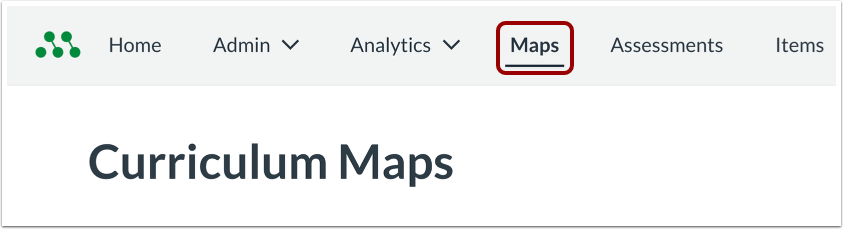
Open Maps
In the Global Navigation menu, click the Maps link.
Open Curriculum Map
Click a curriculum map name link.
View Unit Options
In the unit tab, hover over over the Unit Options icon [1]. The unit management options display [2].
Open Unit Edit Window
To edit the unit name, details, and color, select the Edit Unit option.
Edit Unit
You can edit the unit name [1], description [2], and color [3].
To save your changes, click the Save button [4].
Add and Remove Standards
To add or remove standards in the unit, click the Add/Remove Standards option. For more information, refer to our guide on adding standards to a curriculum map.
Remove Unit
To remove the unit from the curriculum map, click the Remove Unit option.
Confirm Remove
Click the Delete button.
Add Unit Notes
To add a note to the unit, click the Notes option.
Add and Edit Note
View the unit notes in the Notes tab [1].
Enter or edit the text in the Unit Notes field [2].
To save your notes, click the Save button [3].
Upload Document to Unit
To upload a document to the unit, click the Upload Document option.
Upload Document
In the File Upload window, you can select to upload a file from your computer [1], from Google Drive [2], or Dropbox [3].