As a Mastery Connect admin, you can view and manage your district or school data connections. Data connections allow you to export assessment data from Mastery Connect to an external server. Mastery Connect supports data connections using Secure File Transfer Protocol (SFTP) and via Ed-Fi.
Open Admin Menu
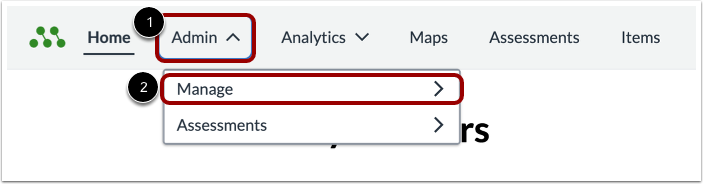
In the Global Navigation menu, click the Admin drop-down menu [1]. Then, select the Manage option [2].
Open Data Exports
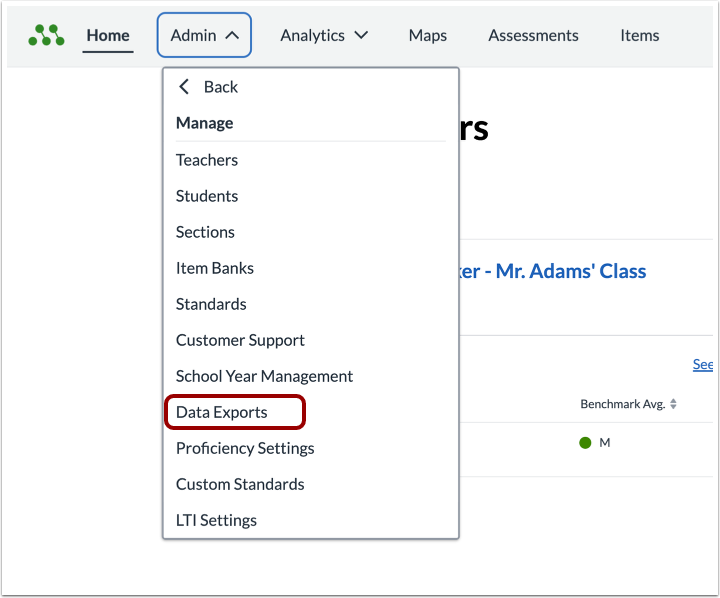
In the Manage list, click the Data Exports link.
Open Data Export Connections
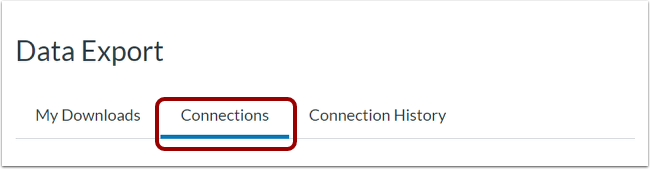
In the Data Export page, click the Connections tab.
View Connections
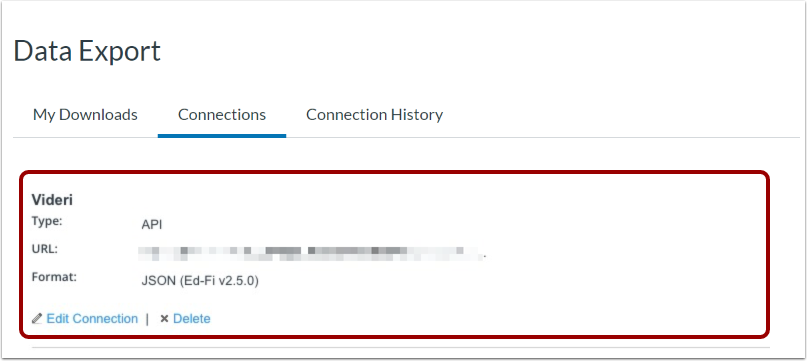
View your data export connections.
Edit Connection
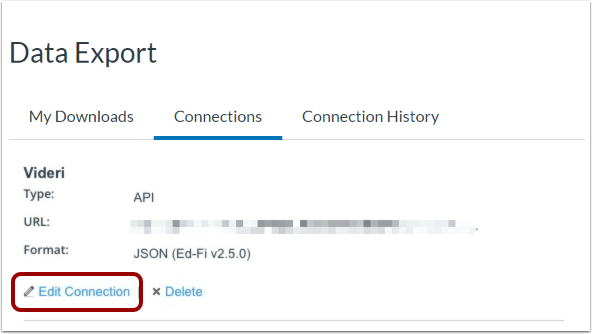
To edit an existing connection, click the Edit Connection link.
Save Edits
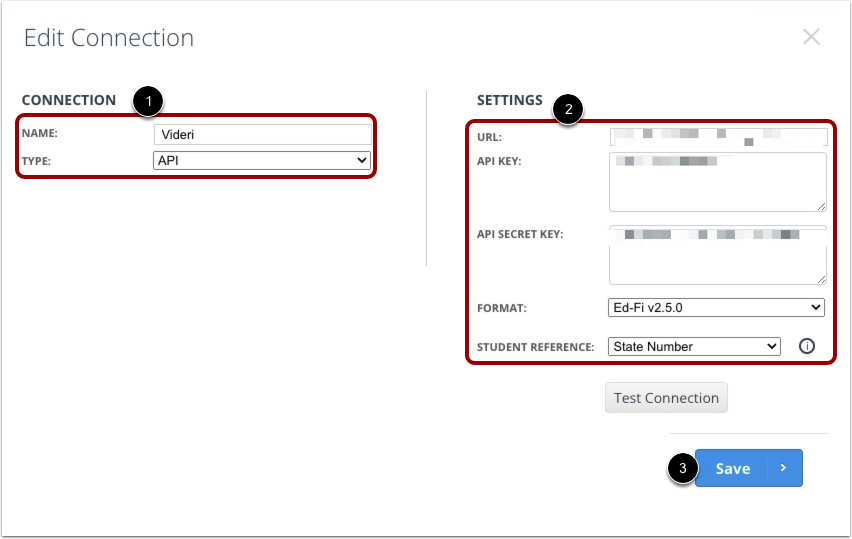
In the Edit Connection window, you can edit the connection name and type [1].
You can also edit the connection settings [2].
To save your edits, click the Save button [3].
Learn more about adding new SFTP and API data connections.
Delete Connection
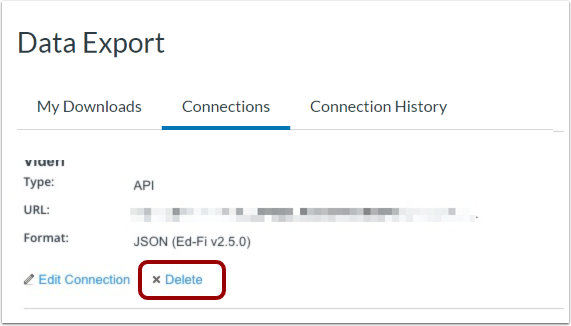
To delete an existing data connection, click the Delete link.
Note: You must confirm the action to remove the connection.