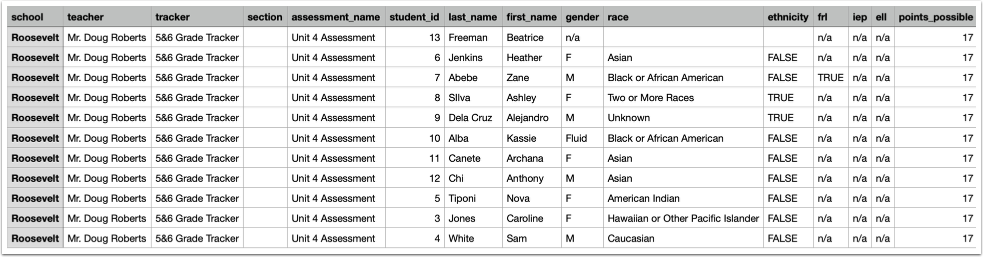
As a Mastery Connect admin, you can export formative or benchmark assessment data as a CSV file. Assessment data CSV files include each student's school, teacher, tracker, ID, overall score, overall number of points possible, and item responses for each standard-aligned item. You can also include student demographic information in the downloaded data.
You can export one or more assessments at a time. The exported data downloads as a ZIP file containing a CSV for each assessment.
Notes:
- Assessments that are in a draft state cannot be exported.
- The Bulk Tracker Data Exportallows districts to bulk export all active trackers within a specified district context. It exports progress report data of all district trackers to CSV at scale: instead of processing files one by one, the system collects all active tracker data at once and combines it into a single ZIP file. To enable this feature, contact your Customer Success Manager (CSM).
- The Benchmark Assessment Data Exports allows District and School Administrators to download an export of their district or schools benchmark assessment data. The export includes specific high-level fields such as school/site, subject/content area, assessment name, and student counts (total added vs. students with at least 1 score). It also provides a breakdown of cut scores. Additionally, the export includes the earliest assessment administration date to track when assessments were administered. To enable this feature, contact your Customer Success Manager (CSM).
Open Admin Menu
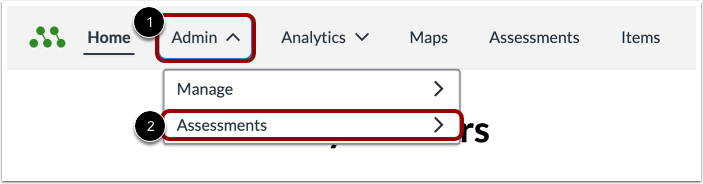
In the Global Navigation Menu, click the Admin drop-down menu [1]. Then, select the Assessments option [2].
Open Assessment Type
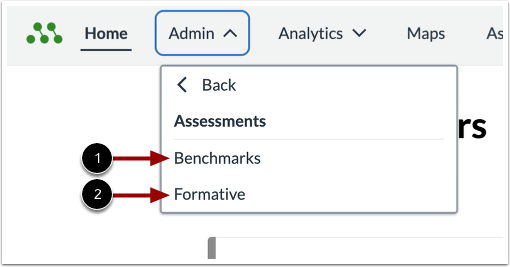
In the Assessments list, select the type of assessment you want to export.
To export scores for a benchmark assessment, click the Benchmarks link [2]
To export scores for a formative assessment, click the Formative link [3].
Select Assessment
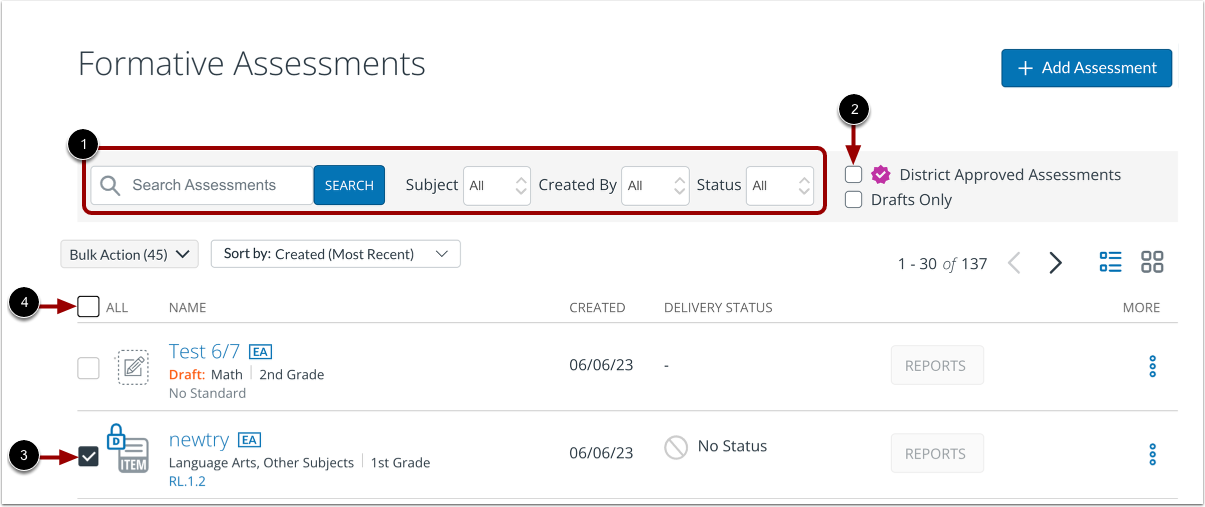
In the Benchmark or Formative Assessments page, locate the assessment(s) with scores you want to export. To narrow the displayed list of assessments, you can use the available search and filter options [1].
To view only district approved assessments, click the District Approved Assessments checkbox [2].
To select an assessment to export scores, click the assessment's checkbox [3]. You can select multiple assessments at one time. To select all displayed items, click the All checkbox [4].
Select Assessment in Grid View
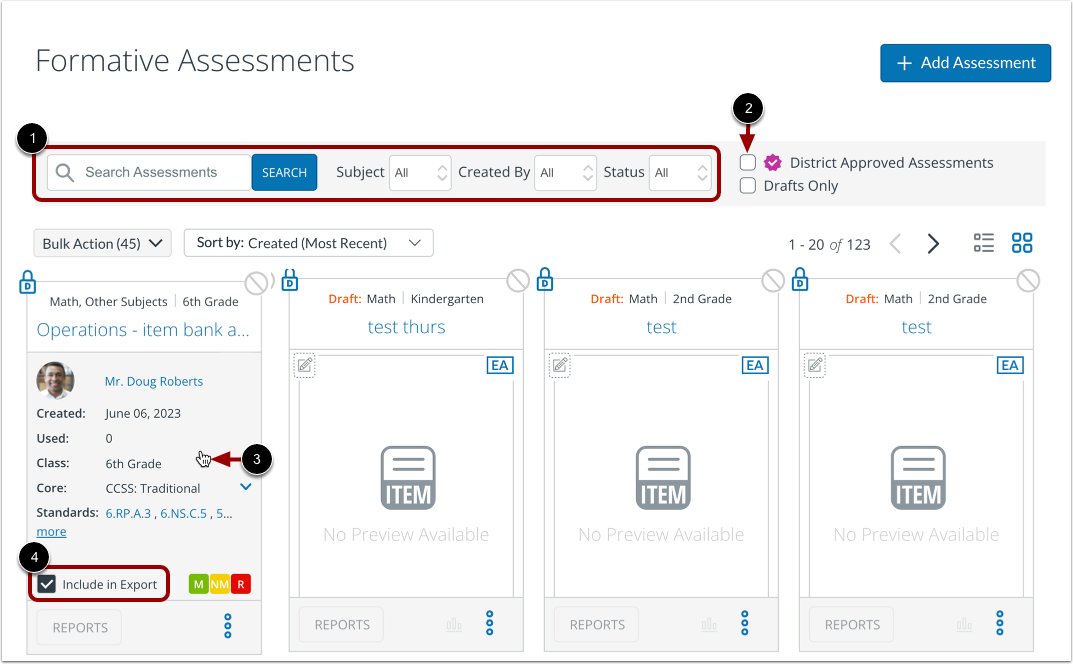
If your Assessments page displays assessments in grid view, you can still select assessments to export. Locate the assessment(s) with scores you want to export. To refine the displayed assessments, use the available search and filter options [1].
To view only district approved assessments, click the District Approved Assessments checkbox [2].
To select an assessment, hover over the preview card to display the assessment details [3]. Then, click the Include in Export checkbox [4].
Export Scores as CSV
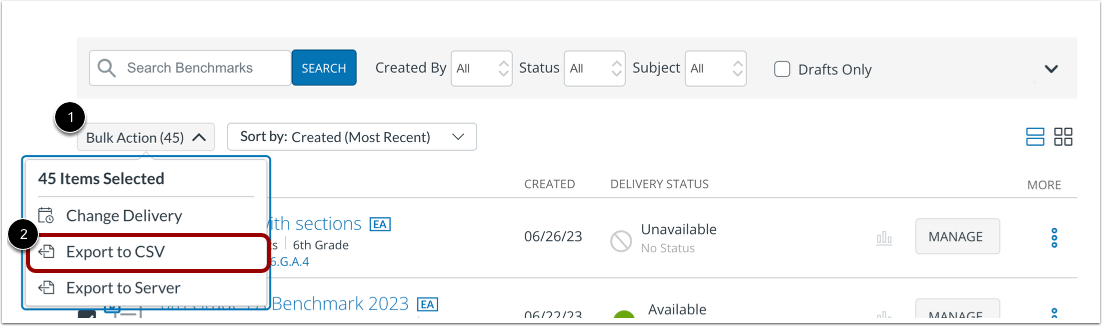
Click the Bulk Action drop-down [1]. Then click the Export to CSV link [2].
Export Scores
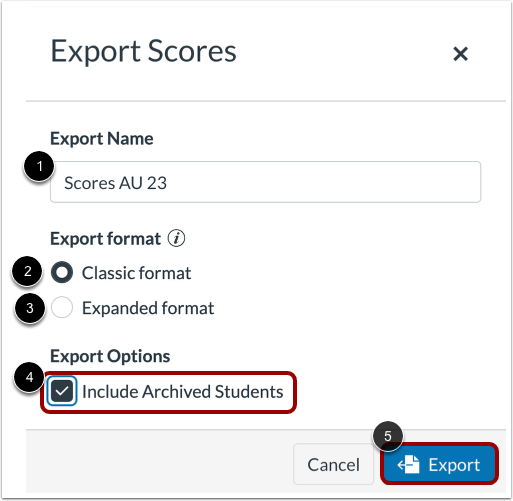
In the Export Scores window, enter a name for the export file in the Export Name field [1].
Click the radio button of one of the following export formats:
- Classic format [2]: export contains standard alignment, points possible, student scores, and student item responses.
- Expanded format [3]: export contains standard alignment, points possible, student scores, student item responses, and student demographic information.
To include information for archived students in the export, click the Include Archived Students checkbox [4].
Click the Export button [5].
Note: Expanded format exports include the following demographic data for benchmark assessments: gender, race, ethnicity (Hispanic or Latino), FRL, IEP, and ELL.
View Data Export Status
The Data Export page opens to display the My Downloads tab [1]. While the system processes the data export, an In Progress icon displays [2].
Manage Export
When the file is exported and ready for download, a Download icon displays [1].
To download a ZIP file containing the CSV file(s), click the Download icon. The downloaded ZIP file is named in the following format according to the date of the export, time of the export (universal time), and the export name: MM-DD-YYYY_Hour_Min_Sec-[export name].zip.
To remove a download from the My Downloads list, click the More icon [2] and click the Delete option [3].
View CSV Download
Open the ZIP file and view the downloaded CSV file for each assessment in the export.
Notes:
- CSV files contained in the ZIP file are named in the following format according to the name of the assessment, the assessment ID, and date of the export: [assessment name]_[assessment ID]_YYYY-MM-DD.csv.
- Assessment and export names in the exported files include underscores in place of spaces.
View Bulk Tracker Data Export
In the Admin dropdown, click the Data Exports link. Then click the Export all district trackers button [1]. Once your export is finished loading, it displays in the My Downloads table [2]. To download the trackers in a ZIP file, click the Download icon [3].
Note: This provides a quick and easy way for district teams to retrieve the data they own for compliance or financial reviews.
View Benchmark Assessment Data Exports
In the Admin dropdown [1], click the Assessments dropdown [2] and then click the Benchmarks link [3].
Manage Export Benchmark Report
To open the Data Exports page, click the Export Benchmark Assessments Report button.
View Data Report
Once your export is finished loading, it displays in the My Downloads table [1]. To download the Benchmark Assessments Report in a ZIP file, click the download icon [2].