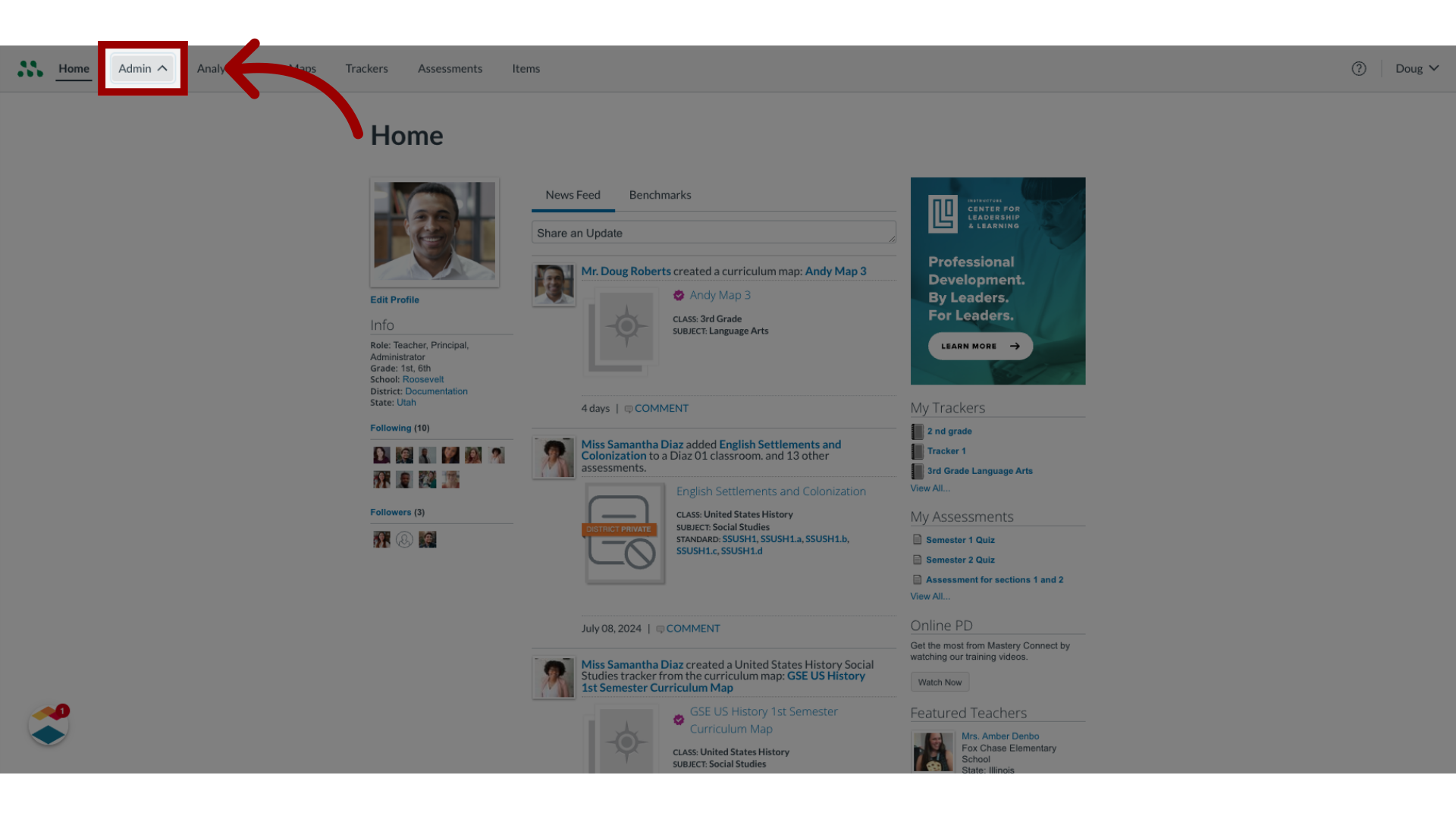
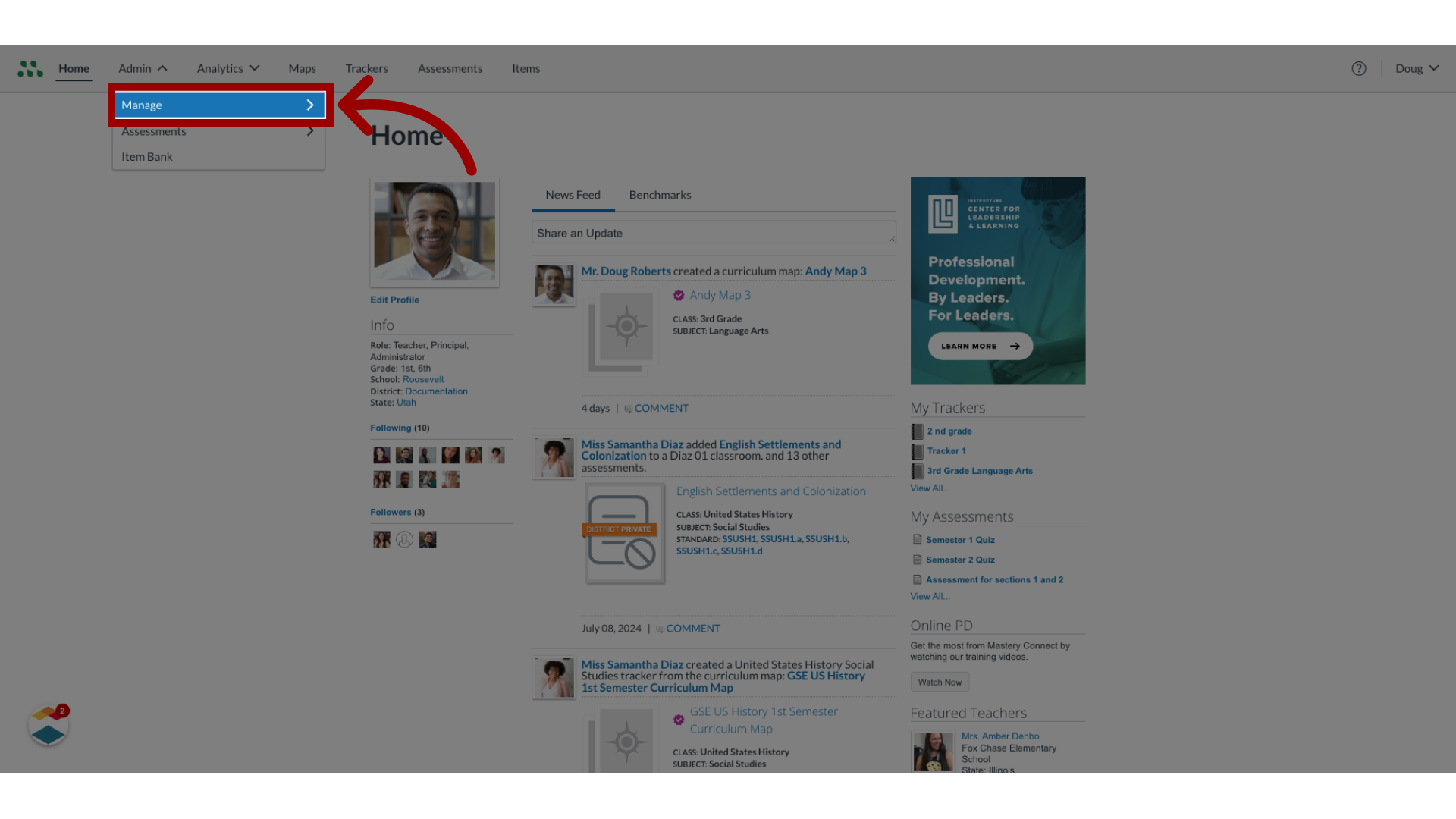
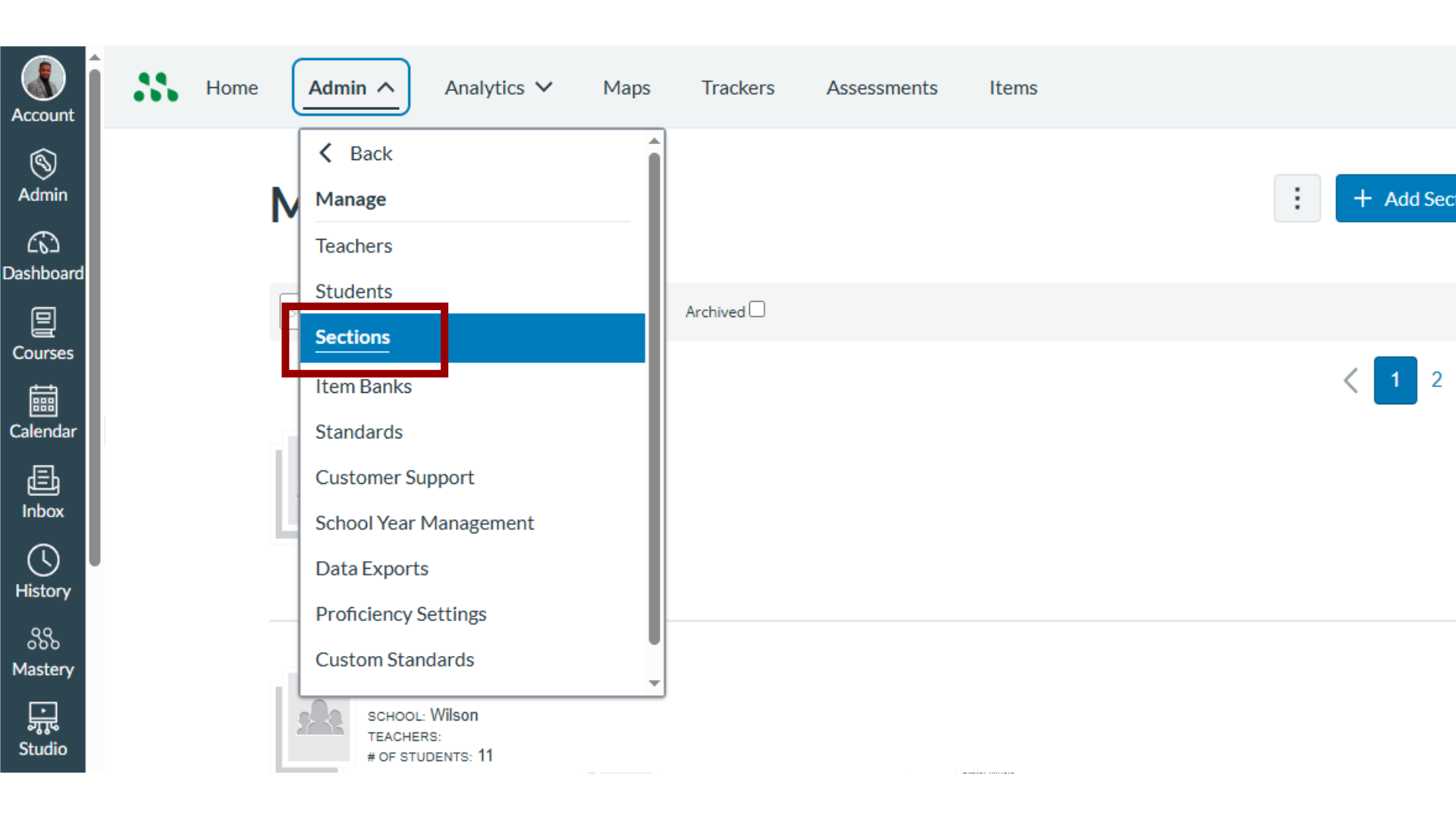
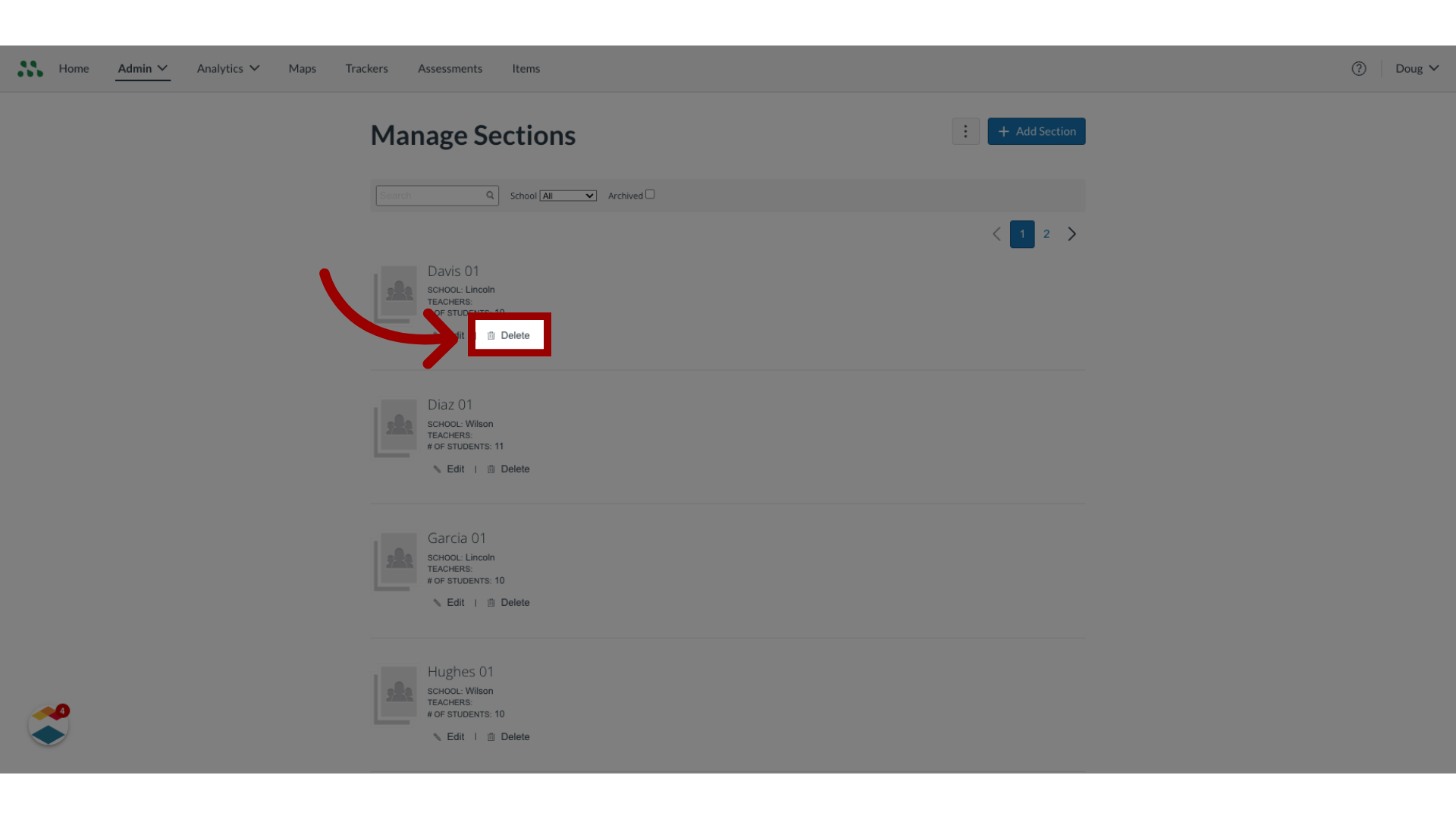
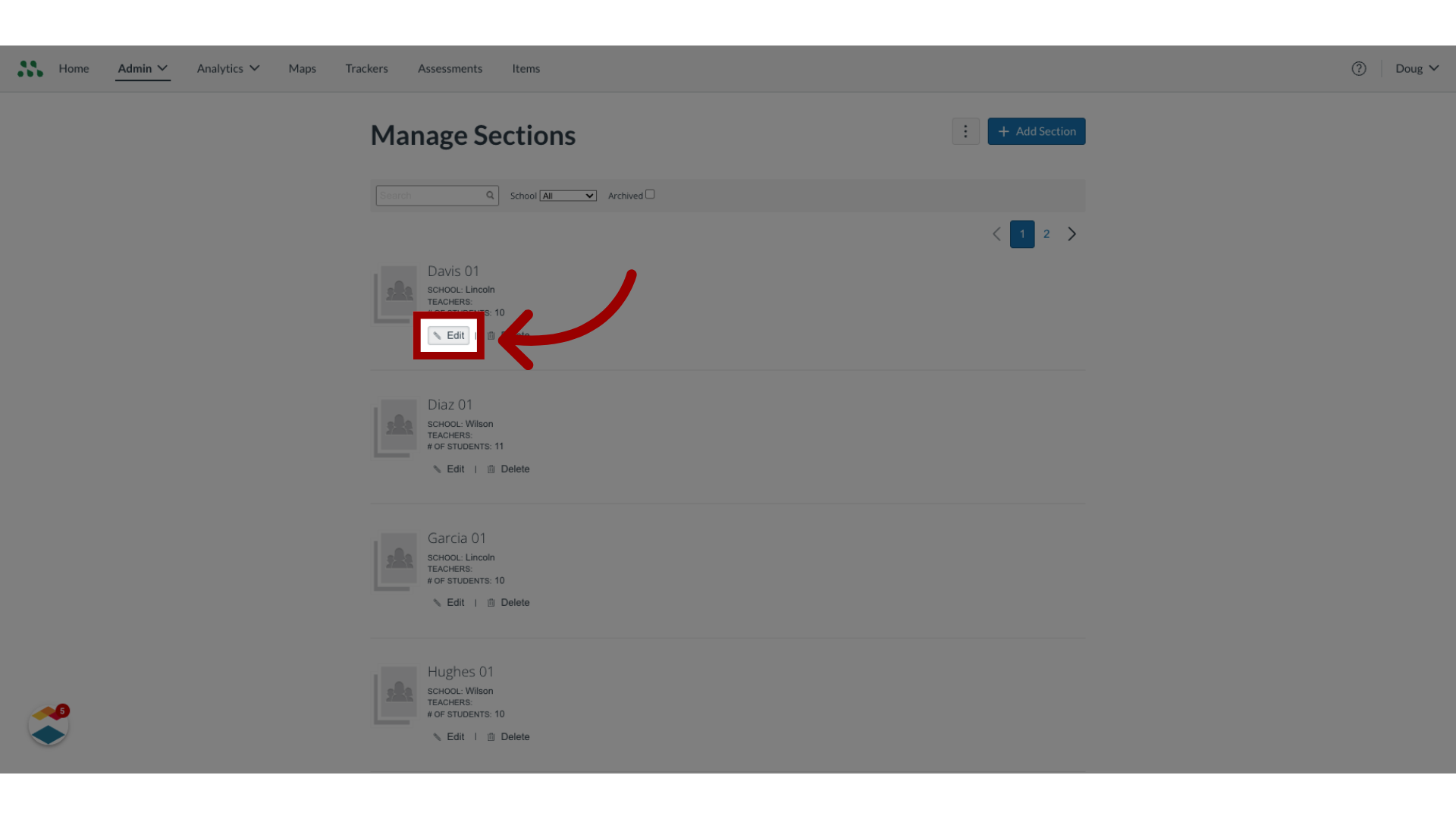
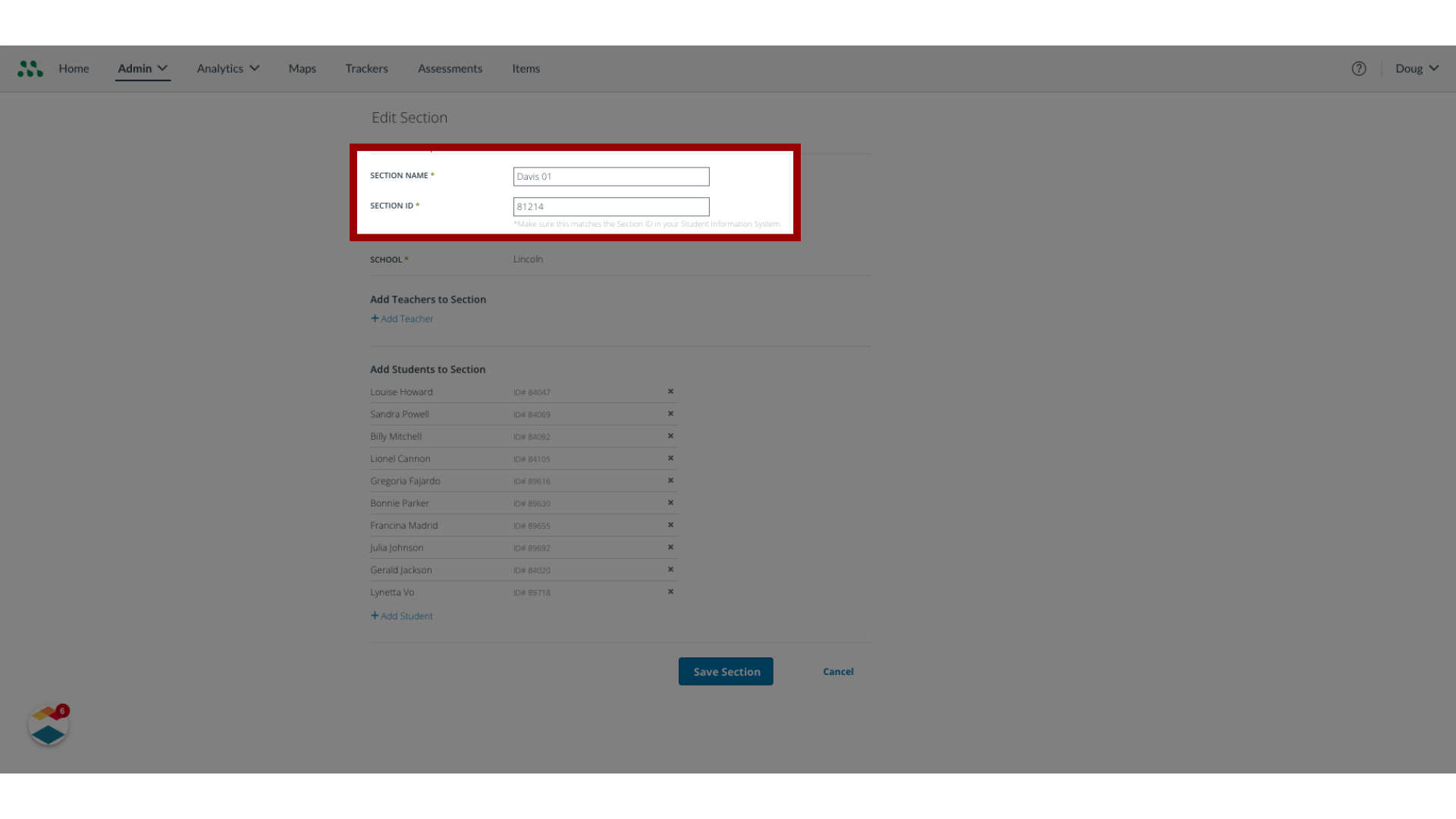
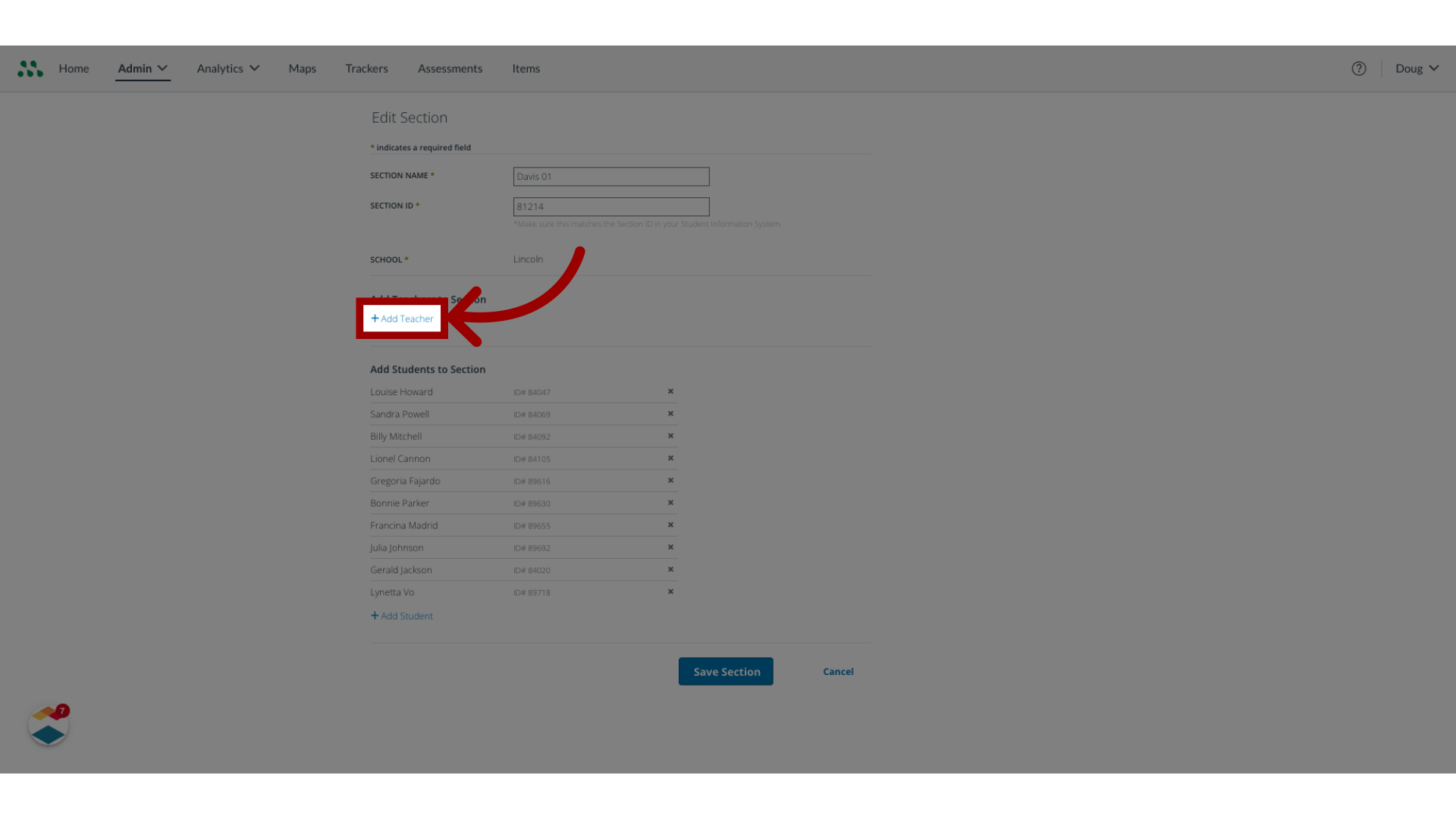
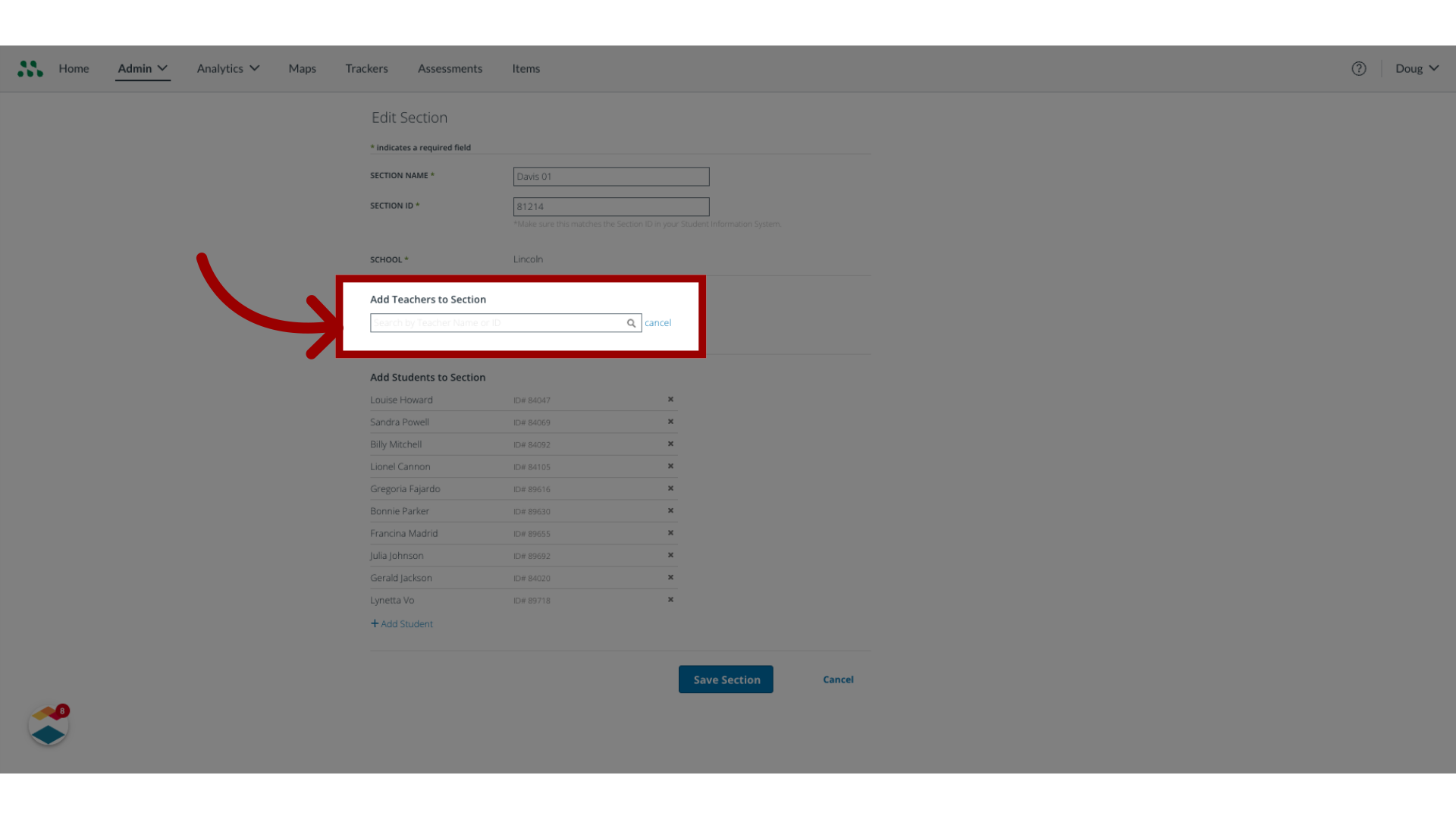
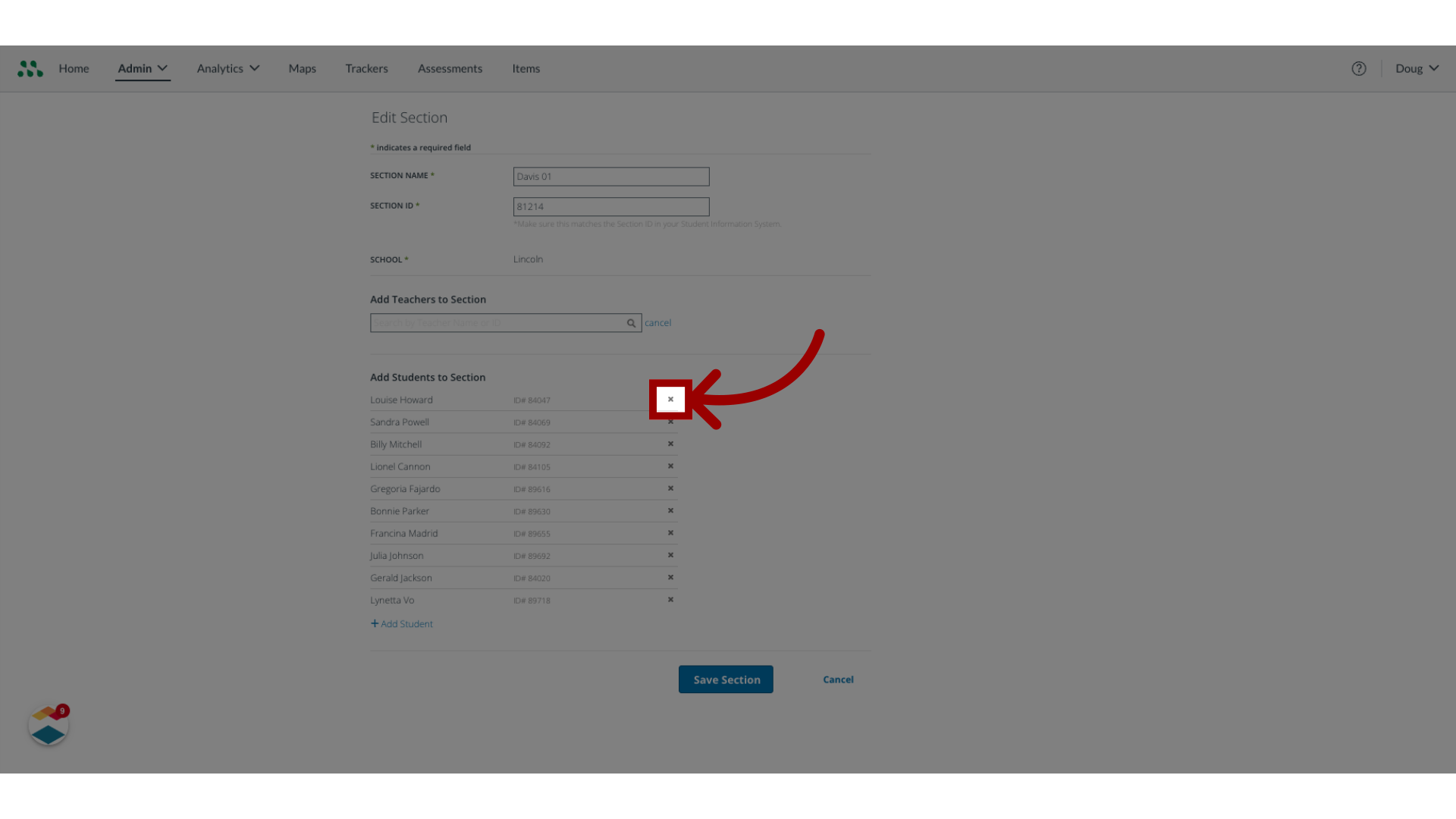
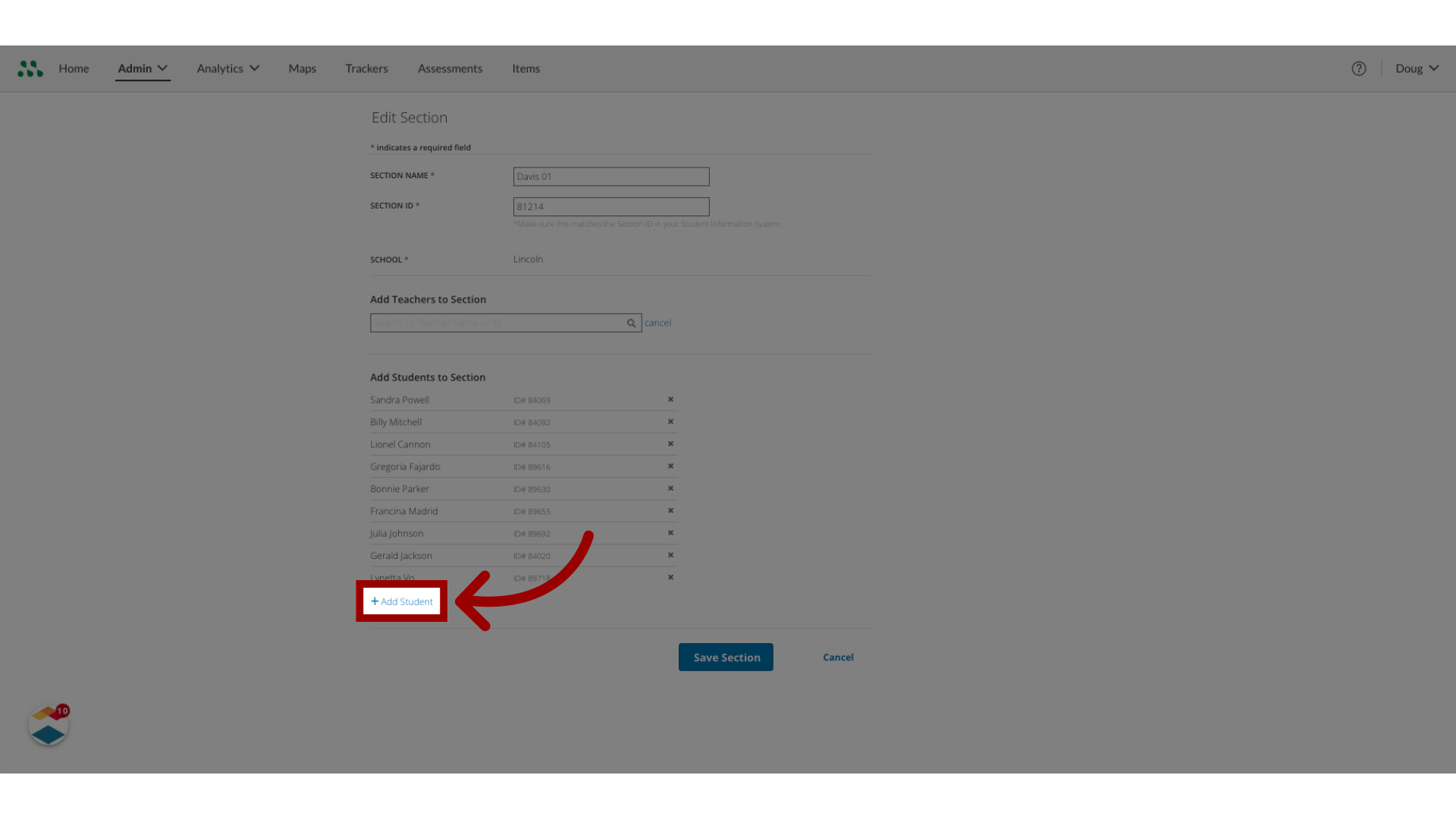
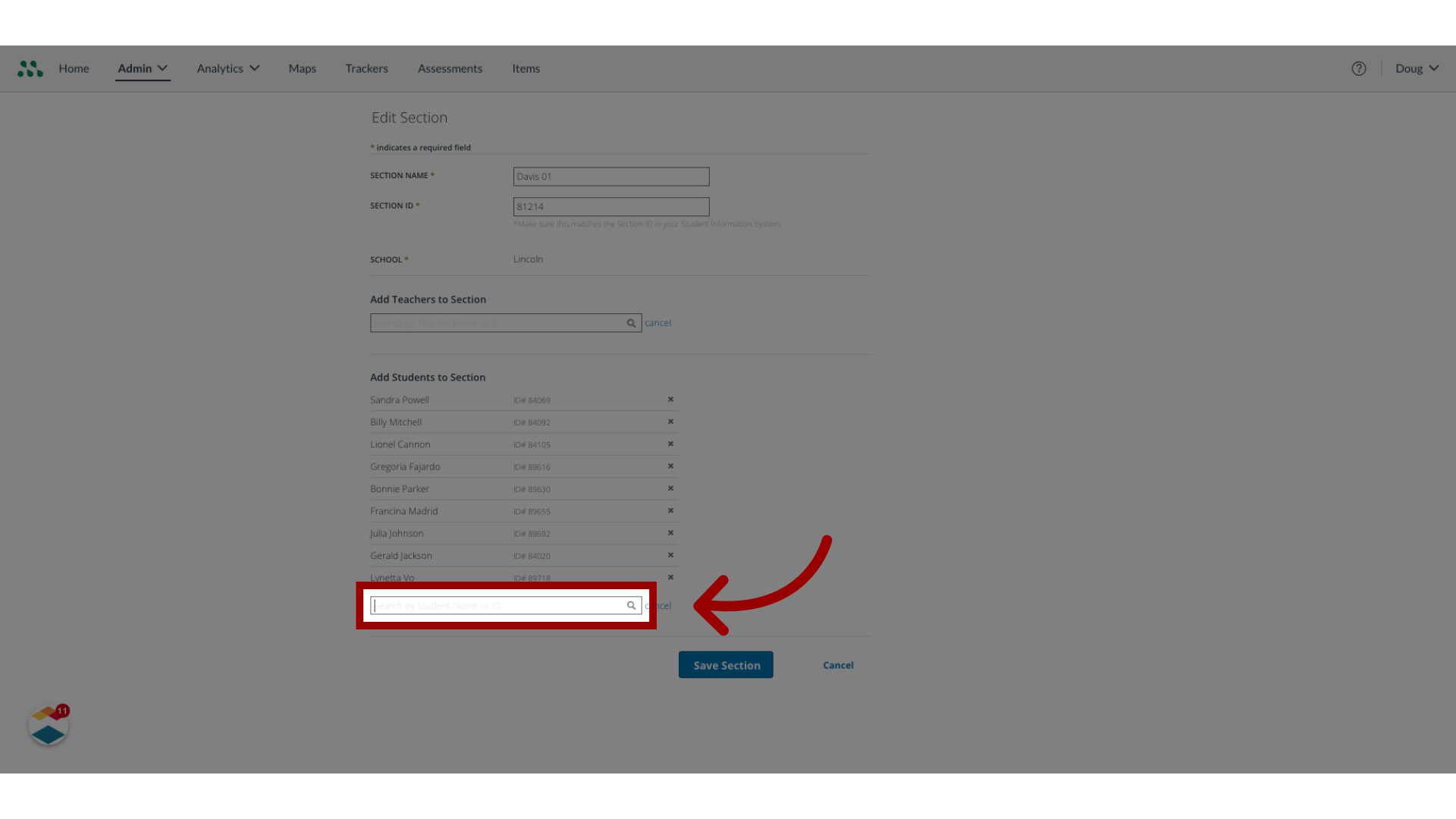
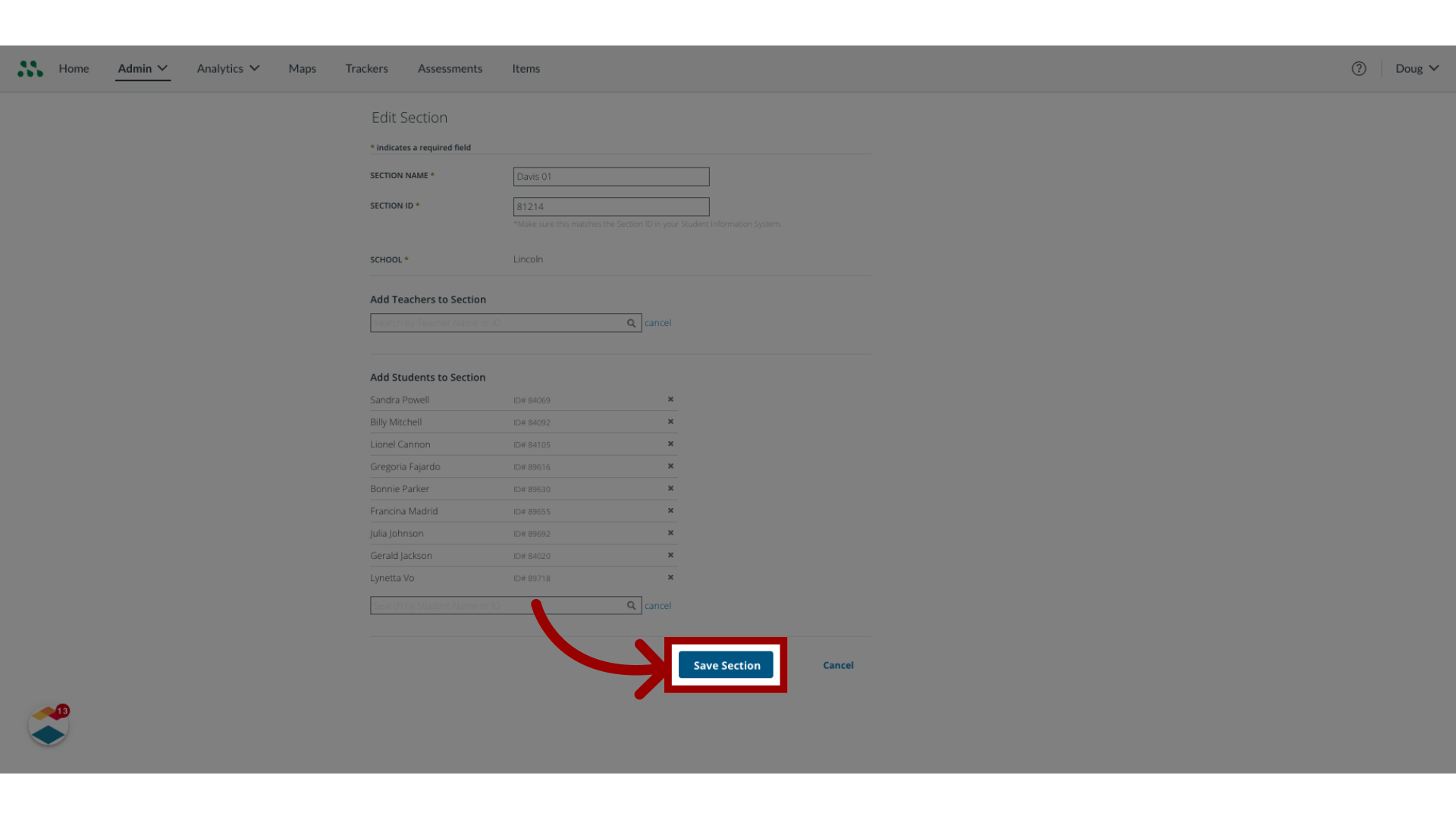
As a Mastery Connect admin, you can view a list of classroom sections and edit the sections you have created.How do I manage classroom sections as a Mastery Connect admin?1. Open Admin MenuIn global navigation, click the Admin drop-down menu.2. Open Manage MenuIn the drop-down menu, click the Manage link.3. Open Manage SectionsIn the expanding menu, select the Sections link.4. Delete SectionsIn the Manage Sections page, select the section you want to edit. To delete the section completely, click the Delete button.5. Edit SectionsTo edit the section, click the Edit button.6. Edit Section informationTo edit the Section Name or Section ID, enter new text in the text boxes.7. Add TeacherTo add a teacher to the section, click the Add Teacher button.8. Enter Teacher's NameBegin entering a teacher's name or ID in the text box until a list of teachers displays. Then, to add a teacher from the list, click the teacher's name9. Delete Student from ListTo delete a student from the list, click the Delete icon.10. Add Student to SectionTo add a student to the section, click the Add Student link.11. Enter NameBegin entering a student's name or ID in the text box until a list of students displays. To add a student from the list, click the student name.12. Save SectionTo save the changes made to the section, click the Save Section button. This guide covered how to manage classroom sections as a Mastery Connect admin.