Open Assessments
In the Global Navigation menu, click the Assessments link.
Open Assessment Editor
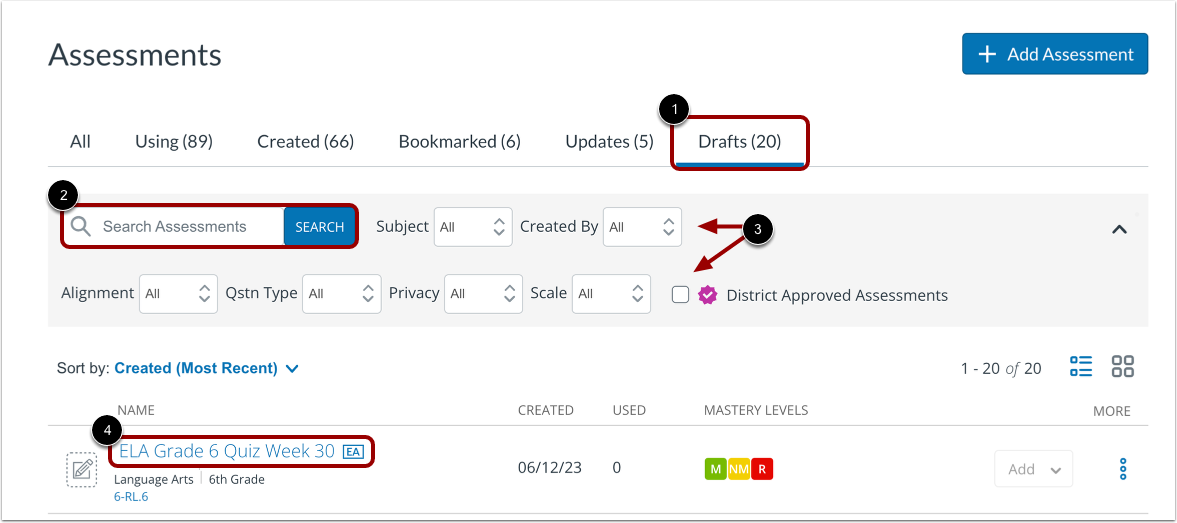
Click the Drafts tab [1].
To find an assessment by name, type the assessment name in the Search Assessments field and click the Search button [2].
To filter the list of assessments, use the drop-down menus to select sorting options [3].
Click the assessment name link [4].
Note: To edit items within an assessment, the assessment must be in draft state.
Open Item Editor
To open the Item Editor, edit an existing item or author a new one.
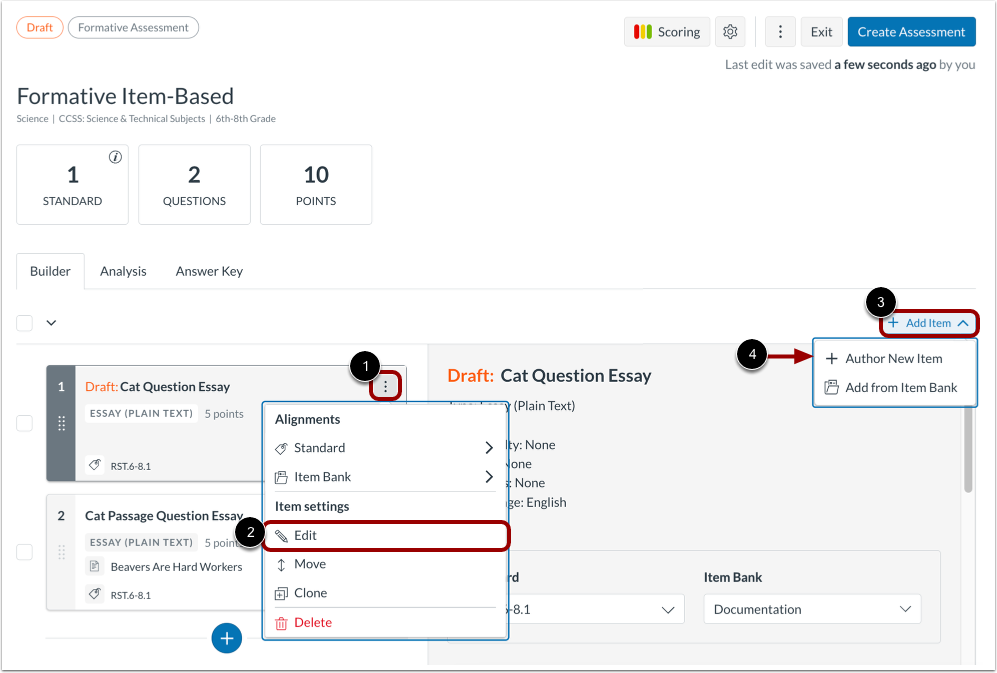
To edit an existing item, click its More Options icon [1]. Then, click the Edit link [2].
Alternatively, to create a new item, click the Add Item drop-down menu [3], and click the Author New Item link [4].
Open Add Passage Window
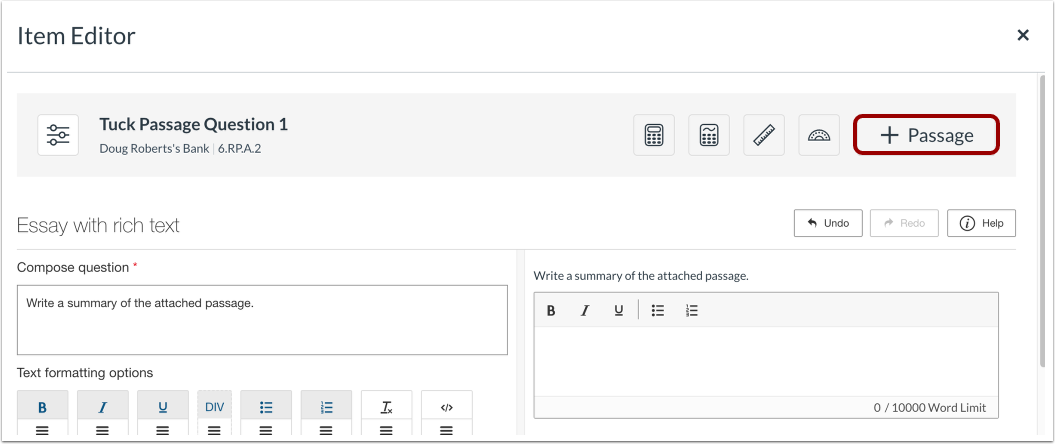
In the Item Editor, click the Passage button.
View Add Passage List
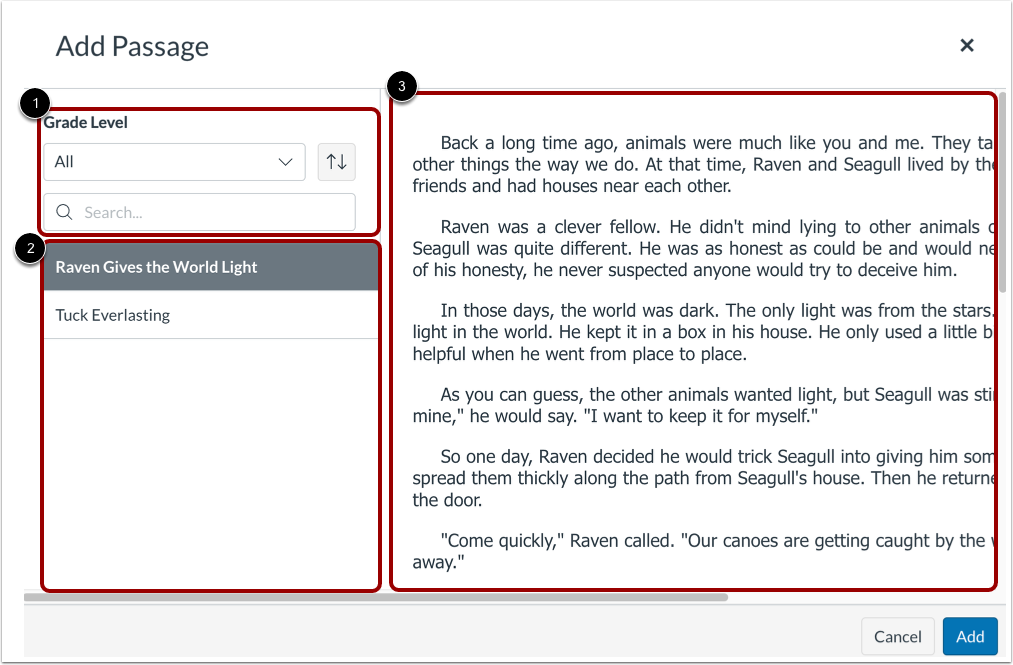
In the Add Passage window, you can locate passages by filtering and searching [1]. You can view the passage list [2] and the passage preview window [3].
Note: You can only add existing passages. You can learn how to create a passage in your item bank.
Filter and Search Passage List
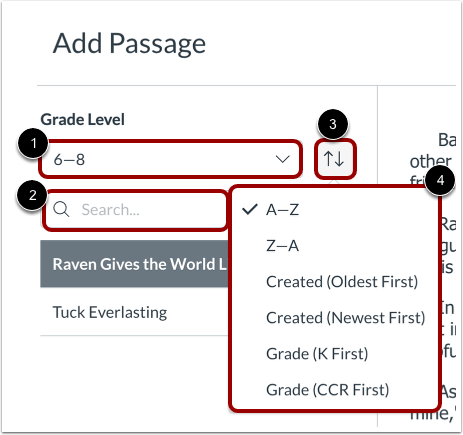
To filter the passages list by grade level, click the Grade Level drop-down menu [1], and select a grade range.
To search for passages by keyword, enter text into the Search field [2]. As you type, the passage list filters automatically.
By default, the passage list is sorted in alphabetical order. To change the sort order, click the Sort button [3]. Then, select a sorting option [4]. You can sort in reverse alphabetical order, by passage created date with oldest or newest first, or by passage grade level with Kindergarten (K) first or College and Career Readiness (CCR) first.
Add Passage
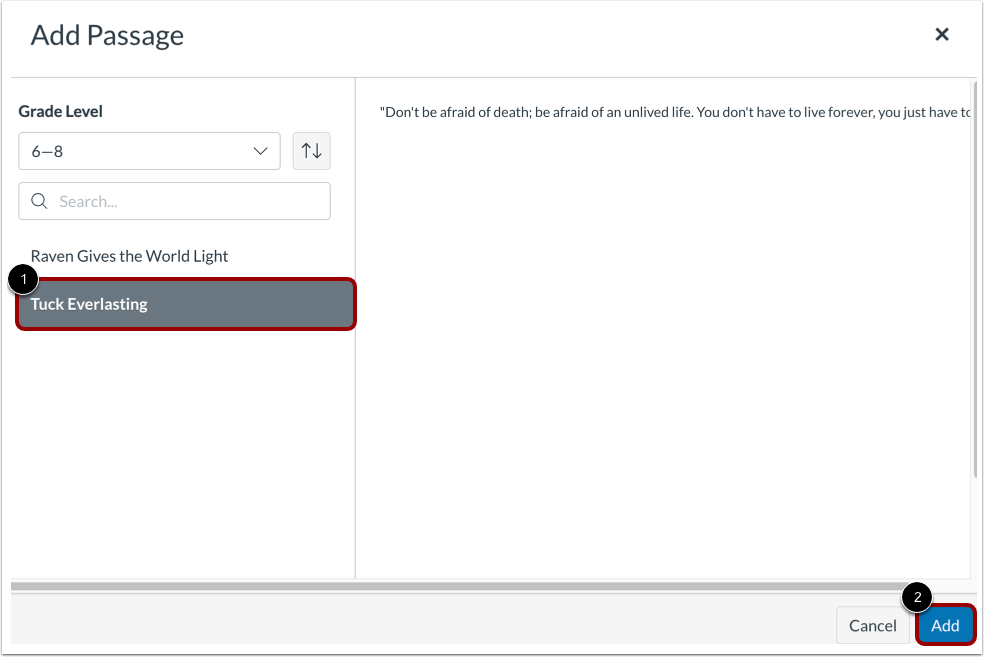
To add a passage to the item, click the passage name [1], and preview the passage.
Click the Add button [2].
Save Item
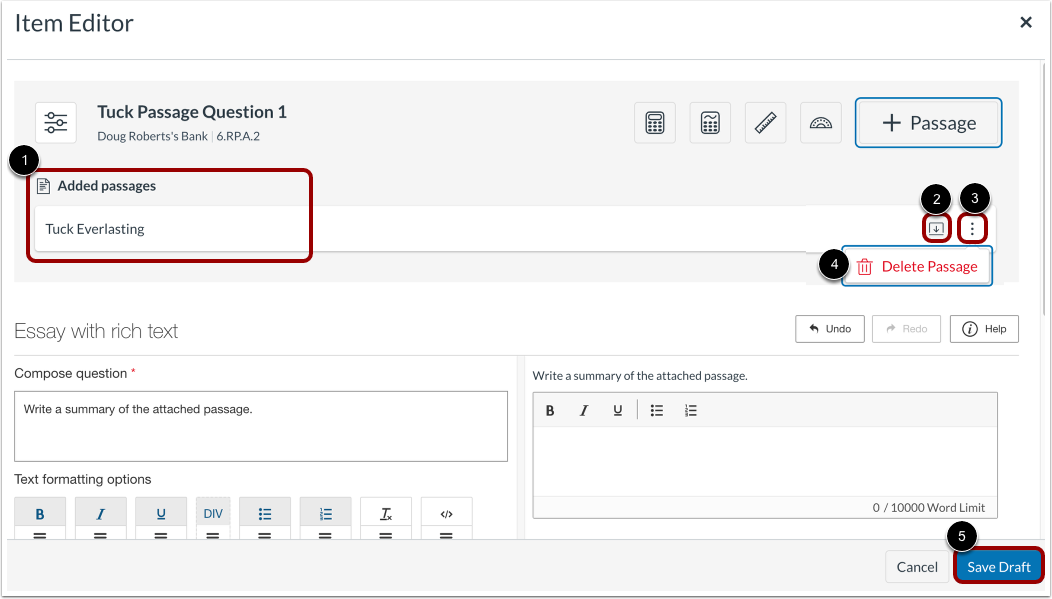
The passage name displays in the Item Editor [1].
To view the passage preview within the Item Editor, click the Expand icon [2].
To remove the passage, click the More icon [3], then click the Delete Passage link [4].
To save the item with the added passage, click the Save Draft button [5].