Assessment Item analysis data show how all students in the class responded to an item. You can make the item analysis visible or hide it from parents and students in the Mastery Connect parent and student portals. By default, the item analysis is hidden unless the settings are changed. You can change the privacy settings to hide the item analysis for all assessments in your tracker or for individual assessments.
Open Tracker
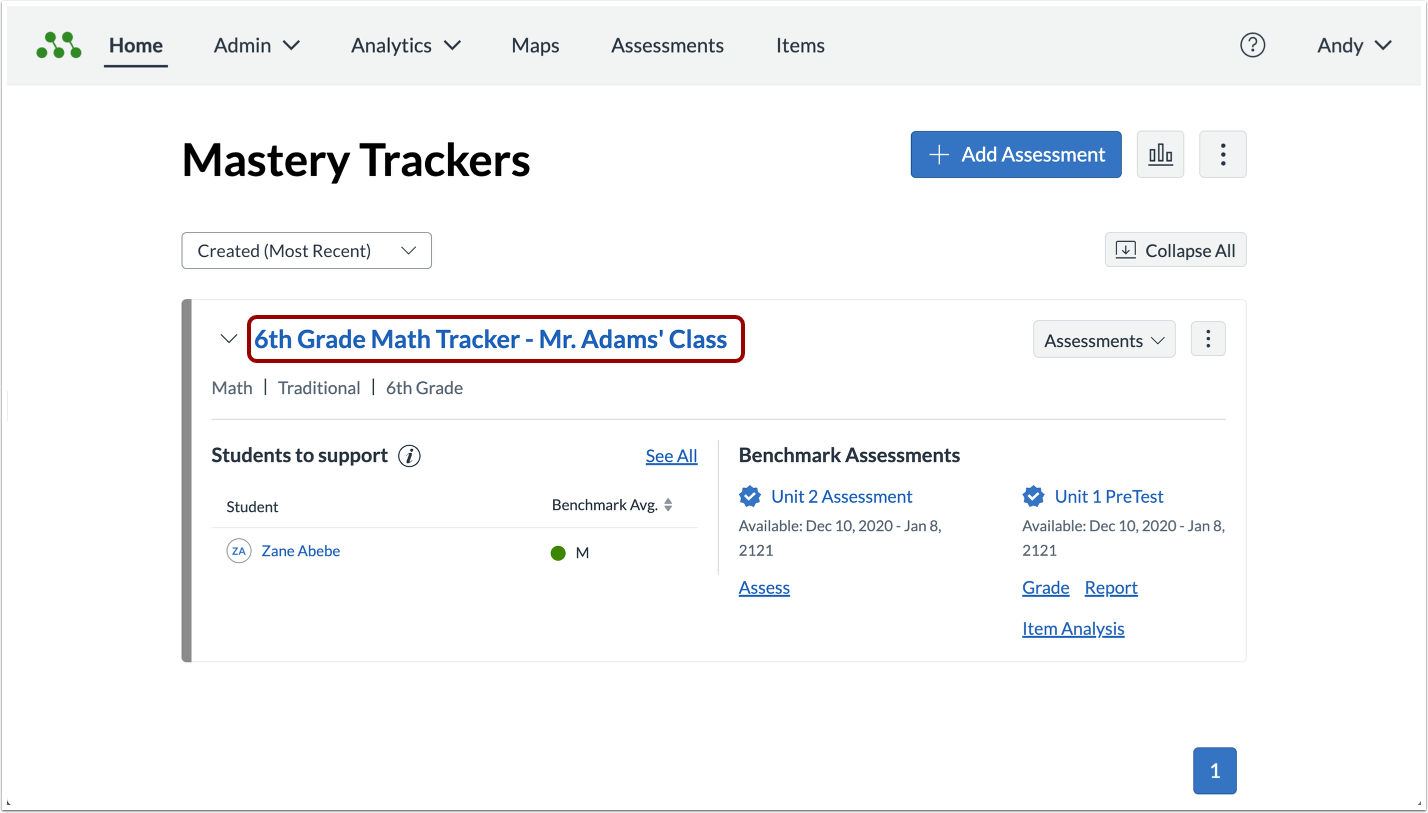
In the Home page, click the name of the tracker you want to edit.
Open Tracker Settings
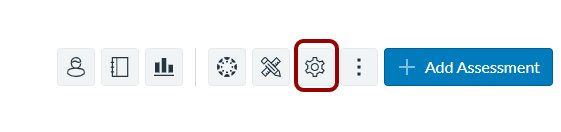
Click the Settings button.
Hide Item Analysis for All Assessments
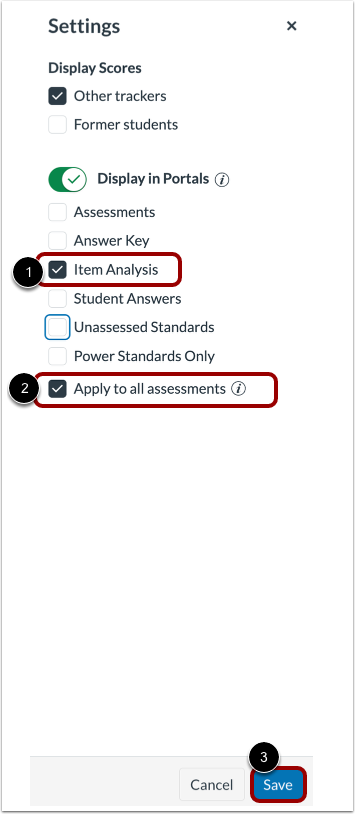
To hide the item analysis for new and existing assessments, deselect the Item Analysis checkbox [1].
To hide the item analysis for all assessments in the tracker, including those with individual privacy settings, check the Apply to all assessments checkbox [2].
To save the settings, click the Save button [3].
Hide Item Analysis for Individual Assessment
You can hide the item analysis data for an individual assessment through its privacy settings.
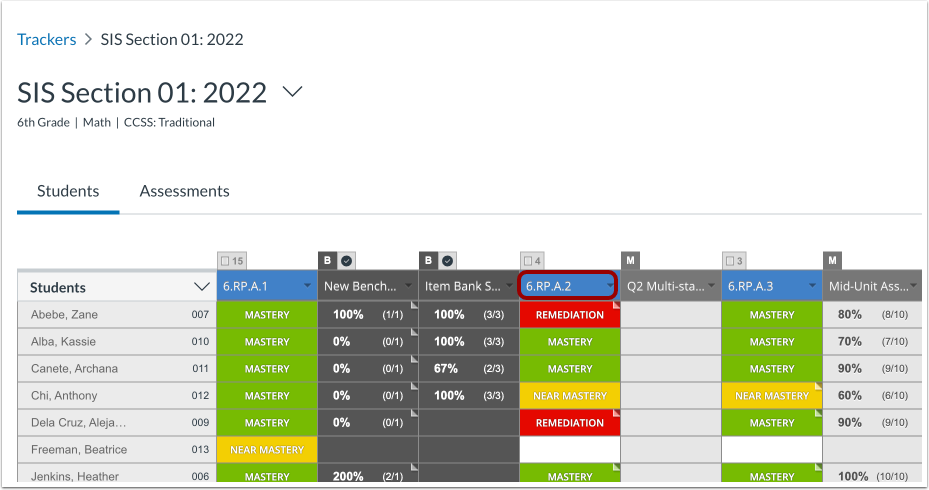
To open the privacy settings for a single-standard assessment, open the Standard Details page by clicking the title of the standard that contains the assessment whose item analysis you want to hide.
Open Single-Standard Assessment Privacy Settings
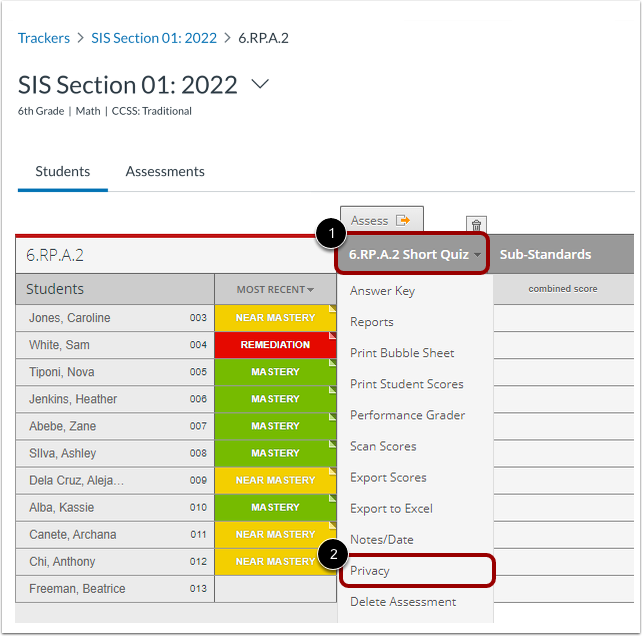
On the Standard Details page, hover over the assessment title [1], then select the Privacy option [2].
Open Multi-Standard Assessment Privacy Settings
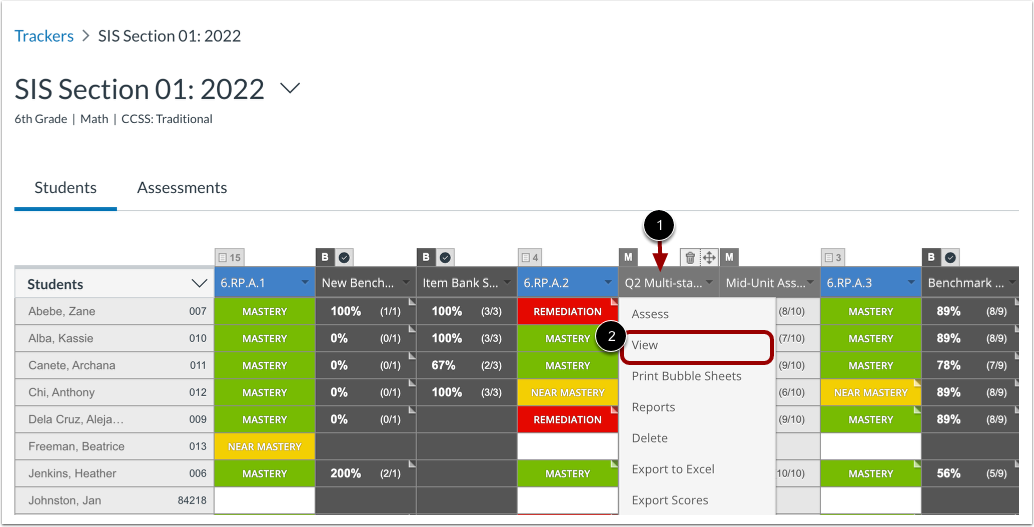
To open the privacy settings for a multi-standard assessment, in the Tracker View page, hover the cursor over the title of the assessment [1], and select the View option [2].
Change and Save Privacy Settings
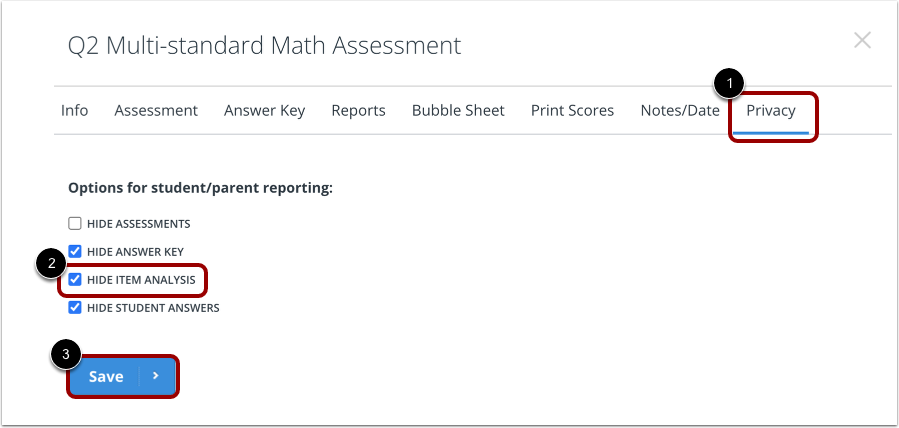
In the Assessment window, click the Privacy tab [1].
To hide the item analysis, click the Hide Item Analysis checkbox [2].
To save the settings, click the Save button [3].
Note: This setting is initially defined by the privacy settings of your tracker. If you make a change to the tracker assessment settings, and then change your tracker settings for all assessments, the tracker settings will override the individual assessment settings.