How do I activate student account logins as a teacher?
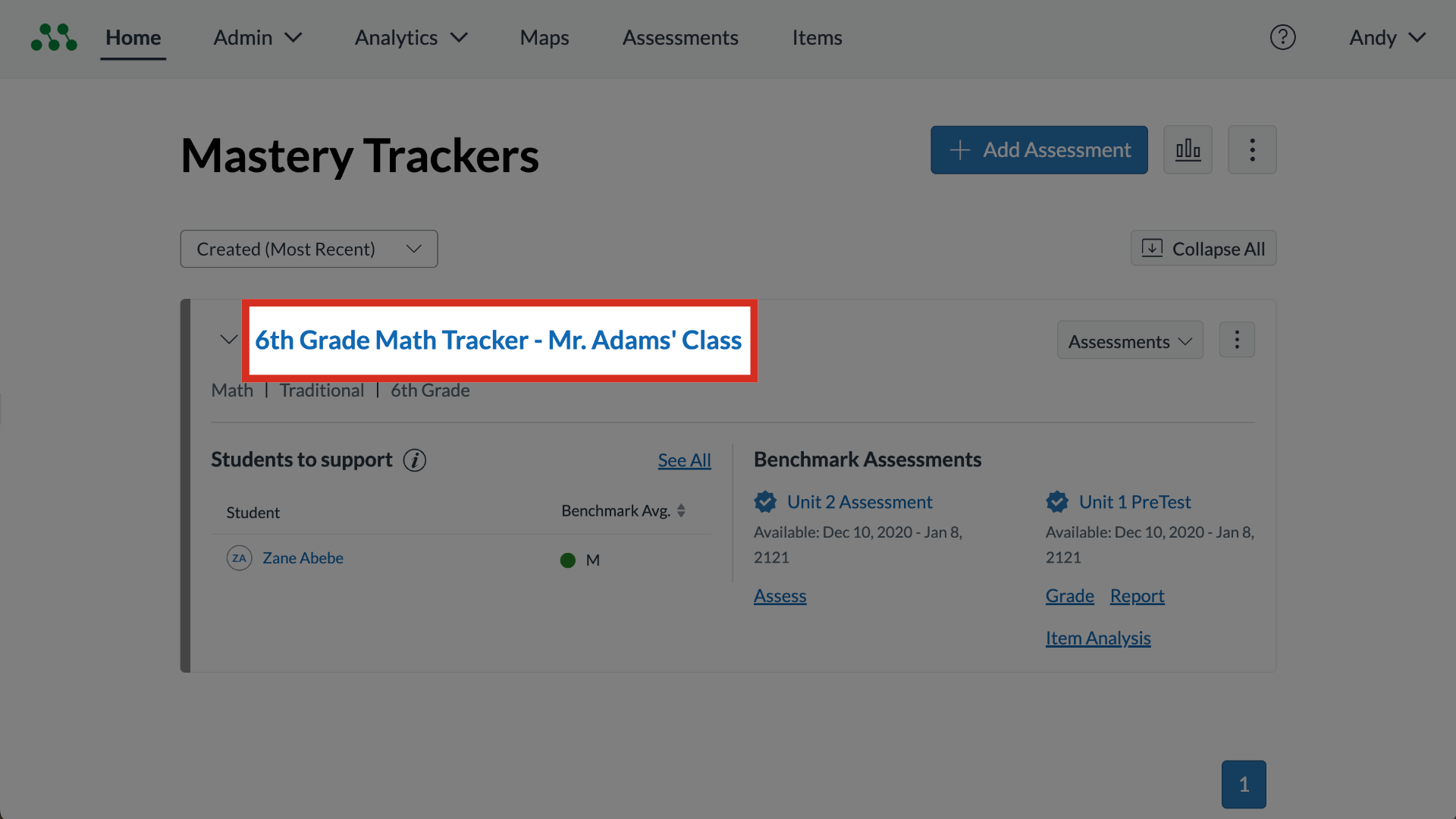
1. Select Tracker
To select a tracker, click the tracker name link.
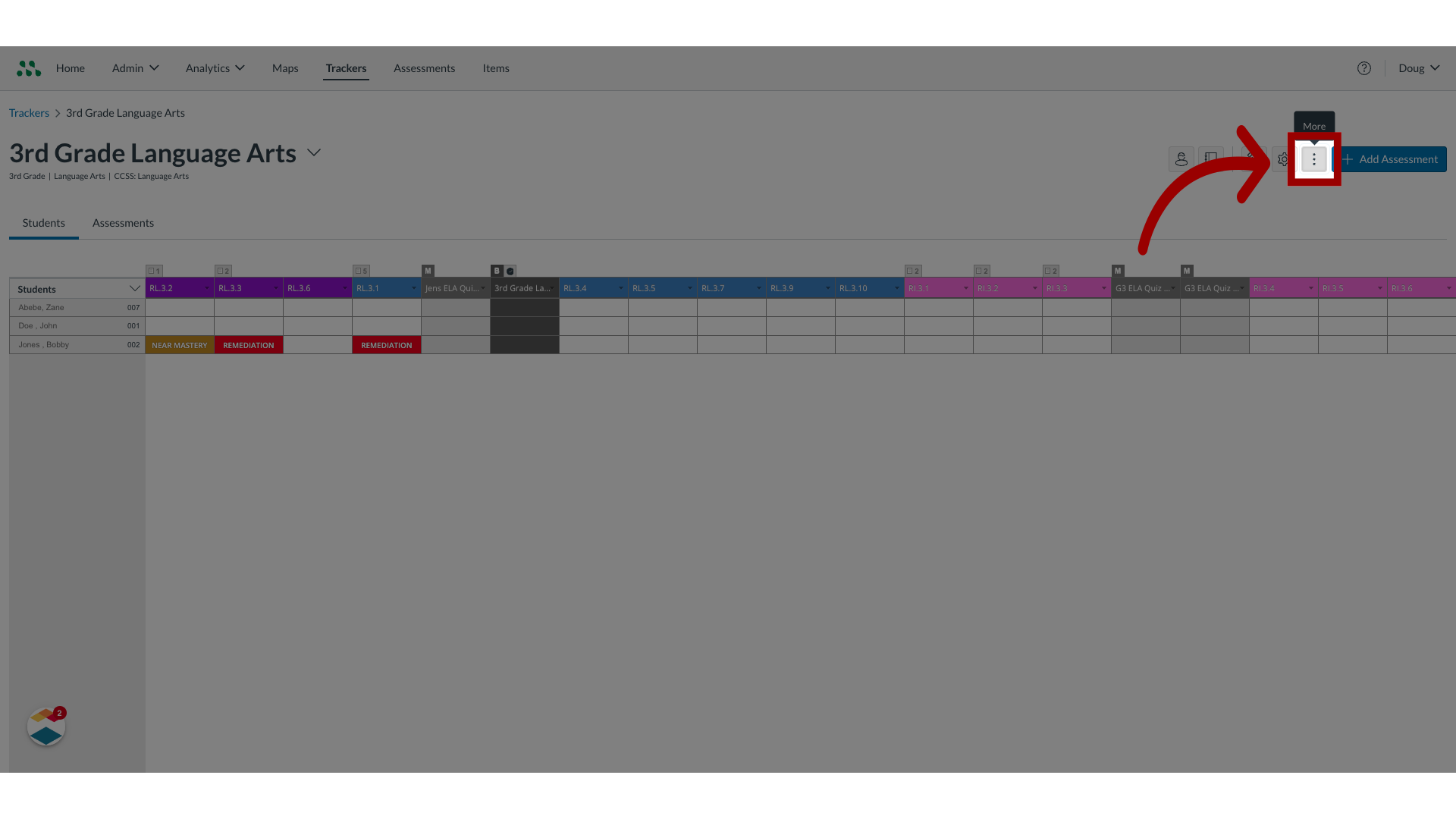
2. Open More Options
To access additional settings, click the More Options button.
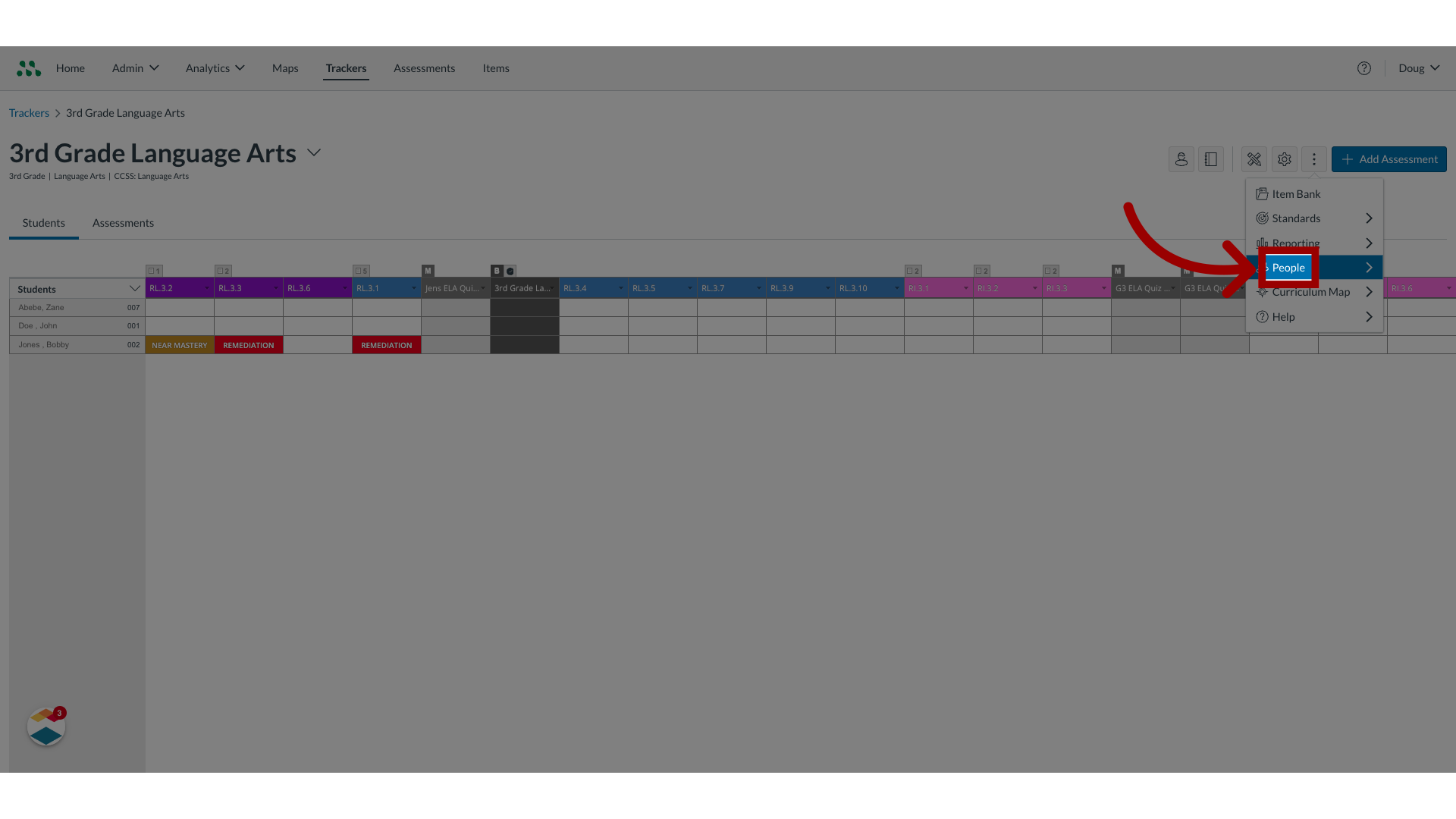
3. Select People
Click the People menu.
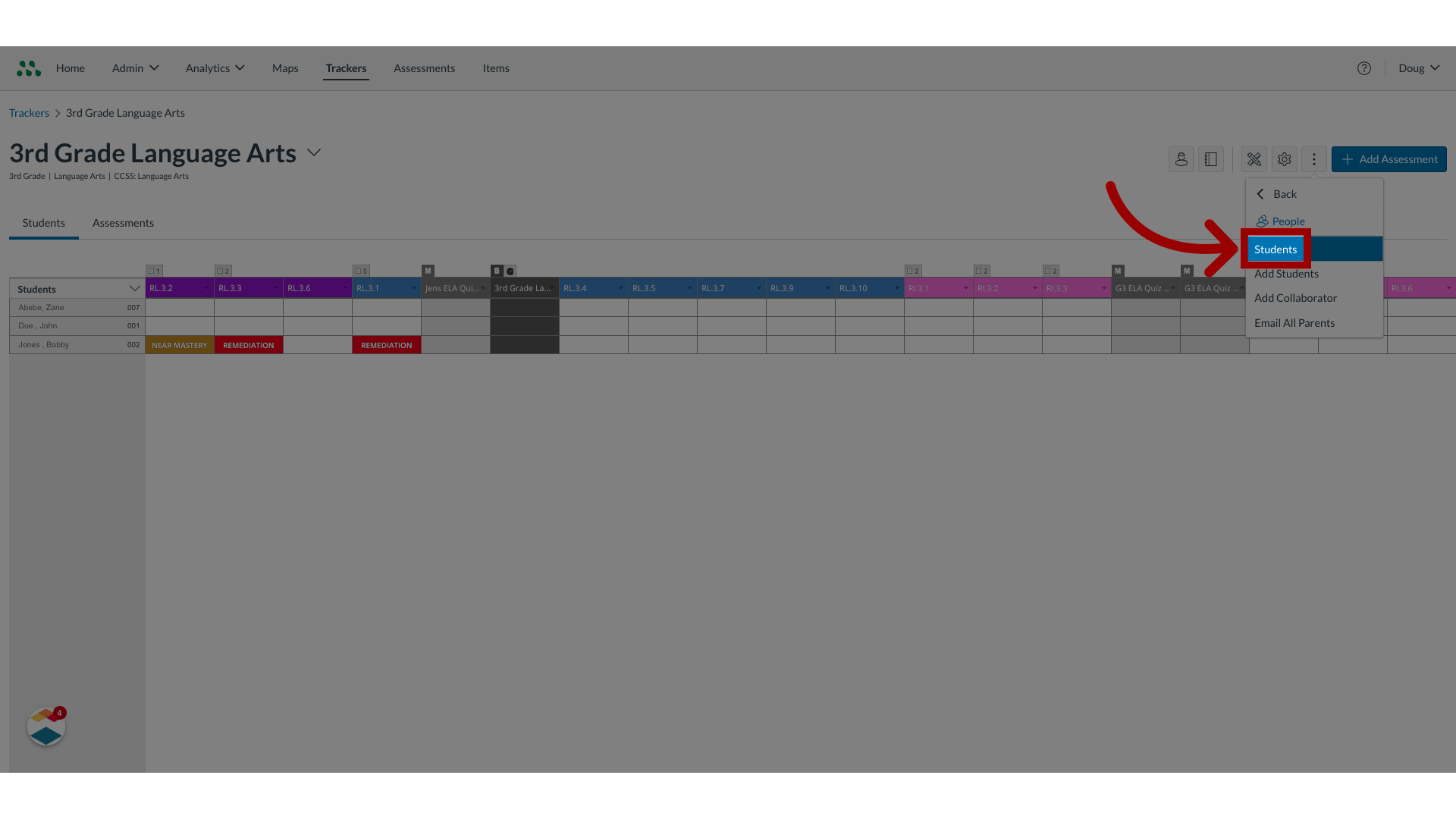
4. Select Students
From the People menu, click the Students option.
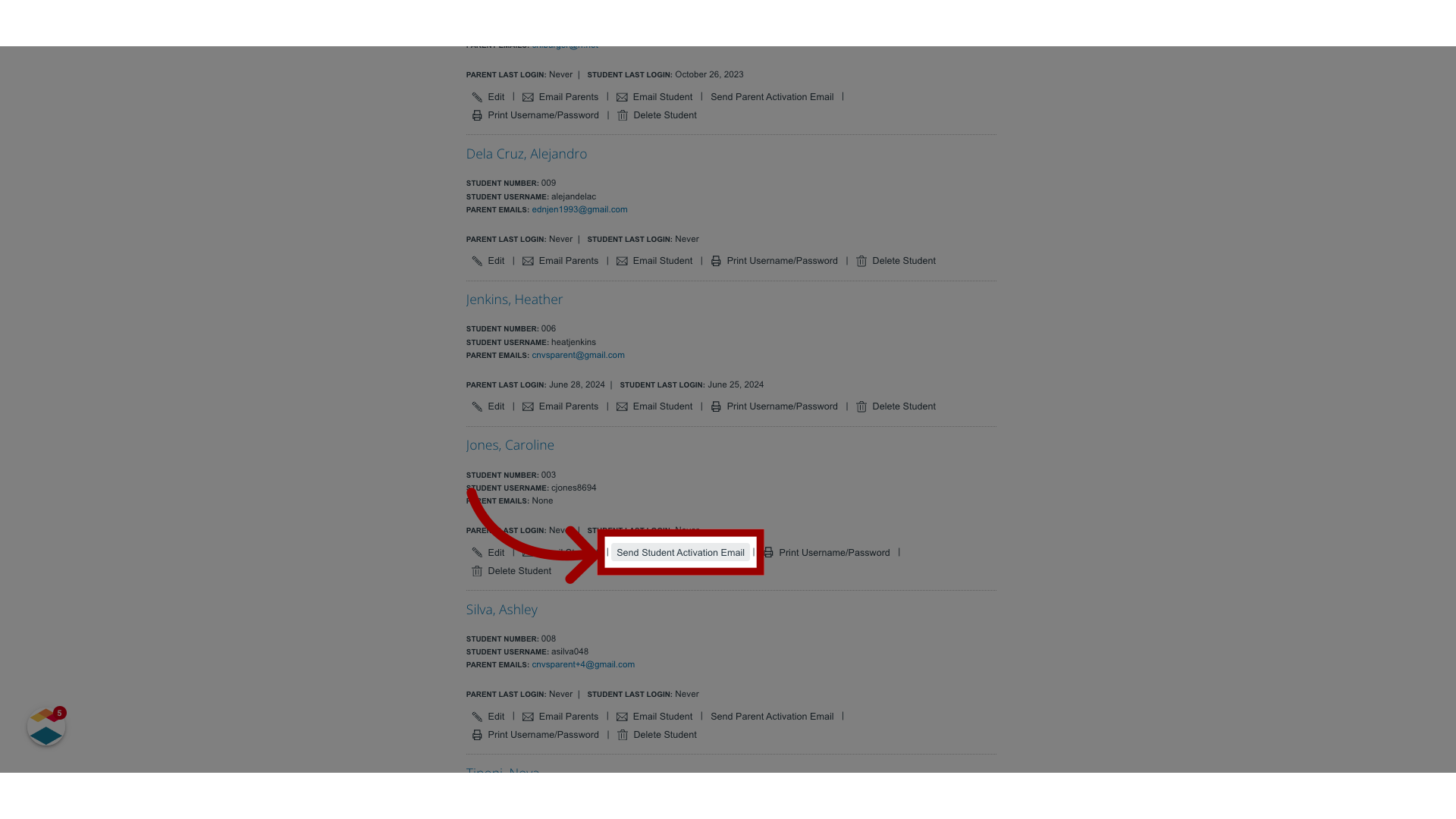
5. Send Student Activation Email
Click the Send Student Activation Email link.
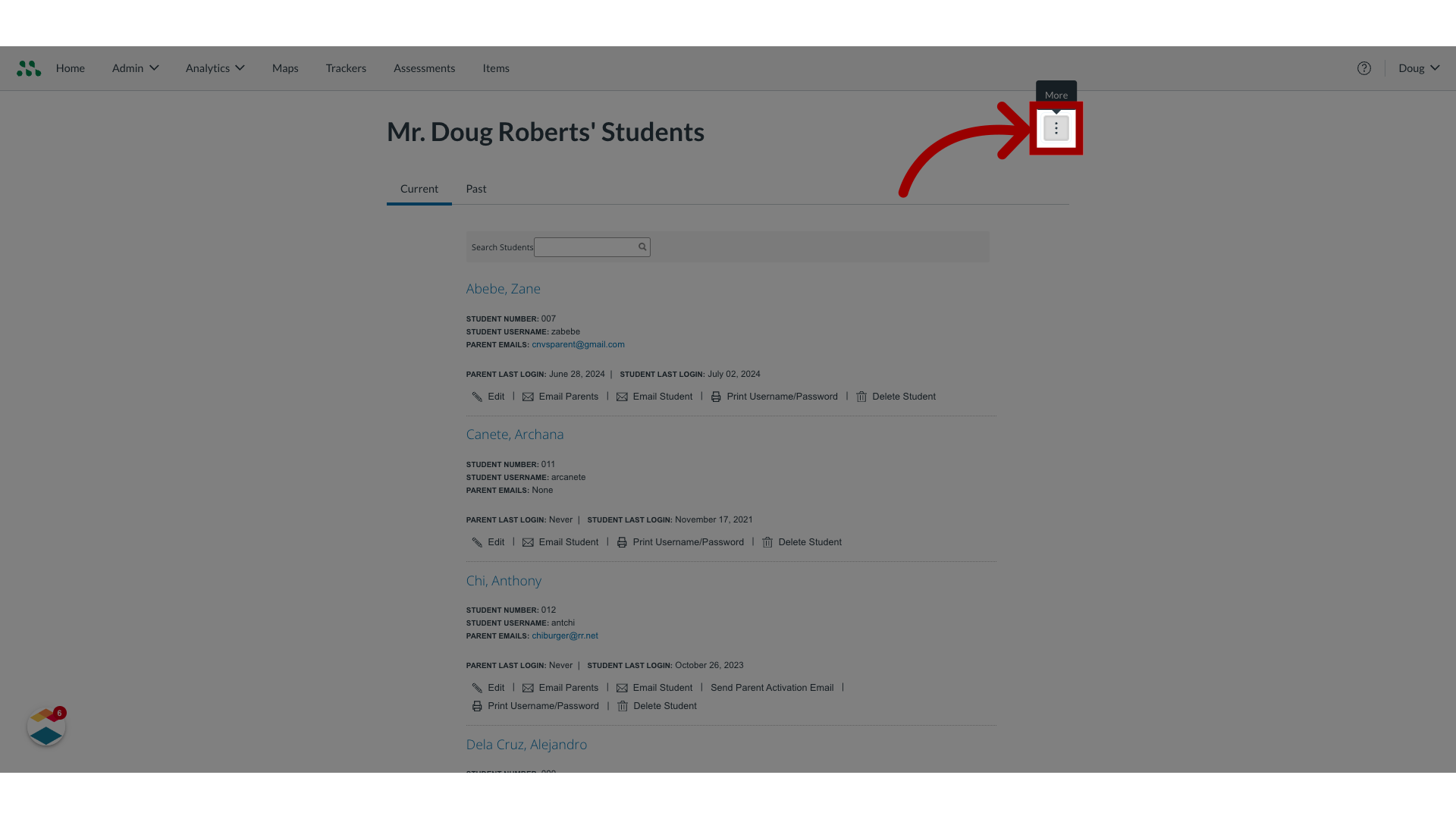
6. Select More Options
To send group activation emails, click the More Options button.
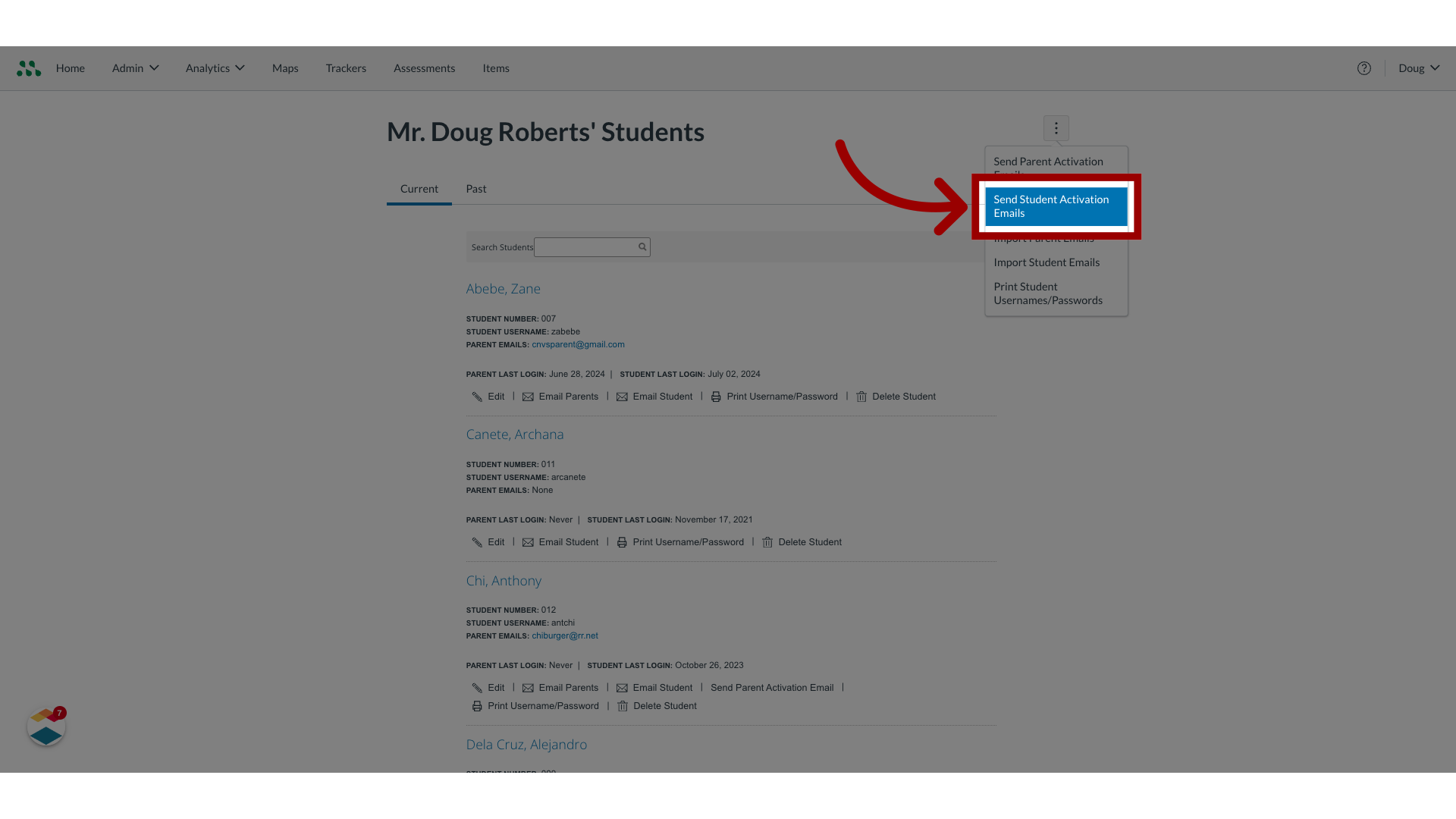
7. Send Student Activation Emails
Then click the Select Send Student Activation Emails option.
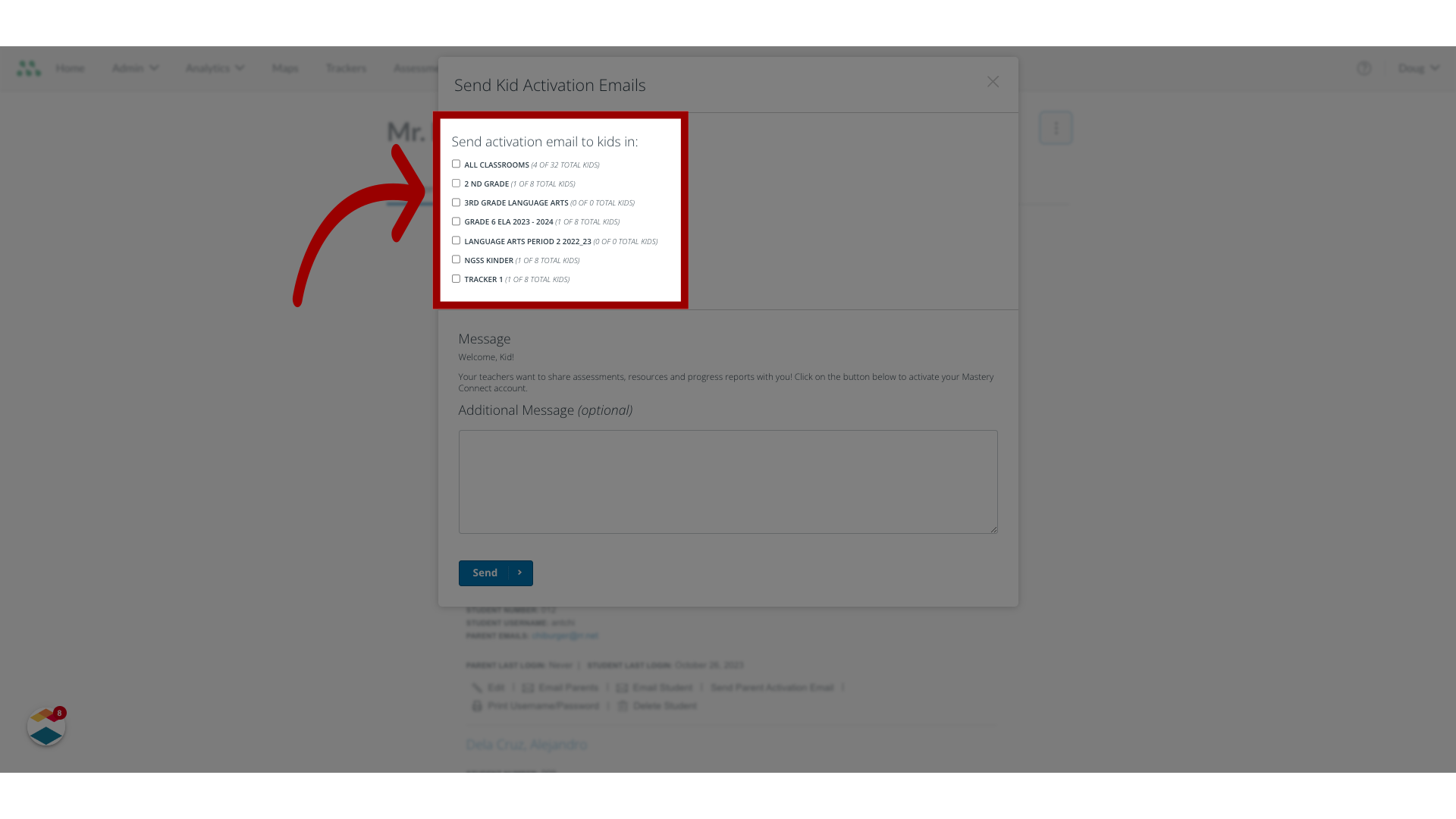
8. Select a Checkbox
To send activation email messages to all students in all trackers, click the All Classrooms checkbox. To send activation email messages to students in a specific tracker/class, click the tracker/class checkbox.
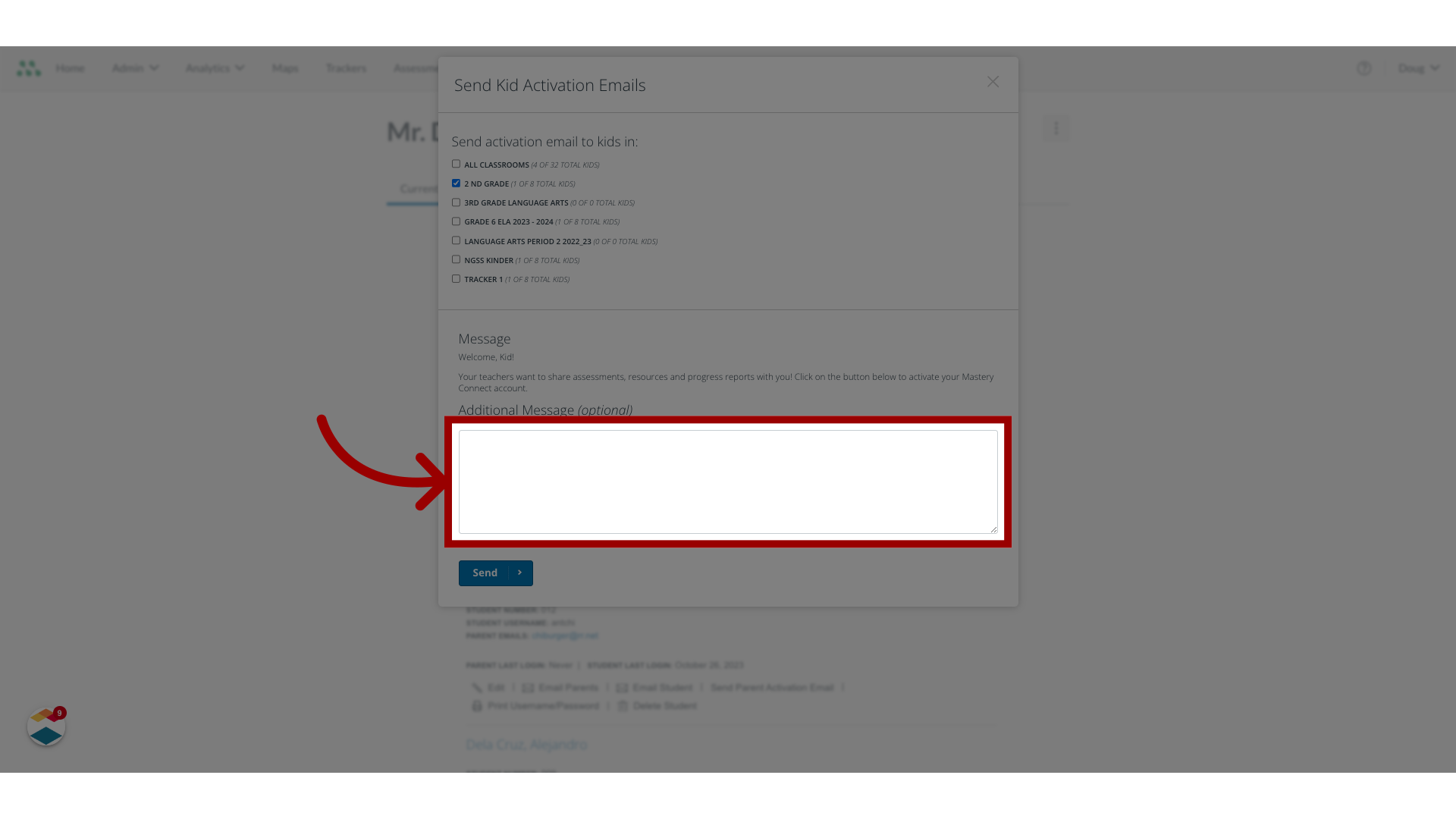
9. Enter Text
By default, the activation email contains a generic message. To add a personalized message, enter text in the Additional Message field.
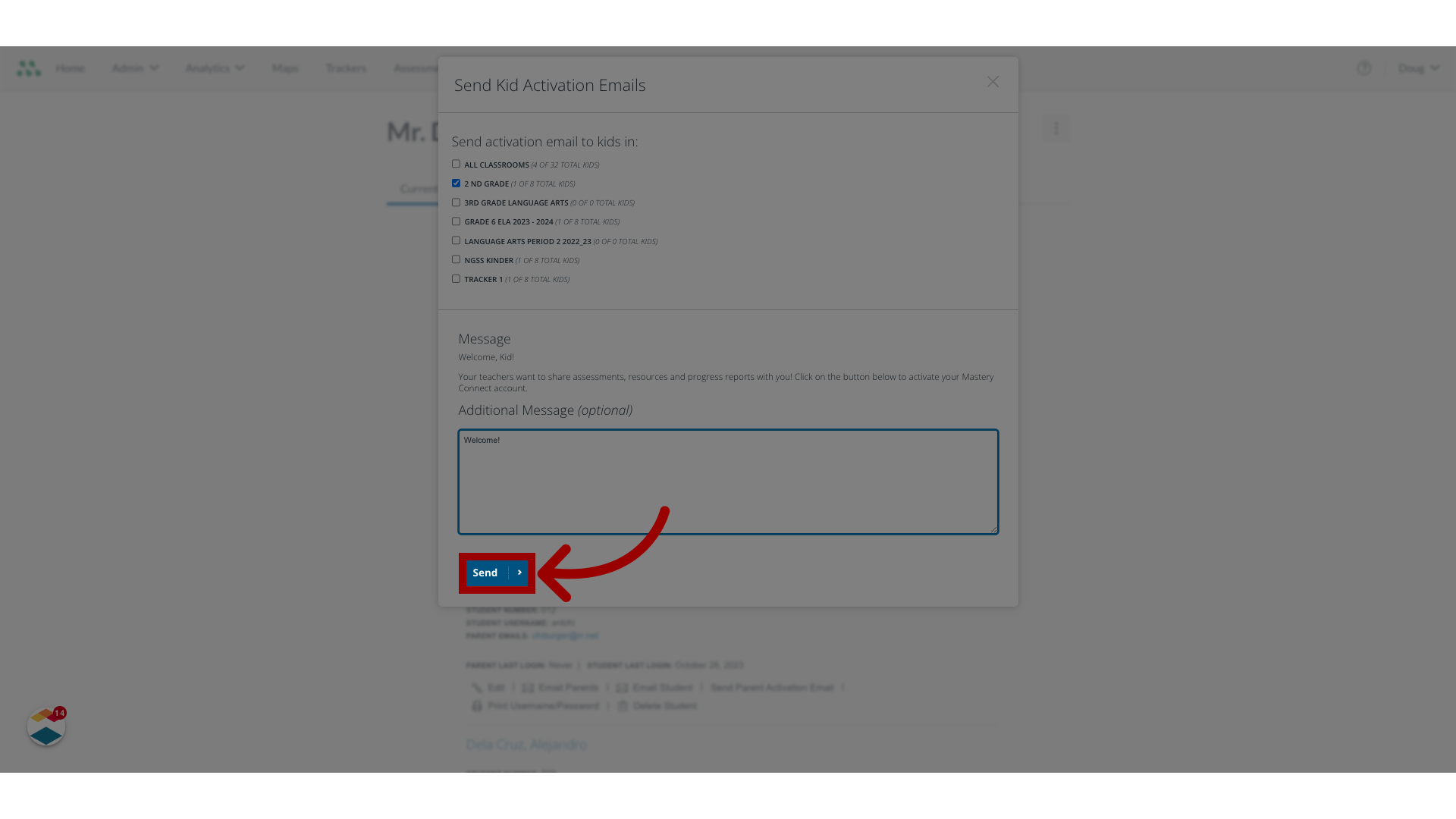
10. Select Send
Click the Send button.
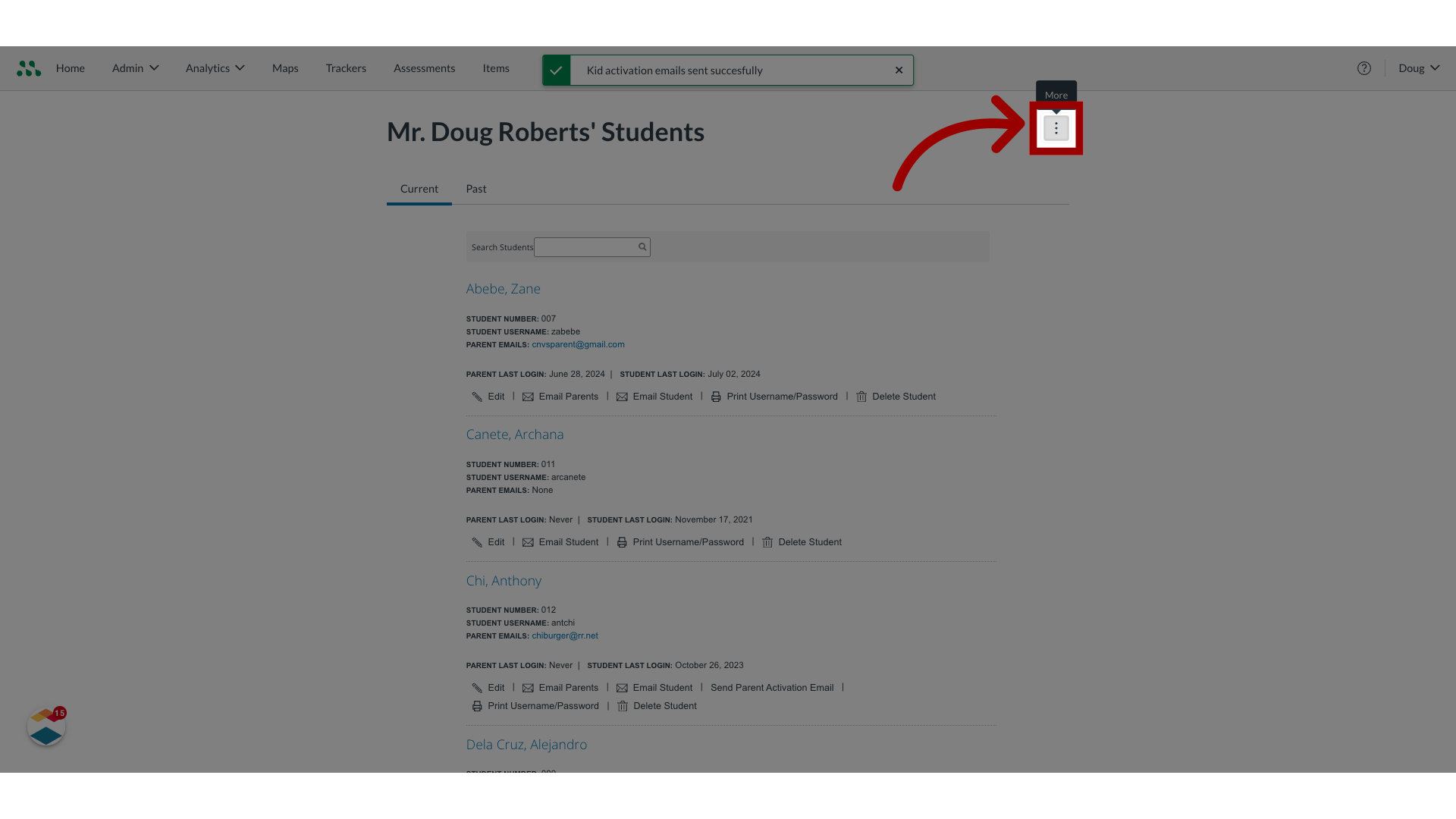
11. Select More Options
To view all usernames and passwords, click the More Options button.
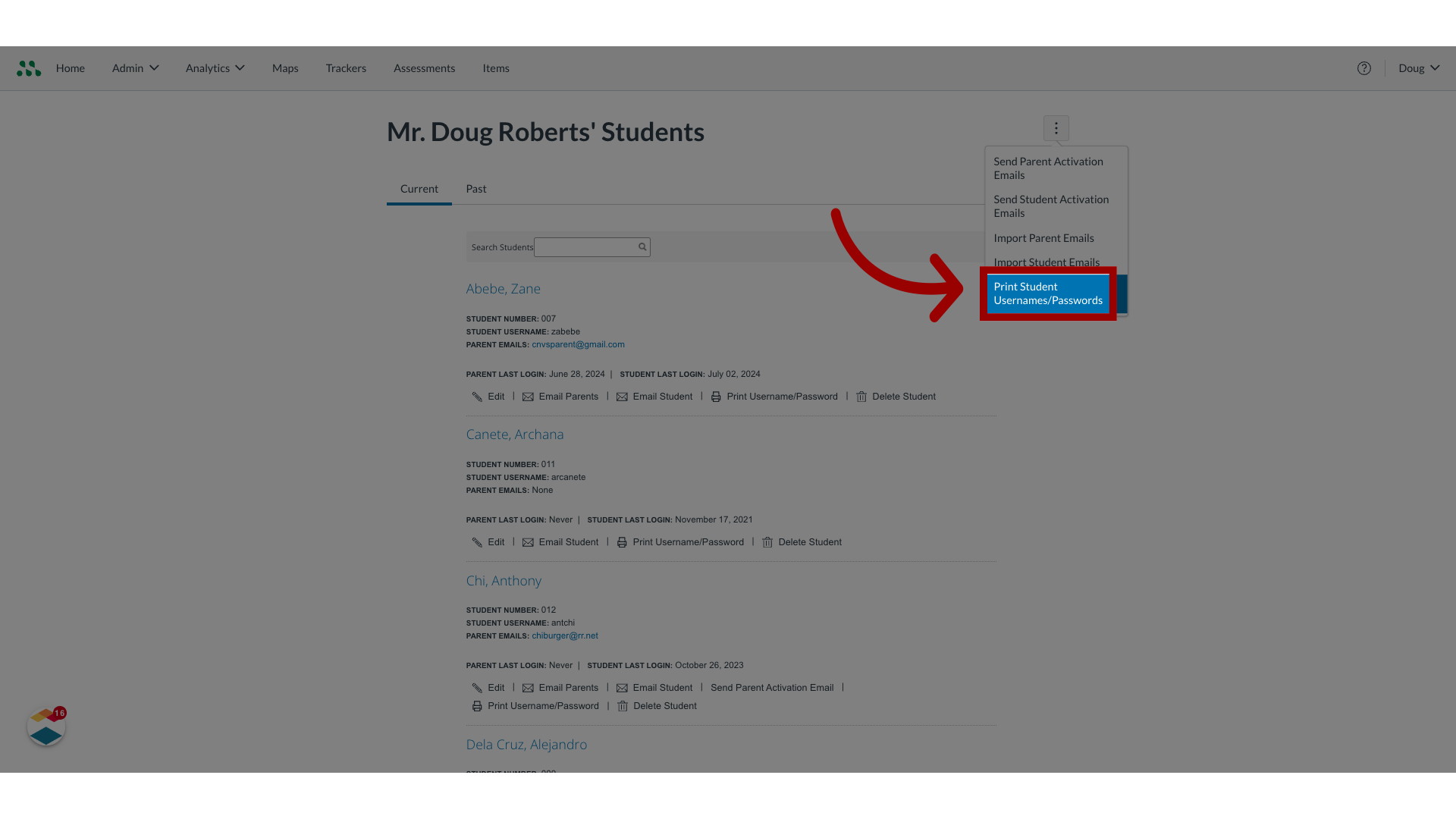
12. Print Student Usernames/Passwords
Then click the Print Student Usernames/Passwords option.
13. View the Printable Page
The printable page displays information for all students in each of your trackers.

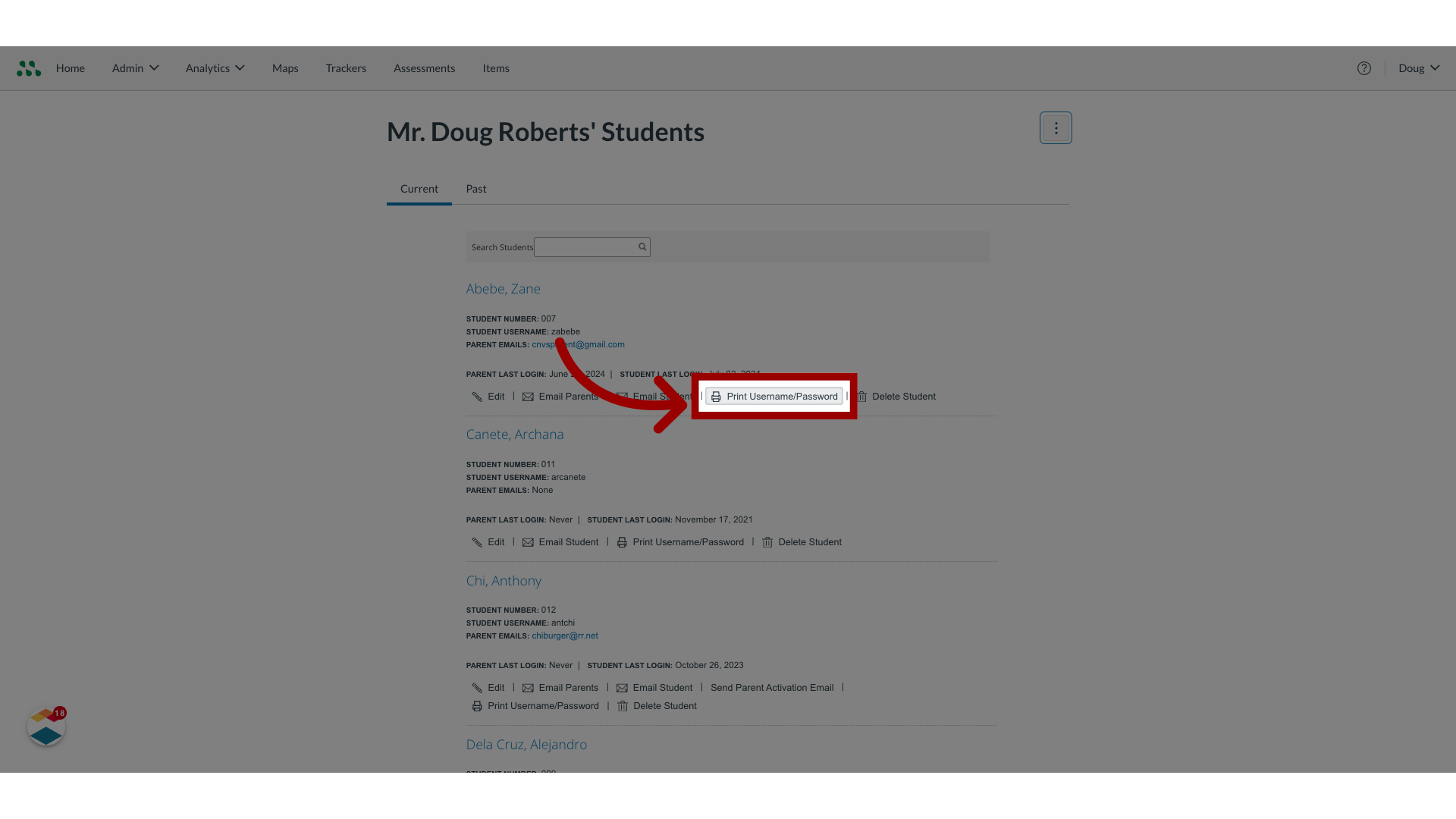
14. Print Username/Password
To print an individual username and password, locate the student name in the list and click the Print Username and Password link.
This guide covered how to activate student account logins as a teacher.