You can manage the visibility of student assessment information in parent and student portals. From a tracker, you can adjust the assessment privacy settings for all the assessments in the tracker. You can hide or display the following for all the assessments in a tracker or only those without individual settings:
- Assessment source material
- Assessment answer keys
- Item analysis data
- Individual student answers
- Unassessed standards
- Power standards only
You can also control the visibility of student assessment data for individual assessments.
Open Tracker
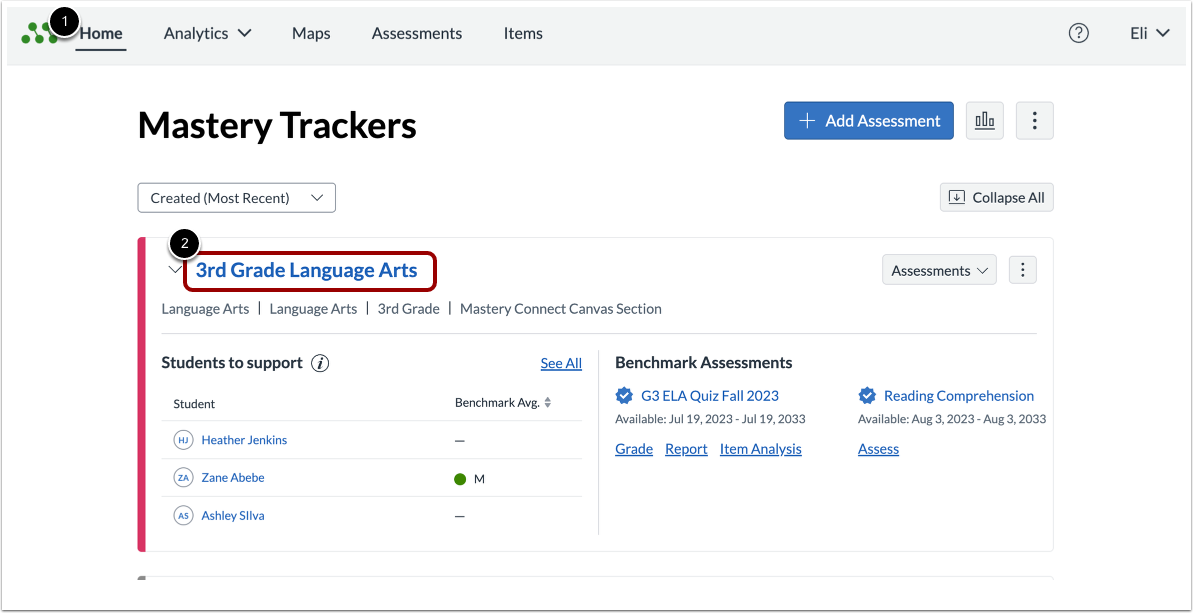
In the Mastery TrackersHome page [1], click the tracker name link [2].
Open Tracker Settings
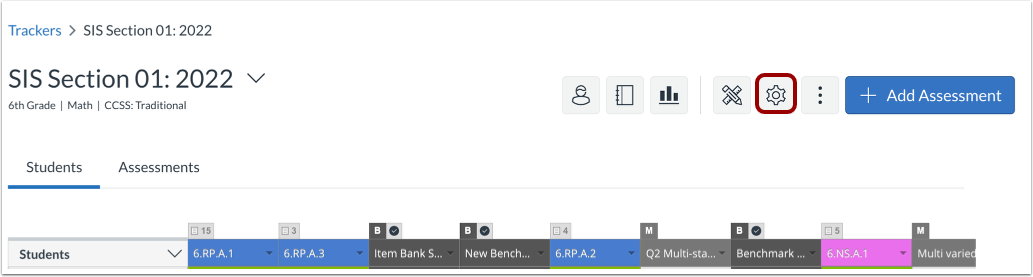
In the Tracker View page, click the Settings button.
Manage Portal Displays
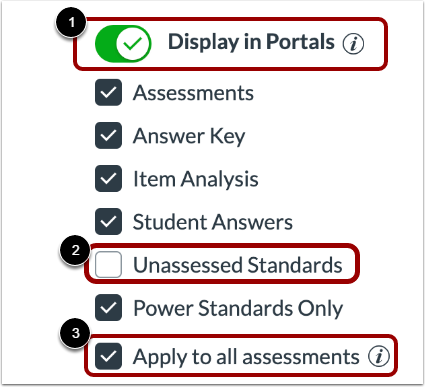
To allow students and parents to view assessment data, click the Display in Portals toggle [1].
When the Display in Portals toggle is turned on, assessment display options are turned on by default. Selected options will display assessment details in the portals. To hide a detail from parent and student portals, click the checkbox to deselect it [2].
To override privacy display settings for individual assessments, leave the Apply to all assessments checkbox selected[3]. Alternatively, to apply the settings only to new assessments and those without individual settings, click the Apply to all assessments checkbox to deselect it.