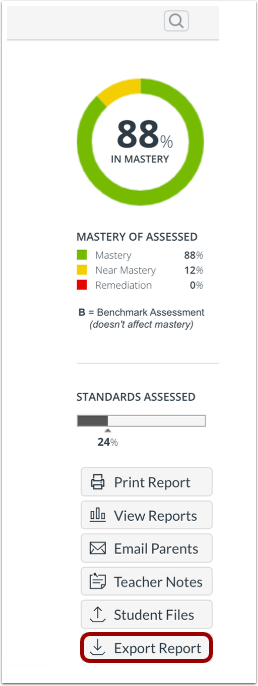
In the Mastery Connect Student Report page, you can export a CSV-based report that displays a list of current mastery and assessment results for all standards assessed for an individual student.
Note: If the steps in this lesson do not match what is displayed in your account, you may be using the Legacy View. For Legacy View steps, refer to How do I export a student mastery summary report in Legacy view?.
Open Tracker
In the Home page, click a tracker name link [1].
Open Student Report Page
Click the student's name in the tracker student list [1]. Then click the View Mastery Report link [2].
Export Report
In the Student Report page, click the Export Report button.
The CSV downloads automatically and can be opened from the download file in your computer.
View Exported Report
The report header displays the student ID number and name, the tracker subject and grade, and the teacher name [1].
Overall mastery displays [2]. The following rows display the standard ID [3], current student mastery [4], and assessment scores [5] for each standard in the tracker.
Note: If there are collaborators on the tracker, their names also display in the header.