After you edit or create in item within an assessment in Mastery Connect, you can use the Item Editor to add item-level tools to an item. You can add a calculator, a ruler, or a protractor.
Notes:
Open Assessments
In the Global Navigation menu, click the Assessments link.
Open Assessment Editor
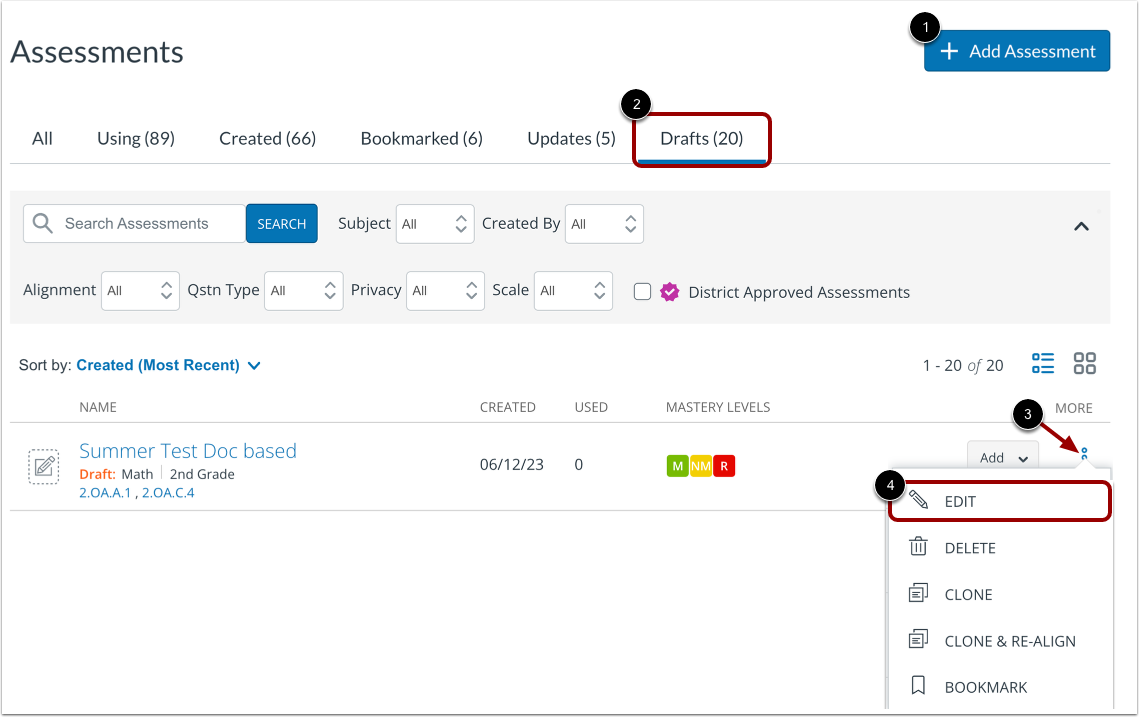
You can create a new item-based assessment [1] or edit an drafted item-based assessment.
To locate an existing drafted assessment, click the Drafts tab [2]. Then, to open the Assessment Editor, click an assessment's More Options icon [3], and click the Edit link [4].
Note: To add a calculator, ruler, or protractor to items contained within an assessment, the assessment must be in draft state.
Open Item Editor
In the Assessment Editor, edit an existing item or author a new one.
To edit an existing item, click its More Options icon [1]. Then, click the Edit link [2].
Alternatively, to create a new item, click the Add Item drop-down menu [3], and click the Author New Item link [4].
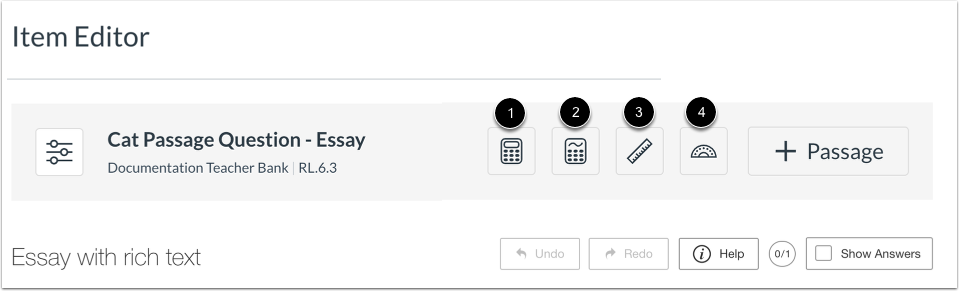
In the Item Editor, you can select a tool group, and then select a specific tool. You can add any of the following tools:
- Basic, extended, or scientific Mastery Connect calculator [1]
- Desmos scientific, four function, graphing, or matrix calculator [2]
- 6 inch, 12 inch, 15 cm, or 30 cm ruler [3]
- Protractor [4]
Add Tool
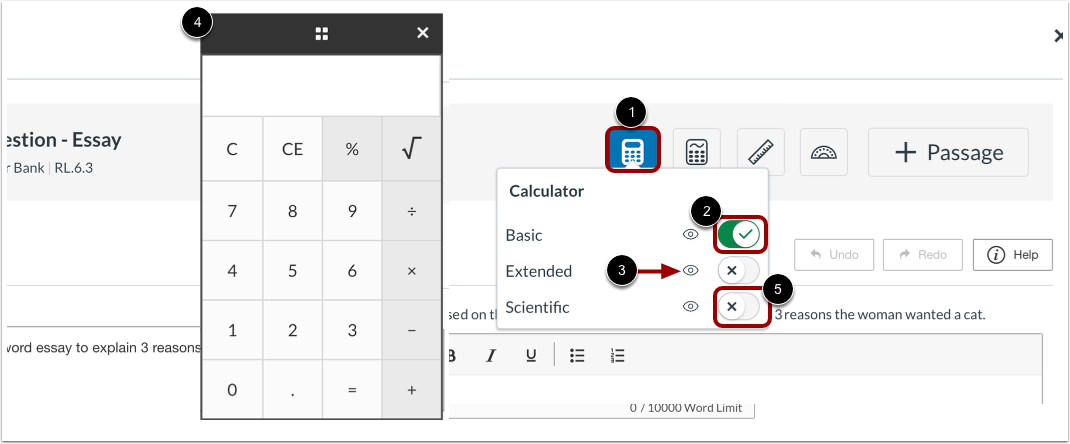
To add a tool to the item, click a tool group button [1]. Then, in the tool menu, click a tool toggle button on [2].
To view a tool, click the View preview icon [3]. A preview displays [4].
To disable a tool, click the tool toggle button off [5].
Save Item
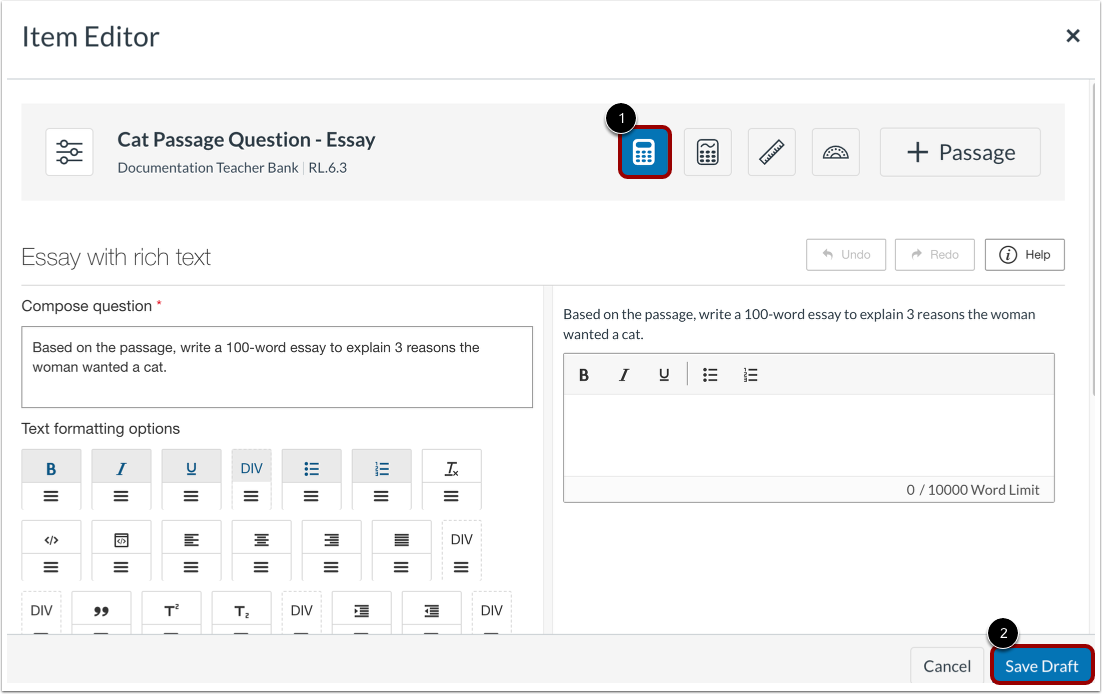
Selected tools become shaded [1].
To save the item with the added tool, click the Save Draft button [2].