By default, standards display a short description on the curriculum map. However, you can view the full description and any customized description. The standard's associated authority provides the short and full descriptions.
Note: A standard only has customized/reworded description if one was added from a curriculum map or from a tracker.
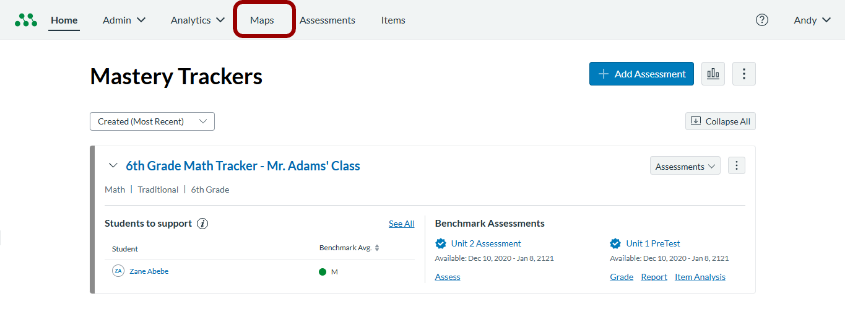
Open Maps
In the Global Navigation menu, click the Maps link.
Open Curriculum Map
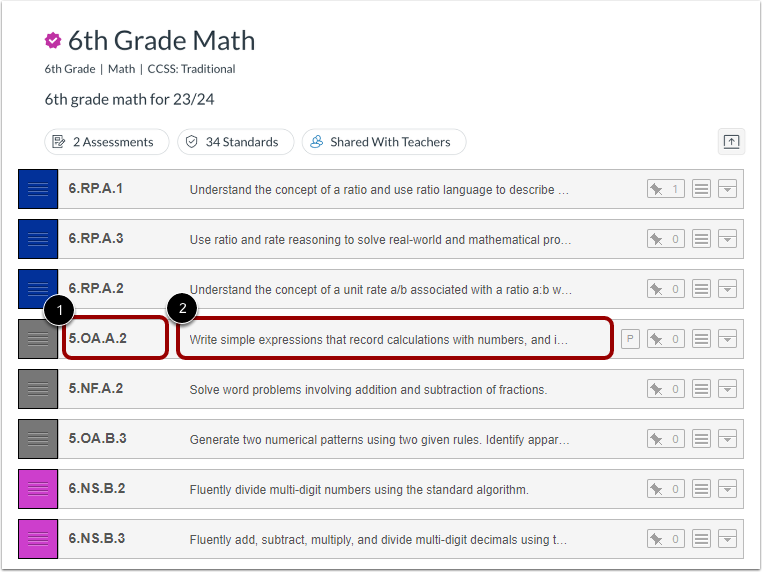
Click a curriculum map name link.
View Standard
By default, a curriculum map displays the standard abbreviation [1] and short description [2].
Expand Standard Details
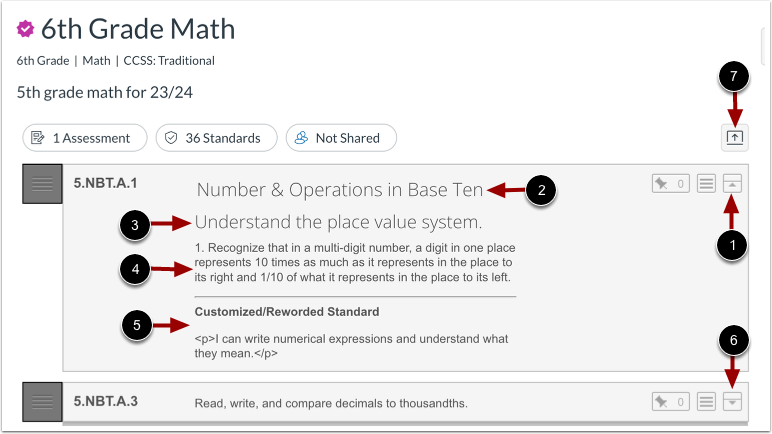
To view standard details, click the standard's Expand icon [1].
An expanded standard displays the standard's full description, which includes the academic domain [2], strand [3], and default description [4]. If the standard description has been customized or reworded, the customized/reworded version displays [5].
To hide the standard details, click the expanded standard's Collapse icon [6].
To view or hide standard details for all standards, click the Expand All or Collapse All icon [7].
Learn more about customizing or rewording standard descriptions.
Open View Standard
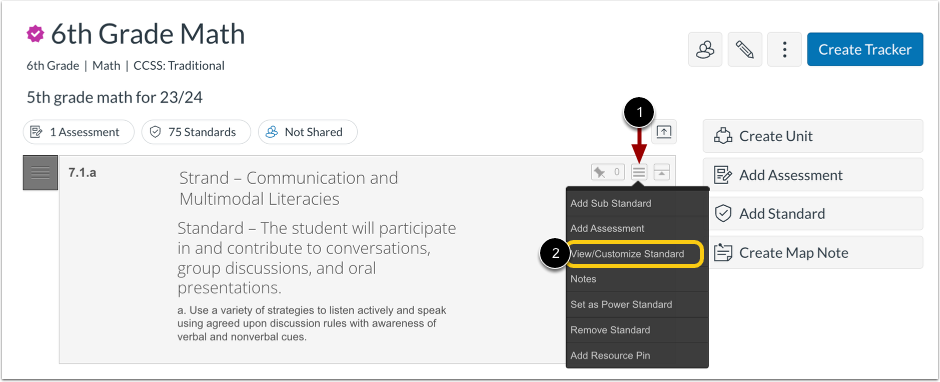
To view standard details in a separate window, hover over the standard's Standard Options icon [1], then click the View/Customize Standard option [2].
Note: If you do not own the curriculum map, the Standards Options menu displays the View Standard option.
View Standard Description Window
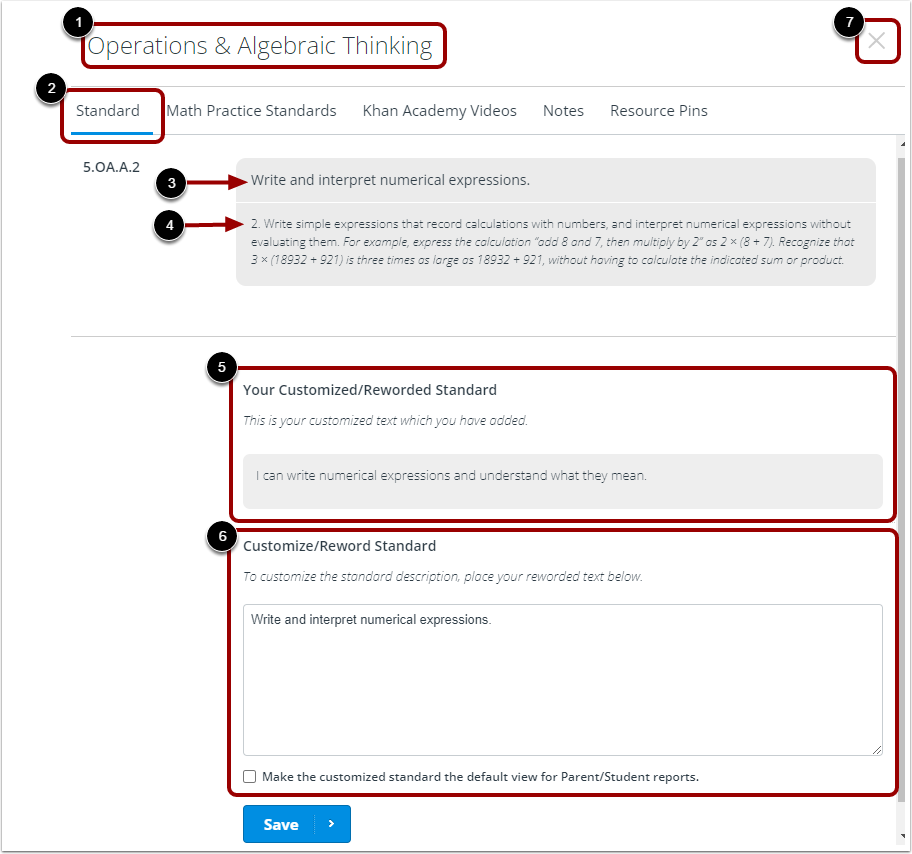
The window displays the academic domain of the standard [1]. By default, the window opens to the Standard tab [2]. You can view the full description, which includes the strand [3] and the default description [4].
You can view descriptions that were reworded from a tracker in the Your Customized/Reworded Standard section [5].
You can also customize or reword the standard description in the Customize/Reword Standard section [6].
To close the window and return to the curriculum map, click the Close icon [7].