You can print any curriculum map to which you have access. You can use basic printing to print the map in color as shown on the screen, or you can used advanced printing. Advanced printing allows you to select which standards, sub-standards, units, and other map details appear in the printout.
Note: If the steps in this lesson do not match what is displayed in your account, you may be using the Legacy View. For Legacy View steps, refer to How do I print a curriculum map in Legacy view?.
Open Maps
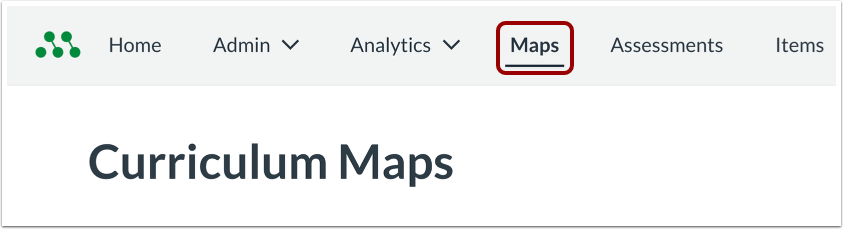
In the Global Navigation menu, click the Maps link.
Open Curriculum Map
Click the curriculum map name link.
Open Printing Options
Click the More button [1]. Then click the Print Curriculum Map link [2].
Print Using Basic Printing
By default, the Basic Printing options display on the Basic tab [1]. To print the entire curriculum map as shown on the screen, click the Print button [2].
Print Using Advanced Printing
To optionally print parts of the map, click the Advanced tab [1].
To print individual units, select options in the Units and Standards section [2]. Then, specify which unit details to print by selecting options in the Unit Details section [3].
To print individual standards or sub-standards, select options in the Units and Standards section [2]. Then, specify which standard details to print by selecting options in the Standard Details section [4].
To print assessments or overall curriculum map notes, select options in the Map Details section [5].
De-Select or Select Items to Print
By default, all items are selected for printing.
To deselect all items, click the global Select All checkbox [1].
To deselect all items in a section, click the section's Select All checkbox [2].
To deselect an individual item, click the item's checkbox [3].
Select individual items by clicking the checkboxes [4].
Notes:
- If you select units to print, you must select options in the Unit Details section.
- If you select standards to print, you must select options in the Standard Details section.
Print Selected Items
To open a preview of the selected items, click the Print Advanced button [5].
Print as Shown
Preview your printout [1].
If the preview does not display colors or thumbnails correctly, verify that Background graphics is enabled in your browser's print settings [2].
To print the curriculum map as shown in the preview, click the Print button [3].