You can enable and customize various tools for individual students in item-based Enhanced Accommodation (EA) assessments. For an individual student, you can enable specific tools for formative and benchmark assessments. Some tools may also have additional customization options depending on the assessment type.
Notes:
- When you modify tool settings for an individual student, the tracker-level settings update to "Manually set for each student."
- To configure tools for all students in a tracker, you can manage them at the tracker level.
- Some tools may have language-specific settings. Ensure that user-created content aligns with the selected tool settings for optimal functionality.
- From a tracker, you can export a student list that includes each student's tool settings.
- Tools and accommodations that are set at the district admin level are 'sticky' accommodations, which remain consistent across all assessments within the tracker.
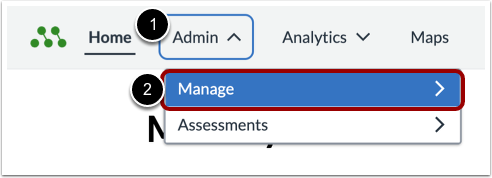
Open Admin Manage
In the Global Navigation, click the Admin drop-down menu [1], then click the Manage menu [1].
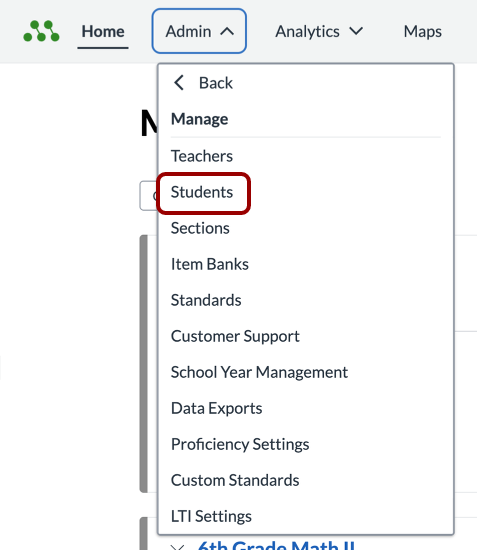
Open Admin
In the Manage menu, click the Students link.
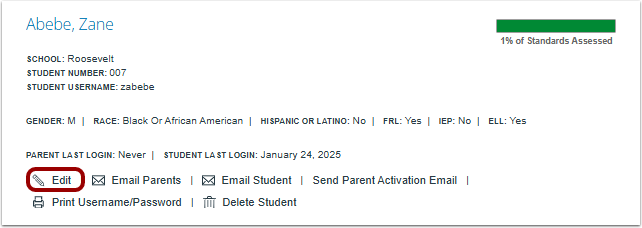
Edit Student
Find the student’s name and click the Edit link.
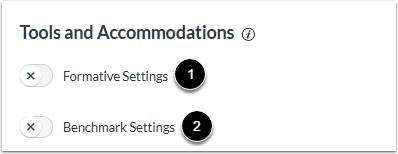
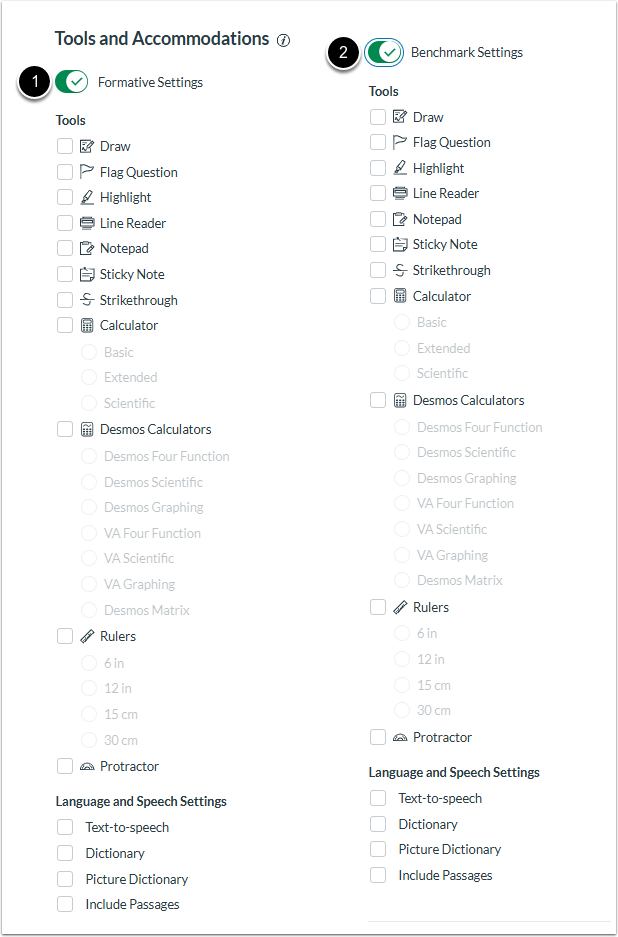
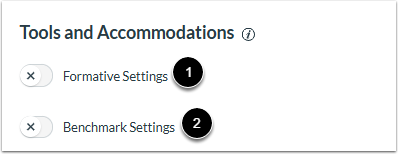
In the Tools and Accommodations section, enable or disable the toggles for Formative Assessments[1] and Benchmark Assessments[2] to customize individual student accommodations based on assessment type.
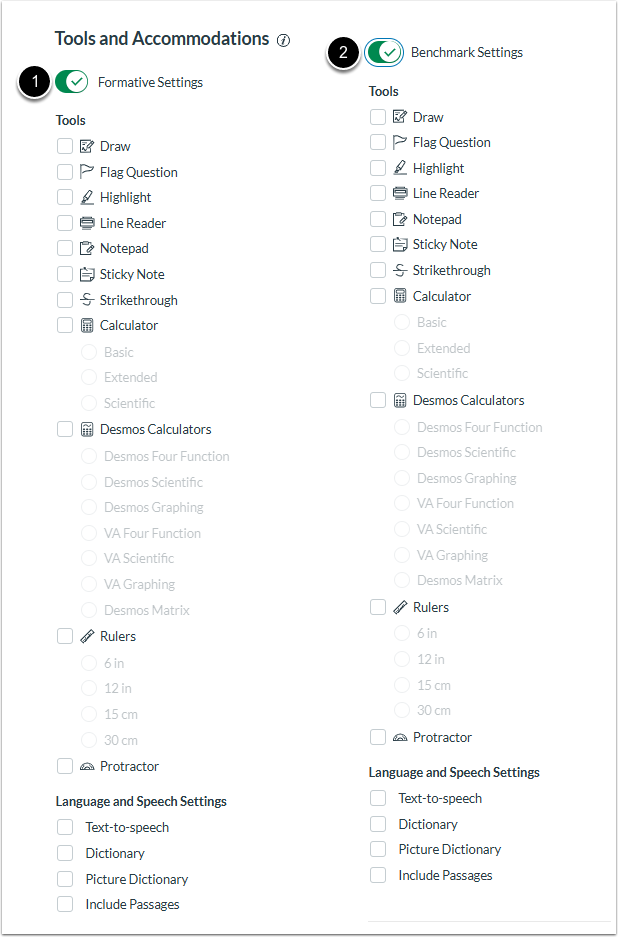
In the Tools and Accommodations Formative Settings [1] and Benchmark Settings [2], configure the Tools and Accommodations settings needed for the student.
Save Changes
To save changes, click the Save button.
You can enable tools for individual students directly from the tracker.
Open Tracker
In the Global Navigation Menu, click the Home link.
Open Tracker
In the Home page, select the Tracker title link.
Open Student Editor
From the list in the tracker, find the student’s name and click the Edit link.
In the Tools and Accommodations section, enable or disable the toggles for Formative Assessments and Benchmark Assessments to customize individual student accommodations based on assessment type.
In the Tools and Accommodations Formative Settings [1] and Benchmark Settings [2], configure the Tools and Accommodations settings needed for the student.
Save Changes
To save changes, click the Save button.