As a Mastery Connect admin, you can create custom standards in a new course. After the course is published, users in your district can add the course custom standards to trackers, curriculum maps, unpublished courses, or new courses.
Open Admin
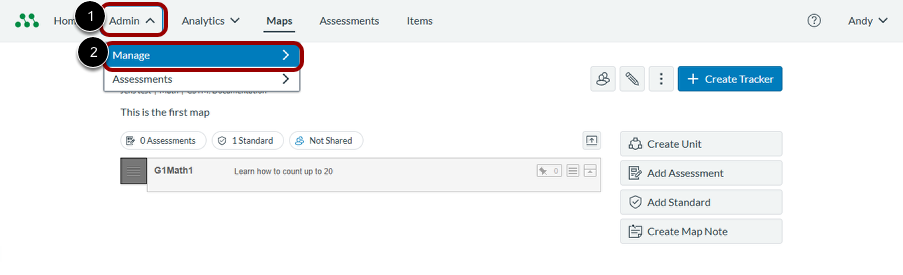
In the Global Navigation menu, click the Admin drop-down menu [1]. Then, select the Manage option [2].
Open Custom Standards
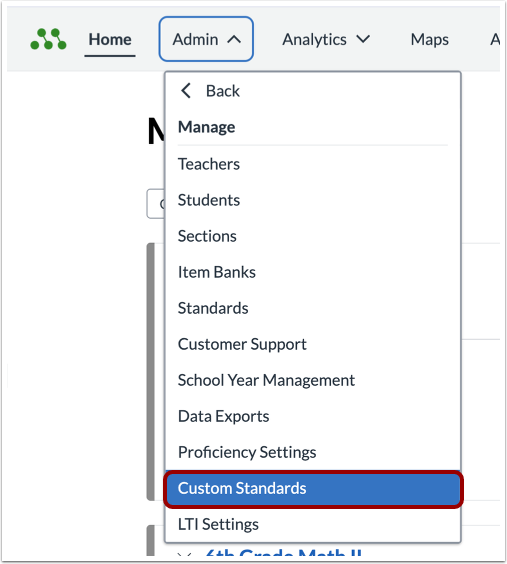
In the Manage list, click the Custom Standards link.
Add Course
In the Custom Standards page, click the Add Course button.
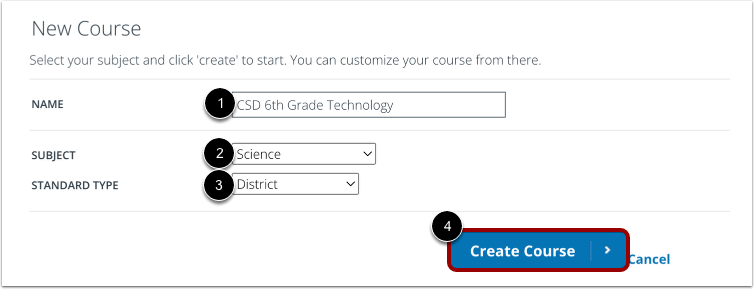
In the New Coursepage, enter the course name in the Name field [1]. Then, select a subject from the Subject drop-down menu [2]. Click the Standard Type drop-down menu and select the District option [3].
Click the Create Course button [4].
Add Standard
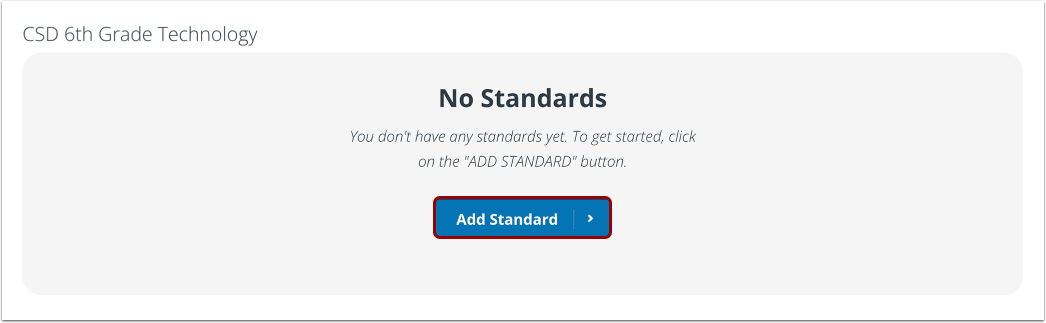
By default, new courses contain no standards. To add standards, click the Add Standard button.
Create Custom Standard
In the Add Standardwindow, click the Create New Standard tab[1]. Enter a name for the standard [2], a short description [3], and a longer description [4].
When you are finished, click the Create button [5].
View Custom Standard
In the course page, the new standard displays at the top of the list.
You can add or create another custom standard.
To make all the course standards available to users in your district, publish the course.