If you are the owner of a curriculum map, you can allow other users to edit it by adding them as a team of collaborators. You can add an existing team, or you can create a new team.
After you add a team of collaborators:
- An email is sent to each team member.
- The team becomes the owner of the curriculum map. Each team member can edit and collaborate on the map.
- Maps that were private to you now become shared with the Mastery Connect Community. However, you can change the privacy level if needed.
Open Maps
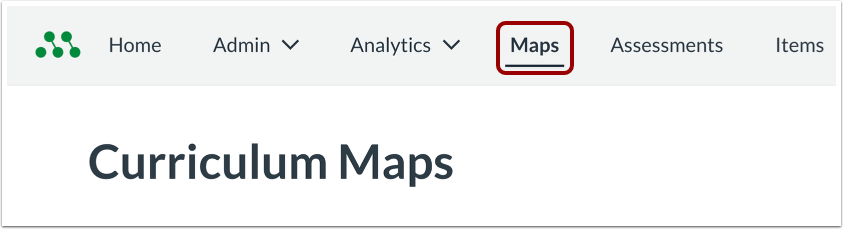
In the Global Navigation menu, click the Maps link.
Open Curriculum Map
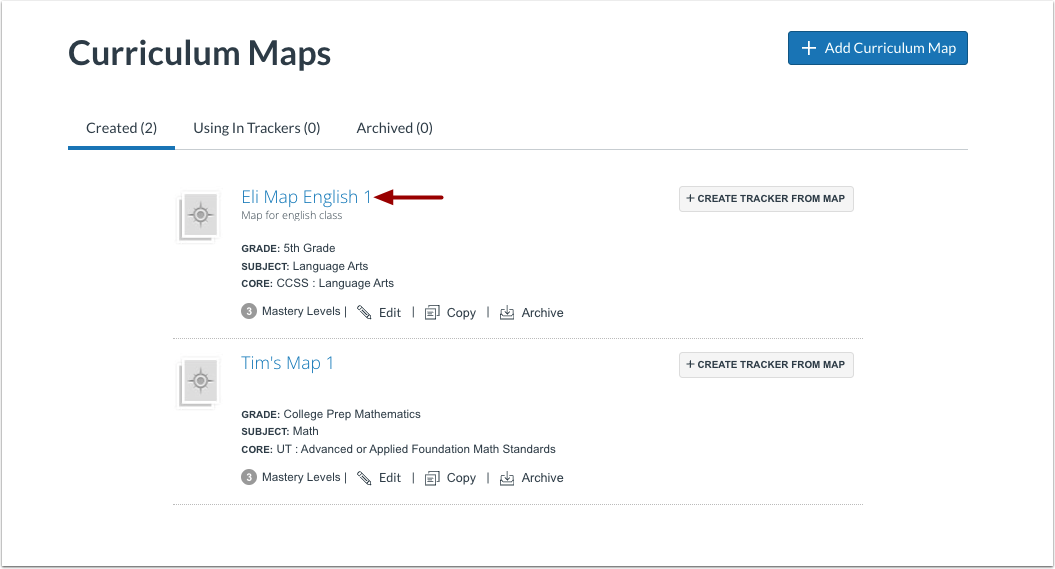
Click a curriculum map name link.
Open Add Collaborators
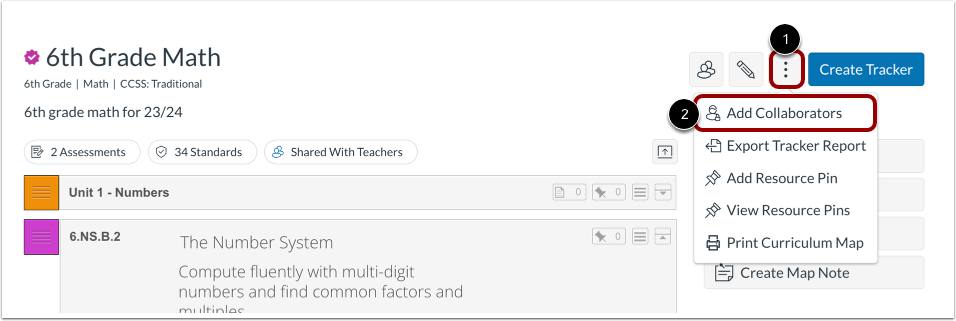
Hover over the Curriculum Map Options icon [1]. Then click the Add Collaborators link [2].
Add Existing Team
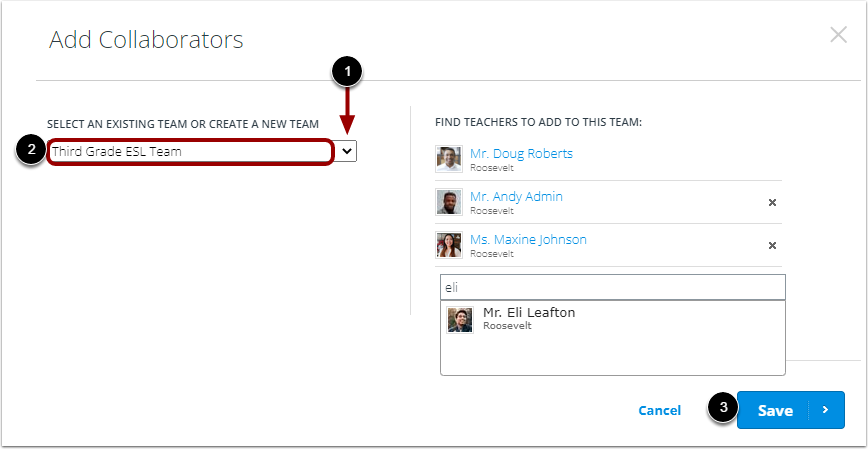
To add an existing team as collaborators, click the Teams drop-down menu [1]. Then, select a team in the list [2].
Note: The Teams menu displays a list of your teams. If you are not a member of a team, no teams display in the list. For more information, refer to our guide on how to create a team.
Add New Team Members
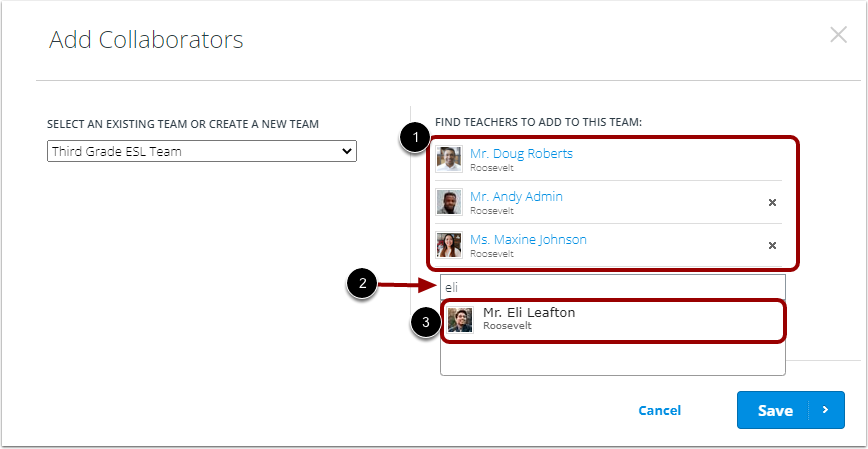
View the users currently on the team [1].
To add a user to an existing team, enter their name in the Search field [2]. Then, click their name [3]. You can add additional team members as needed.
Add Team
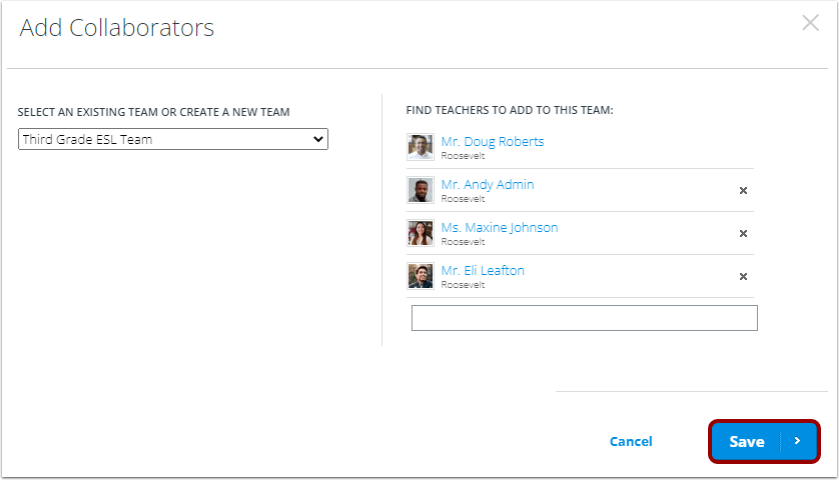
To add the team collaborators, click the Save button.
Create New Team
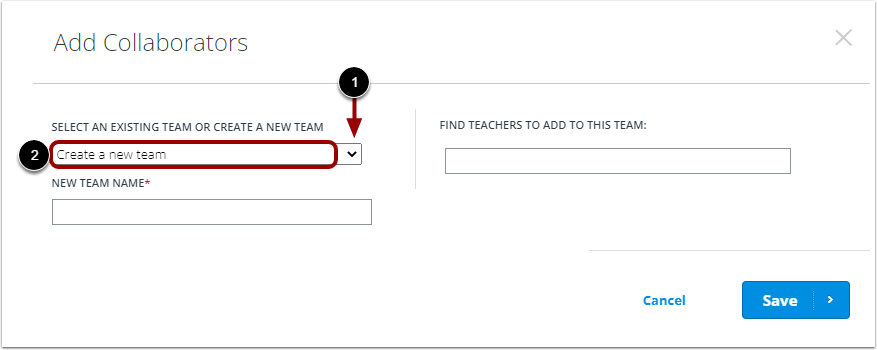
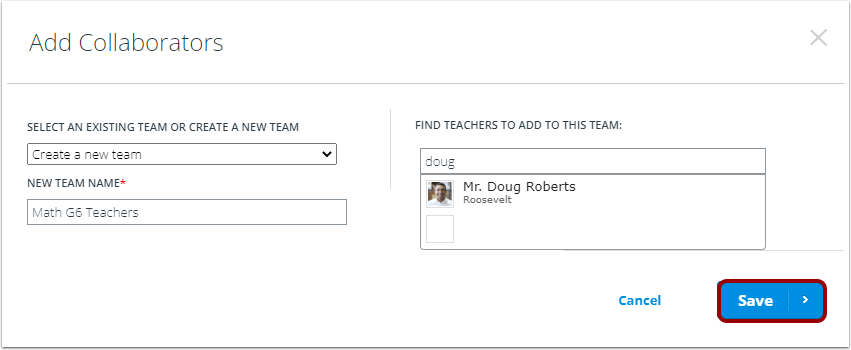
To create a new team of collaborators, click the Team drop-down menu [1]. Then select the Create a new team option [2].
Add Team Details
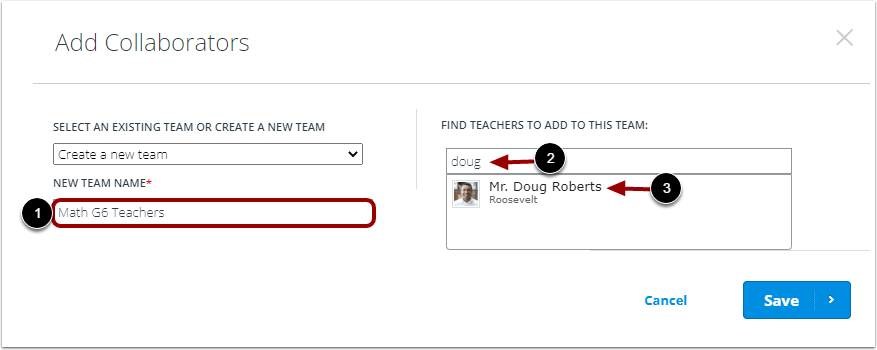
Enter a name for the new team in the New Team Name field [1].
To add a user to the new team, enter their name in the Search field [2]. Then, click their name [3]. You can add additional team members as needed.
Create and Add Team
To create the team and add the members as collaborators, click the Save button.
Note: When you create a new team, you automatically become a team member.
Emails Sent
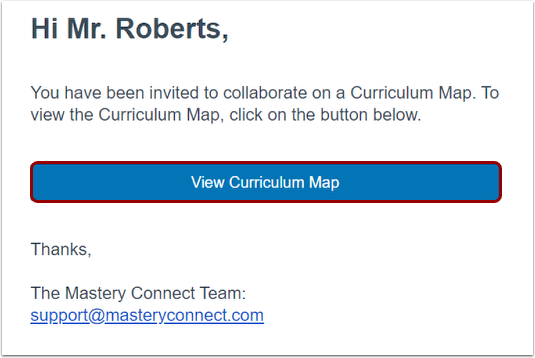
Each collaborator receives an email containing a link to the curriculum map.
Collaborators can now collaborate on the curriculum map.
Note: Collaborators do not need to accept an invitation to collaborate.
Open Team Window
To view curriculum maps you are collaborating on, click the Collaborating On tab [1]. Then, click the team name link [2].
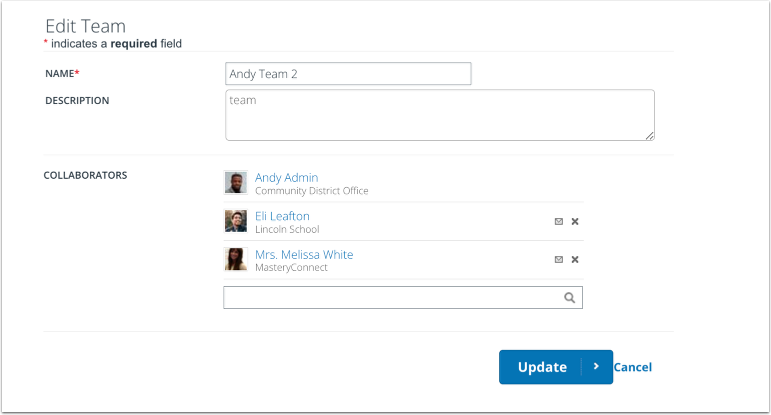
View Team
The team information displays.