How do I deliver a formative assessment to students?
How do I deliver a formative assessment to students?
1. Open Trackers
In the global navigation, click the Home link. Then click the tracker title link.

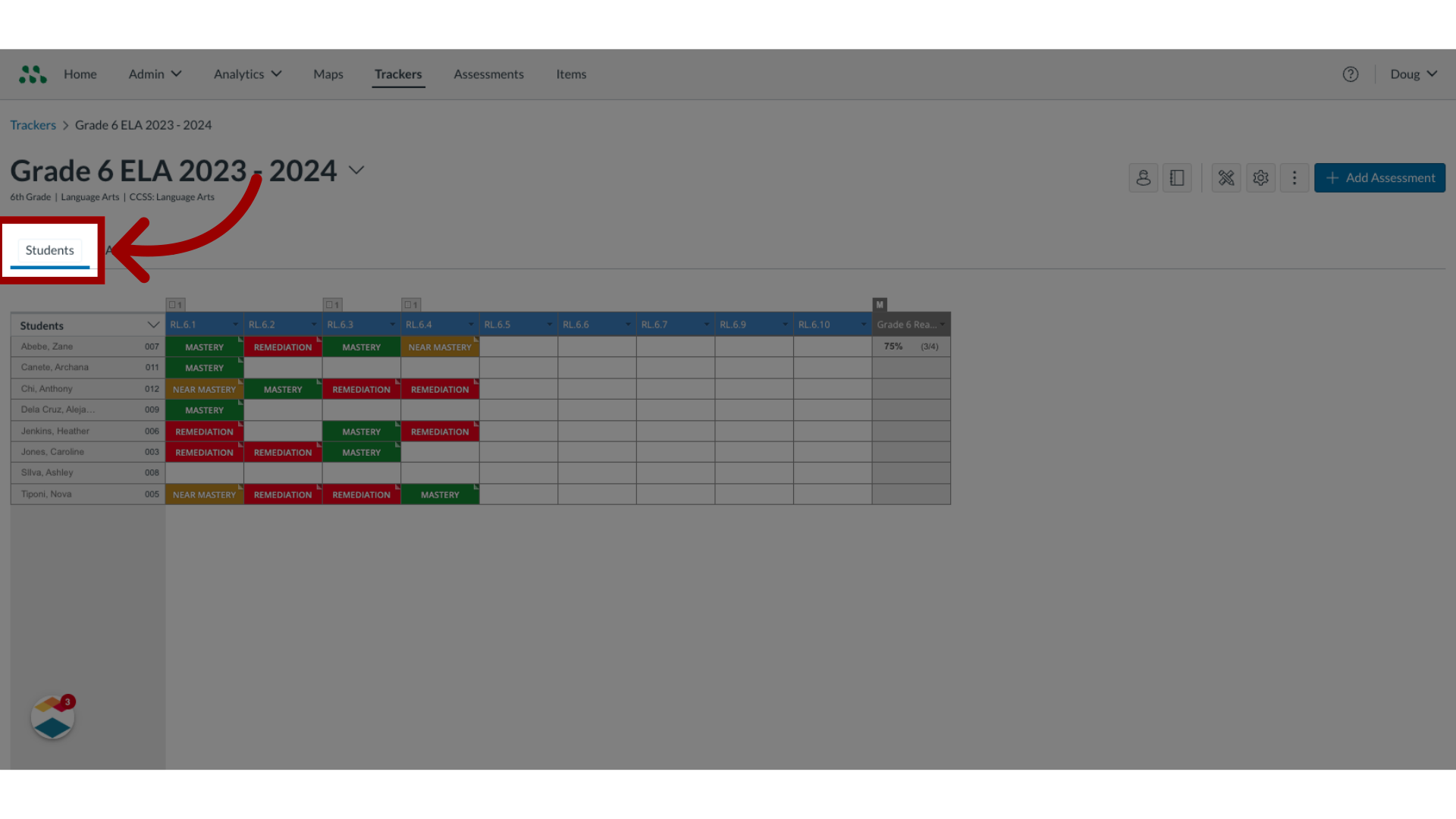
2. Select Students
Navigate to the Students section.
3. Select Assess
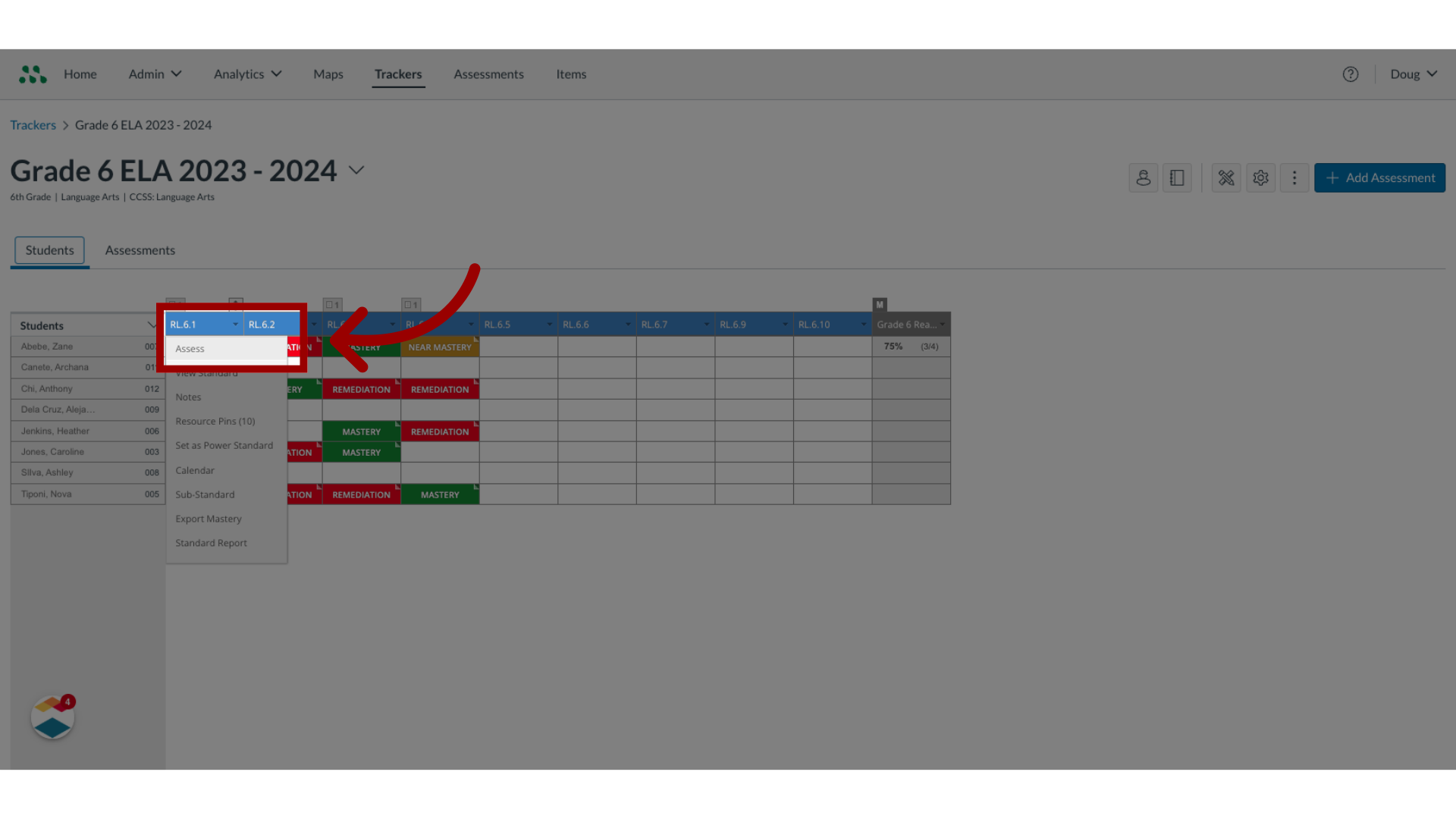
Locate the standard that contains the formative assessment you want to deliver.
Hover the cursor over the column header for that standard, and click the Assess link.
4. Select Assess
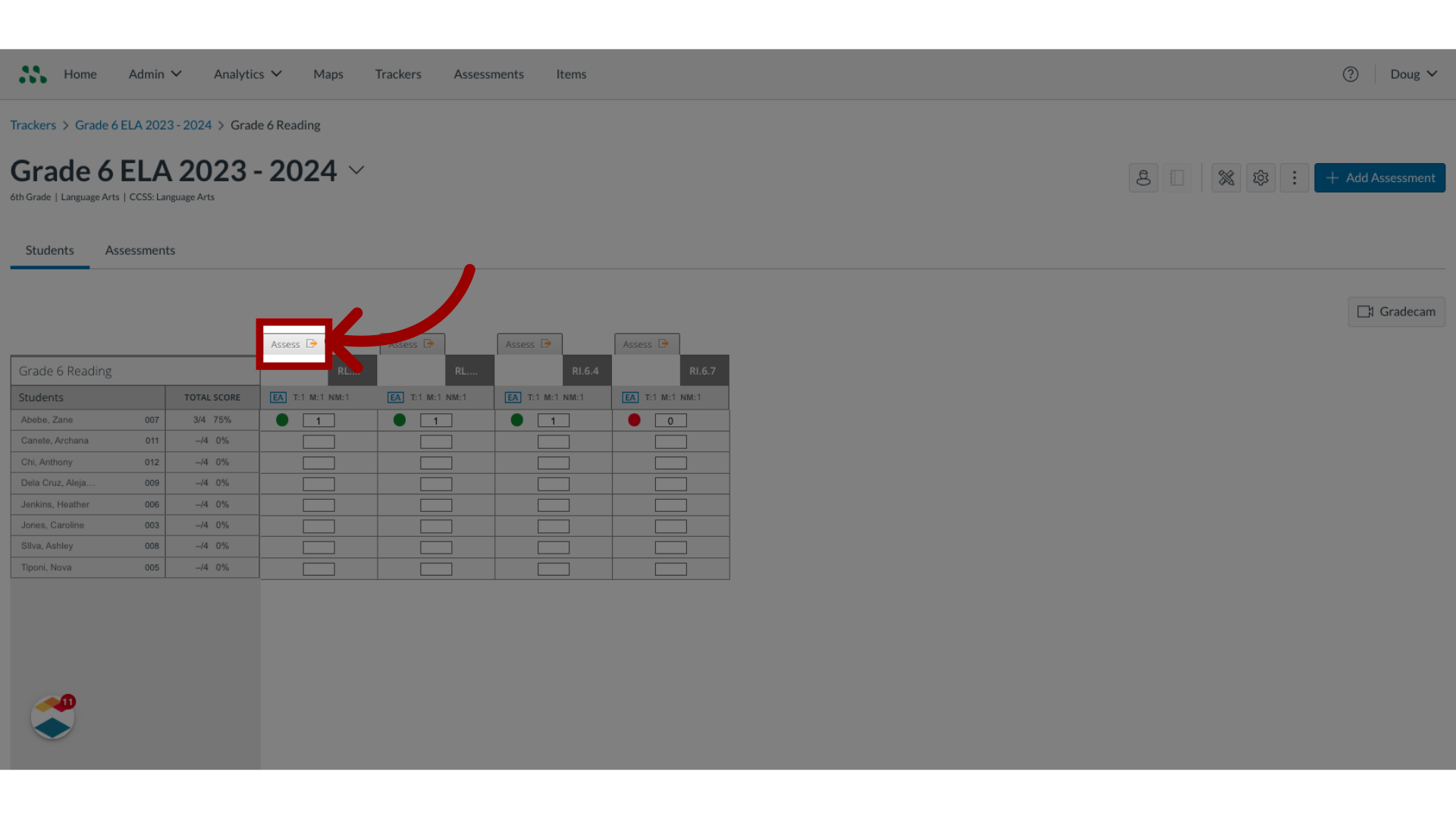
In the Standard Details or Multi-standard Assessment Details page, click the Assess button of the column header for the assessment.
5. View Assess Window
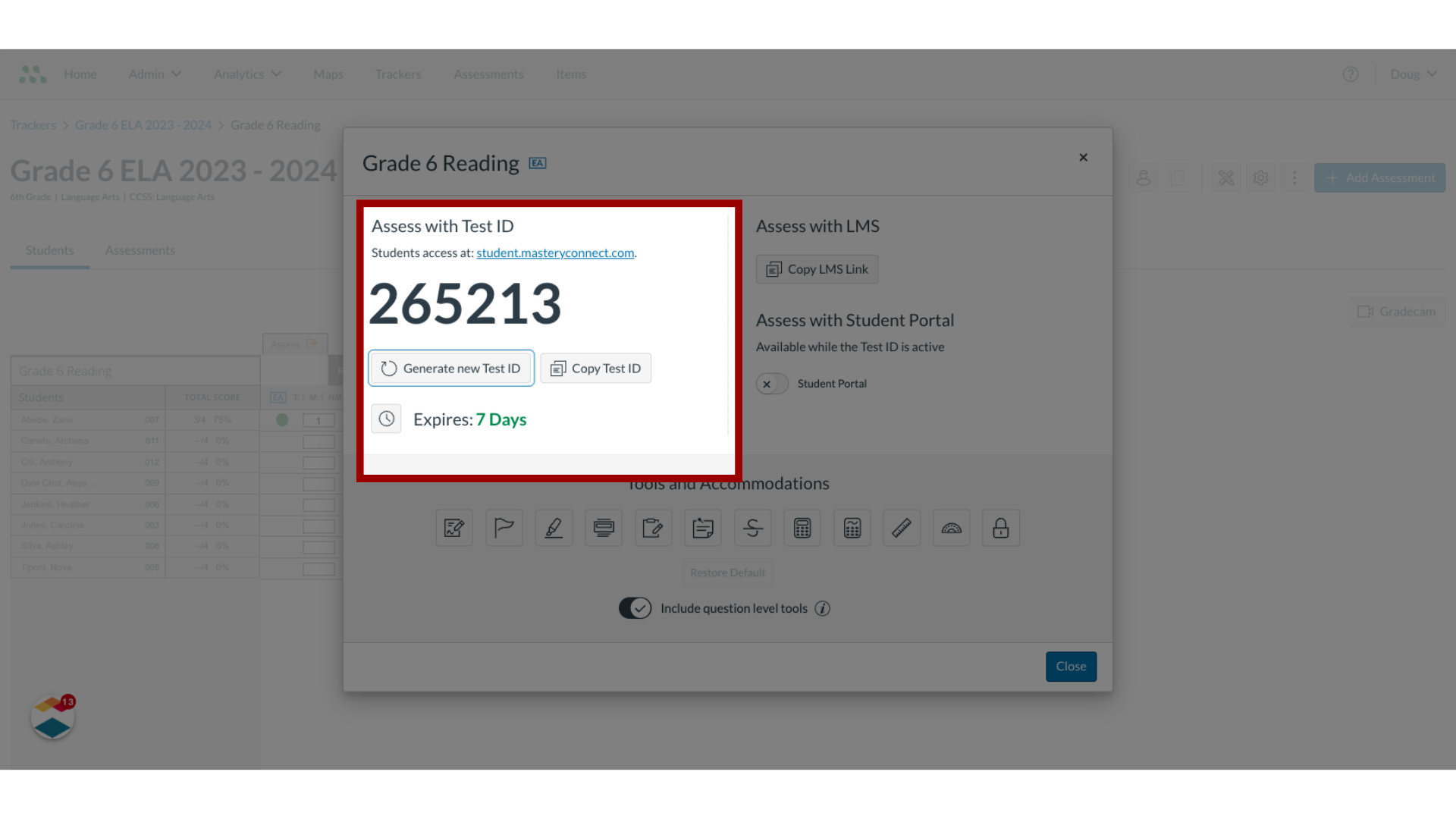
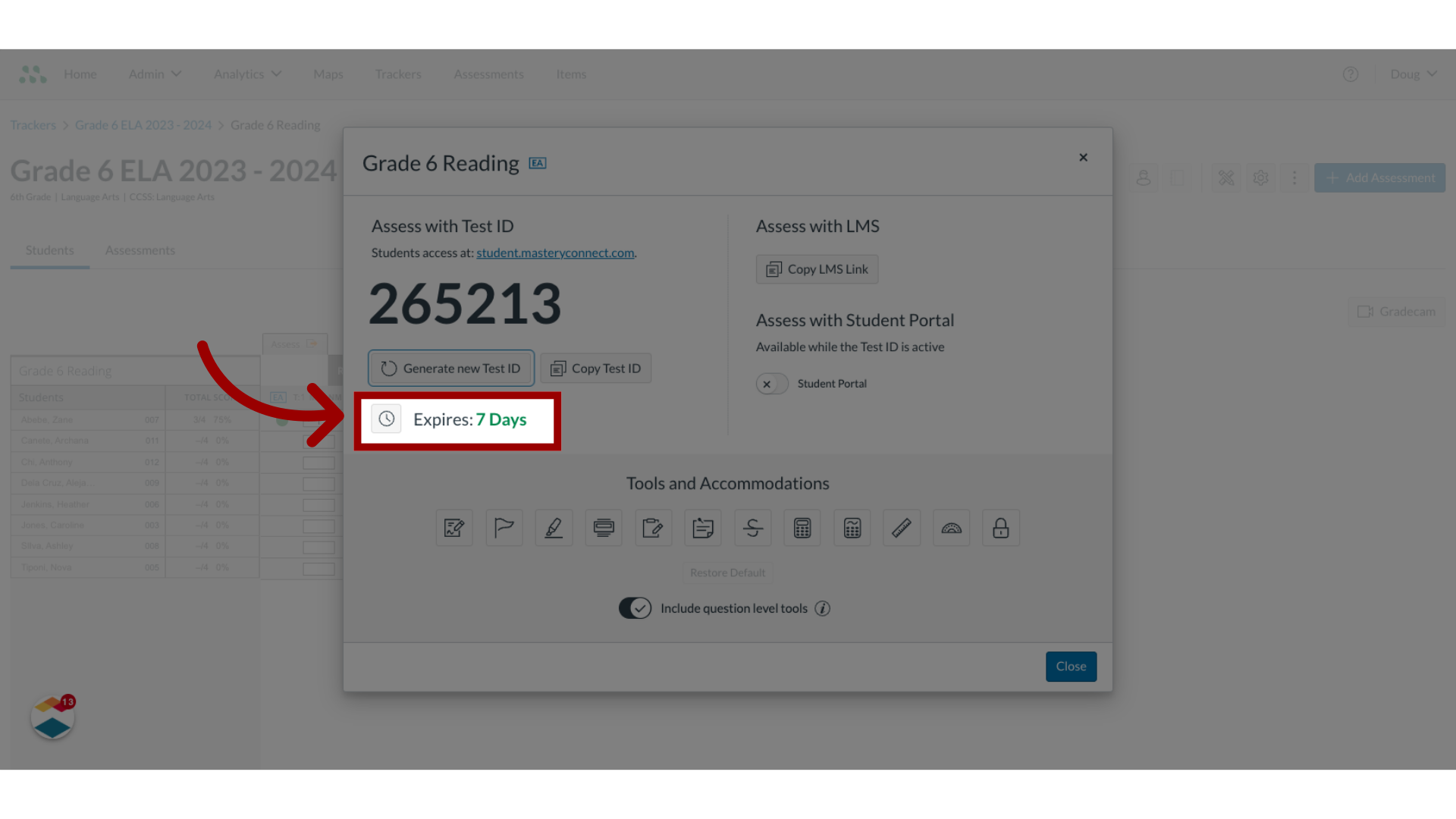
The Assess window displays the six-digit test ID number and the number of days until the test ID number expires.
6. Open Expiration
To set a custom expiration time, date, or time zone for the test ID, click the Expiration icon.
7. View Expired ID
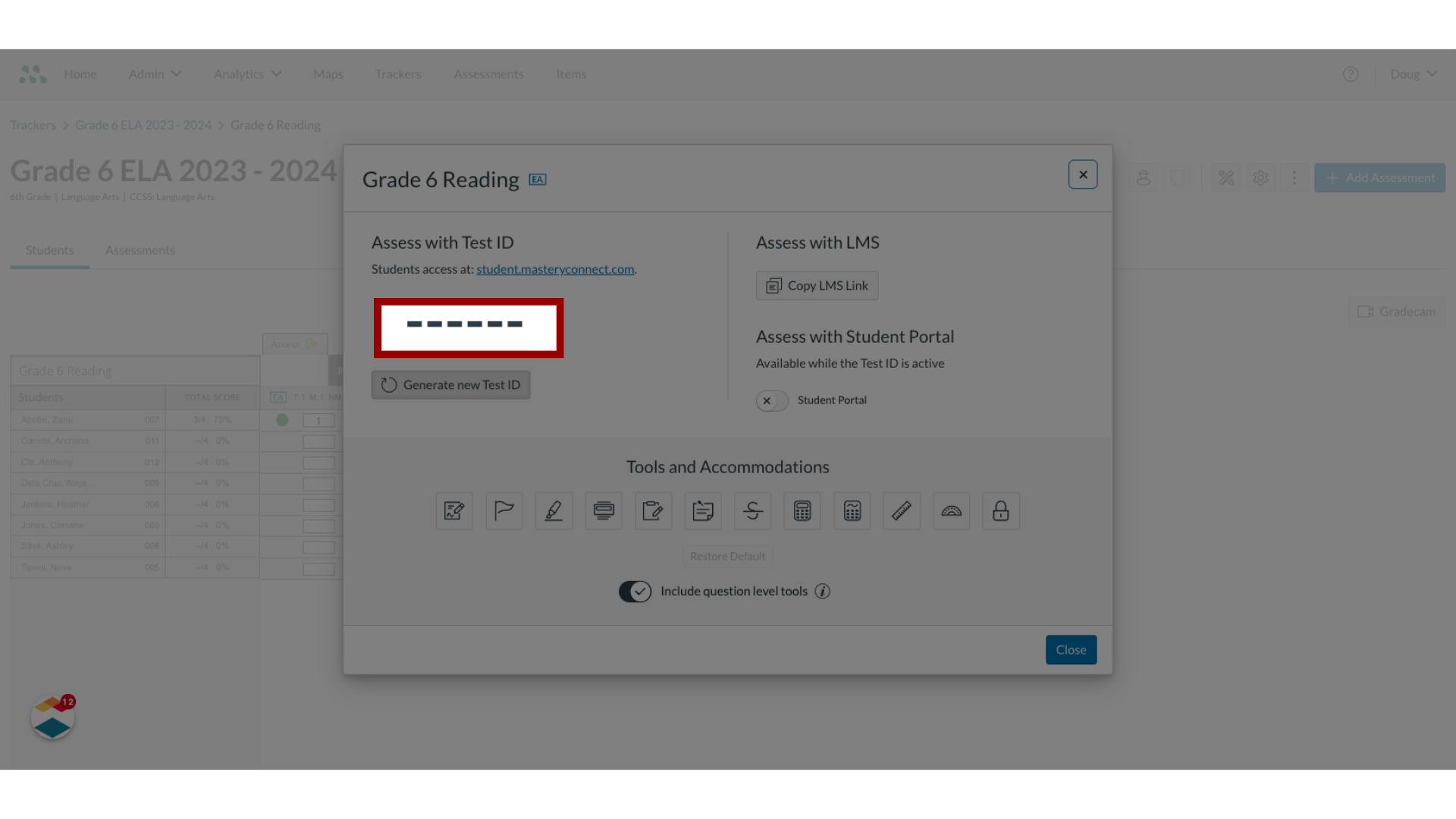
If the Assess window displays dashes instead of a test ID number, your test ID has expired.
8. Select Generate new Test ID
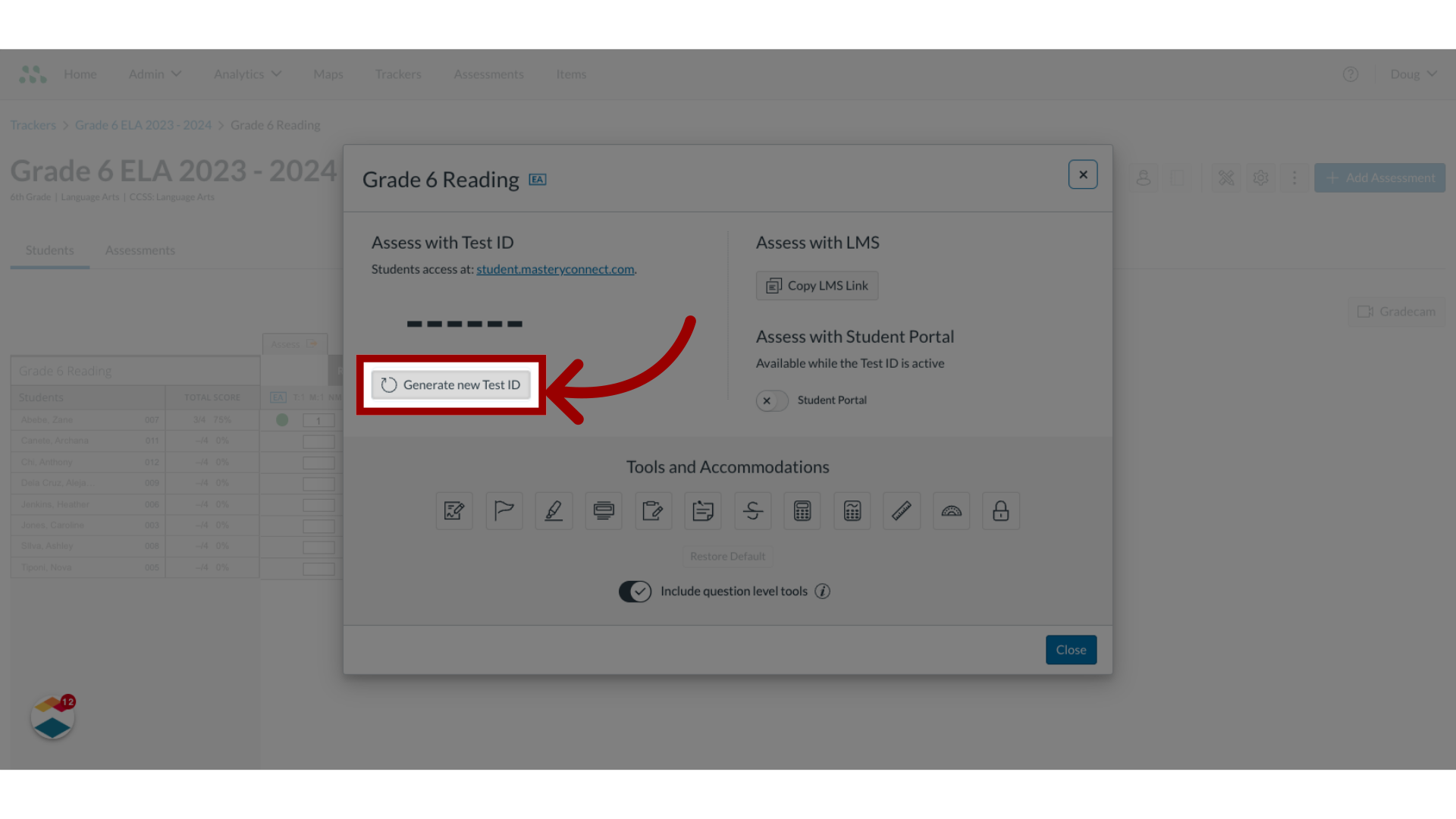
To generate a new ID, click the Generate new Test ID button.
9. View Tools and Accommodations
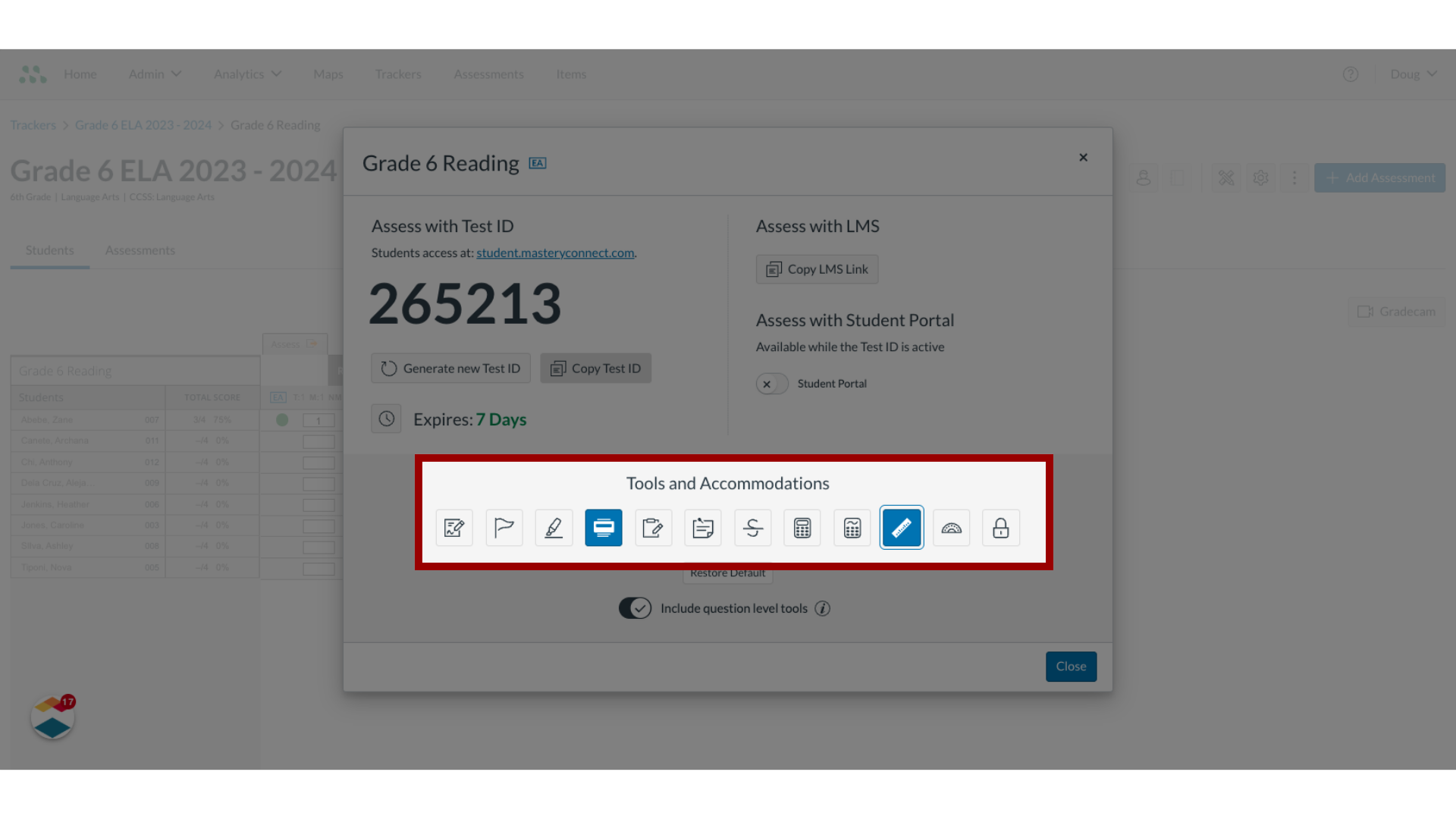
If your district has enabled tools and accommodations for Enhanced Accommodations (EA) assessments, the Tools and Accommodations section displays in the Assess window. A shaded icon indicates that a tool or accommodation is enabled for the assessment.
10. Copy Test ID
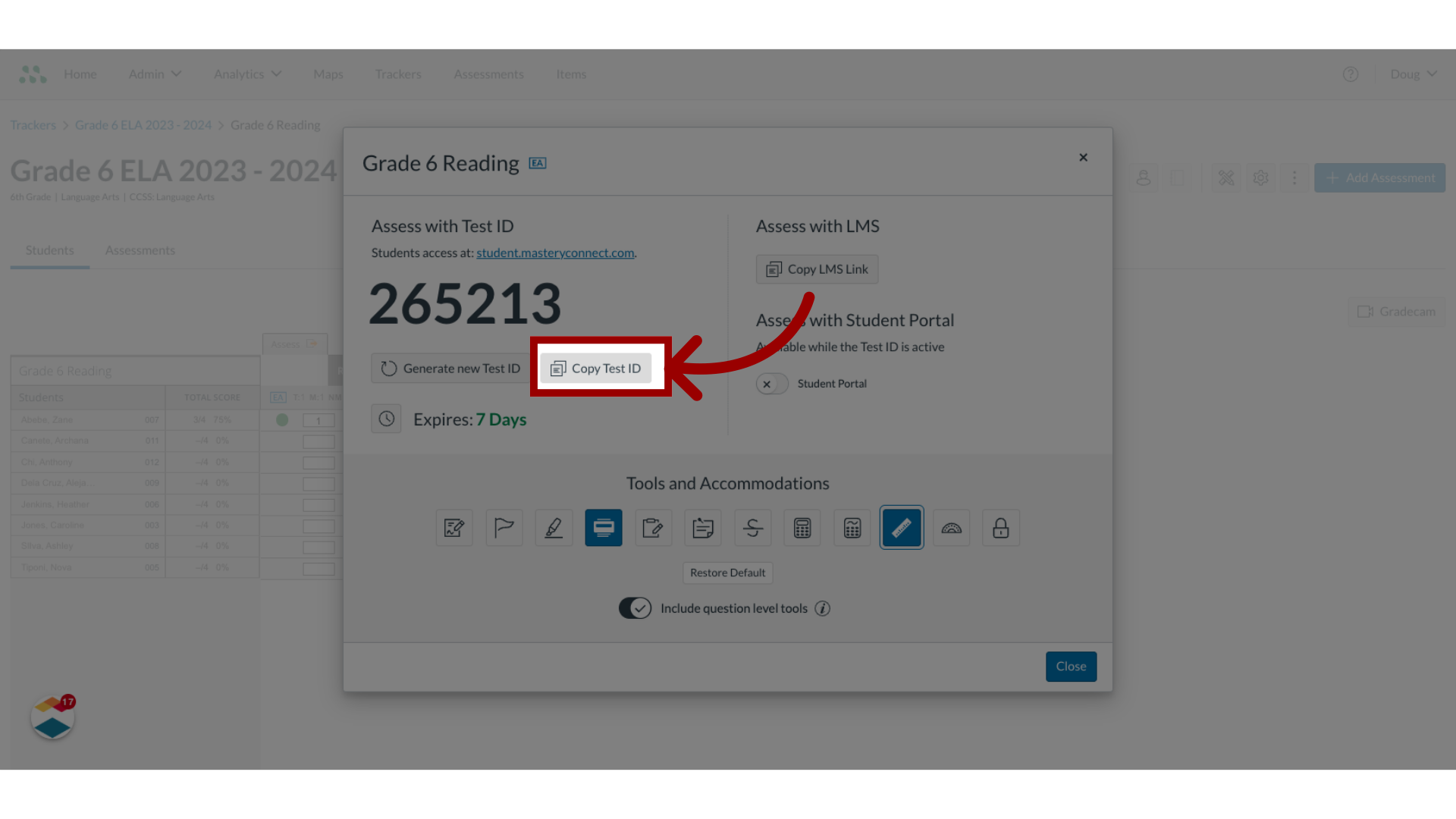
To deliver the assessment to students using a web browser, instruct students to access the login window at student.masteryconnect.com. Then, click the Copy Test ID button and share the test ID with students.
11. Open Student Portal
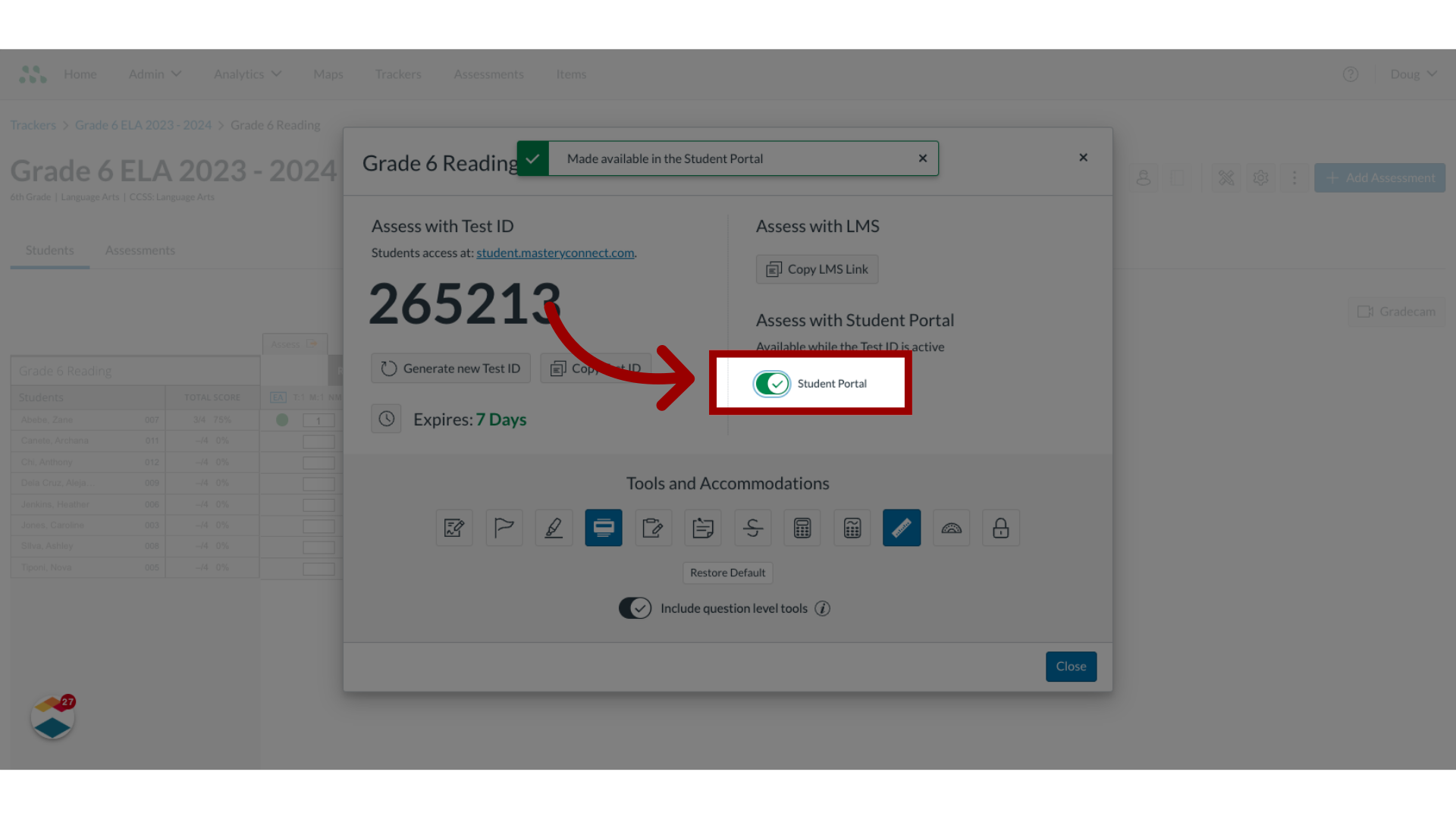
If Mastery Connect is integrated with your district SIS, and the test ID is active, students can complete the assessment in the Student Portal. To make the assessment available, click the Student Portal toggle on.
12. Copy LMS Link
If your district uses a LMS, you can deliver the assessment in the LMS. To copy the URL, click the Copy button, then paste the URL in the LMS interface.

This guide covered how to deliver a formative assessment to students.