In a Mastery Connect tracker, you can view or edit the date an assessment was given. You can also add notes about an assessment.
Open Tracker
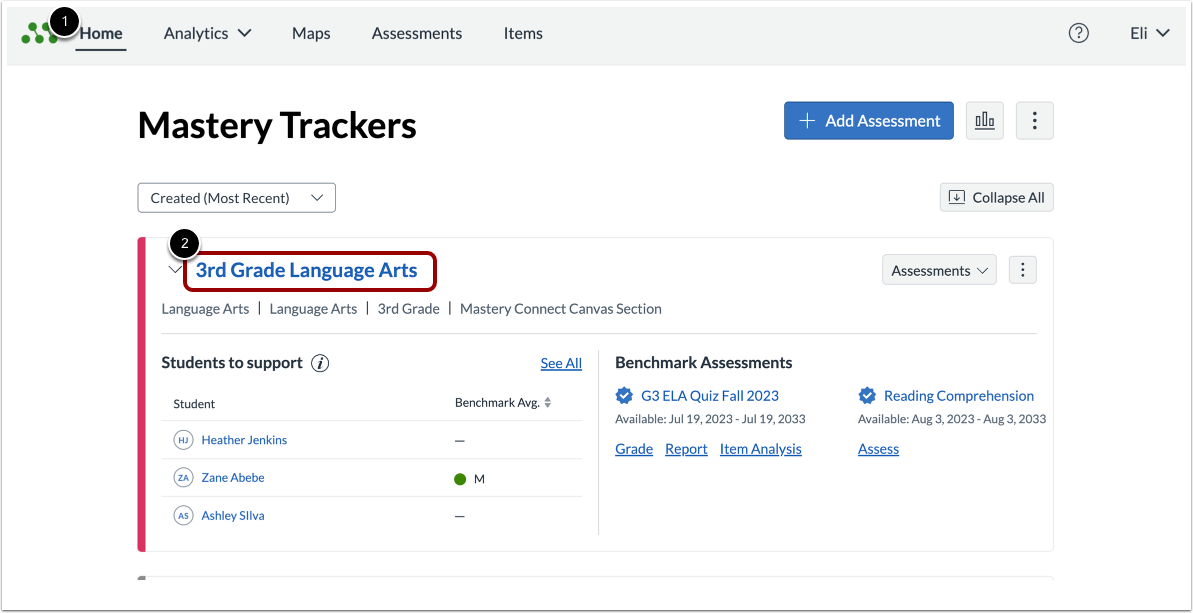
In the Mastery TrackersHome page [1], click the tracker name link [2].
Open Tracker Students View Page
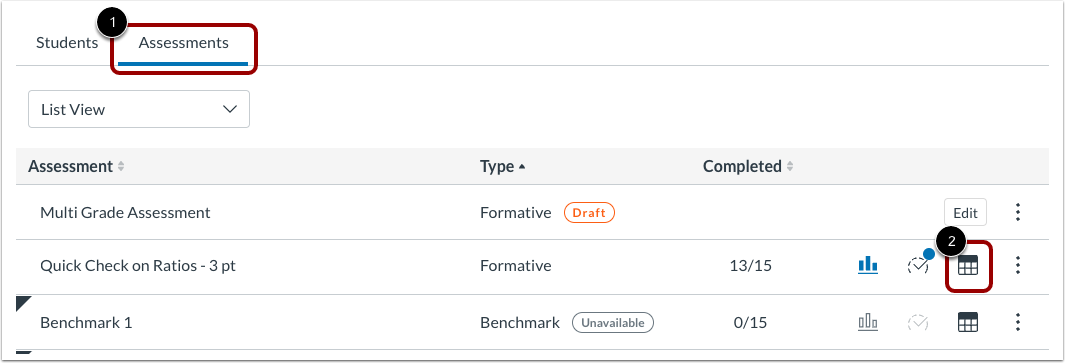
In the Tracker View page, click the Assessments tab [1].
Locate the assessment, and click its Tracker Students View icon [2].
Open Assessment Details Window
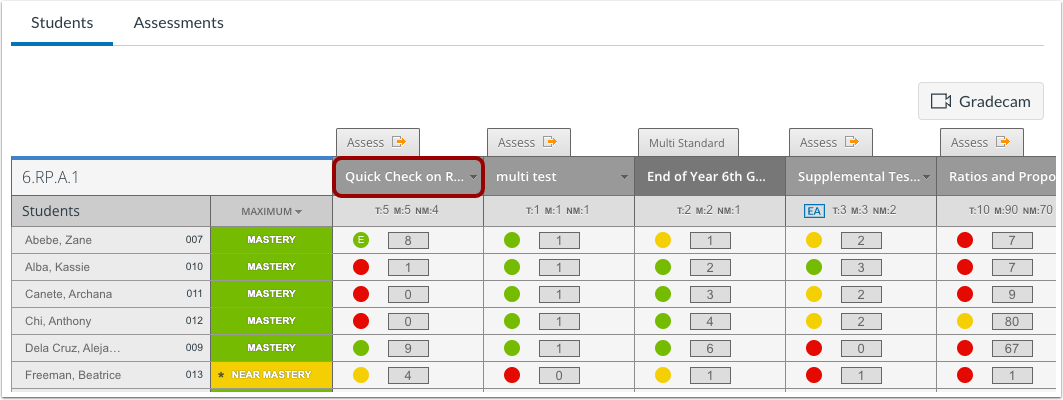
In the Standard Details page for a single-standard assessment, click the assessment name.
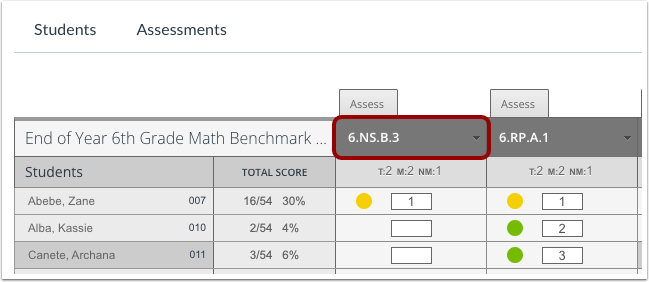
In the Assessment Details view page for multi-standard assessment, click any of the standard titles.
Edit Notes/Date
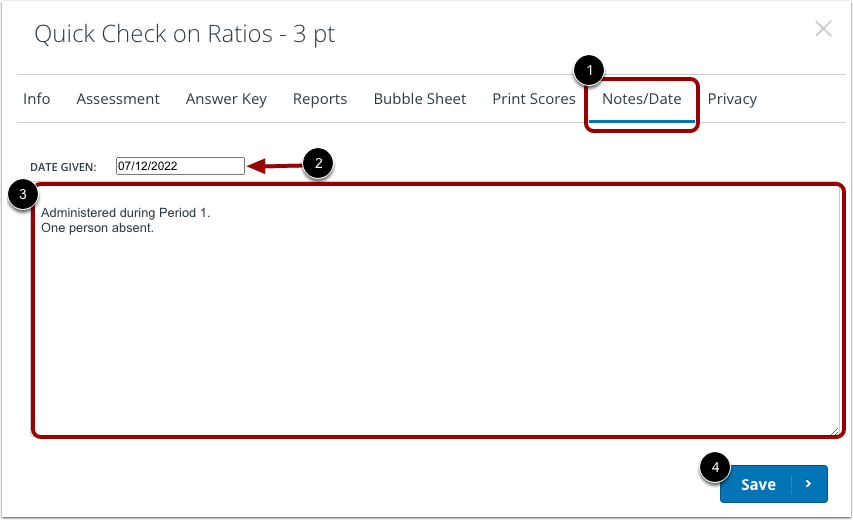
In the Assessment Details window, click the Notes/Date tab [1].
To edit the date the assessment was given, edit the date in the Date Given field [2].
To add notes about the assessment, enter text in the field provided [3].
To save changes, click the Save button [4].