As the owner of a curriculum map, if you create units in a curriculum map, you can add standards to each unit. You can add individual standards by dragging and dropping a standard into the unit, or you can add multiple standards at once from the unit standards window.
Note: Each standard in a curriculum map can only be moved into a single unit. To add the same standard to multiple units, add the standard to the curriculum map multiple times.
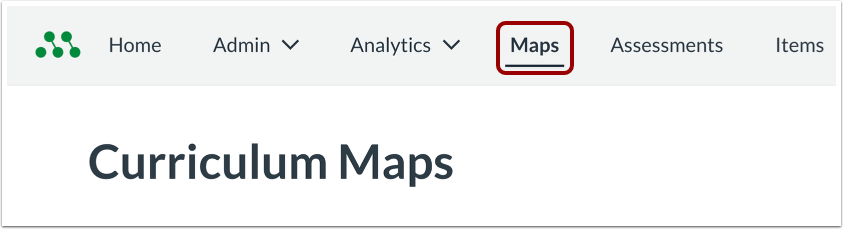
Open Maps
In the Global Navigation menu, click the Maps link.
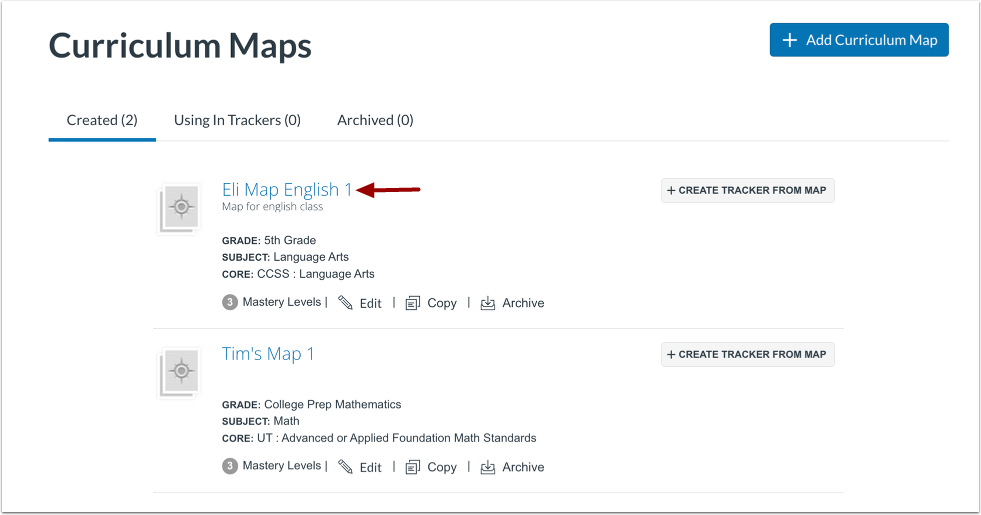
Open Curriculum Map
Click a curriculum map name link.
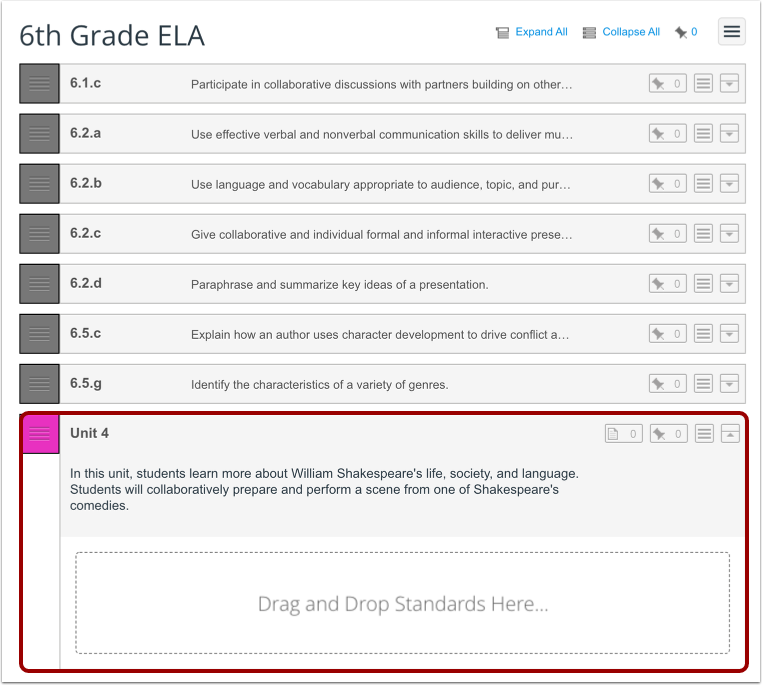
View Unit in Map
In the curriculum map, locate the unit where you want to add standards.
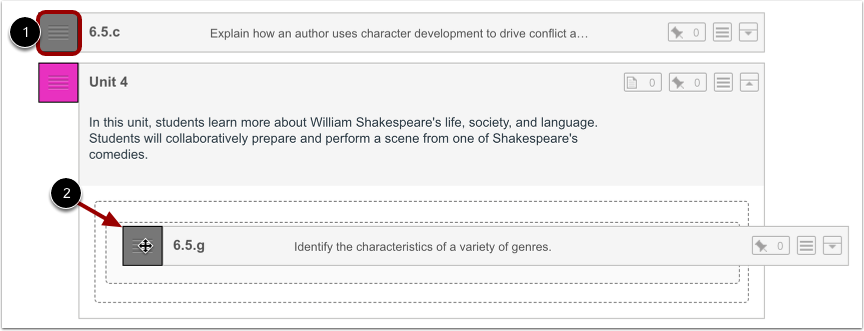
Drag and Drop Standards
To add an individual standard from the curriculum map, click the standard's handle [1]. Then drag the standard to the unit [2].
Add Standards from Options Menu
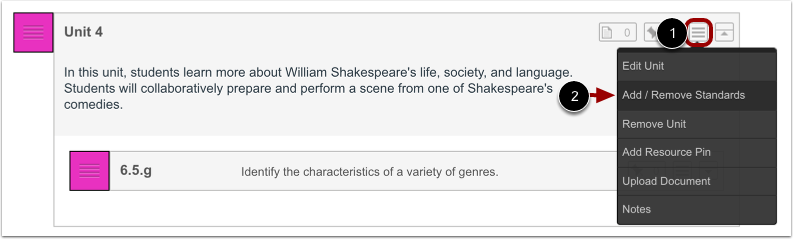
To add multiple standards at once, hover over the Unit Options icon [1]. Then, select the Add/Remove Standards option [2].
Select Standards
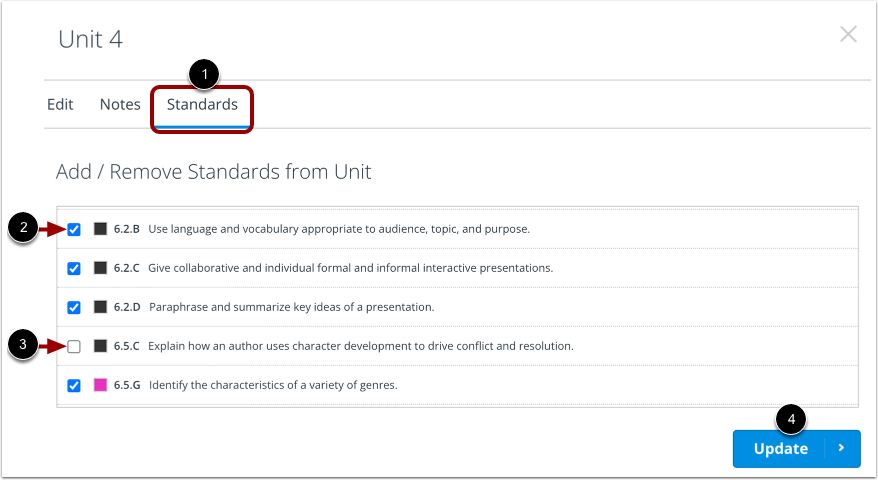
View the curriculum map standards in the Standards tab [1].
To add or remove a standard, click the checkbox next to a standard. Selected standards display a checkmark [2]. Unselected standards display an empty checkbox [3].
To add the selected standards, click the Update button [4].
View Added Standards
View the standards added to the unit.