How do I edit GradeCam scanning and exporting settings?
1. Open Settings
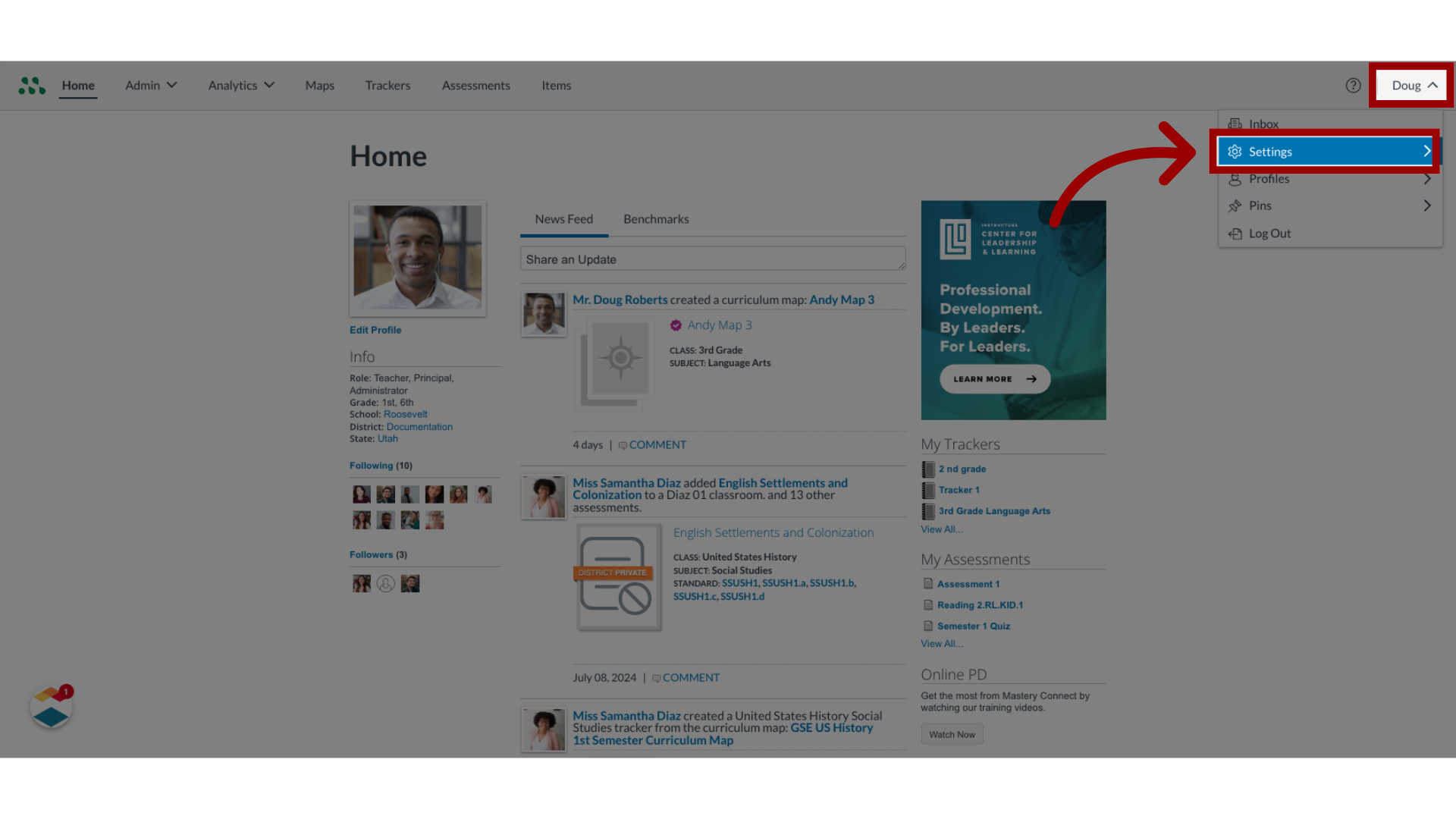
Click the User drop-down menu. Then, click the Settings option.
2. Open Scan/Export
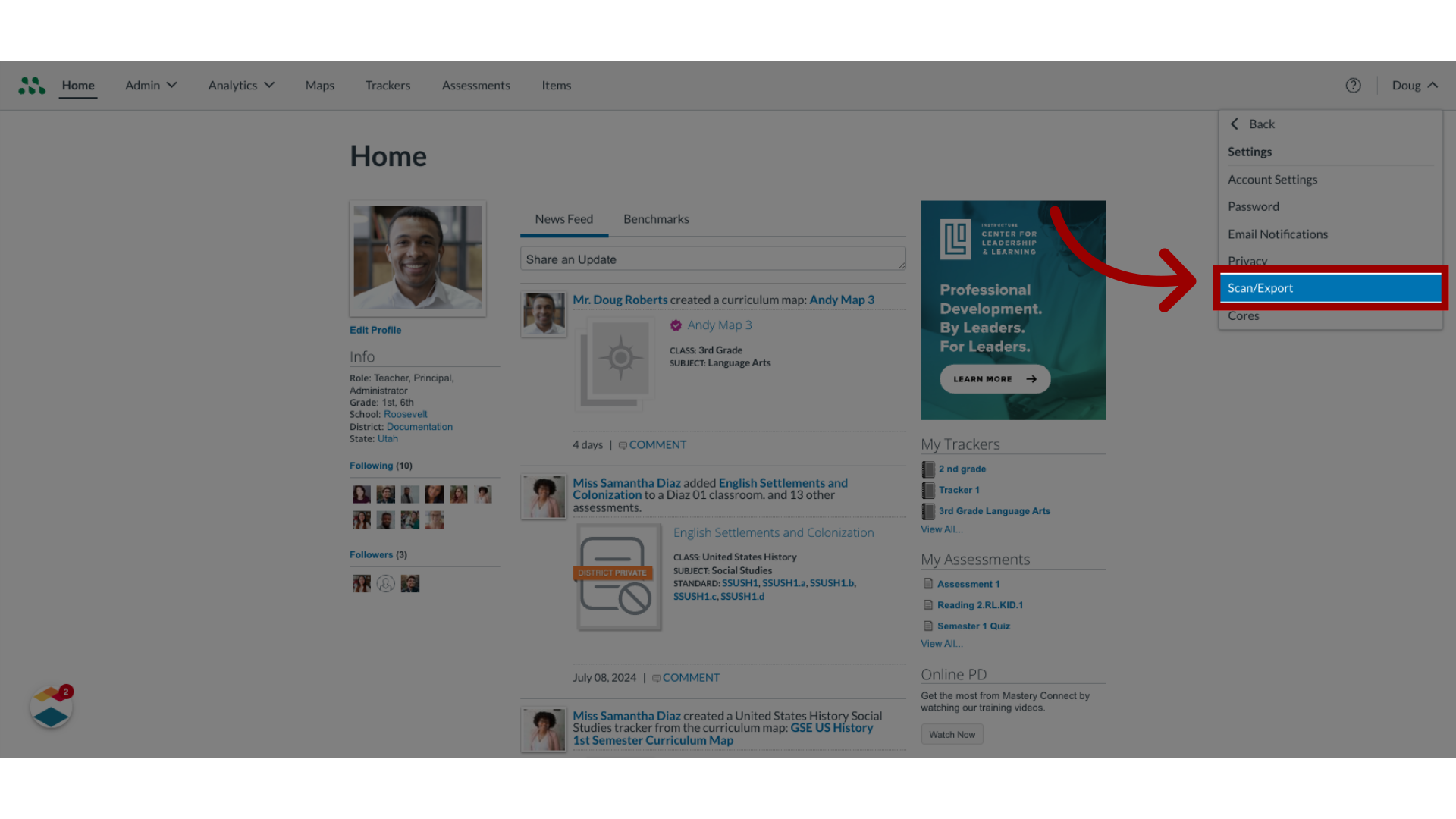
In the Settings menu, click the Scan/Export link.
3. Select Camera
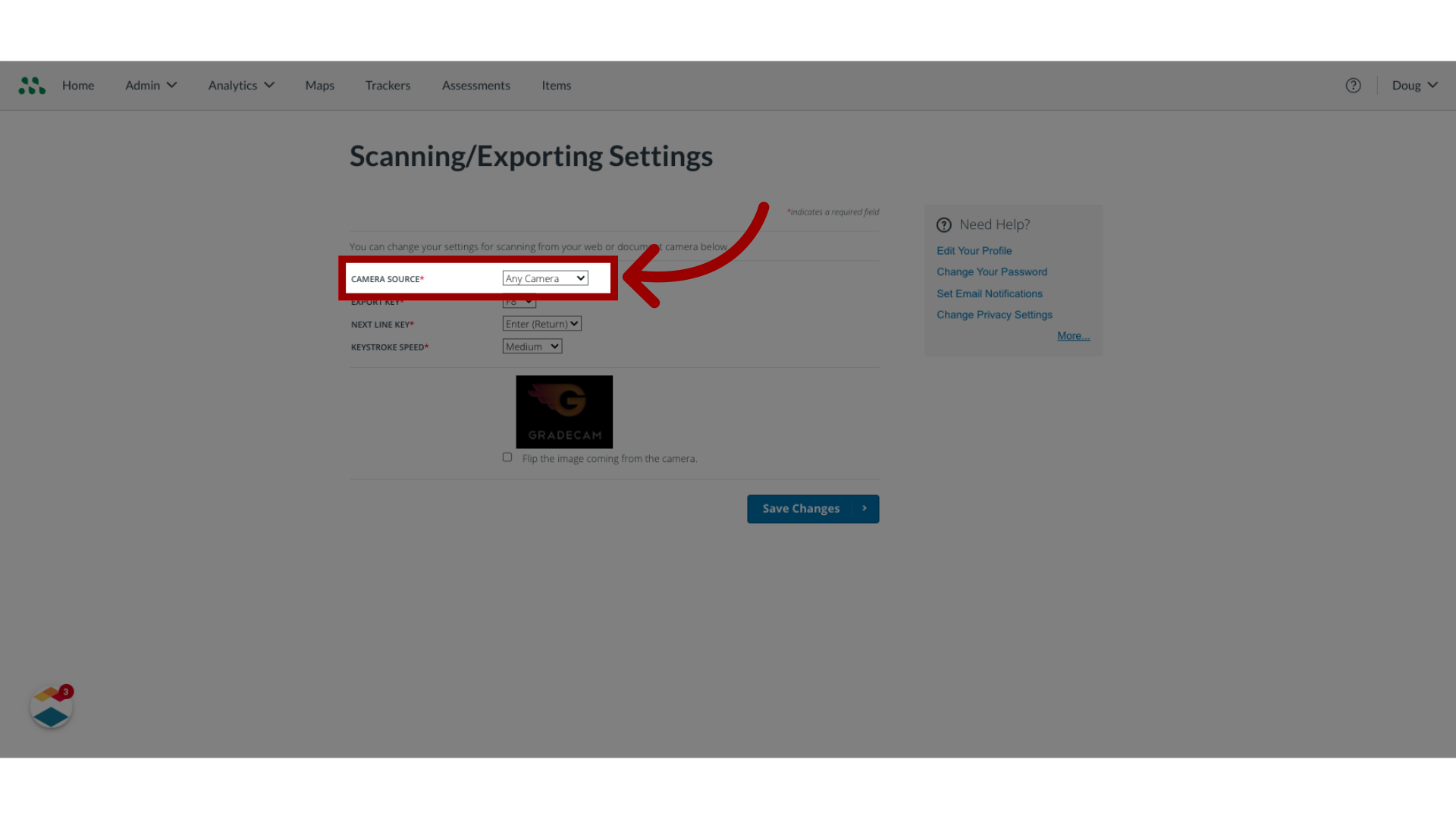
If you have more than one camera, you can select which one to use. To select a camera, click the Camera Source drop-down menu, and select one of your cameras.
4. Select Export Key
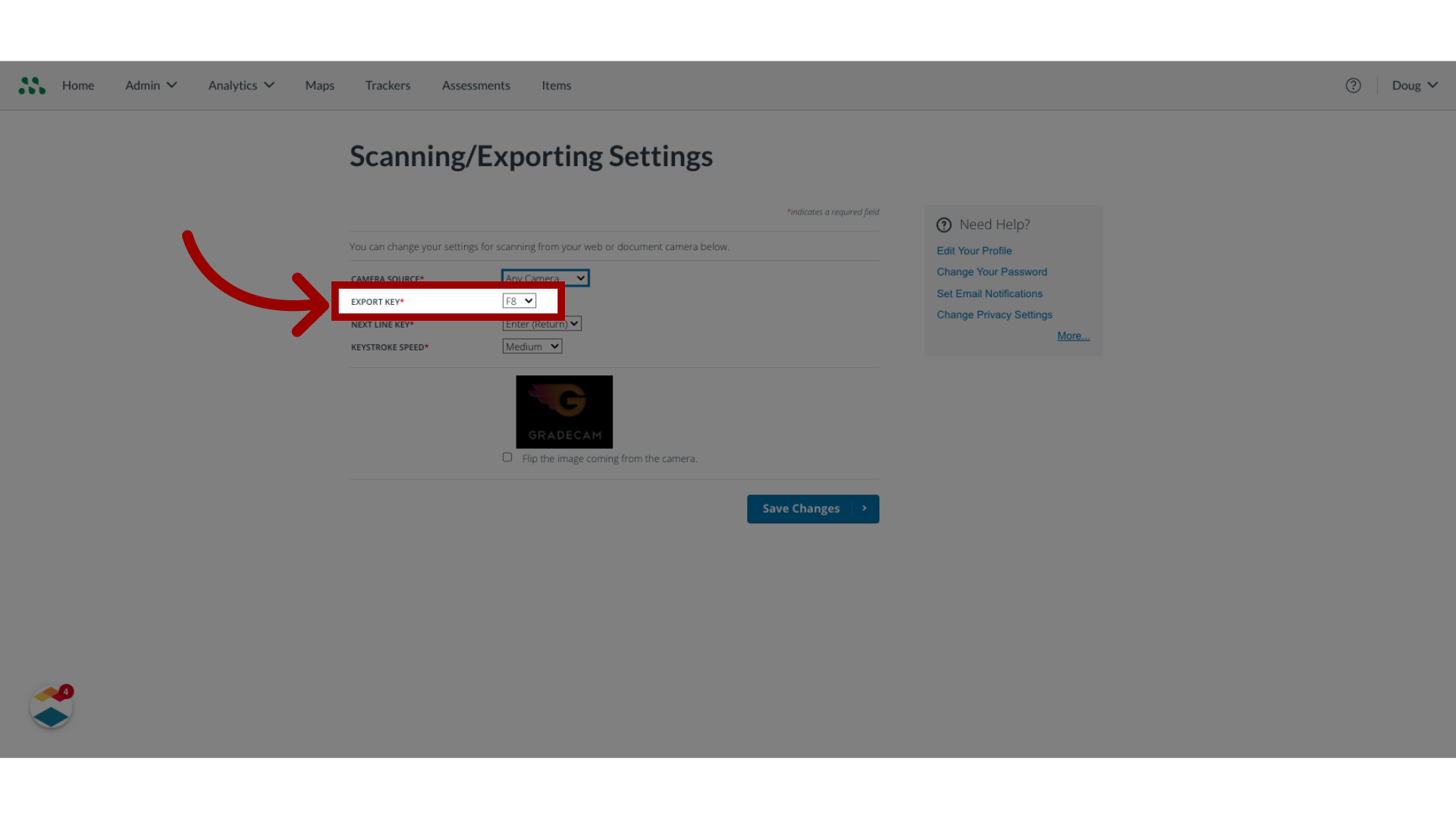
To change the keystroke for exporting, click the Export Key drop-down menu, and select an option.
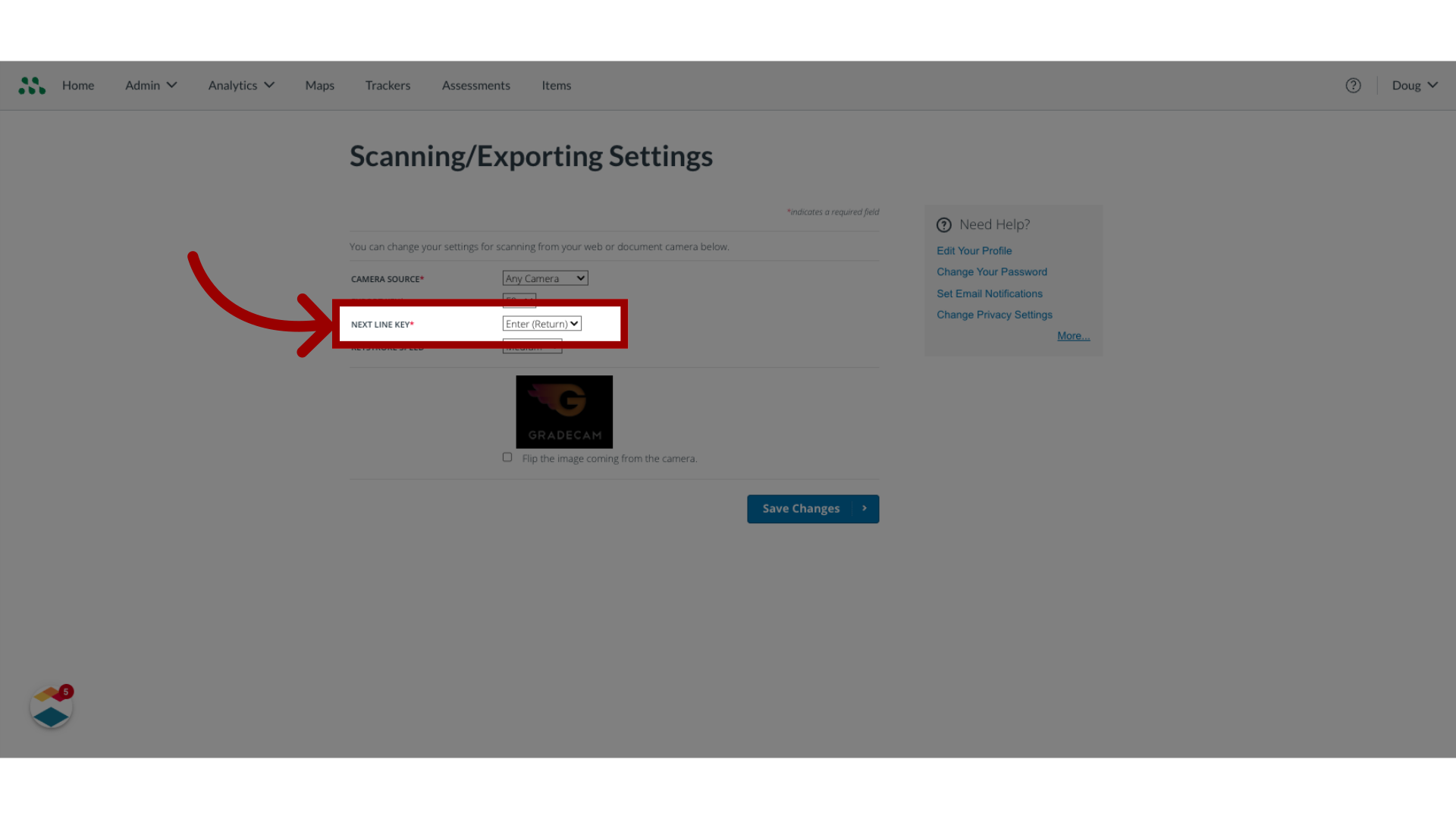
5. Select Next Line Key
To change the keystroke for going to the next line, click the Next Line Key drop-down menu, and select an option.
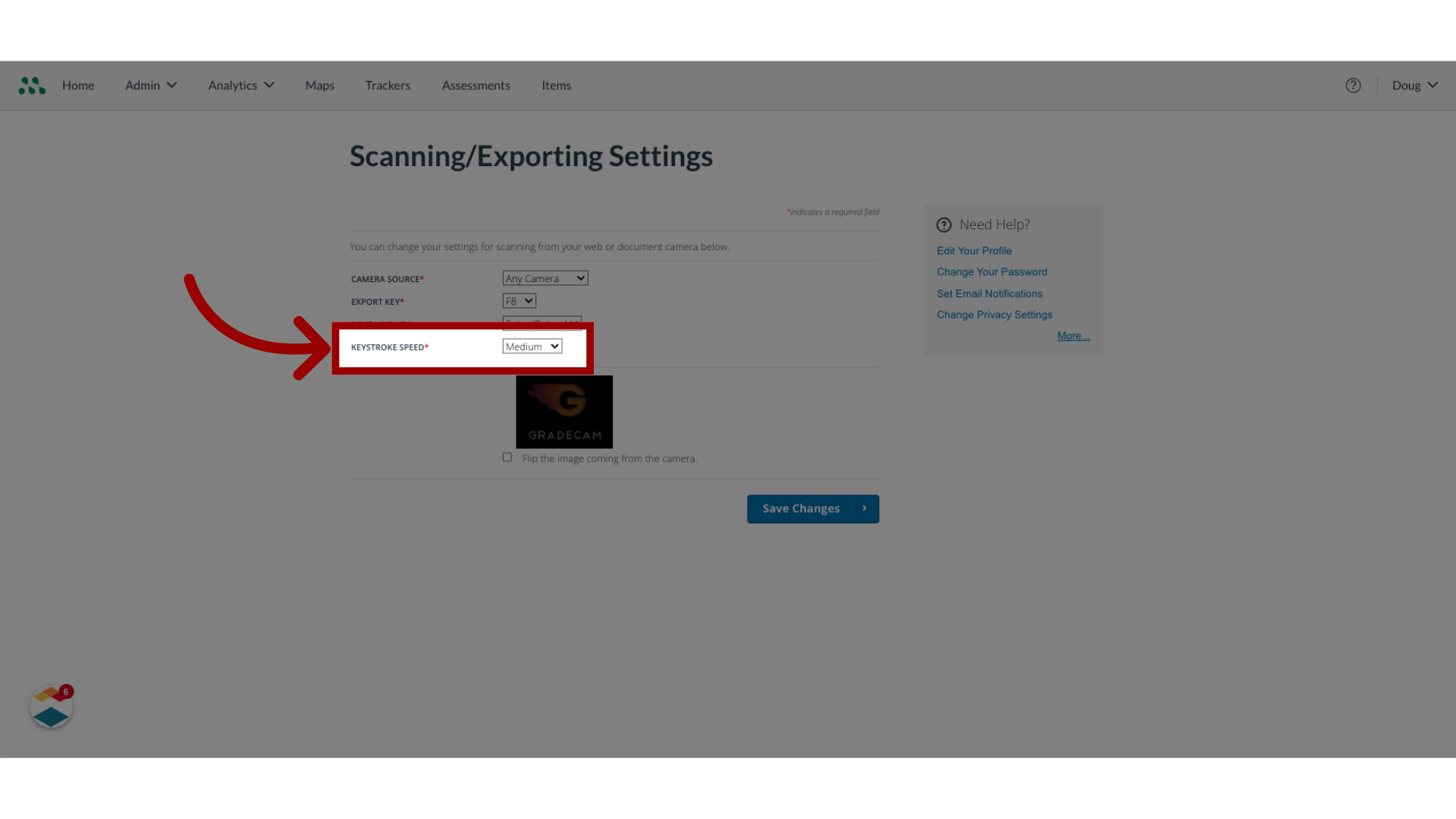
6. Select Keystroke Speed
Select the desired keystroke speed.
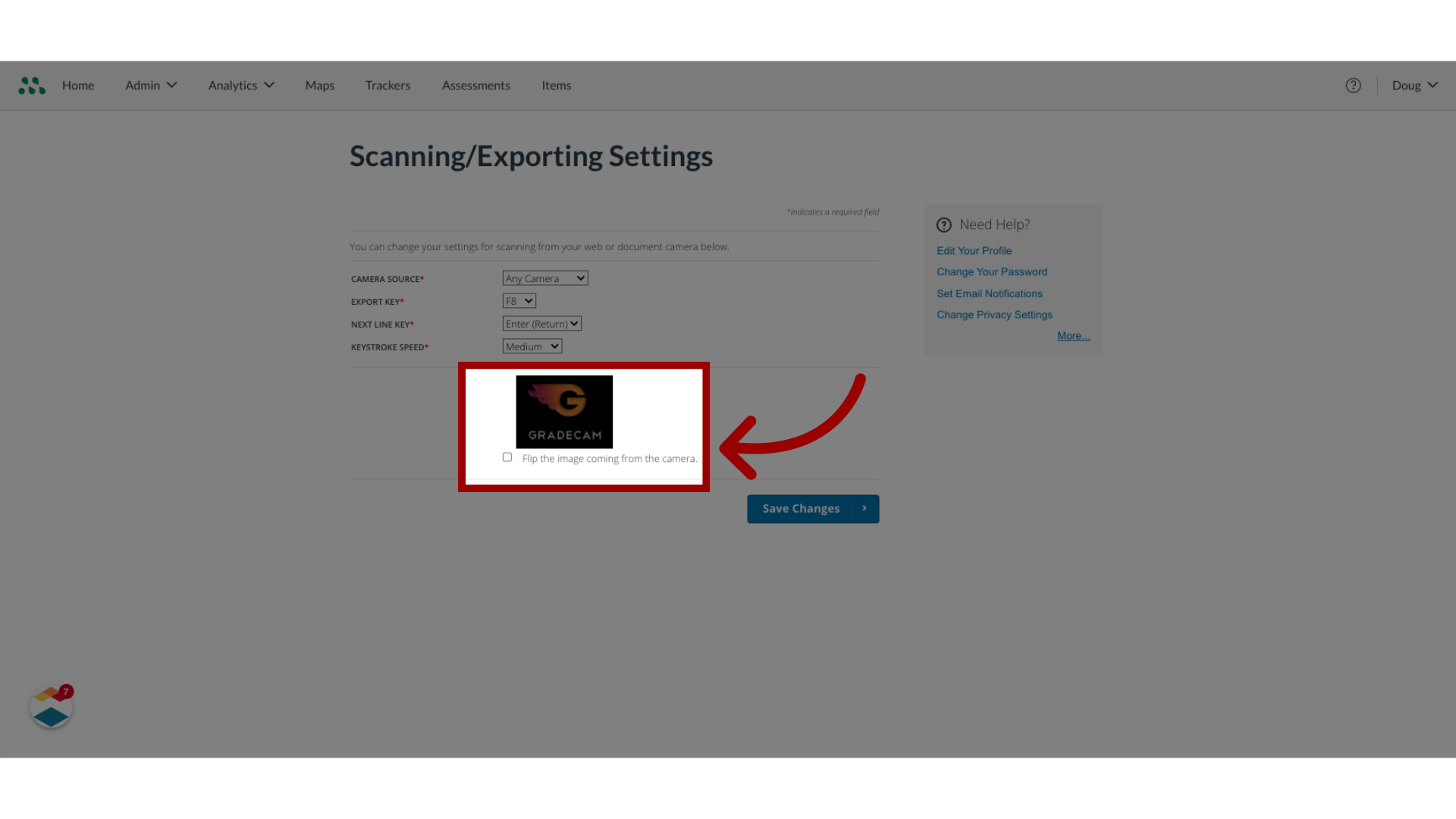
7. Flip Image
The camera displays its current view. To flip the image 180 degrees, click the Flip the image coming from the camera checkbox.
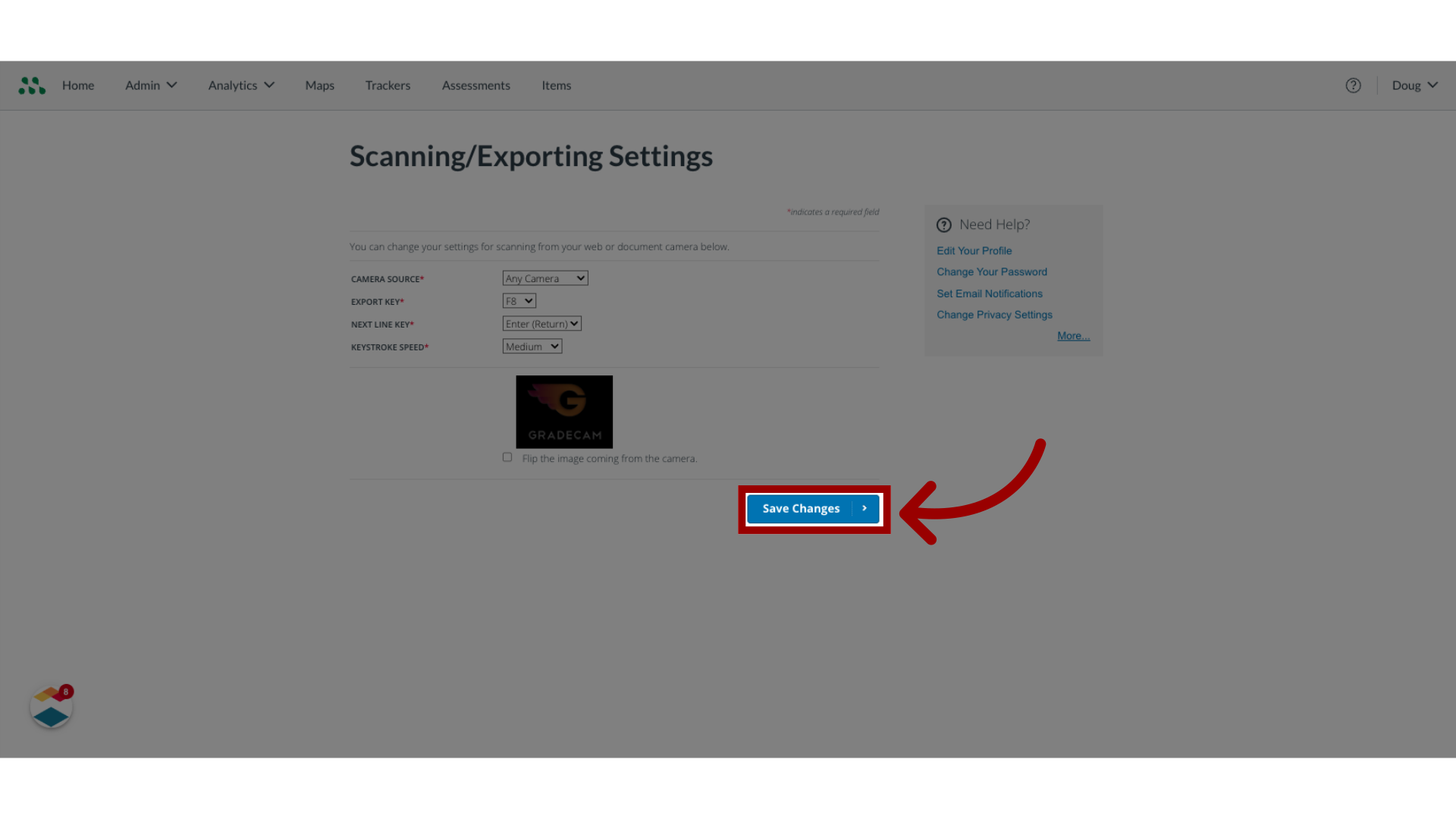
8. Save Changes
To save the settings, click the Save Changes button.
This guide covered how to edit GradeCam scanning and exporting settings.