How do I configure tools and accommodations for individual formative assessments?
How do I configure tools and accommodations for individual formative assessments?
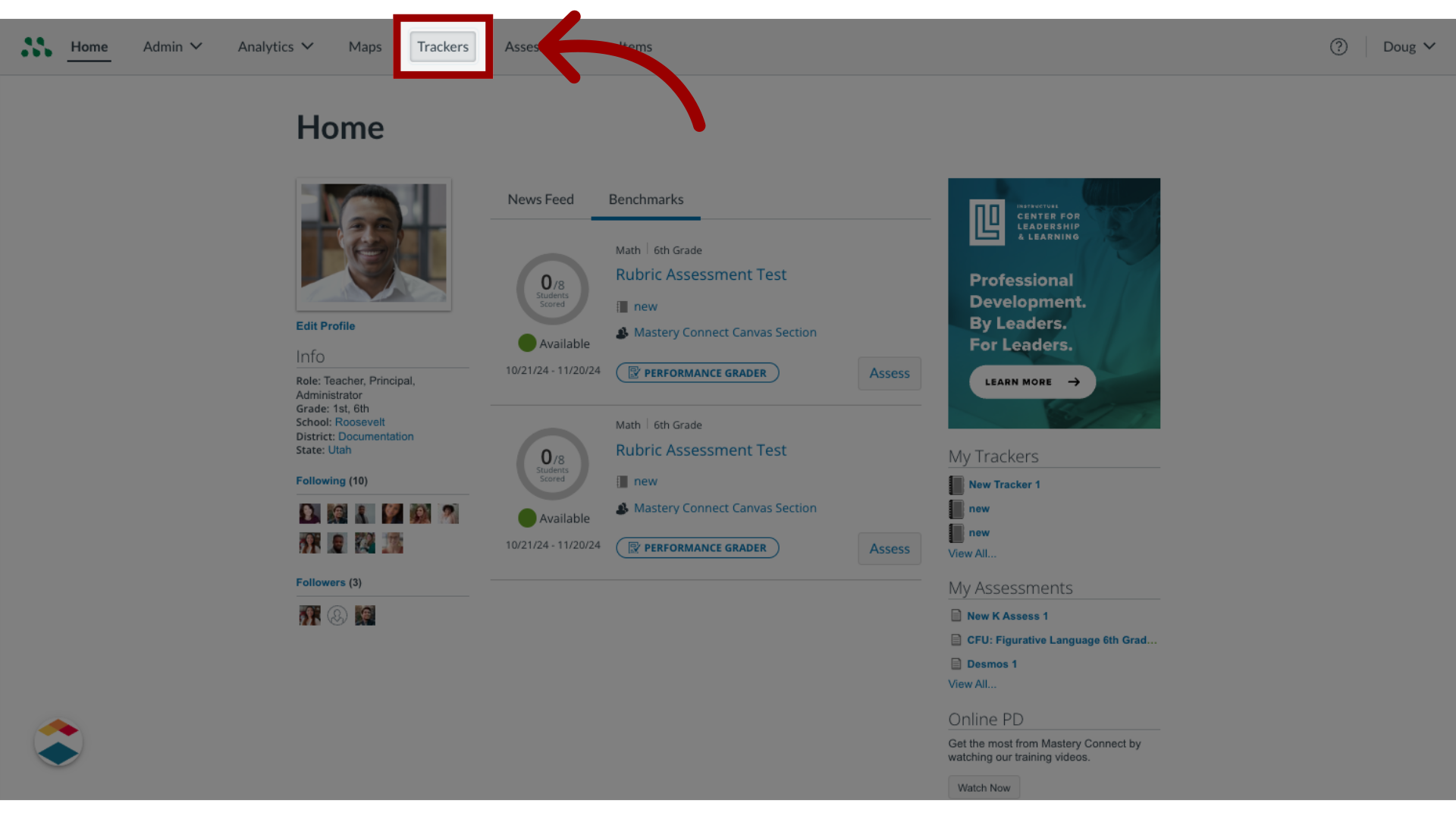
1. Open Trackers
In the Home page, locate the tracker that includes the assessment, and click the tracker title.
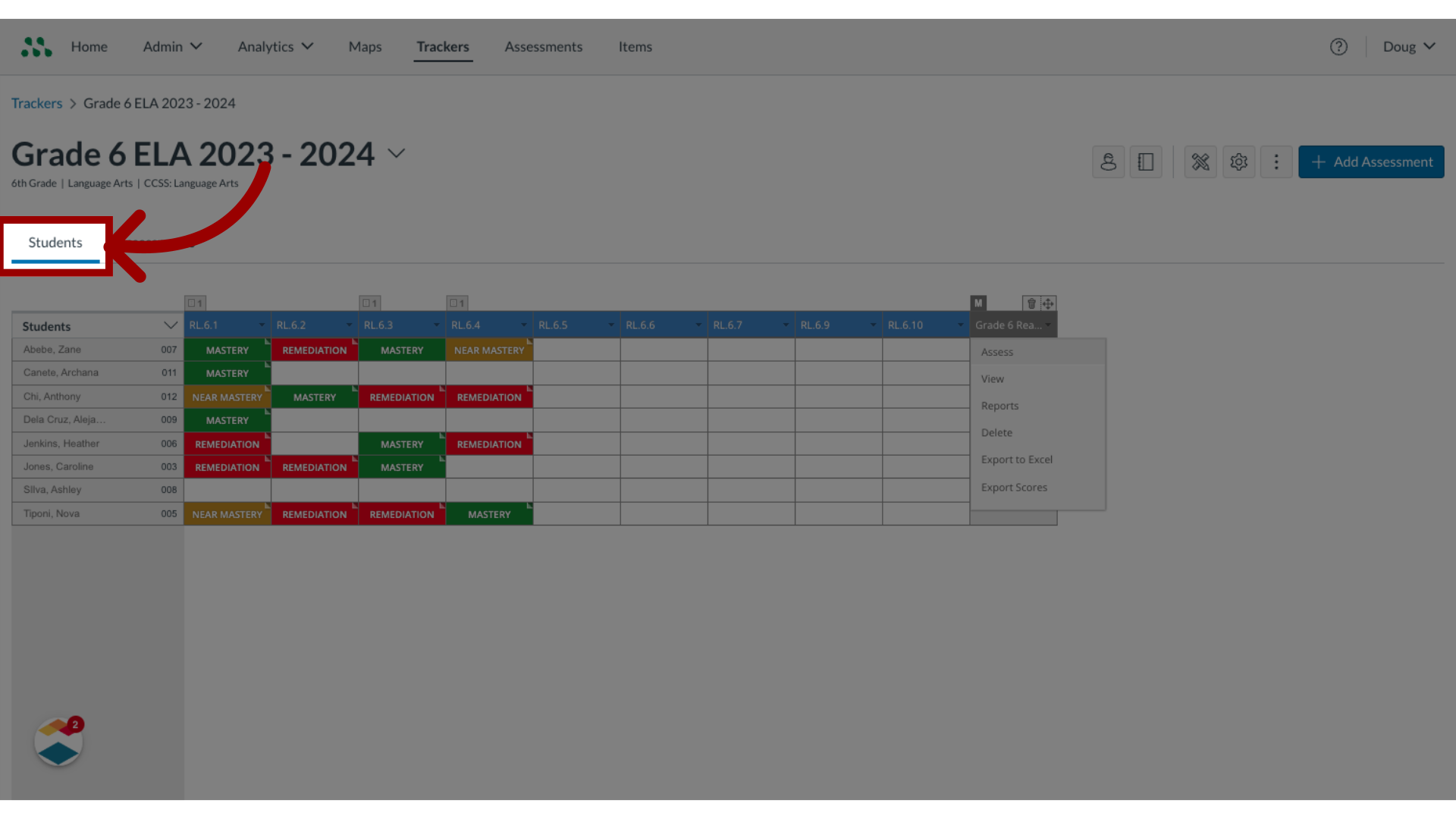
2. Select Students
Click the Students tab.
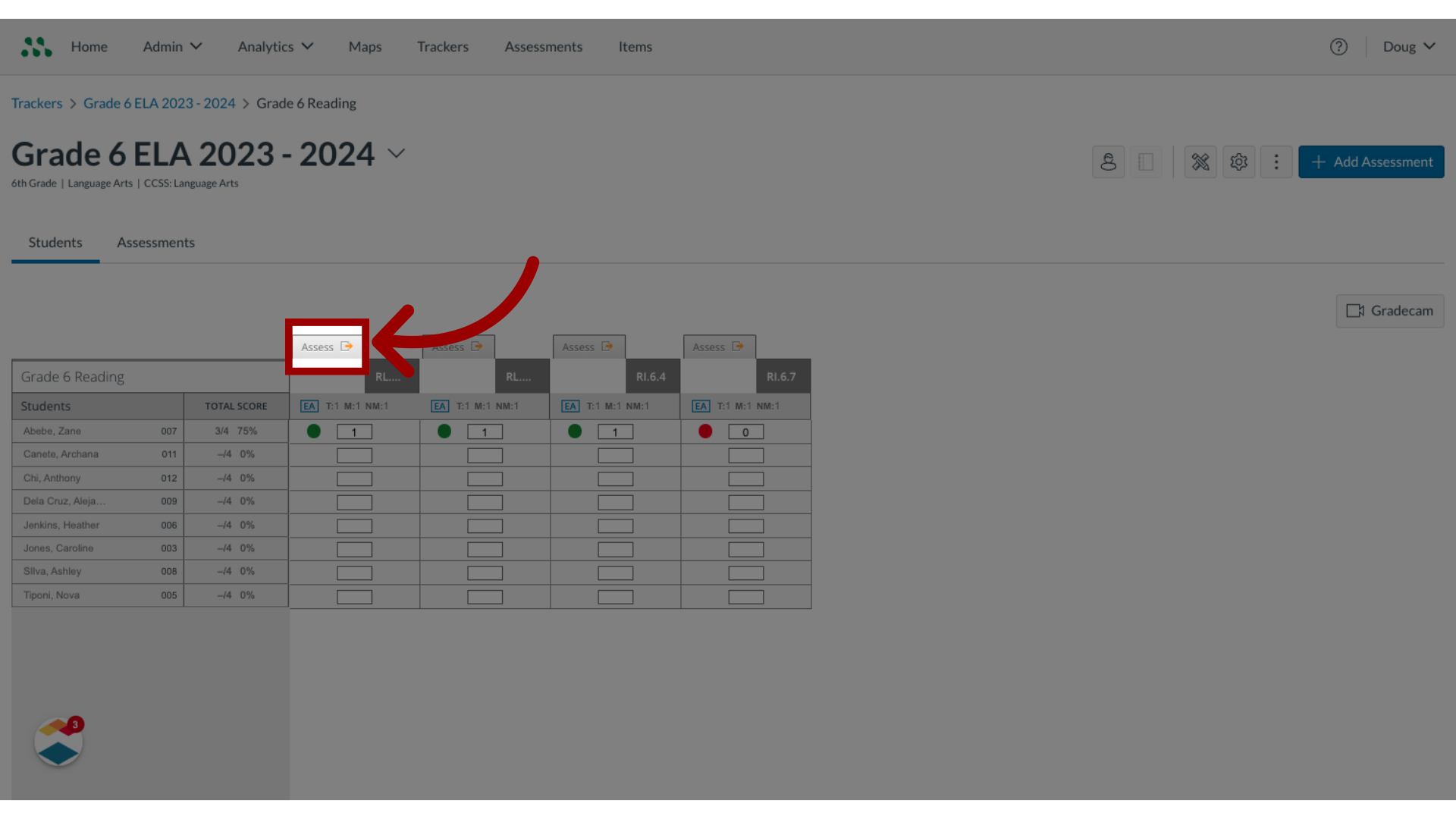
3. Select Standard Header
Click the title of the standard that contains the assessment.

4. Select Assess
Locate the assessment and click the Assess tab.
5. View Tools and Accommodations
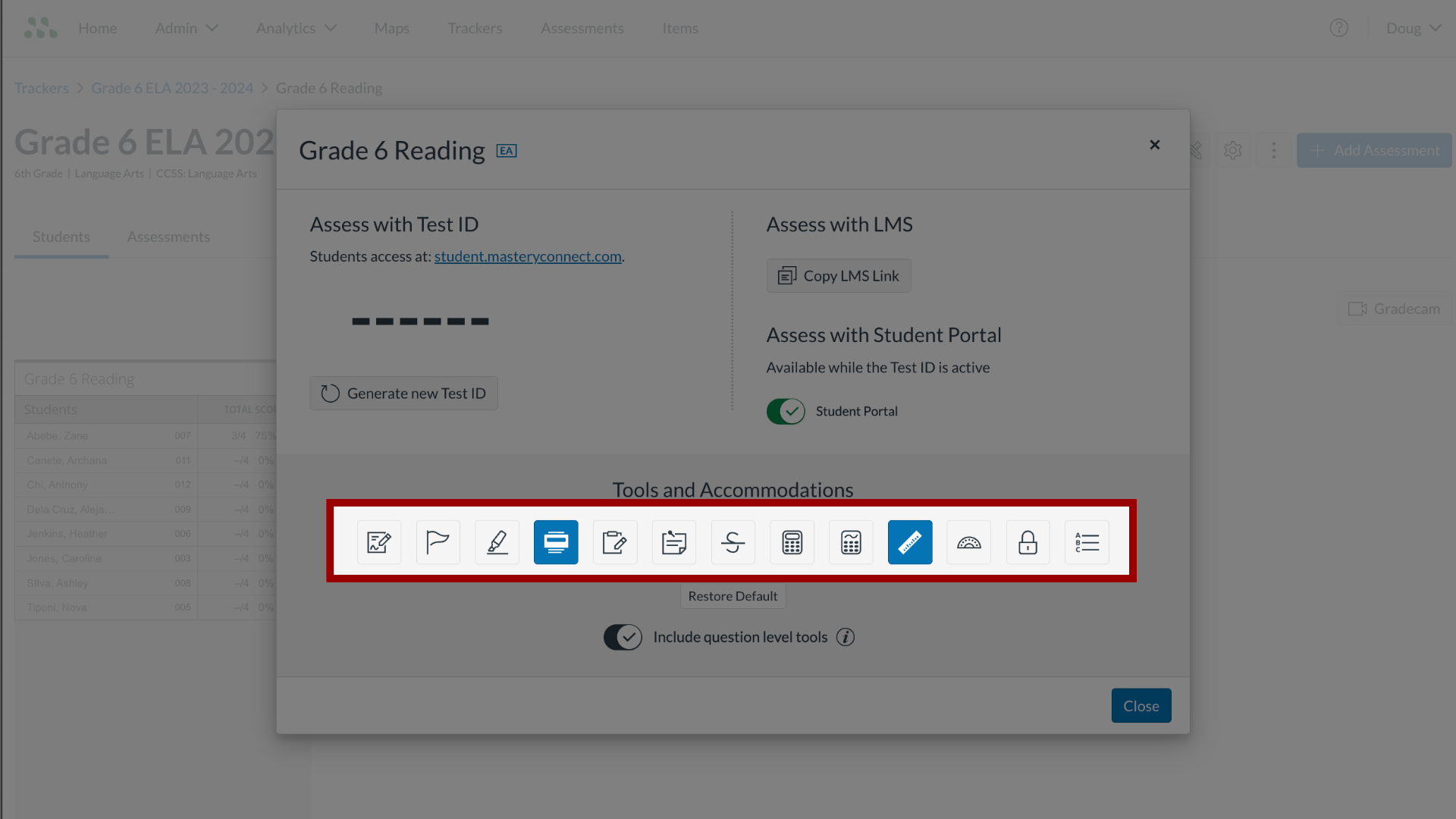
If the district administrator has allowed tools and accommodations for your assessment, the buttons in the Tools and Accommodations section display the status of each tool and accommodation.
By default, the available tools and accommodations are set according to the tracker-level tools and accommodations.
A shaded button indicates the tool or accommodation is active in the assessment.
An unshaded button indicates the tool or accommodation is not active in the assessment.
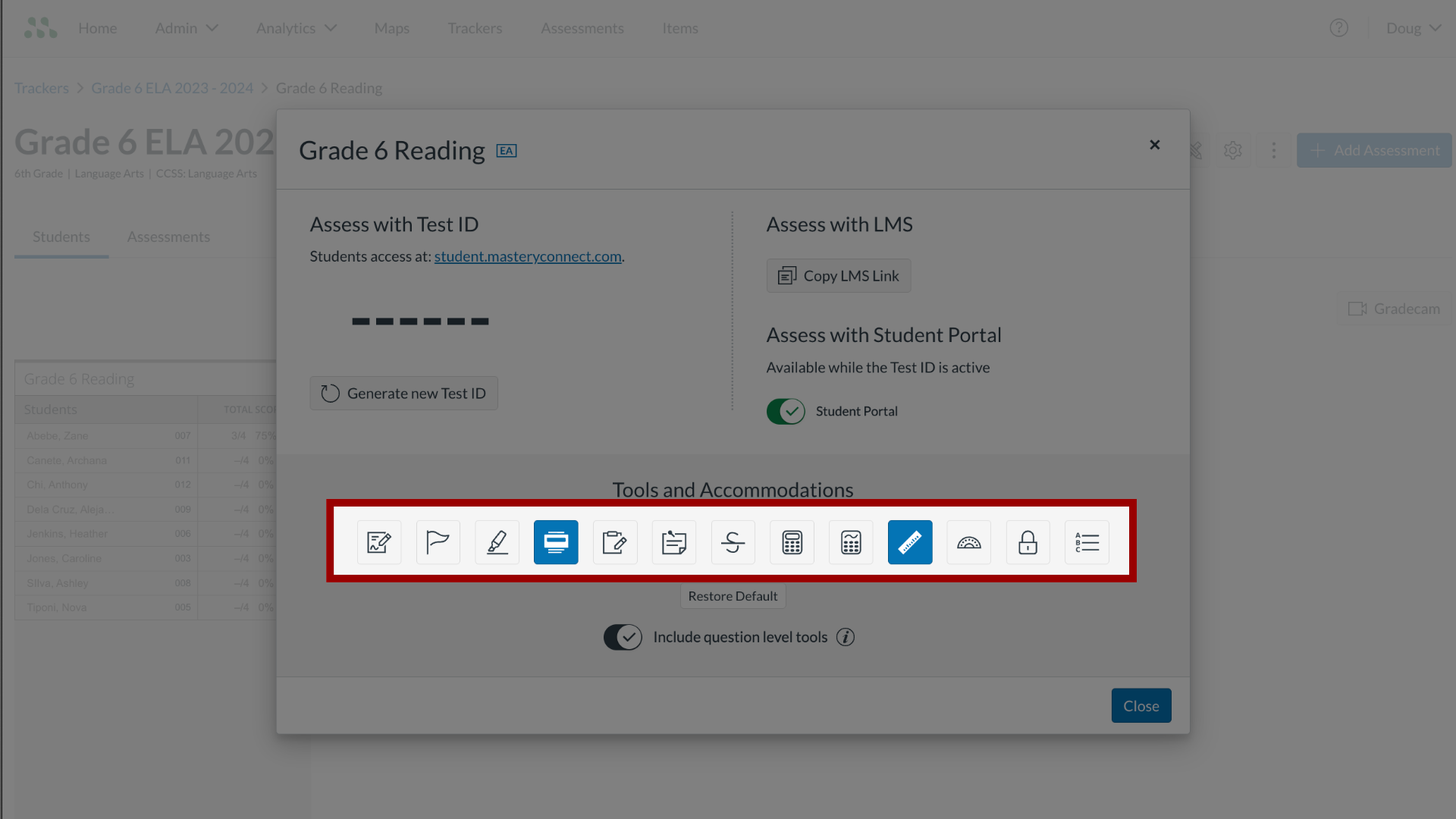
6. Select Tools and Accommodations
To allow a tool or accommodation, click the item's button.
7. View Include Question Level Tools
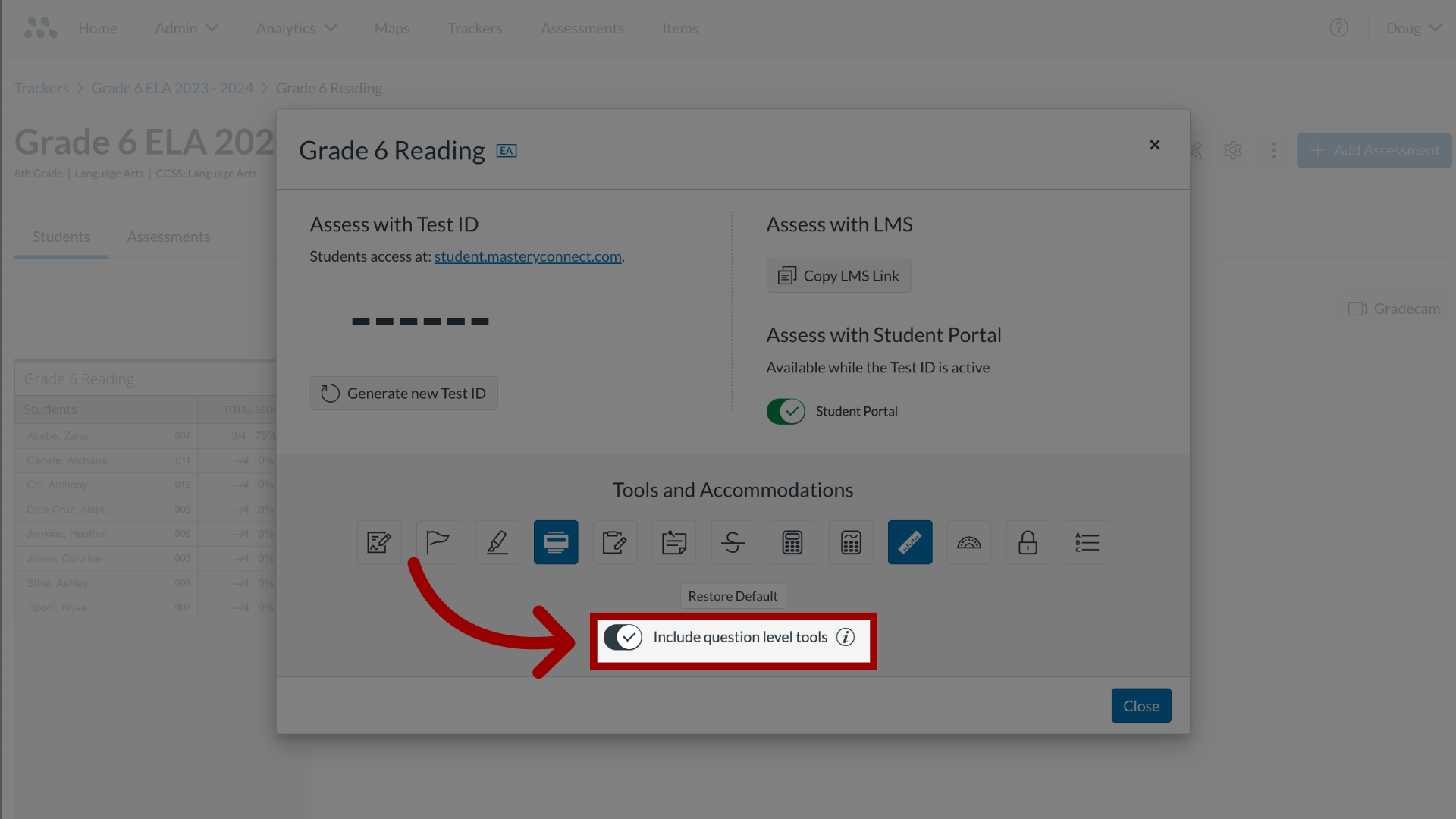
If tools were added as a feature to an item during the item authoring process, they are enabled by default.
To disable them, click the Include question level tools toggle off.
8. Select Restore Default
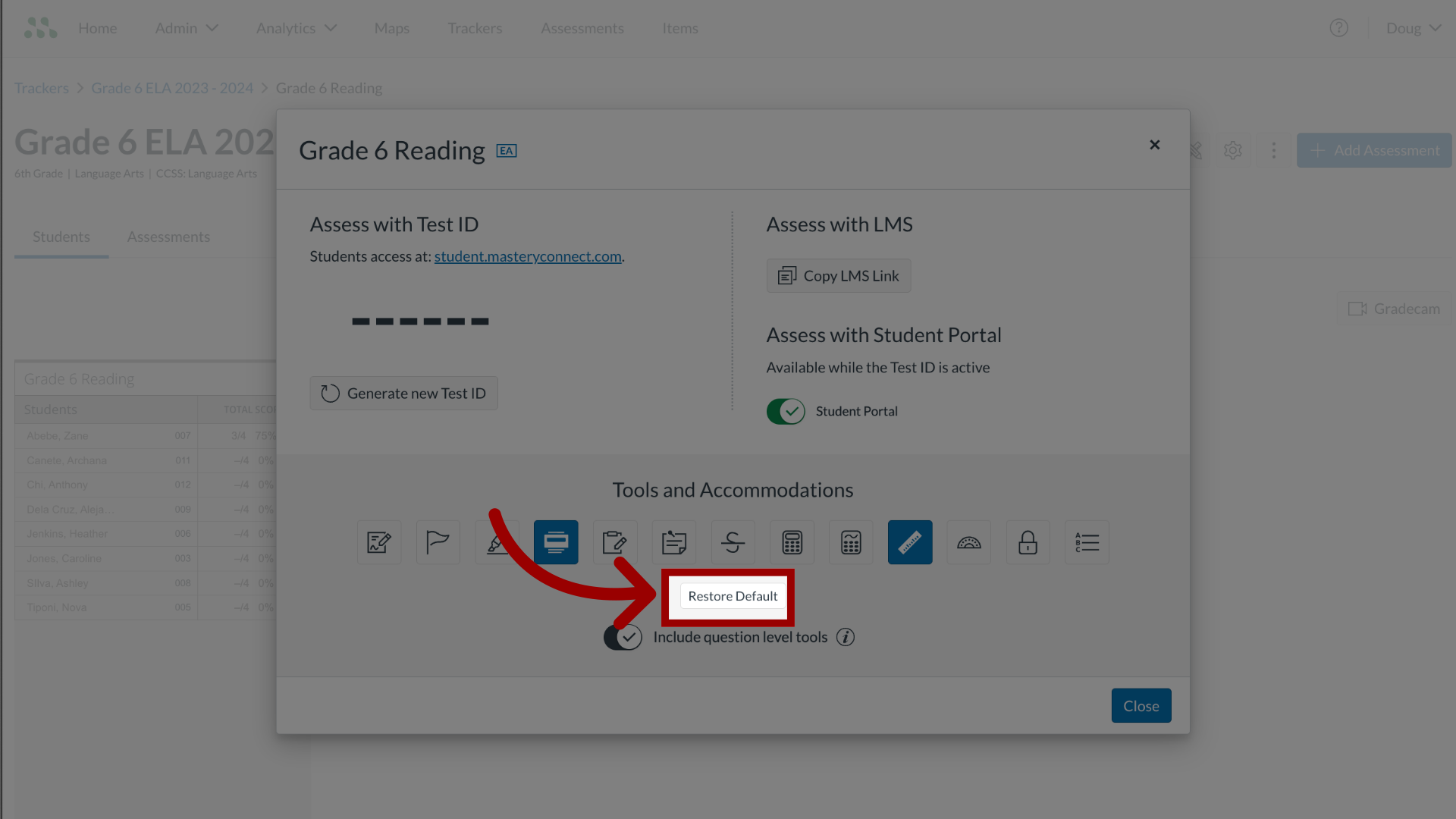
To restore the default settings that were configured for all assessments on the tracker, click the Restore Default button.
9. Save Changes
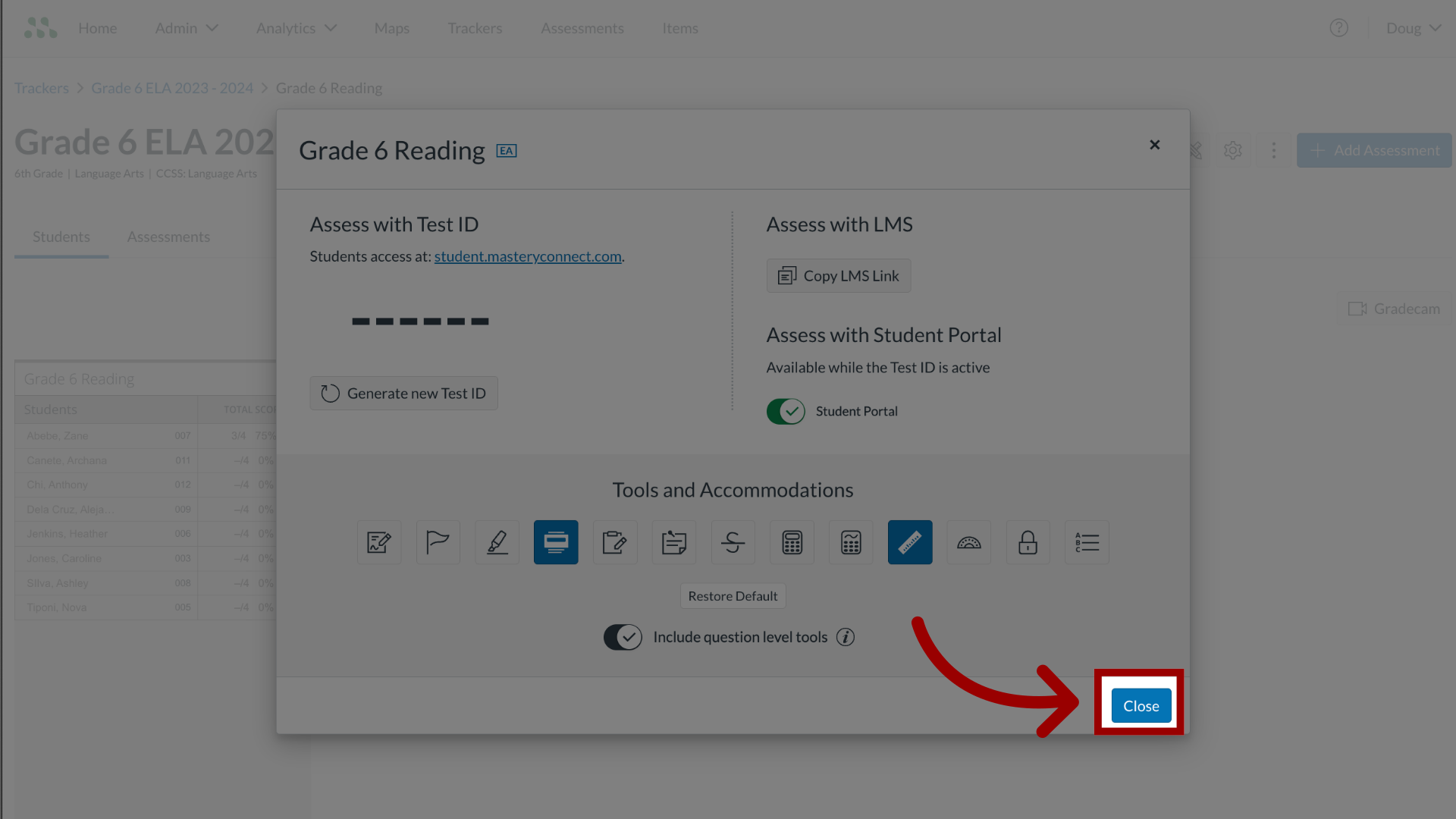
To save the tools and accommodations configurations, click the Close button.
This guide covered how to configure tools and accommodations or individual formative assessments.