In Mastery Connect, you can print student assessment scores for single-standard assessments from a tracker. You can customize the list of students and the assessment items included in assessment score printouts.
Note: You can also print student scores for multi-standard formative assessments or benchmark assessments from a tracker.
View the video transcript
00:05: How do I print student single standard formative assessment scores from a
00:09: Tracker.
00:10: In the global navigation, click the Home link.
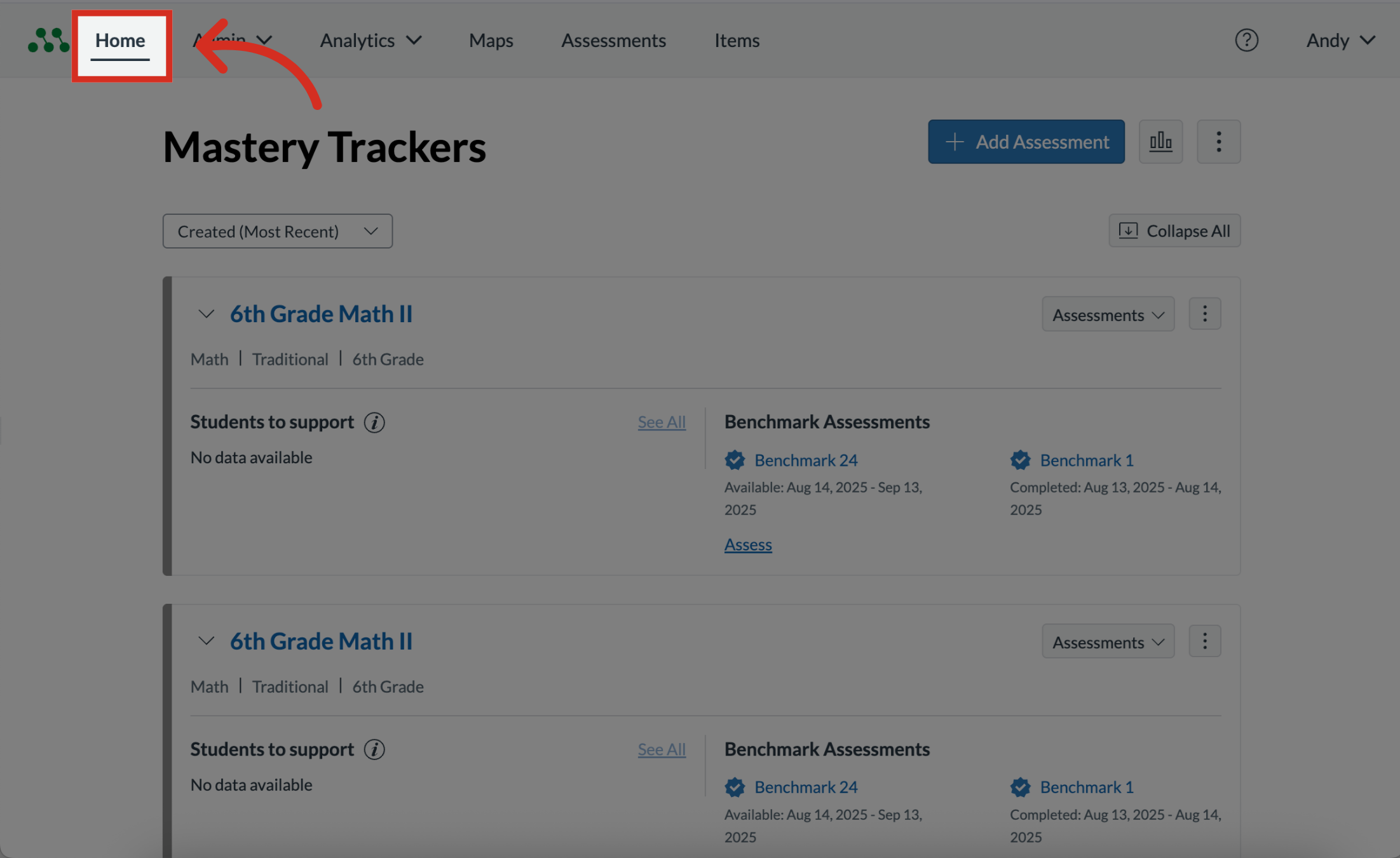
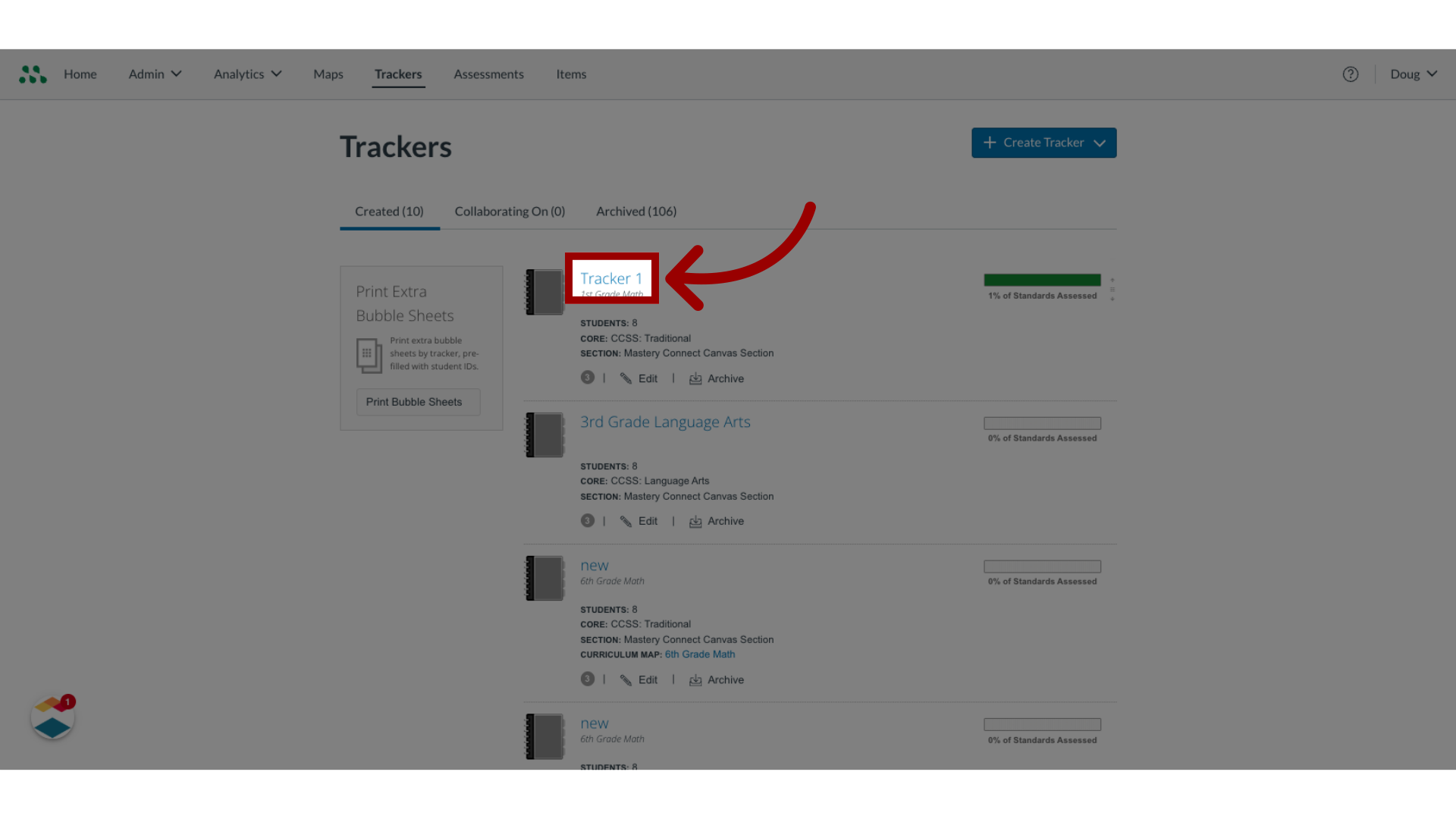
00:14: Locate the tracker you want to open and click the tracker name link.
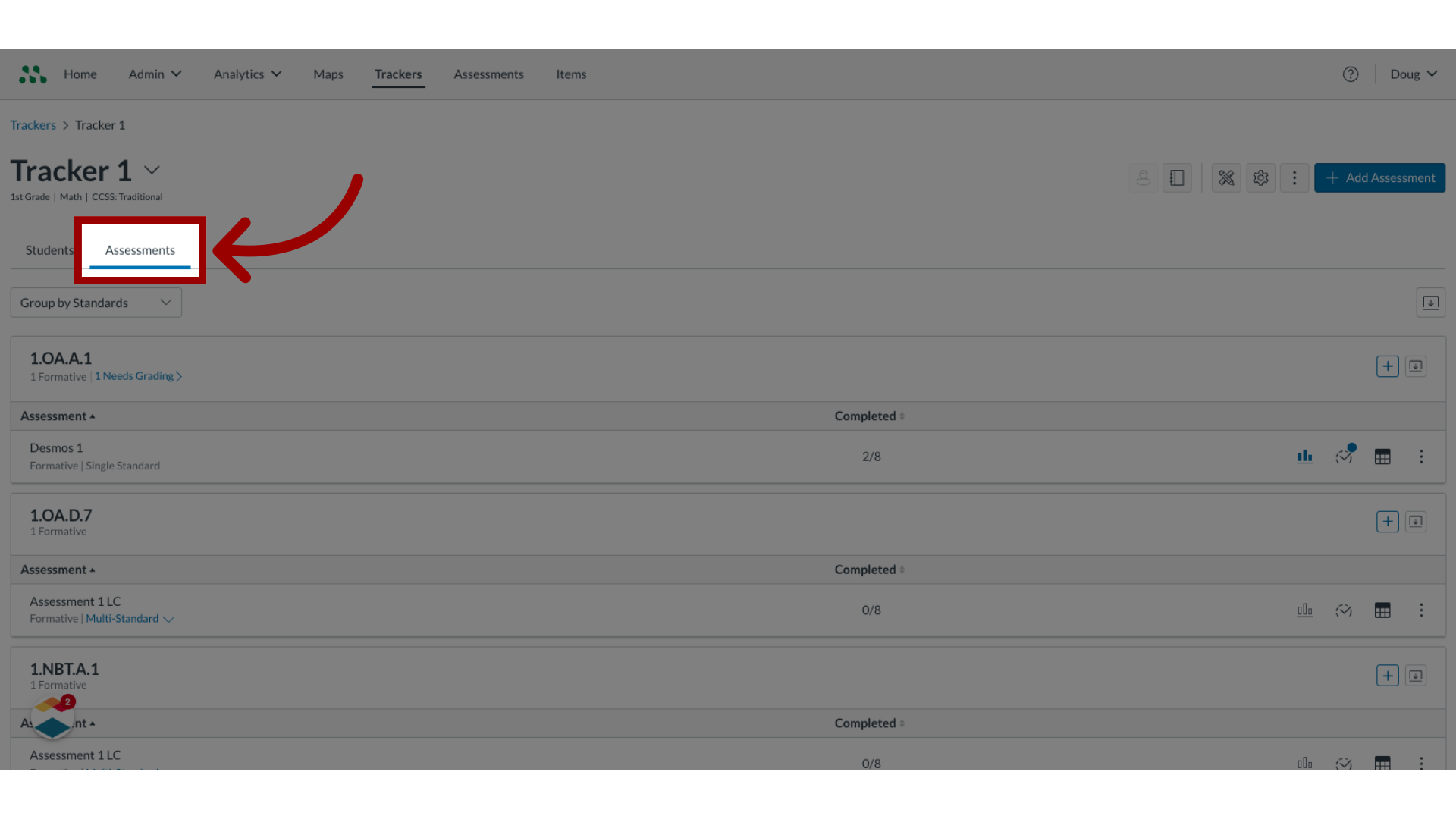
00:18: Click the Assessments tab.
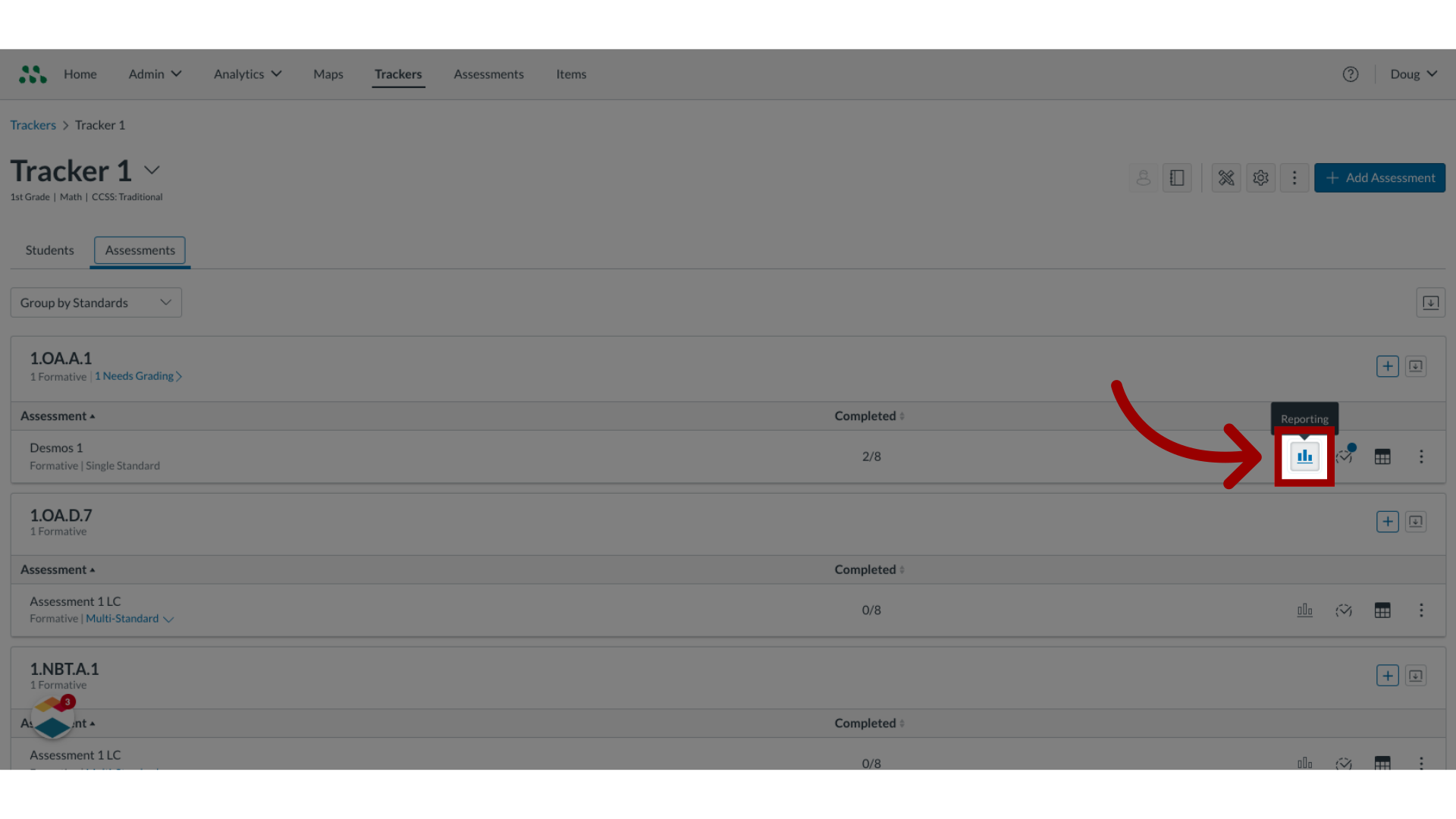
00:21: Locate the assessment in the Tracker Assessment list, and click the Reports icon.
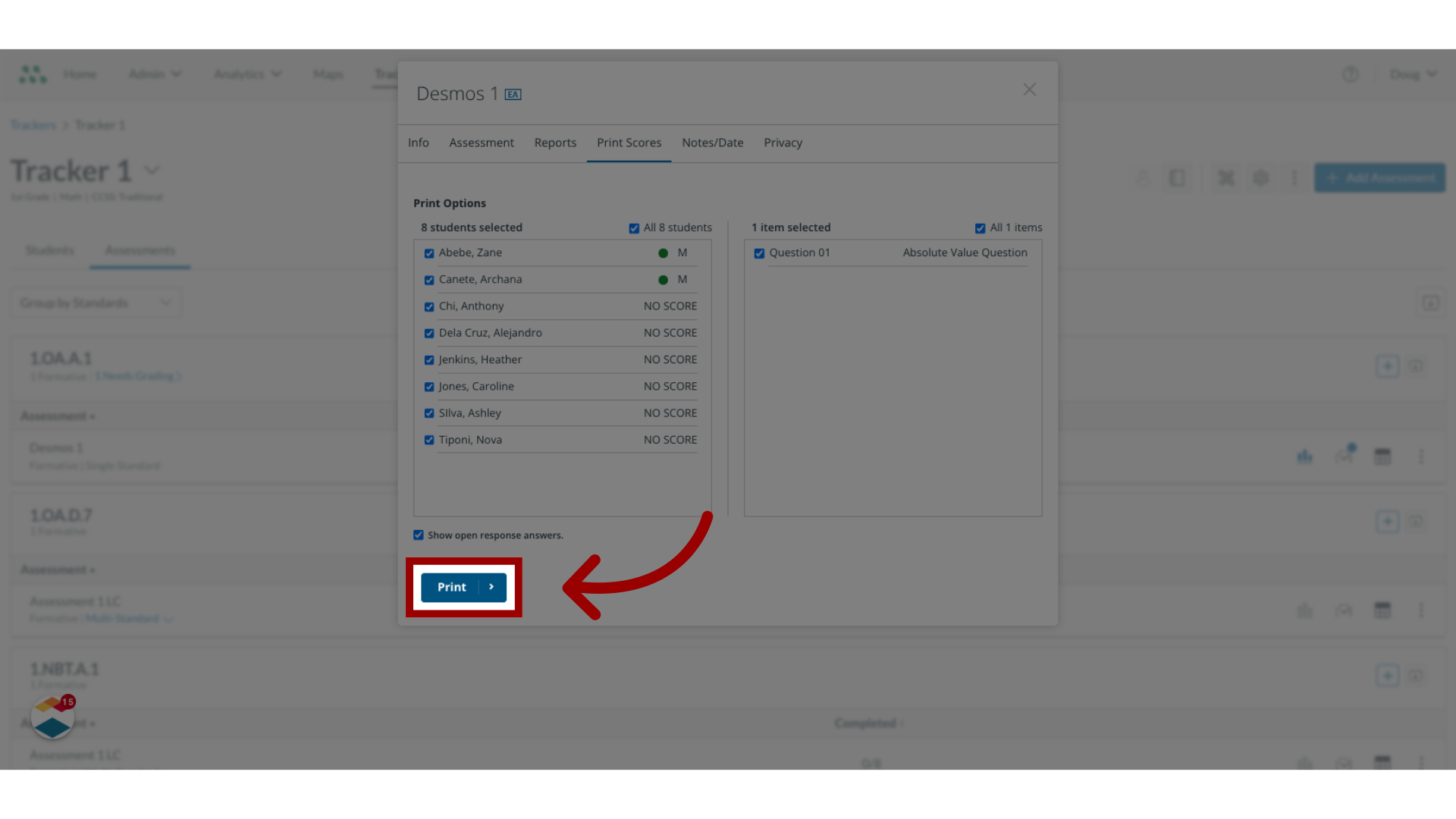
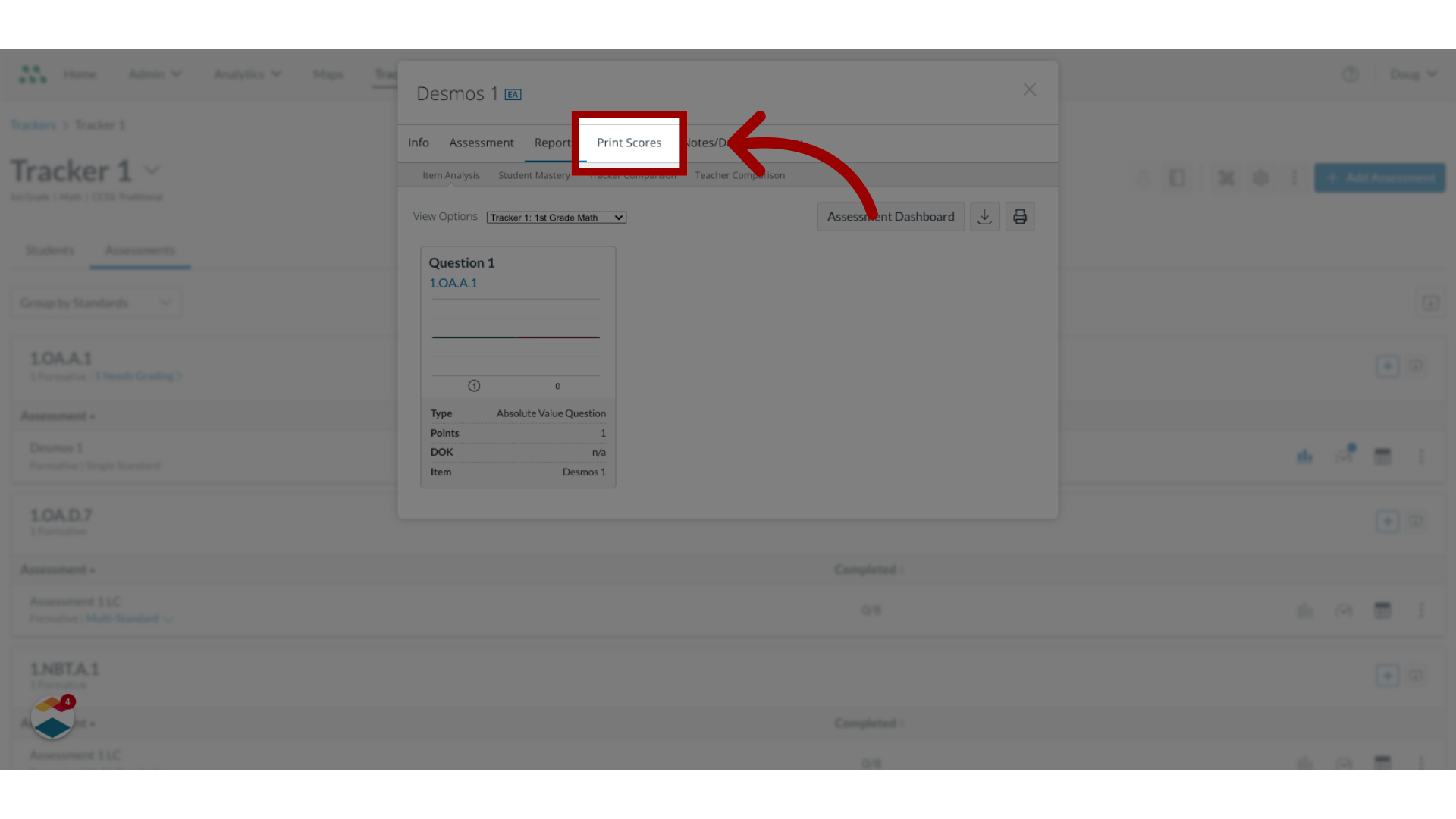
00:26: In the Assessment Details window, click the Print Scores tab.
00:31: The Print Scores window displays the tracker student list, the assessment
00:35: items list, and any additional print options.
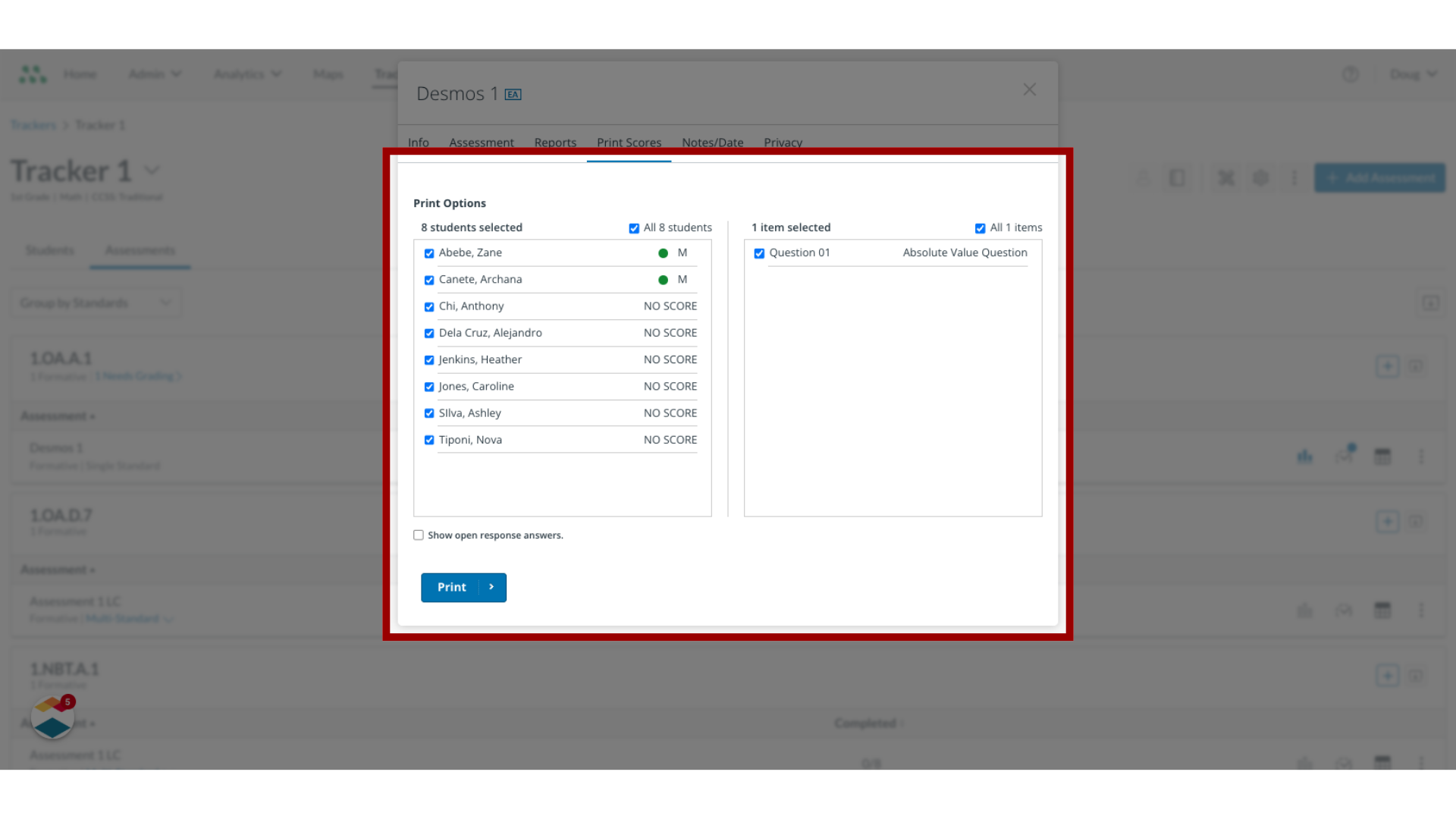
00:39: By default all students in the tracker list are selected for the printout
00:44: to deselect students, click the student check boxes.
00:48: By default, all questions in the assessment are selected in the list.
00:53: To deselect questions from the printout click the appropriate checkboxes.
00:58: Click the Print button.
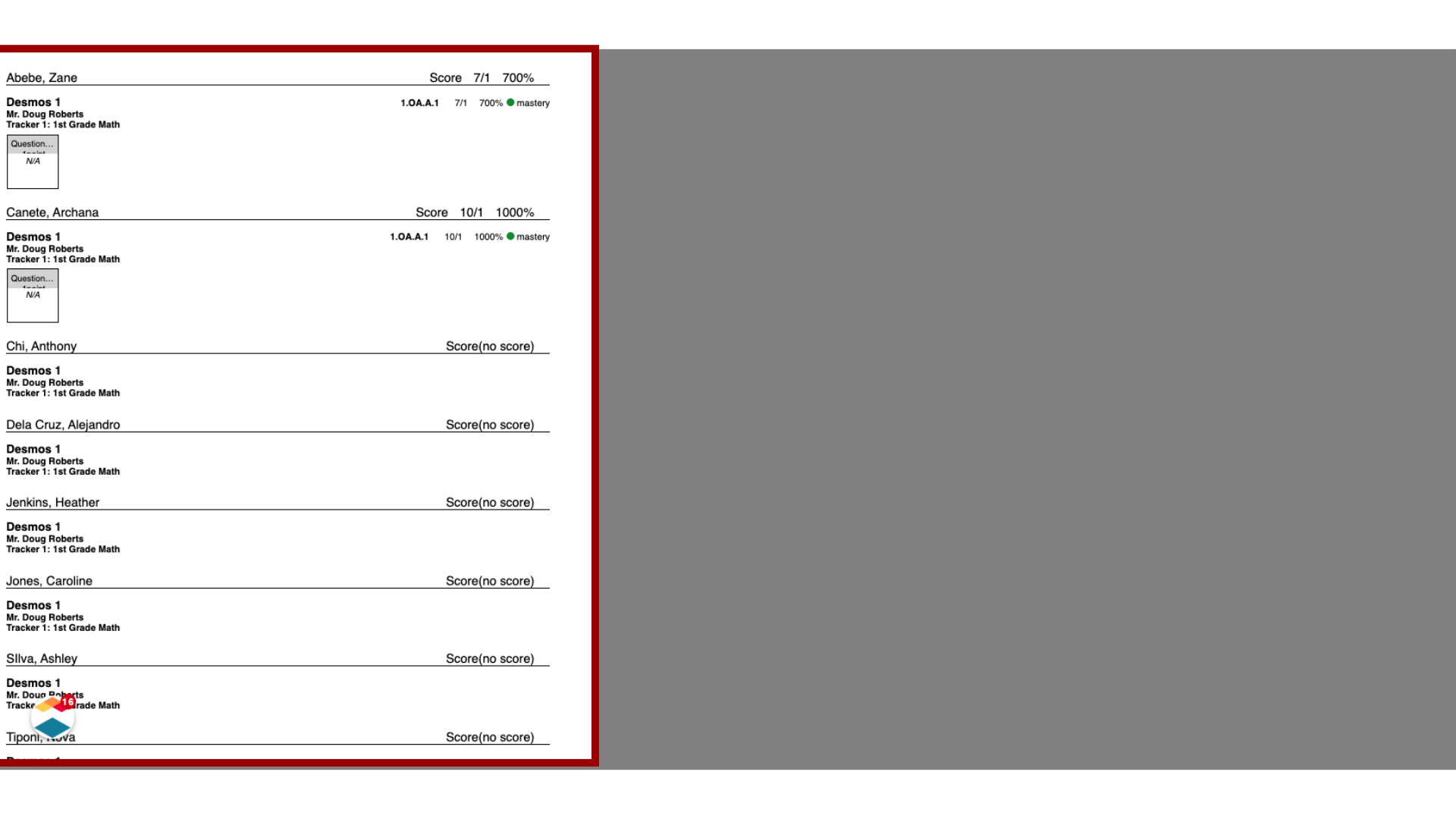
01:00: In a new browser window, view the assessment scores for the selected students.
01:05: To format and print the scores, use your browser's print options.
01:10: This guide covered how to print student single standard formative assessment scores
01:14: from a Tracker.
Open Mastery Trackers Home
In the global navigation, click the Home link.
Select Tracker Name Link
Locate the tracker you want to open and click the tracker name link.
Open Assessment Reports
Click the Assessments tab. Then locate the assessment in the Tracker Assessment list [2], and click the Reports icon [3].
Note: The description of each assessment lists the assessment type (benchmark or formative) and if it is a single or multi-standard assessment.
View Print Scores Options
In the Assessment Details window, click the PrintScores tab [1].
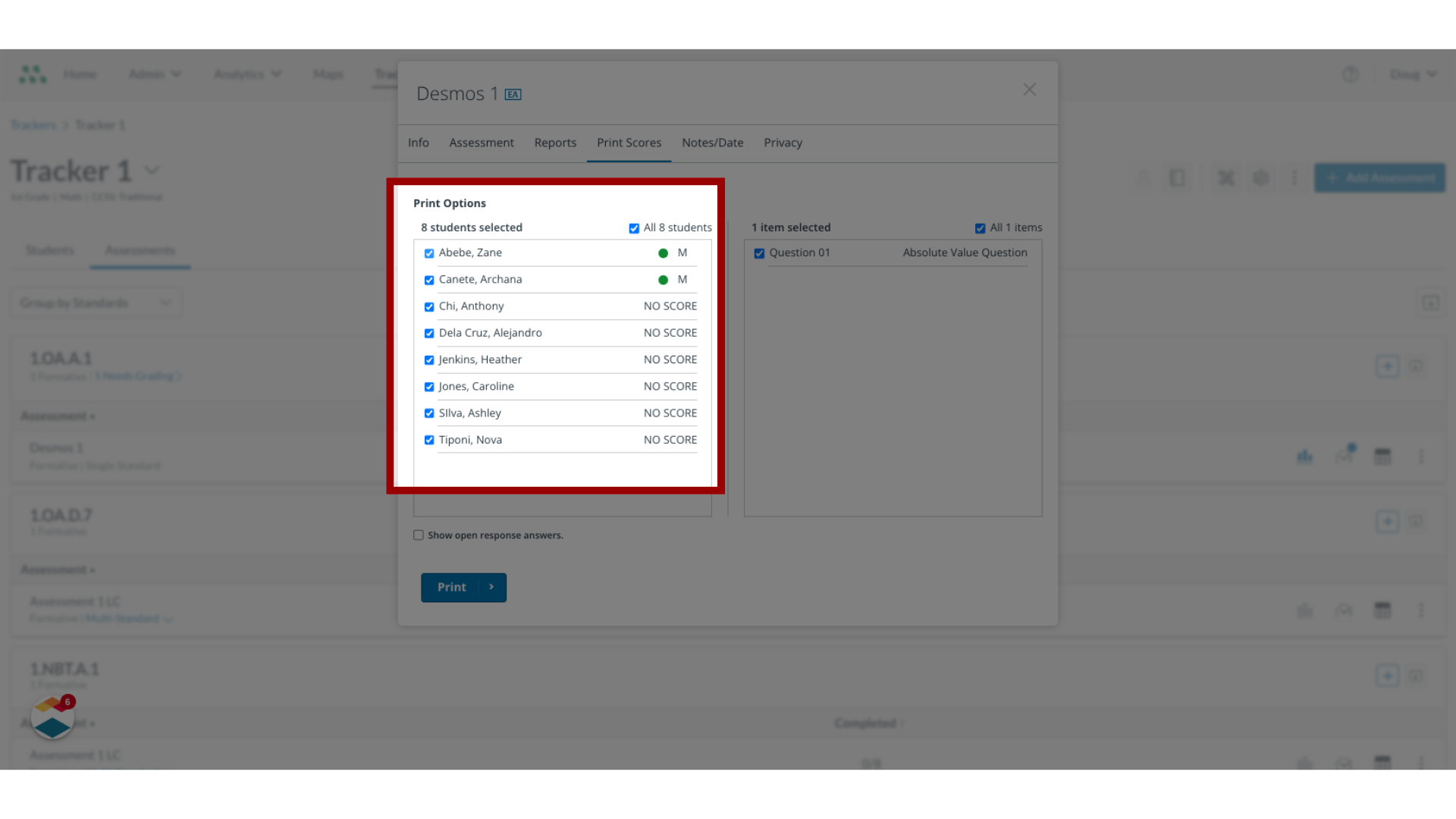
The Print Scores window displays the tracker student list [2], the assessment items list [3], and any additional print options [4].
Deselect Students
By default, all students in the tracker list are selected for the printout. To deselect students, click the student checkboxes.
Deselect Questions
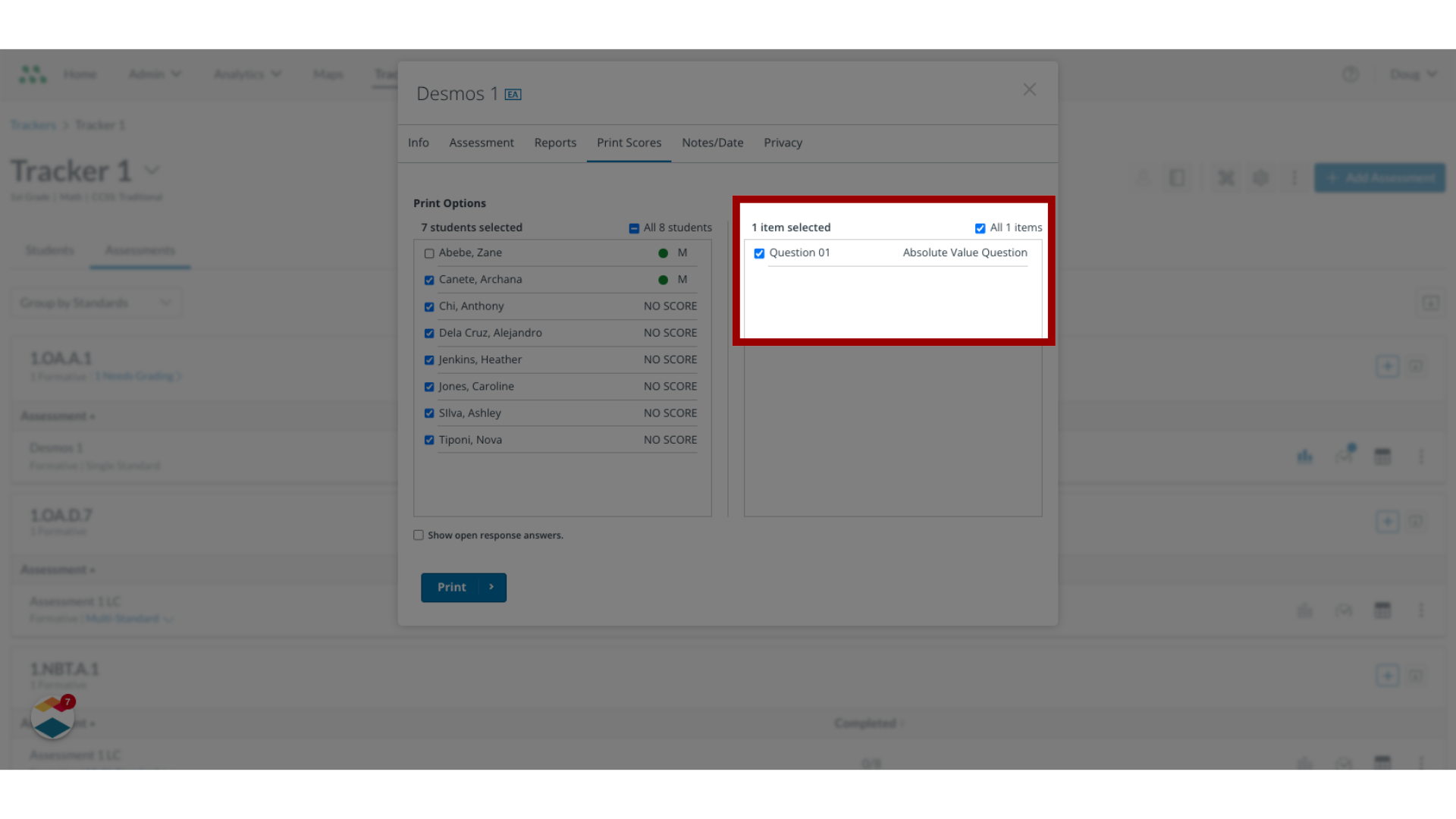
By default, all questions in the assessment are selected in the list. To deselect questions from the printout click the appropriate checkboxes.
Select Print
Click the Print button.
Preview and Print
In a new browser window, view the assessment scores for the selected students. To format and print the scores, use your browser's print options.