Once you have create a curriculum map, you can add assessments to it. All owners collaborating on your curriculum map can also add assessments to it.
Notes:
- Only the owner of a district-approved curriculum map can add assessments or make other edits to it.
- District-approved curriculum maps cannot be copied.
Open Maps
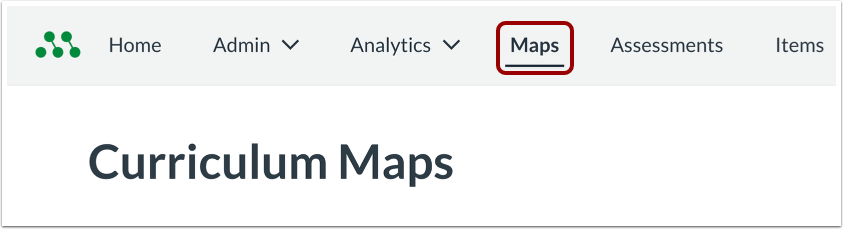
In the Global Navigation menu, click the Maps link.
Open Curriculum Map
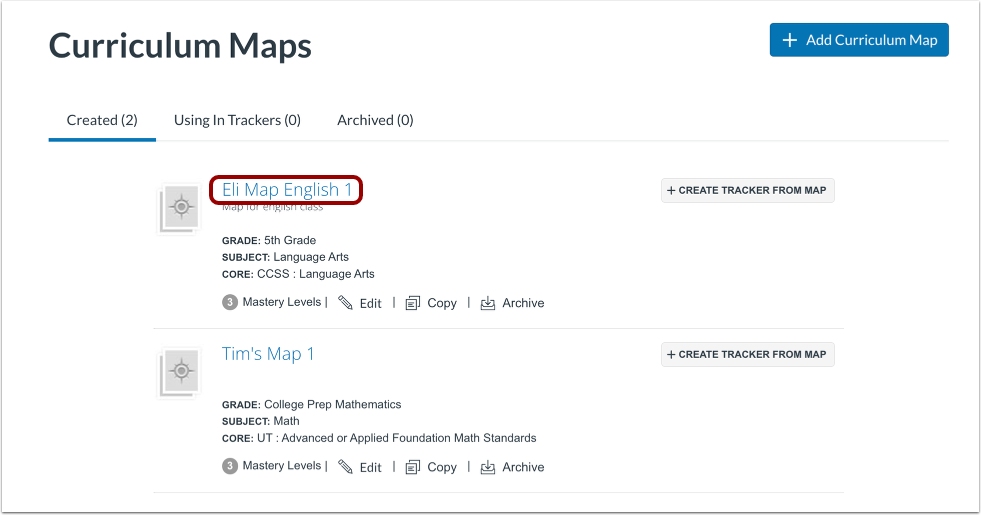
Click a curriculum map name link.
Add Assessment
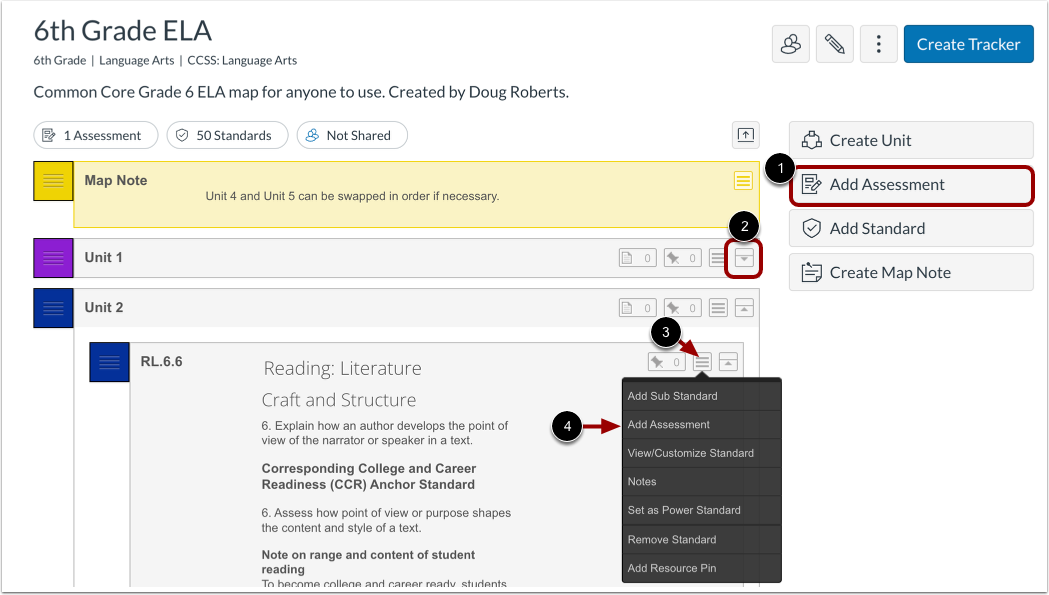
To add an assessment to the curriculum map, click the Add Assessment button [1].
To add an assessment to a standard within a unit, click the Expand Unit icon [2]. Next, hover over the Standard Options icon [3] and click the Add Assessment link [4].
Select Assessment Source
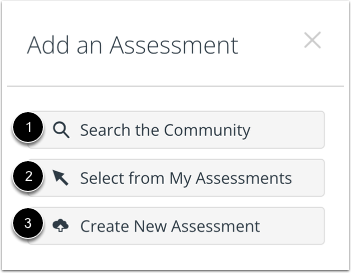
To search for public assessments from the Mastery Connect Community, click the Search the Community button [1].
To choose only from assessments that you have created, click the Select from My Assessments button [2].
To create a new assessment, click the Create New Assessment button [3].
Create New Assessment
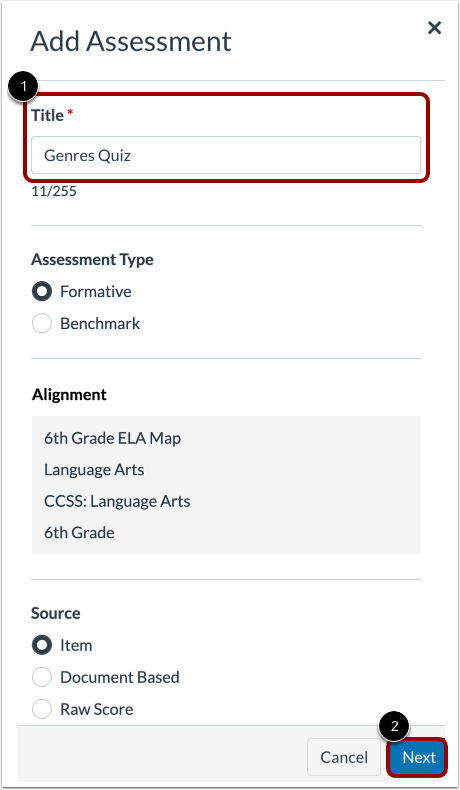
If you clicked Create New Assessment button, the Add Assessment window displays. You can create an item bank assessment, a document-based assessment, or a raw score assessment.
To draft the new assessment, enter a title [1] and make other selections as needed. Then, click the Next button [2].
Note: For the assessment to be automatically added to the curriculum map, you must draft and create the assessment.
View Assessment Library Results
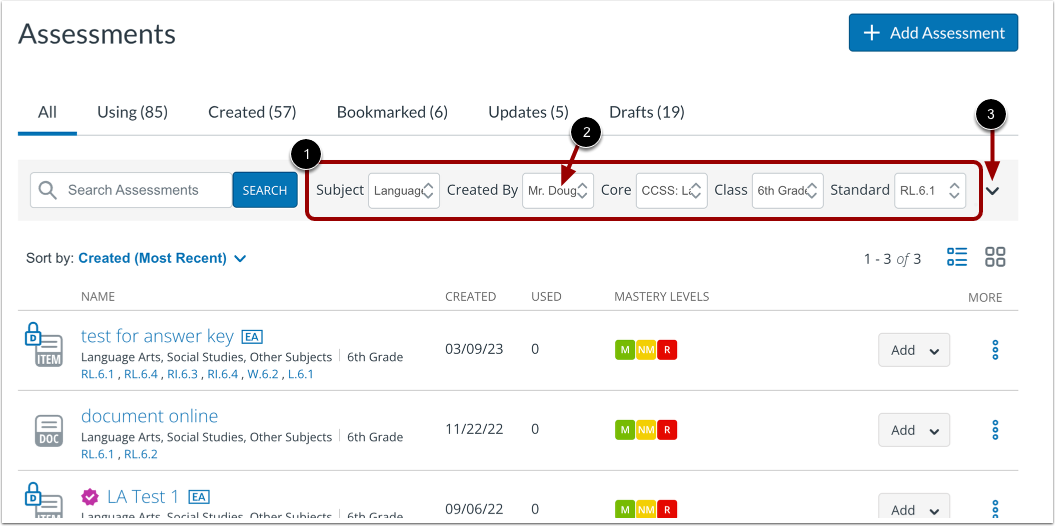
If you clicked the Search the Community button or the Select from My Assessmentsbutton, the Assessment Library page opens.
The Assessment Library page displays your curriculum map's Subject, Core, and Class filters [1].
If you clicked the Select from My Assessments button, the Created By filter displays your name [2]. If you have not created any assessments for this subject, core, and class, no assessments display in the Assessment Library when the Created By filter is set to your name.
To view and use additional filters to narrow your results, click the Expand icon [3].
Select and Add Assessment
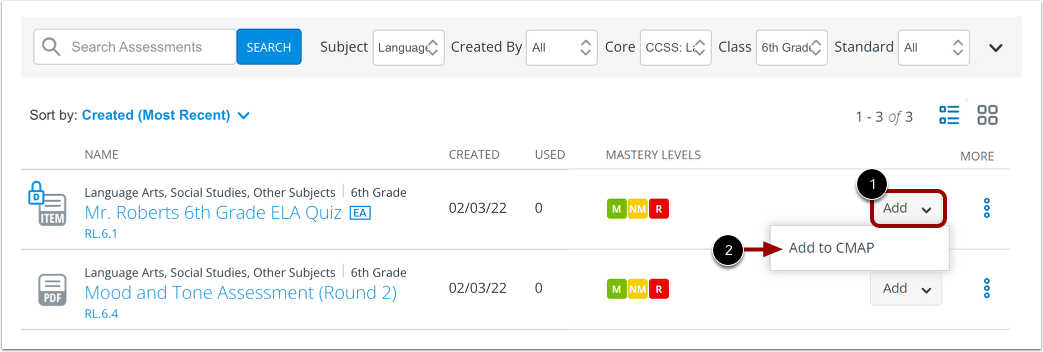
To add an assessment to your curriculum map, click the Add button [1].
Next, click the Add to CMAP option [2].
Clone Assessment to Align Standard
If the assessment you select is aligned to standards that are not a part of your curriculum map, you must clone the assessment and realign it to a standard that is part of your curriculum map.
Confirm Selection
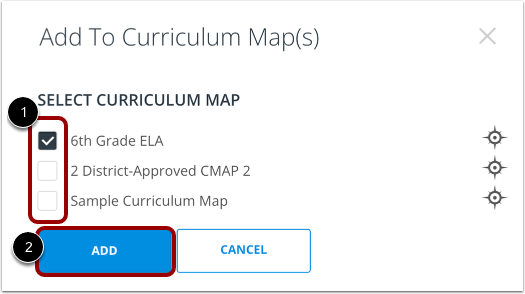
To add the assessment to additional curriculum maps, select the curriculum map check boxes [1]. The checkbox for the curriculum map you navigated from will be preselected.
To add the assessment to your selected curriculum maps, click the Add button [2].
View Assessment in Curriculum Map
That assessment is now connected to one or more standards in your curriculum map.
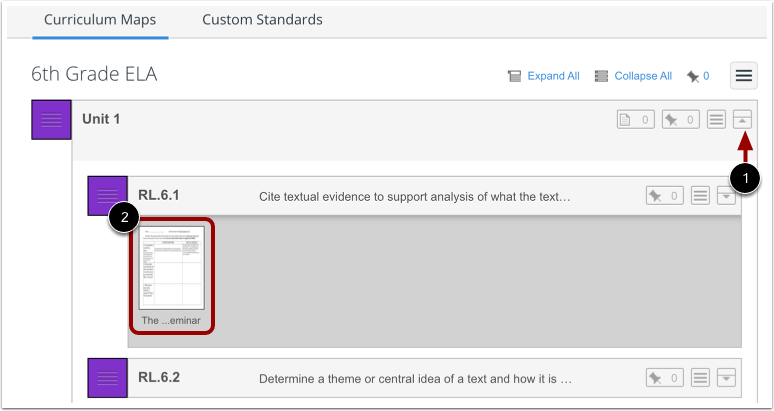
To view a thumbnail of the added assessment, click the Expand Unit icon [1]. The thumbnail will be visible in all standards the assessment is associated with [2].