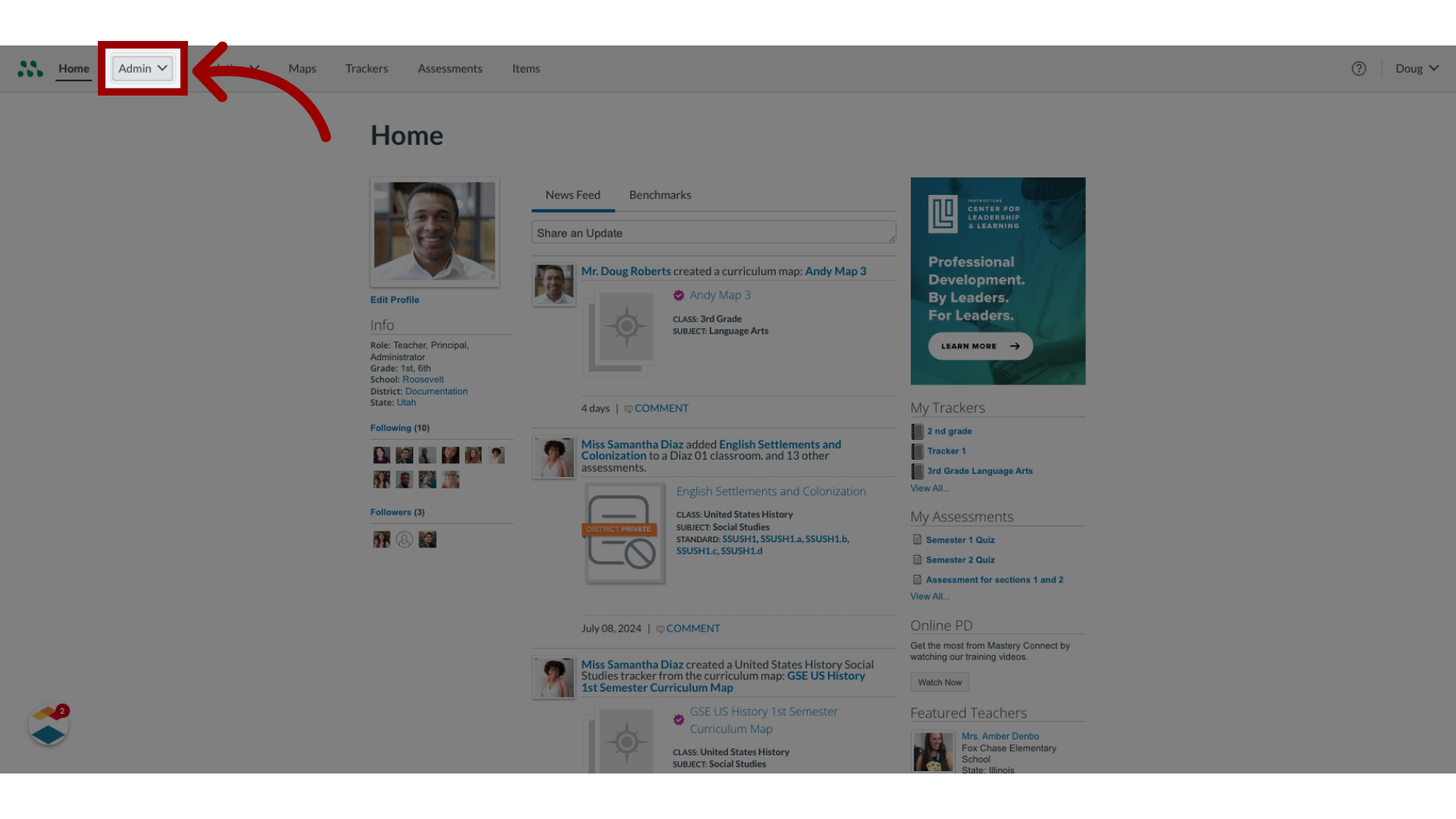
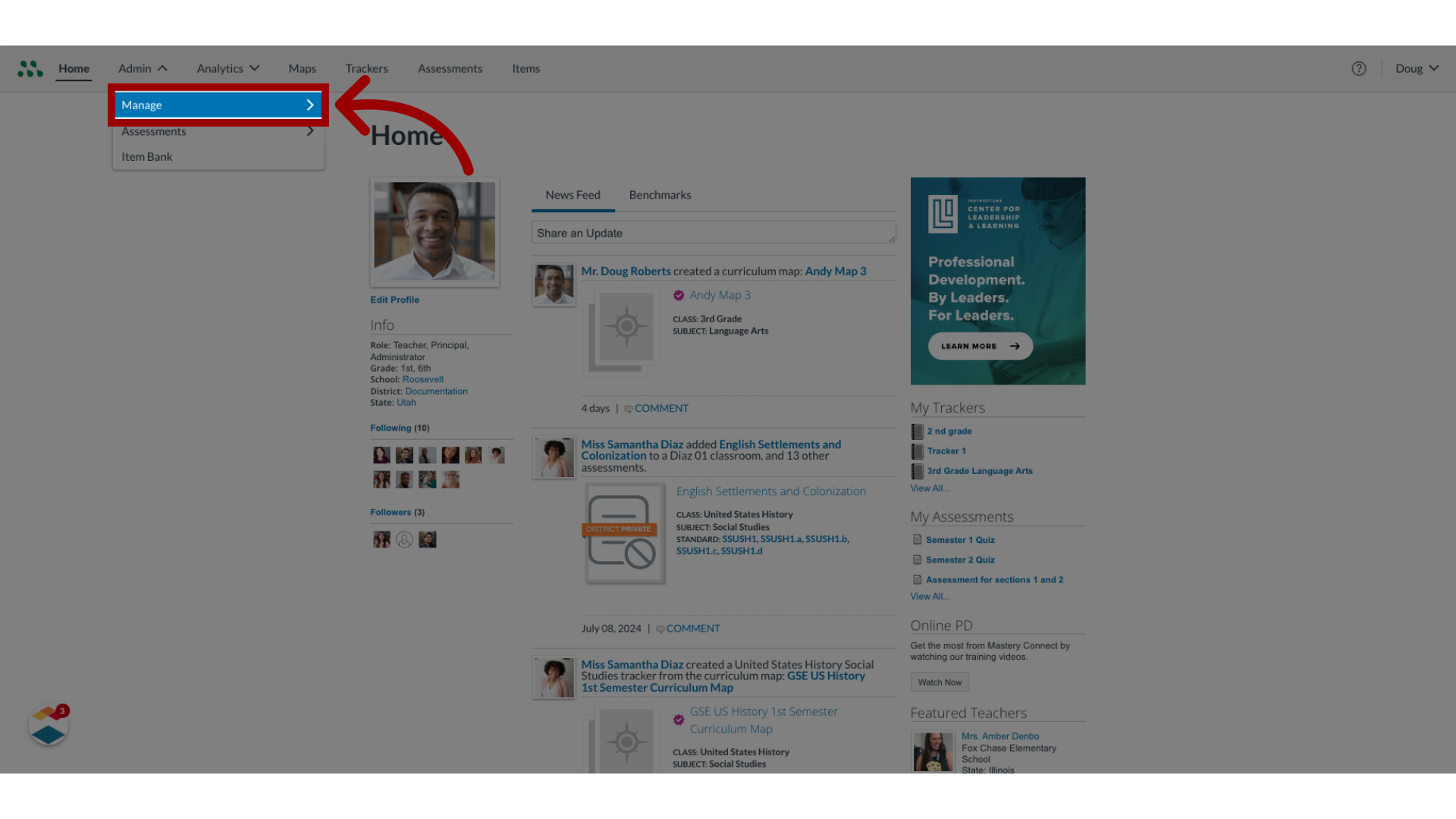
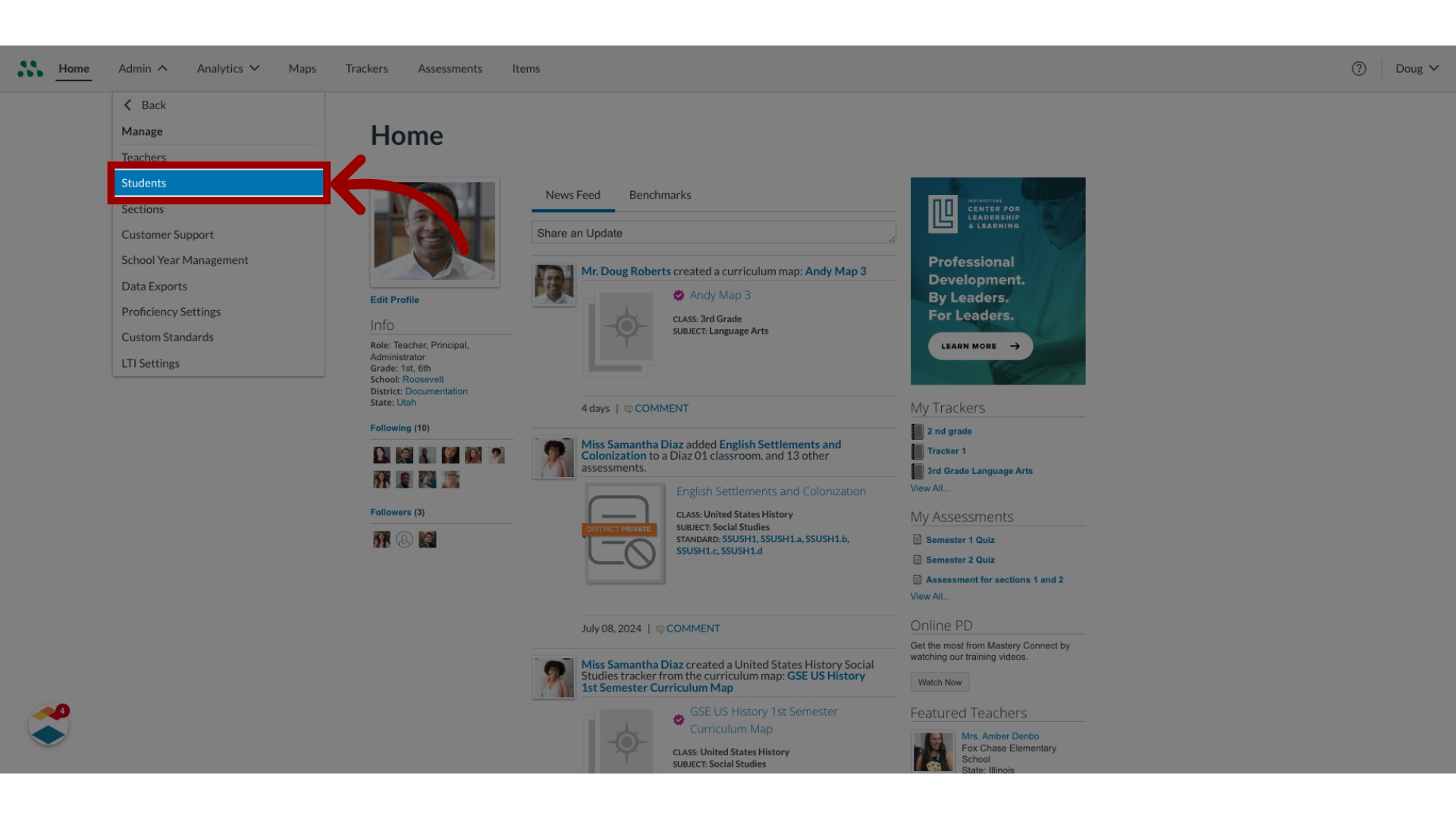
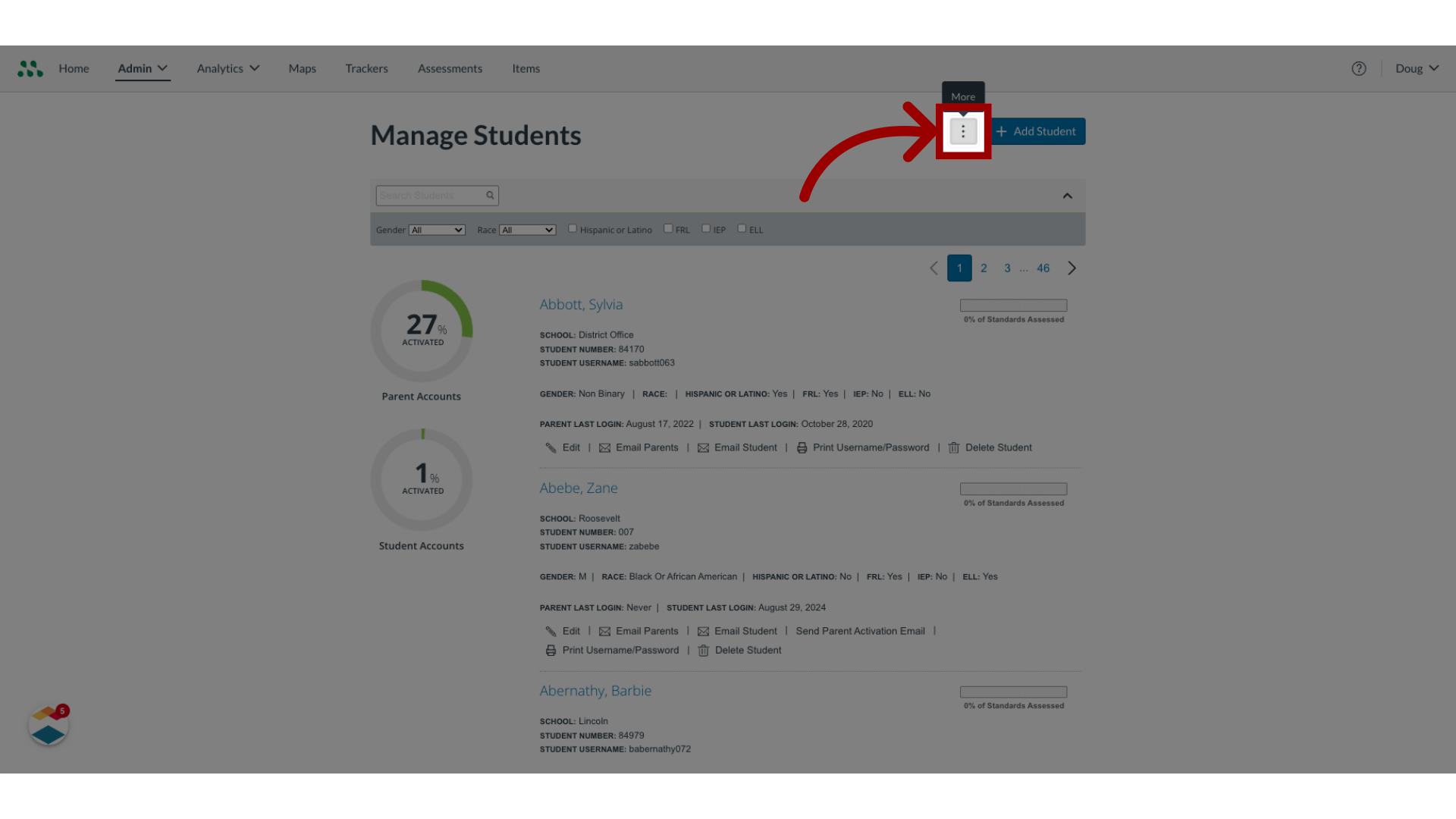
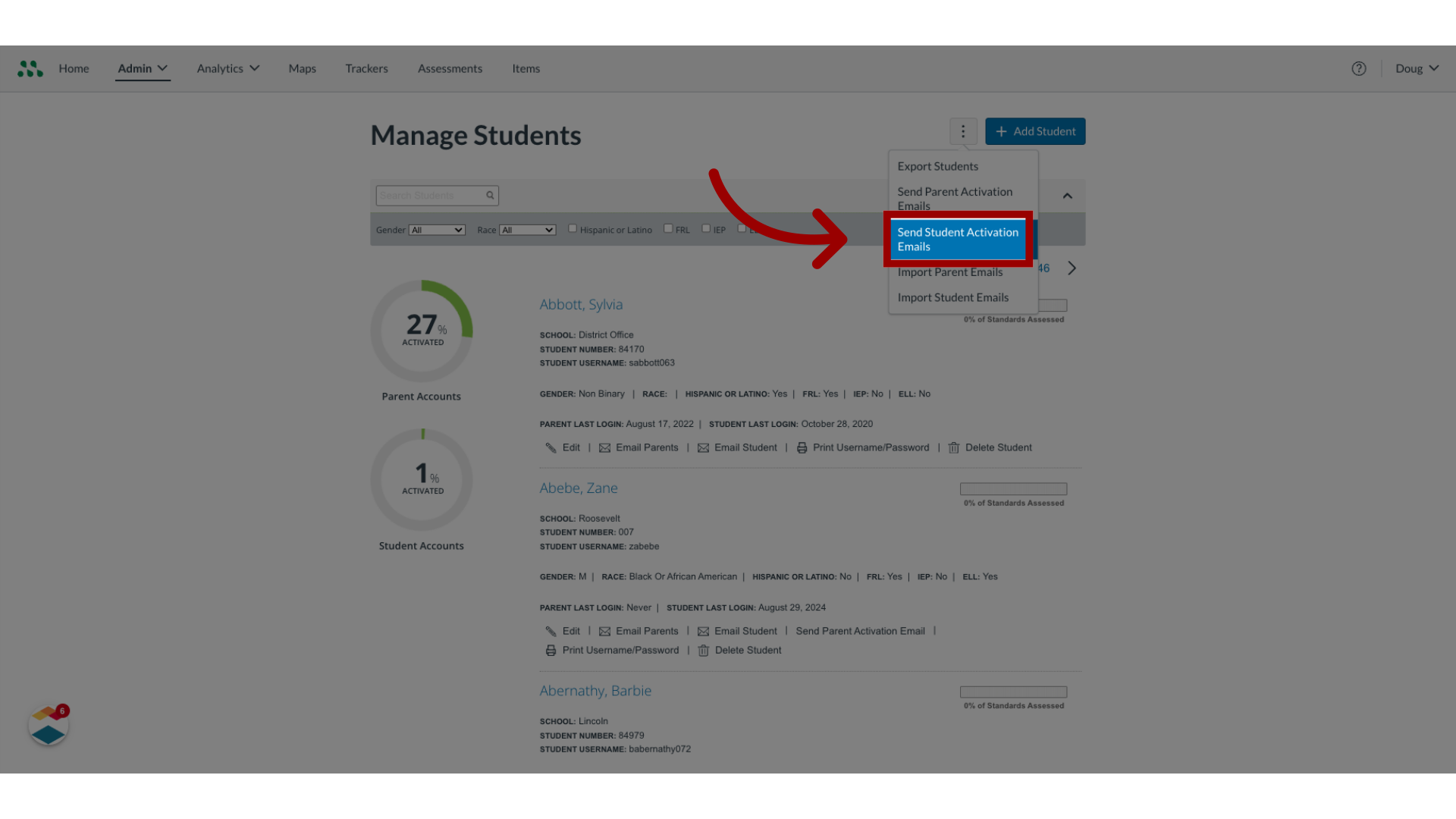
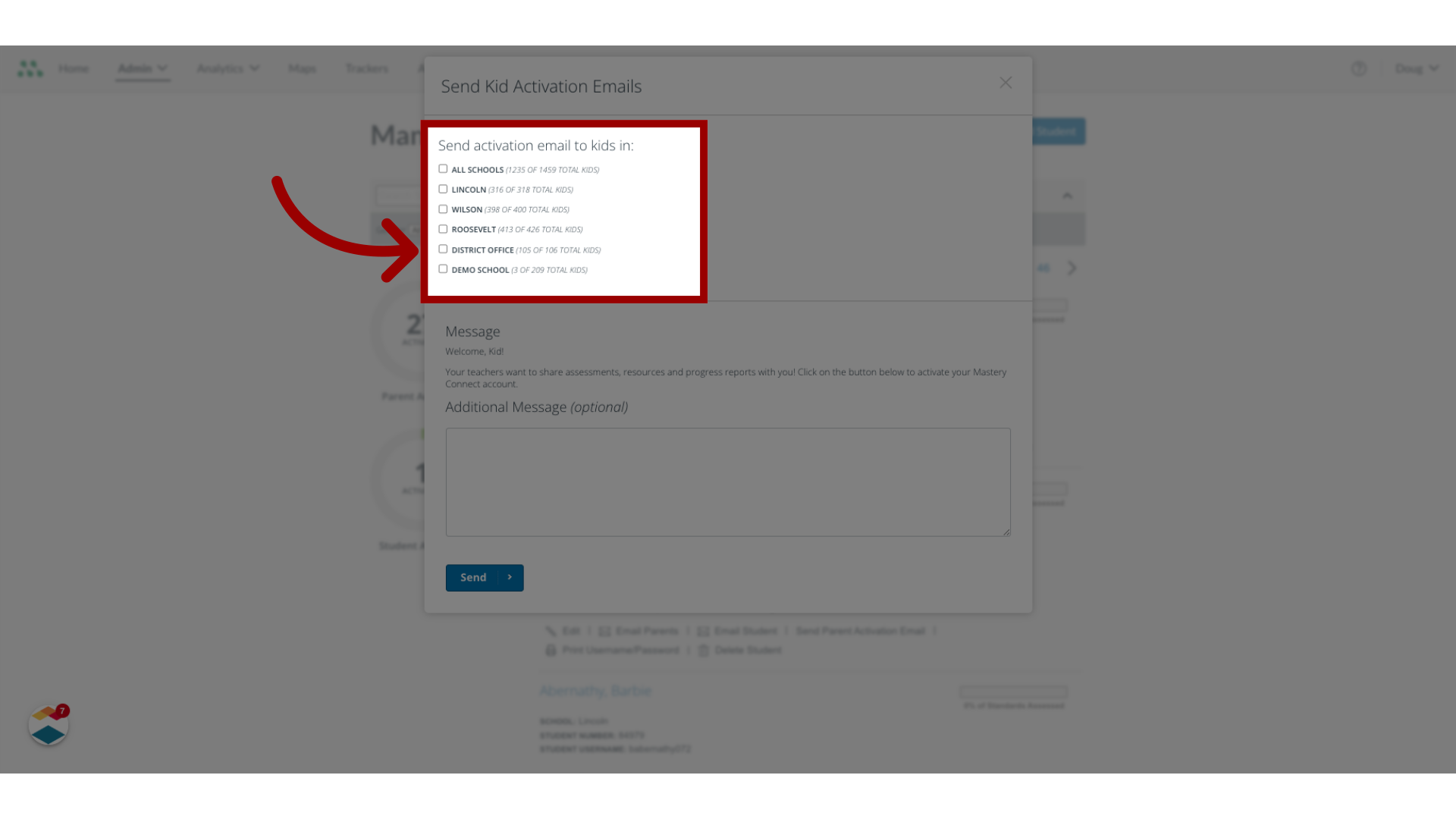
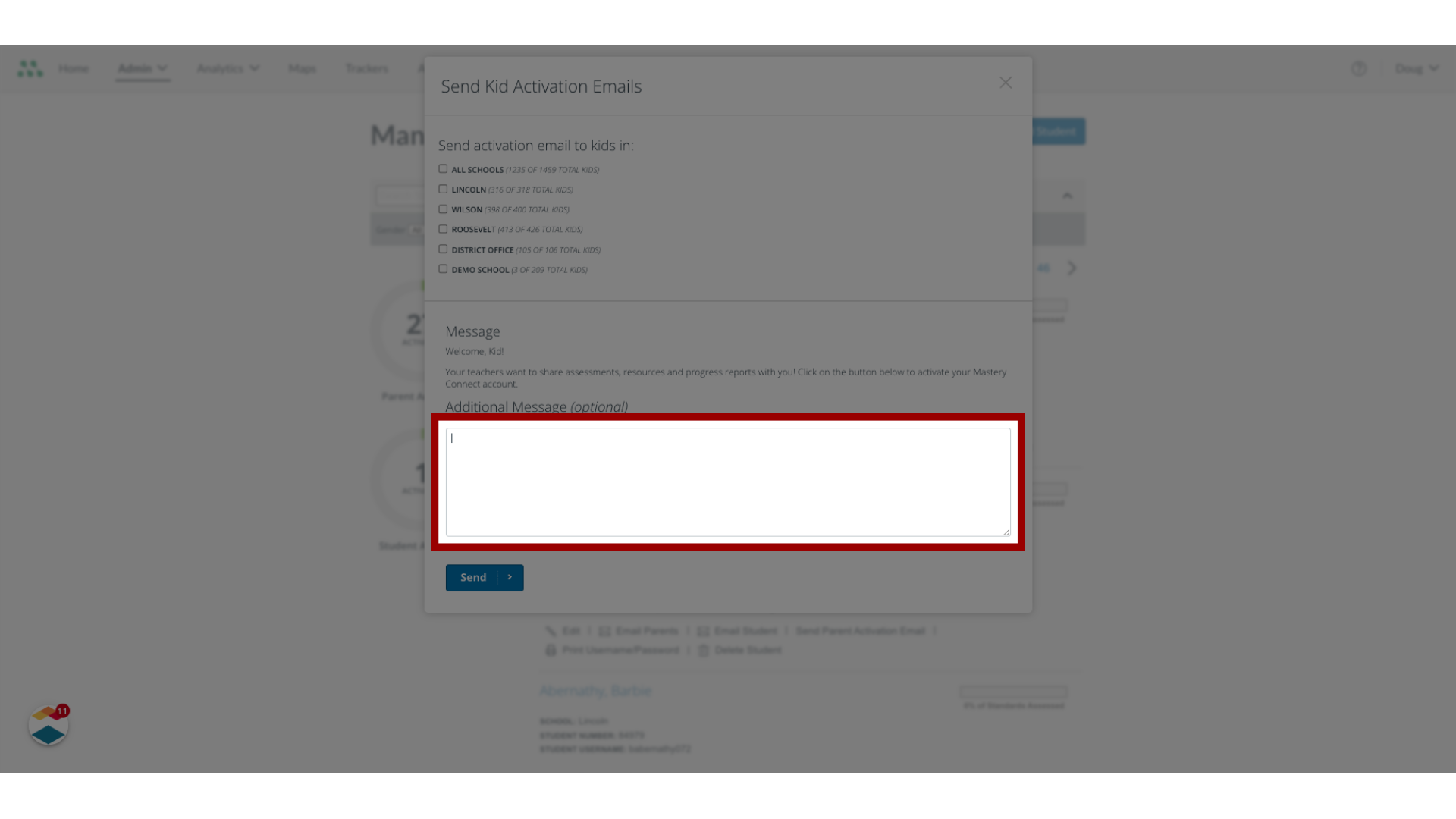
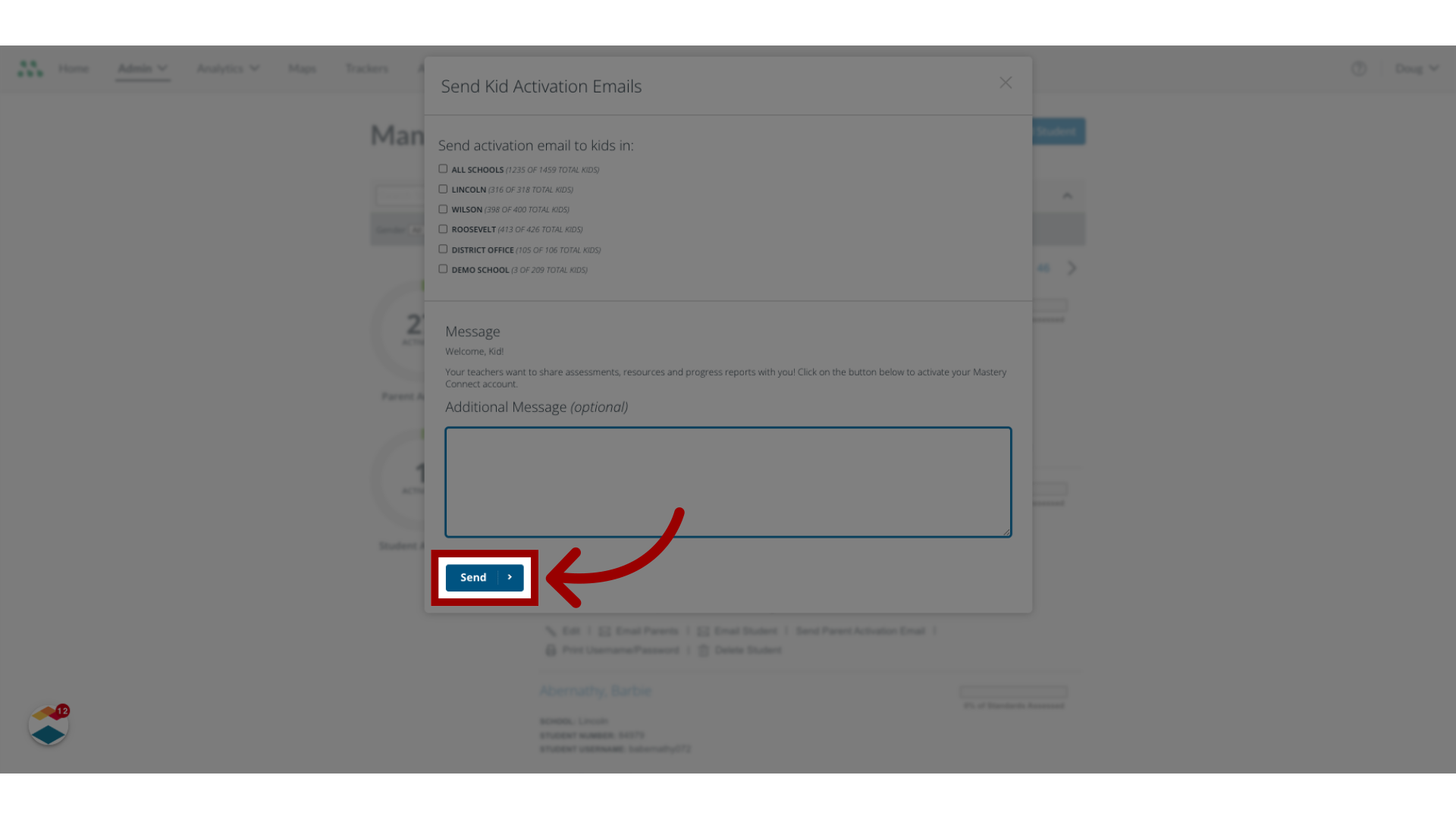
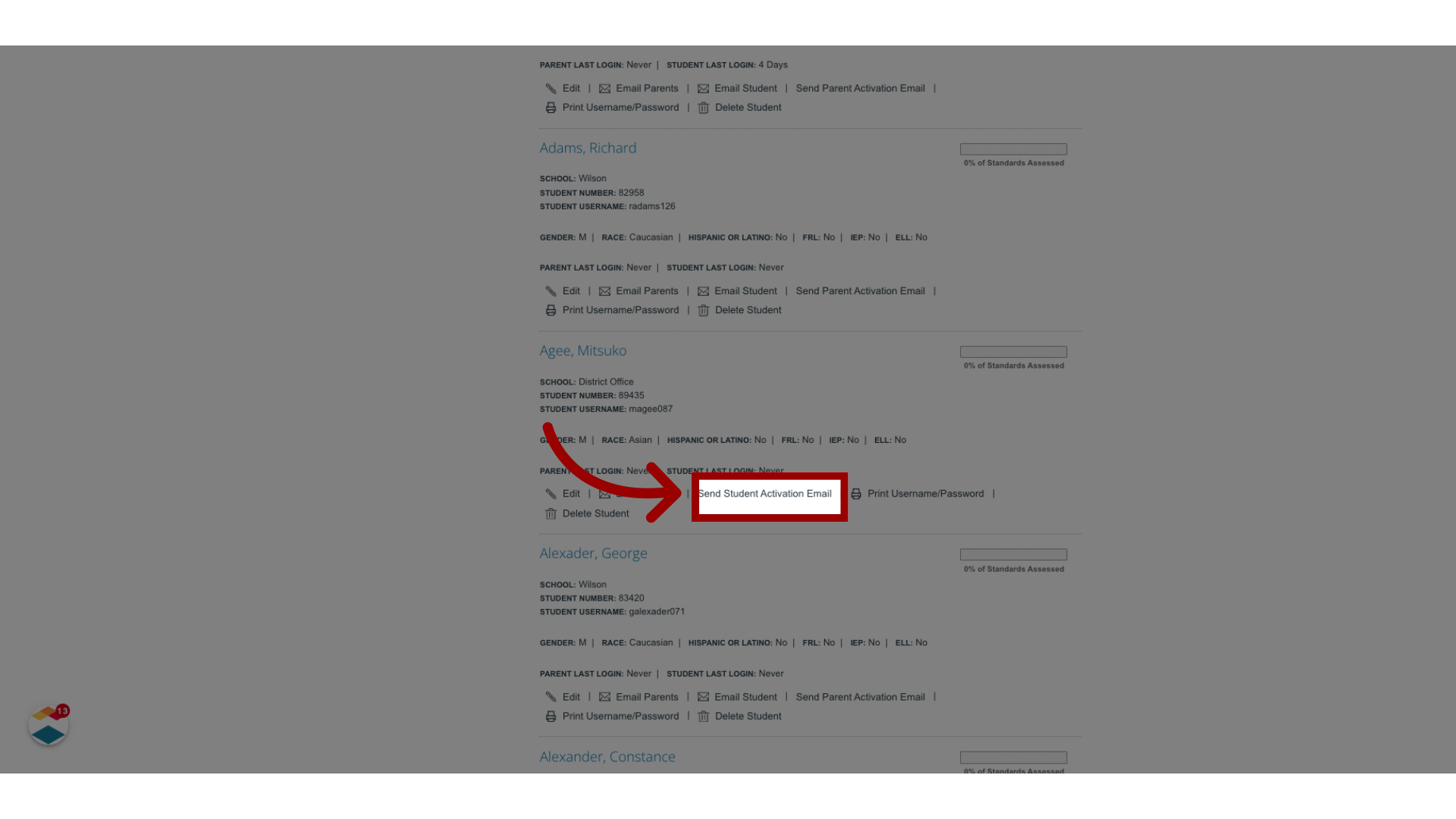
As a Mastery Connect admin, you can send activation emails to students who have not yet activated their accounts. You can send activation emails in bulk to all students at one or more schools or you can send an email to an individual student.How do I send student activation emails as a Mastery Connect admin?1. Open Admin MenuIn global navigation menu, click the Admin drop-down menu.2. Open Manage MenuIn the drop-down menu, click the Manage link.3. Open Manage StudentsIn the Manage list, select the Students link.4. Open Student OptionsIn the Manage Students page, click the More Options icon.5. Send Student Activation EmailsThen, click the Send Student Activation Emails link.6. Select School(s)You can send activation emails to students at all schools or individual schools. To send activation emails to students at all schools, click the AllSchools checkbox. To send activation emails to students at individual schools, click the school checkboxes.7. Enter Optional Message To include an optional personal message in the email, enter text in the AdditionalMessage text box.8. Send MessageOnce done, click the Send button.9. Send Student Activation EmailIn the Manage Students page, you can send an activation email to an individual student account. Locate the student account, then click the Send Student Activation Email link. This guide covered how to send student activation emails as a Mastery Connect admin.