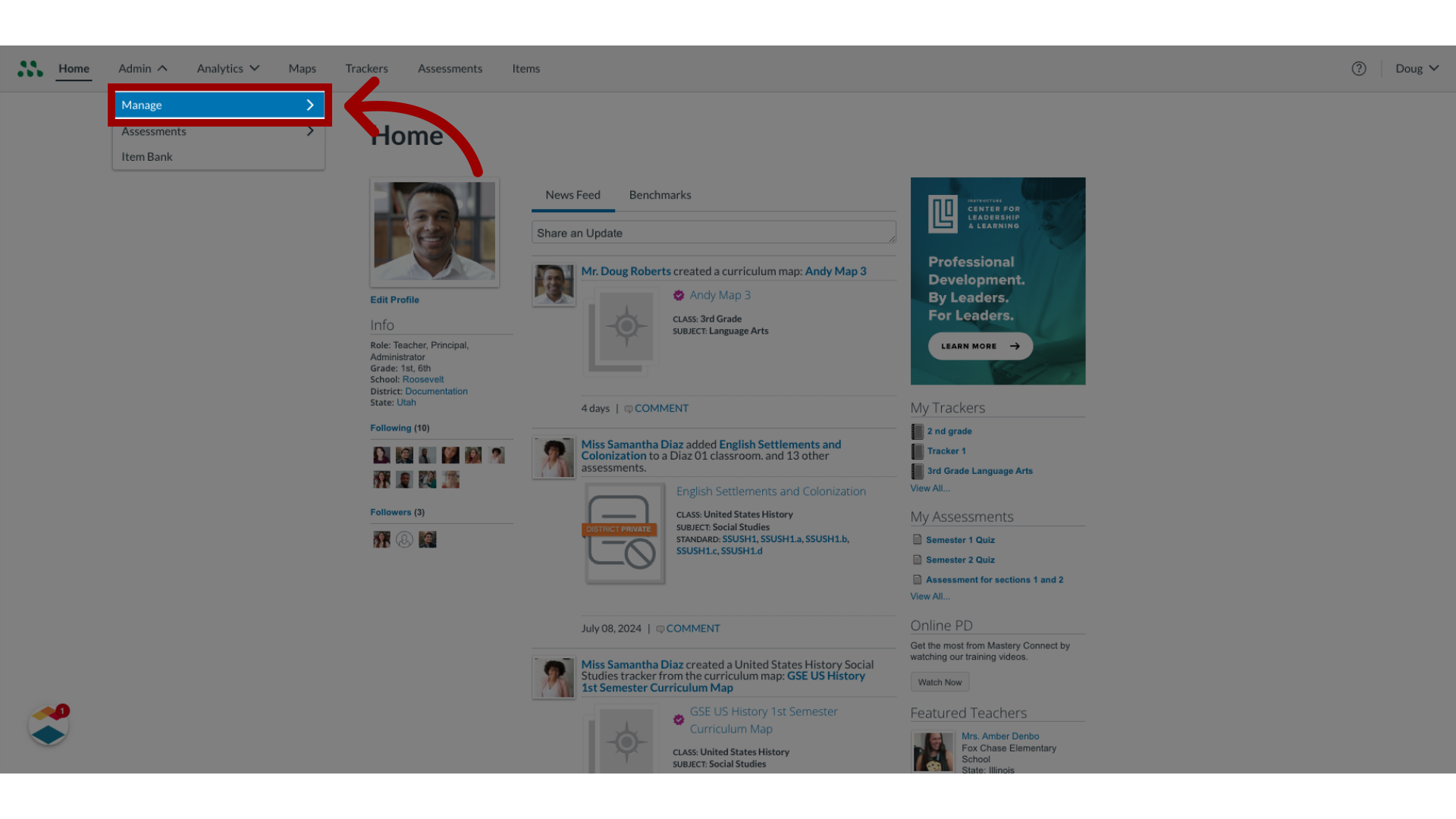
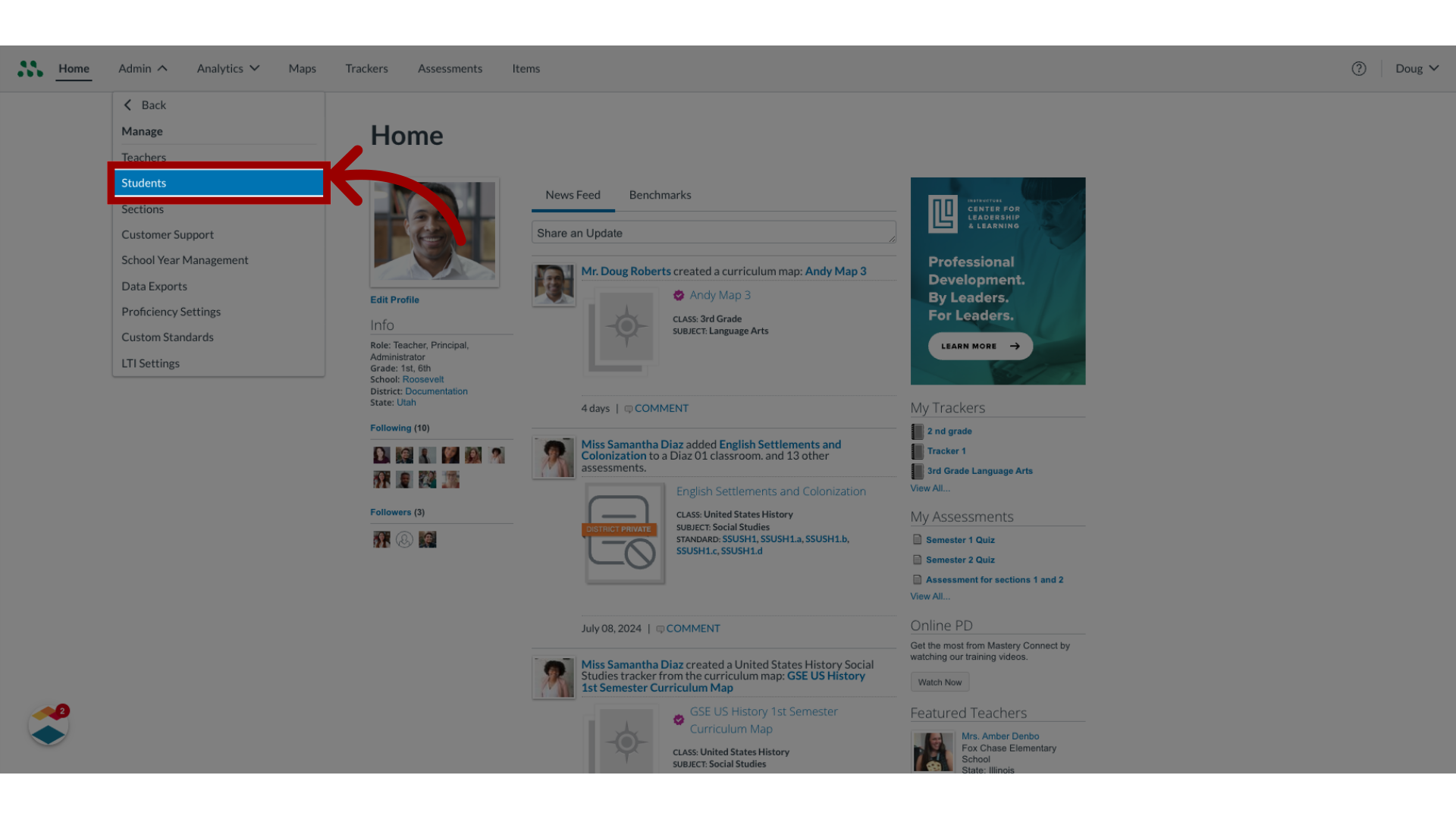
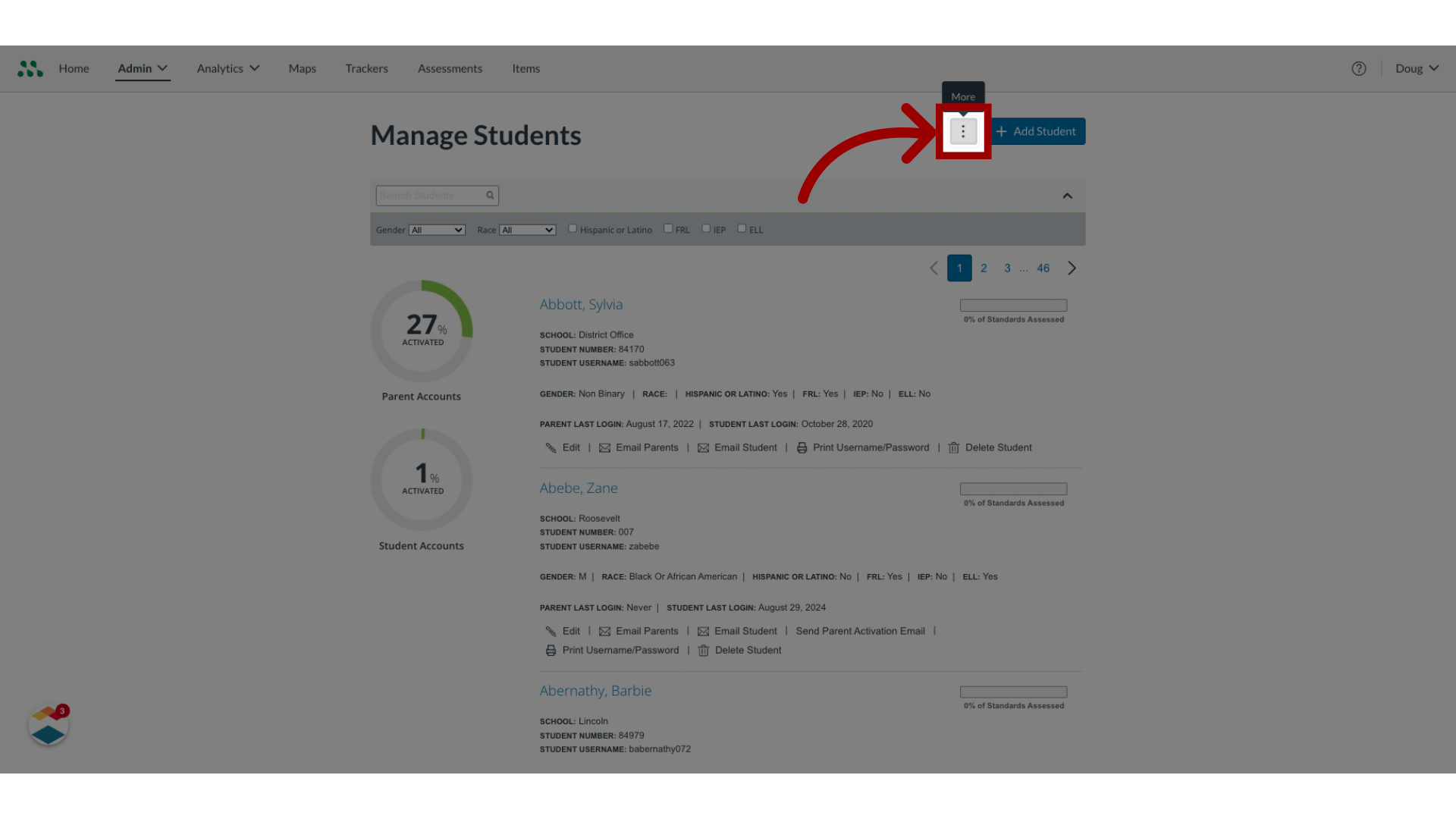
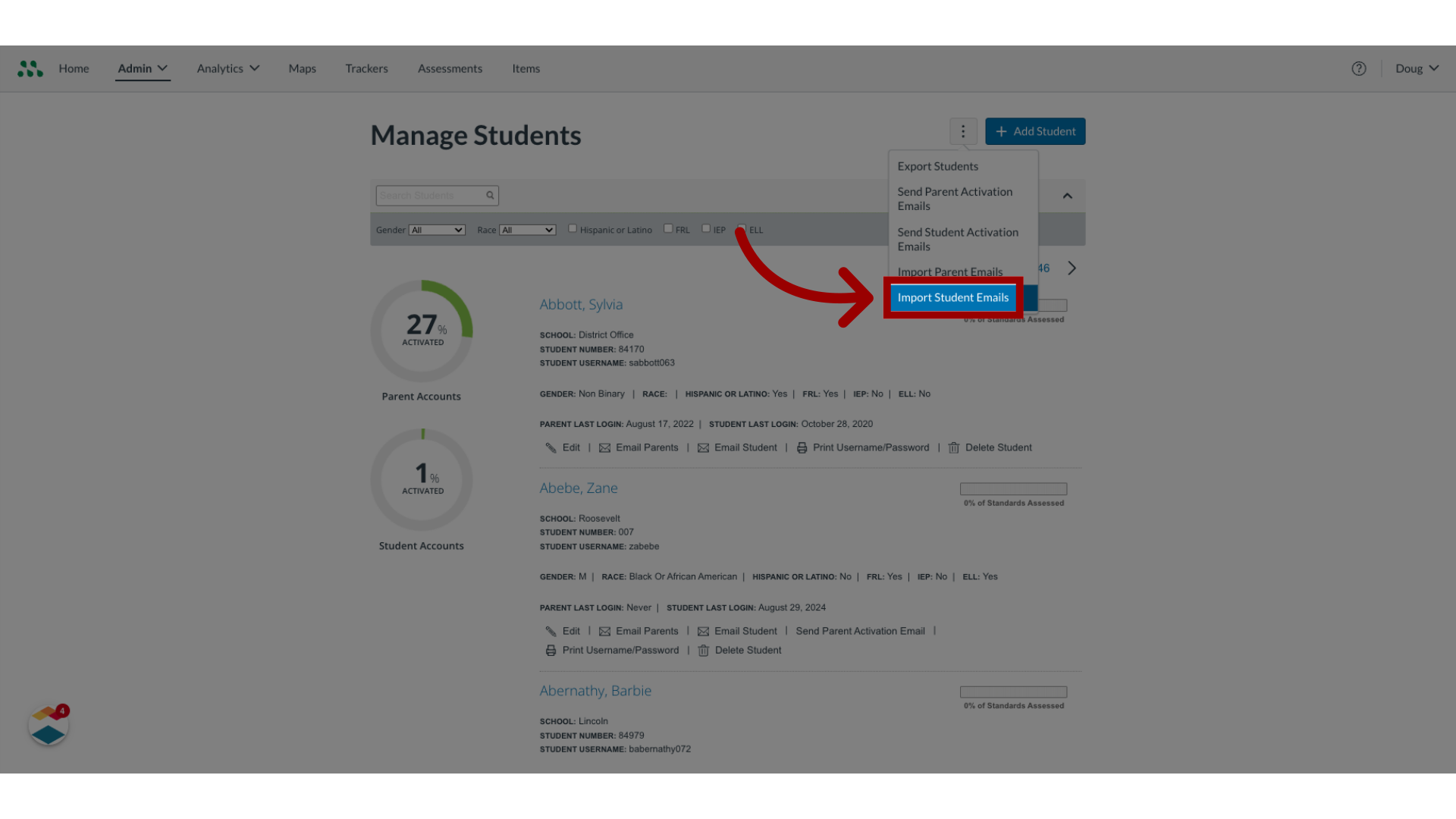
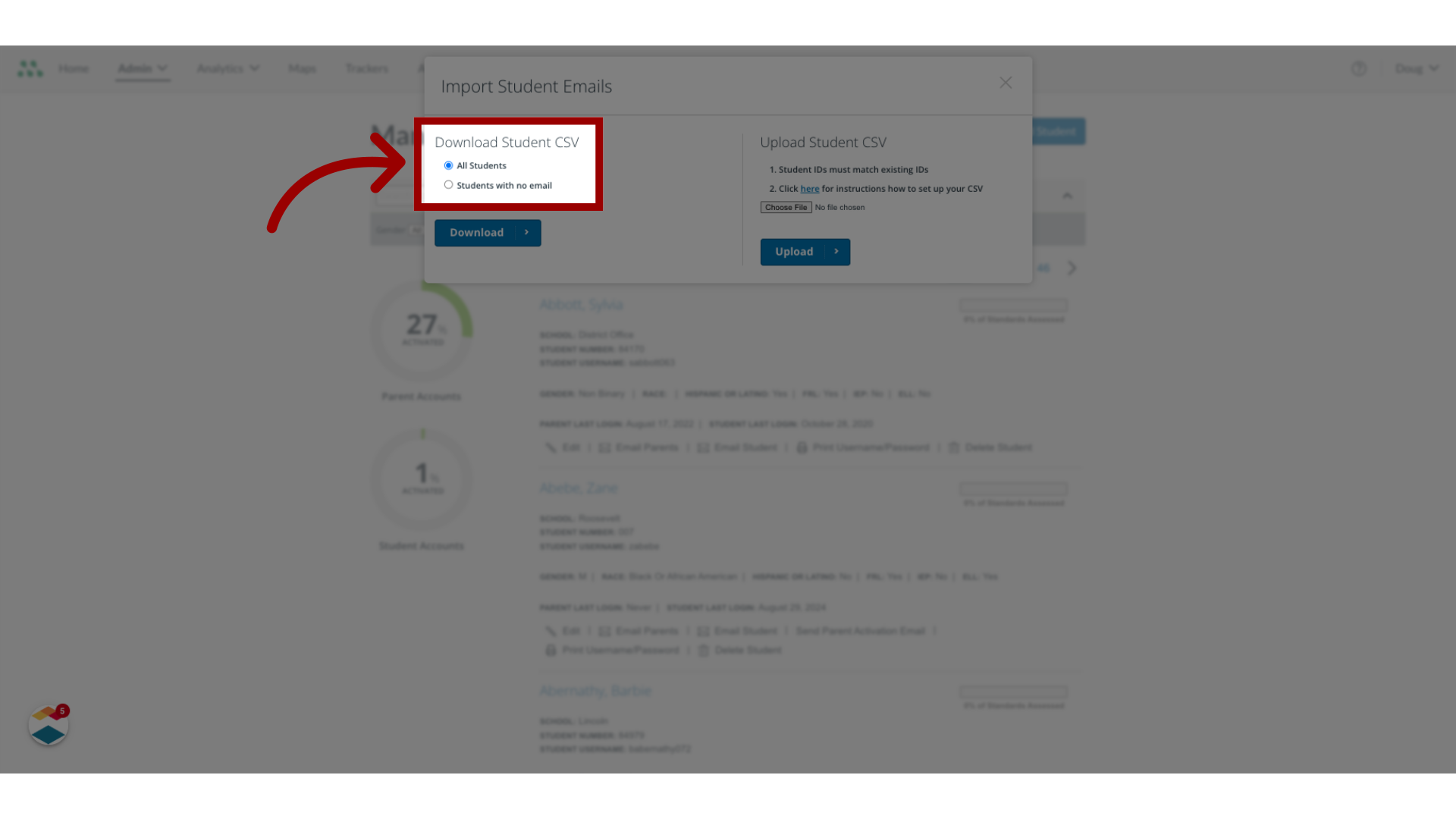
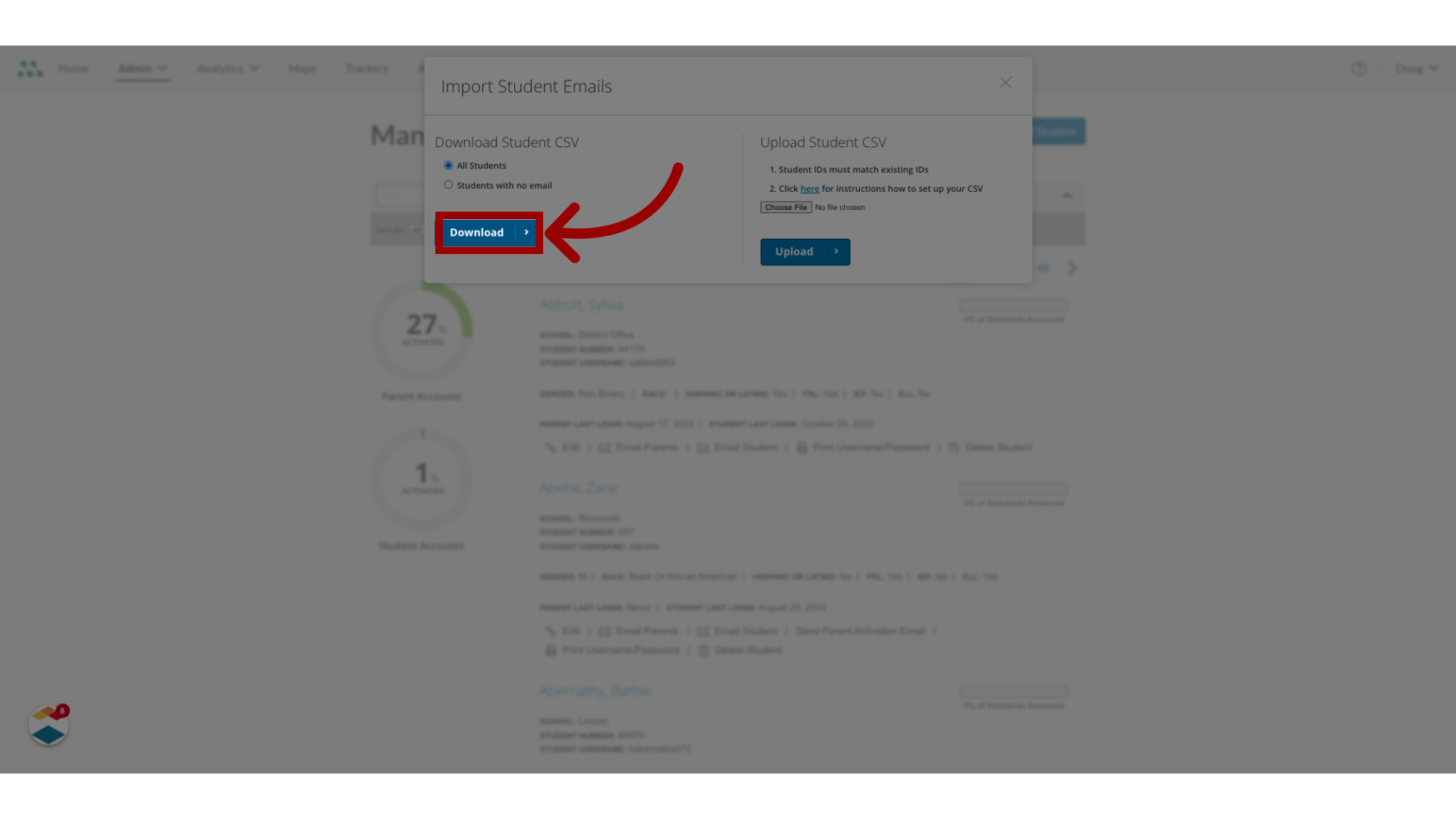
As a Mastery Connect admin, you can download a list of student email addresses as a CSV file. How do I download a list of all students and their email addresses as a Mastery Connect admin?1. Open Admin MenuIn global navigation, click the Admin drop-down menu.2. Open Manage MenuIn the drop-down menu, click the Manage link.3. Open Manage StudentsIn the Manage list, click the Students link.4. Open Manage OptionsIn the Manage Students page, click the More Options icon.5. Open Import Student EmailsThen, click the Import Student Emails button.6. Select Download OptionsIn the Import Emails window, you can download a CSV file to populate with email addresses. To download a CSV file containing all students, click the All Students radio button. Alternatively, to download a CSV file containing only students who have no email addresses in their accounts, click the Studentswith no email radio button.7. Download FileThen, click the Download button. This guide covered how to download a list of all students and their email addresses as a Mastery Connect admin.