You can make a copy of most curriculum maps that you have access to. You can copy curriculum maps that you created, maps you are collaborating on, or maps that another teacher created.
Notes:
- Only the author of a district-approved curriculum map can edit it.
- District-approved curriculum maps cannot be copied.
- Copying a curriculum map copies all units, standards, assessments, pins, and curriculum map notes.
- Copying a curriculum map does not copy over team members, collaborators, or unit notes.
- The copy you create displays in the Created category on your Curriculum Maps page.
- You can edit or reorganize the copy as you would any other maps you create.
- If the steps in this lesson do not match what is displayed in your account, you may be using the Legacy View. For Legacy View steps, refer to How do I copy a curriculum map in Legacy view?.
View Curriculum Maps
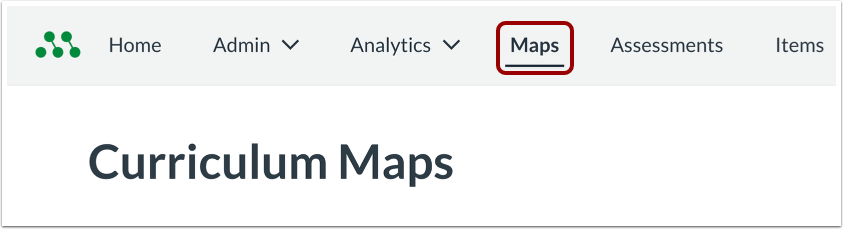
To view curriculum maps, click the Maps link.
View Accessible Curriculum Maps
The following curriculum map categories are available:
- Created [1]: maps created by you
- Using in Trackers [2]: maps you are using in trackers
- Shared With Me [3]: maps shared with you by other users
- Archived [4]: maps you or other users have archived
Copy Curriculum Maps
To copy a curriculum map from any tab, locate the curriculum map you want to copy and click the Copy icon.
Confirm Copy
In the confirmation window, click the Copy button.