As the owner of a curriculum map, you can add sub-standards to your curriculum map standards. You must enter the details for a sub-standard, including the sub-standard name, short description, and description.
Open Maps
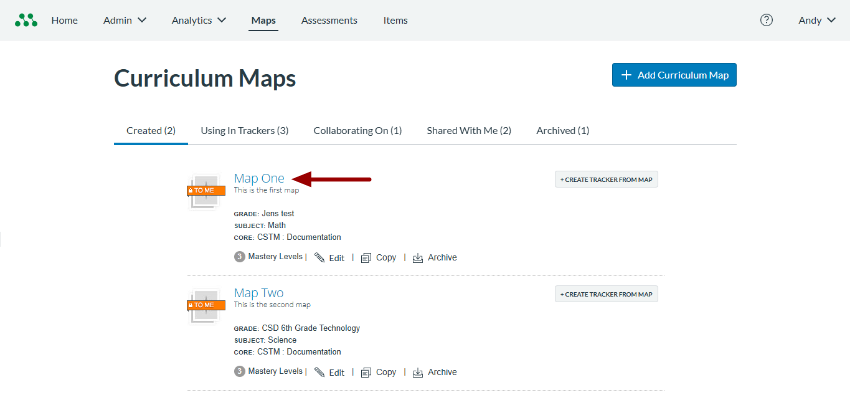
In the Global Navigation menu, click the Maps link.
Open Curriculum Map
Click a curriculum map name link.
Open Add Sub Standard
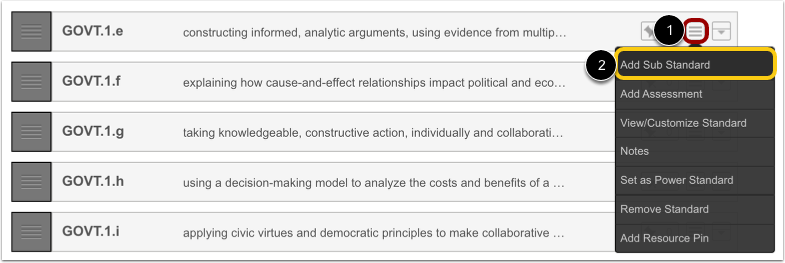
In the standards list, locate the standard where you want to add a sub-standard. Hover over the standard's More Options icon [1] and select the Add Sub Standard option [2].
Add New Sub Standard Details
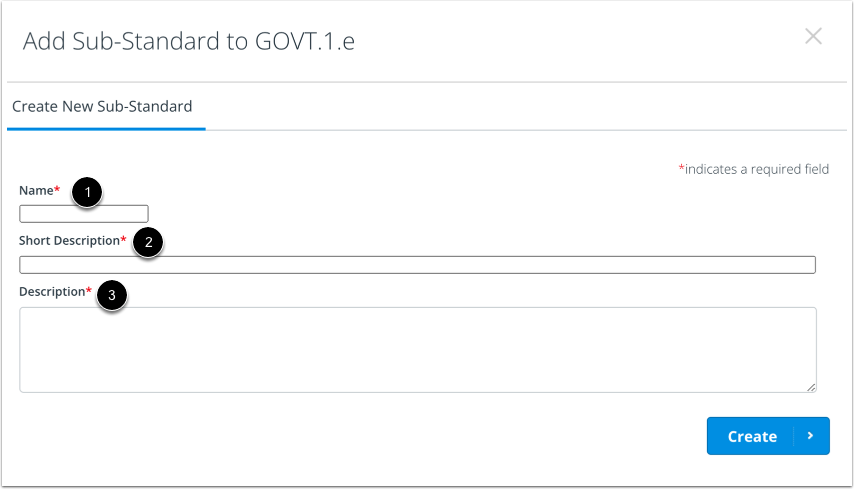
In the Add Sub-Standard window, enter a name [1], short description [2], and description [3].
Create Sub-Standard
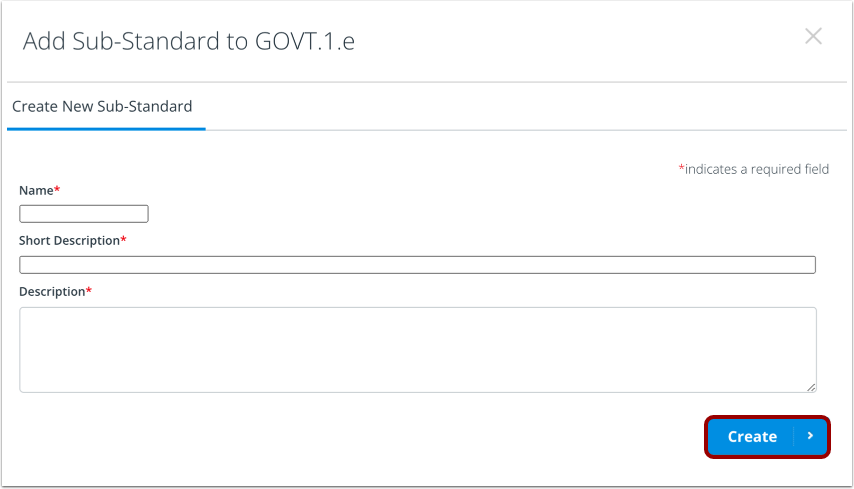
Click the Create button.
View New Sub Standard in Map
View the new sub standard in your curriculum map.