You can print a student report from the tracker report options. This report includes student mastery data and standards information, and you can customize the included data and date ranges for the report.
Note: If the steps in this lesson do not match what is displayed in your account, you may be using the Legacy View. For Legacy View steps, refer to How do I print student mastery reports from a tracker in Legacy view?.
Open Tracker
In the Home page, click a tracker name link [1].
Open Reporting Options
Click the tracker MoreOptions icon [1], and select the Reporting link [2].
Open Print Student Report
Click the Print Student Report link.
Select Print Options
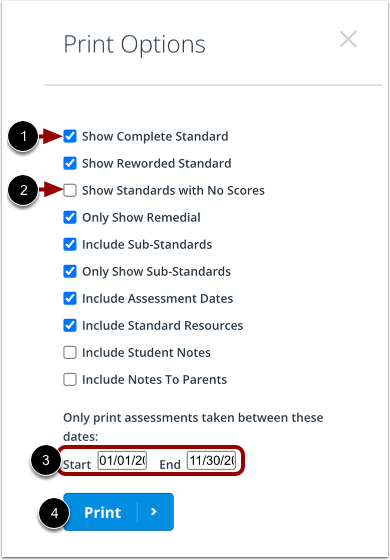
In the Print Options menu, you can select the information you want included in the report. By default, no report options are selected.
To select an option, click the checkbox next to the option [1]. You can also deselect any option by re-clicking the checkbox [2].
You must specify a date range for the report. Enter dates in the Start and End fields [3].
To generate the report, click the Print button [4].
View Student Report
The student mastery report for the tracker opens in a new browser tab. Use your browser print options to print the report.