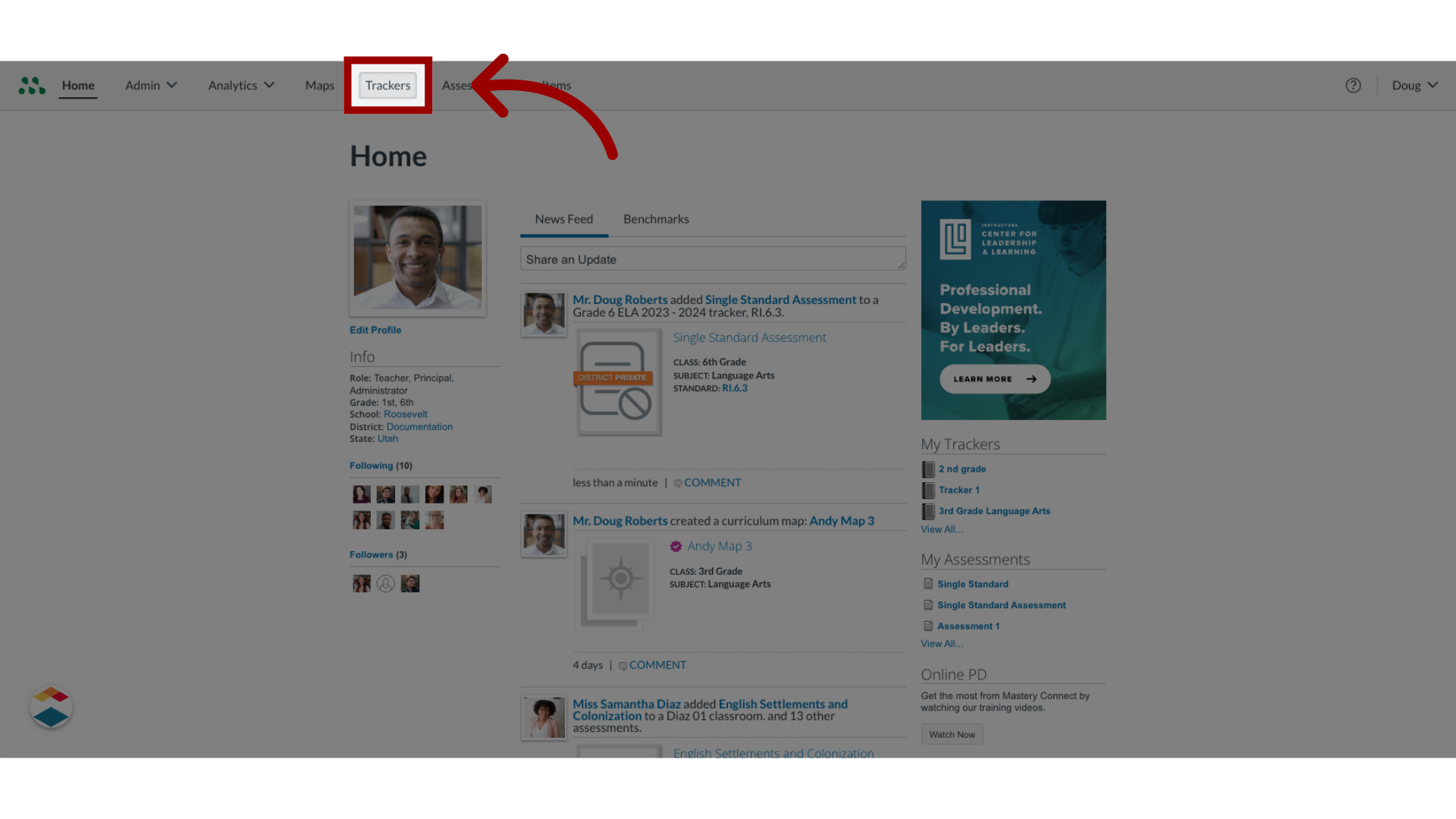
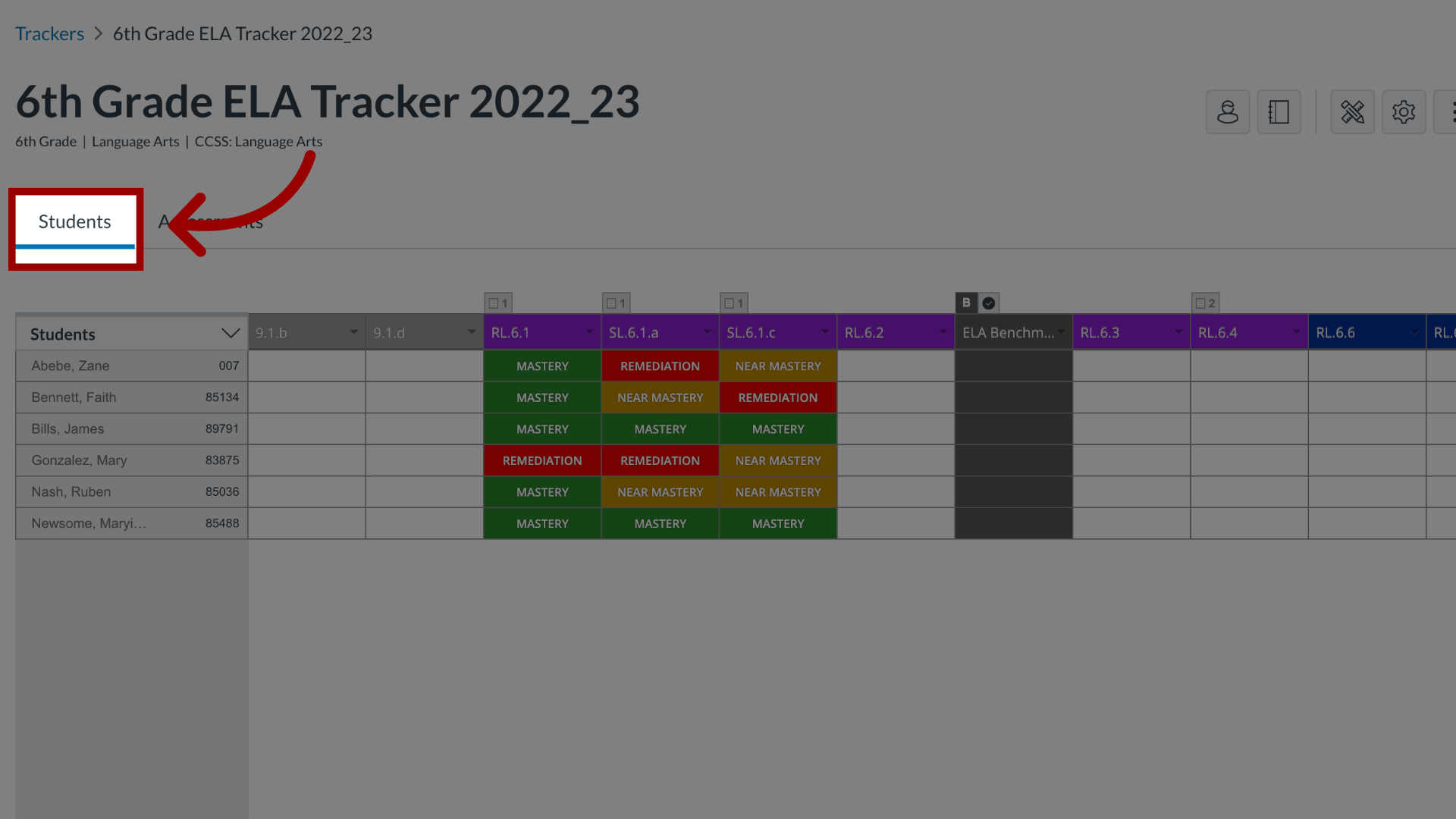
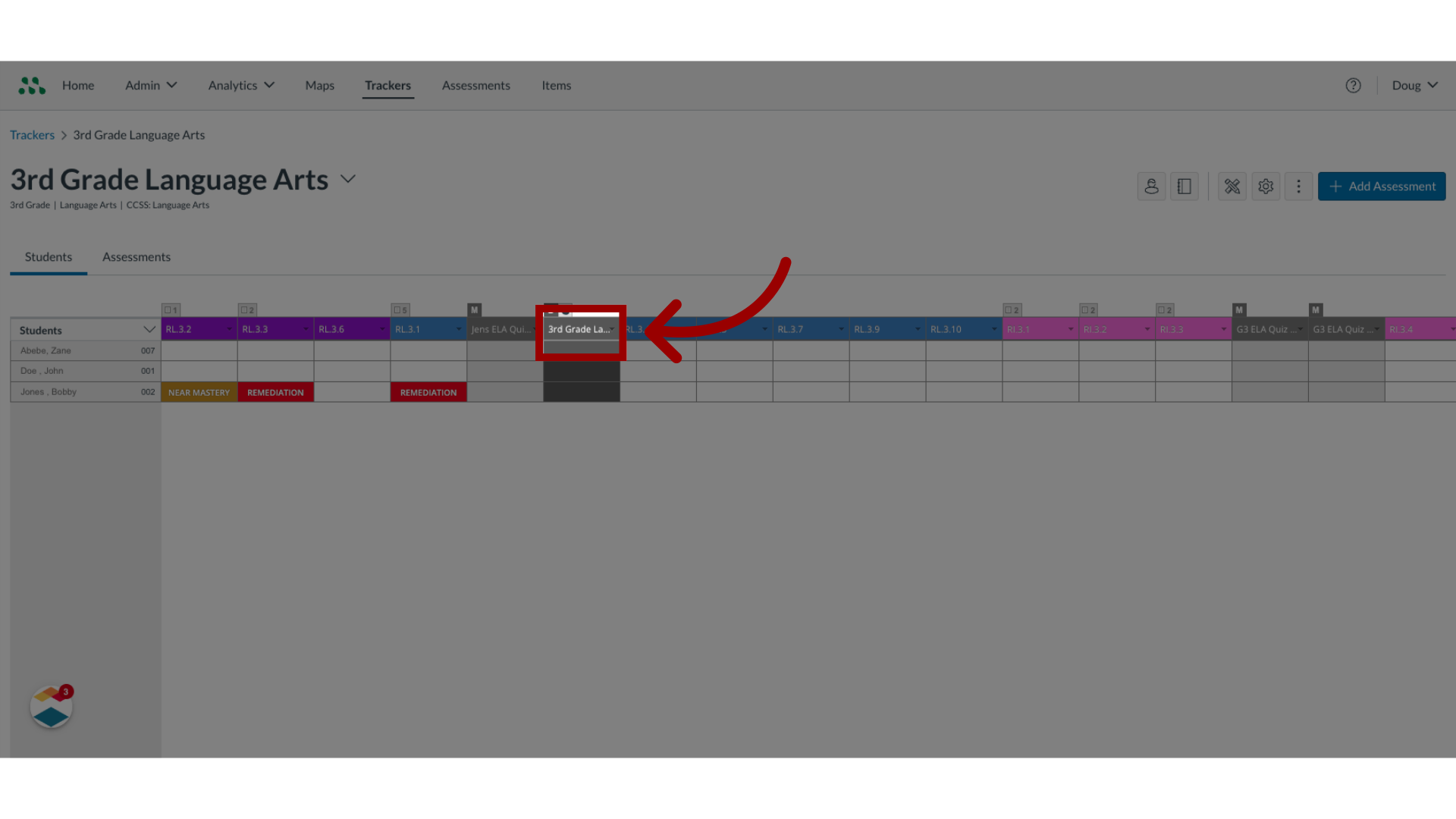
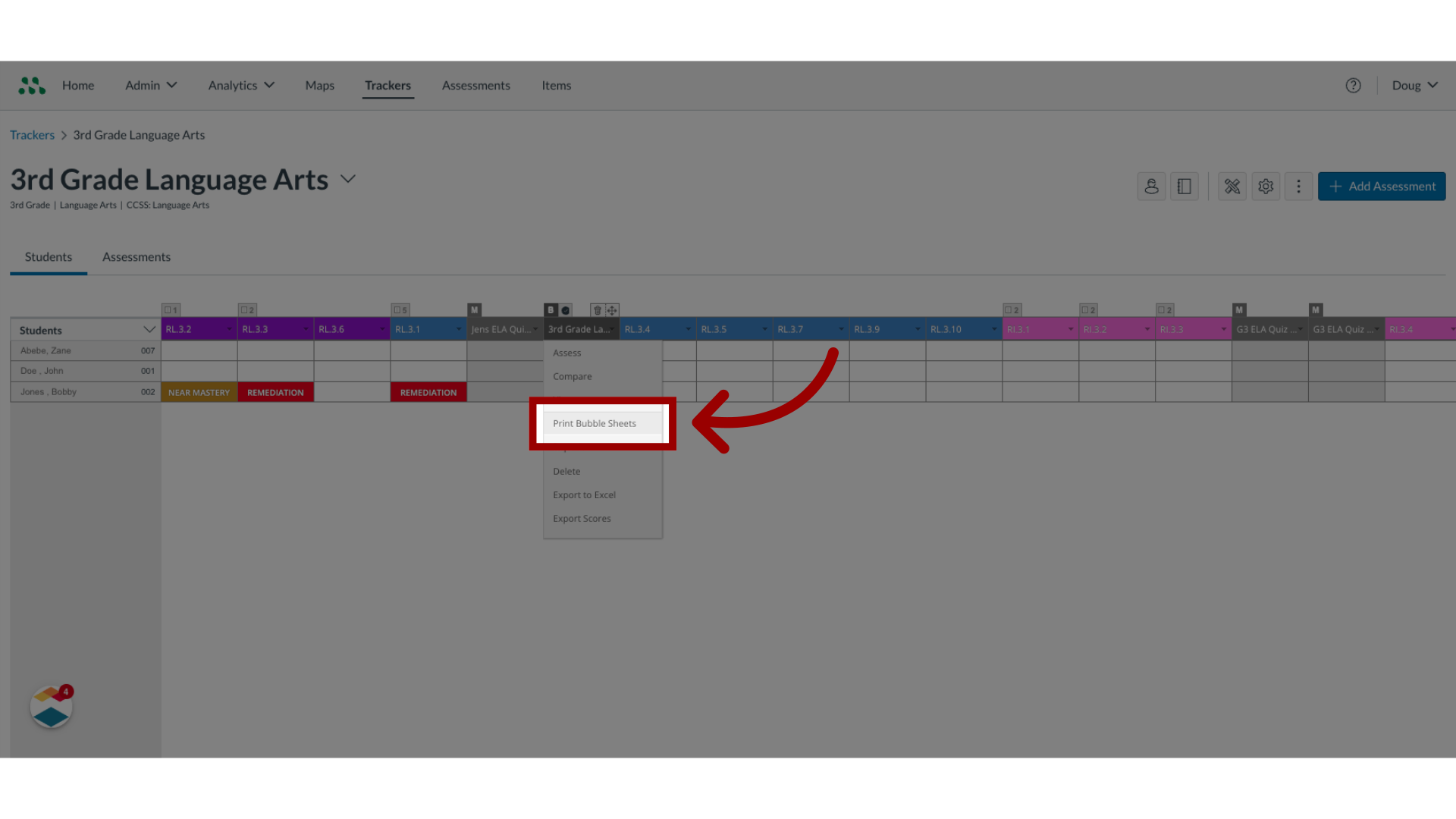
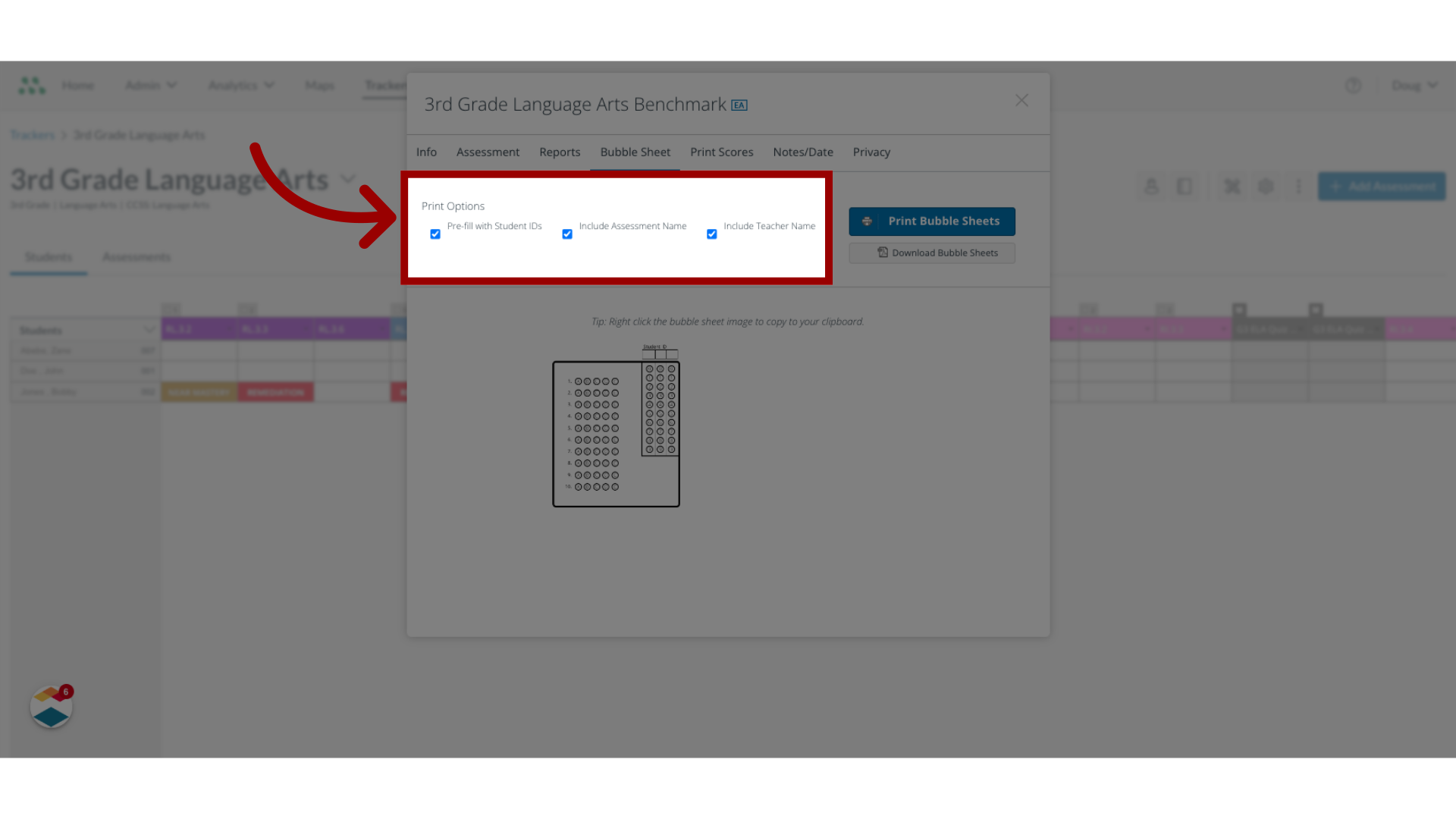
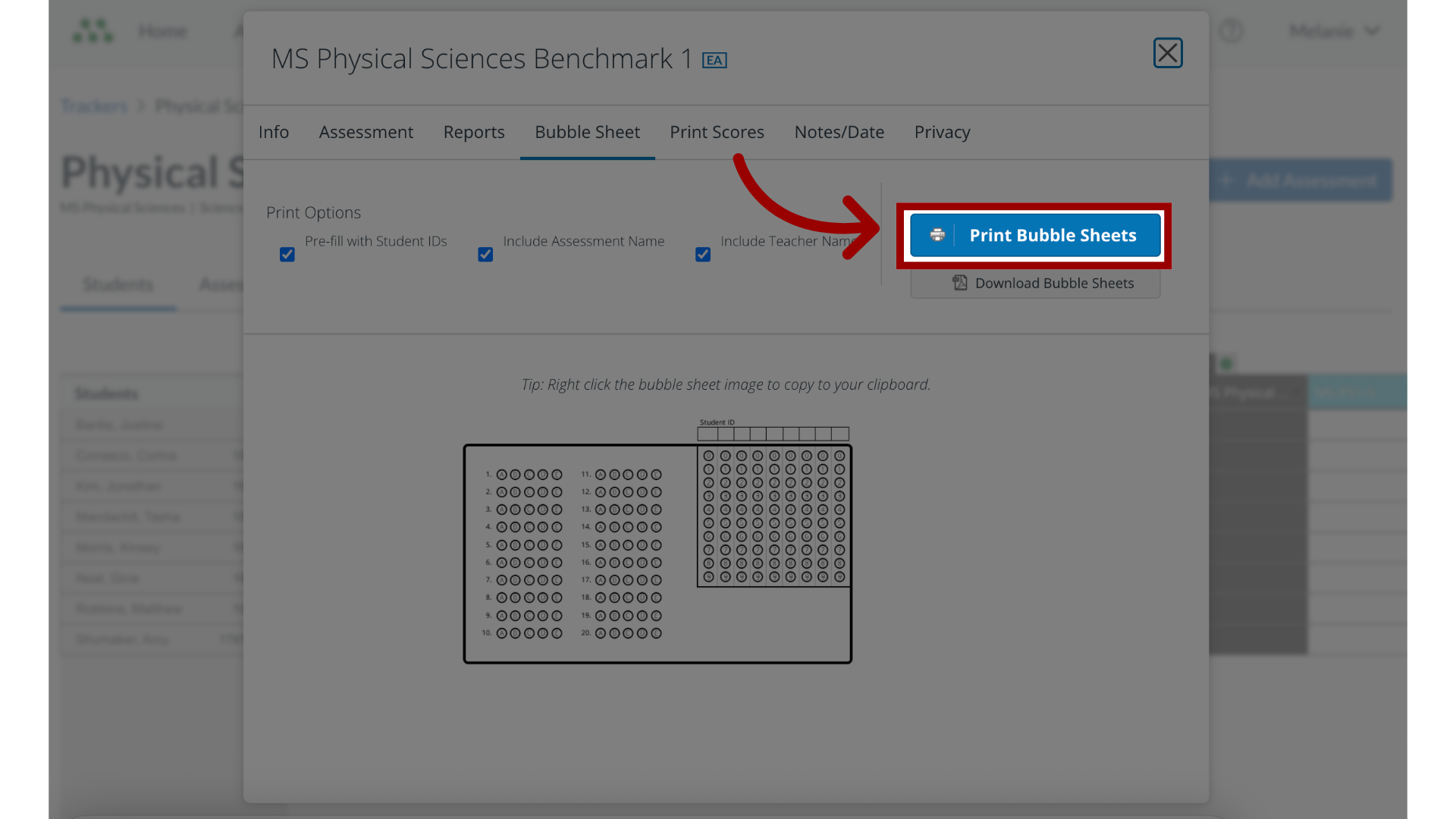
In Mastery Connect, you can print bubble sheets for multi-standard and benchmark assessments to be scored with GradeCam.Notes: Bubble sheet scoring is not available for assessments that contain rubric criteria or technology enhanced items (TEIs). TEIs must be assessed electronically and cannot be scanned in a bubble sheet.How do I print bubble sheets for a multi-standard or benchmark assessment?1. Open Tracker In the Home page, click a tracker.2. Open Students tab After opening the tracker, click the Students tab.3. Hover Over Assessment Name Locate the assessment you want to open and hover the cursor over the column header. 4. Select Print Bubble Sheets In the drop-down menu, click the Print Bubble Sheets option. 5. Select Print Options To select pre-fill options for the bubble sheets, use the Print Options checkboxes.6. Print Bubble Sheets Click the Print Bubble Sheets button. This guide covered how to print bubble sheets for multi-standard or benchmark assessments in Mastery Connect.