How do I add formative assessments to trackers from the Assessments page?
How do I add formative assessments to trackers from the Assessments page?
1. Open Assessments
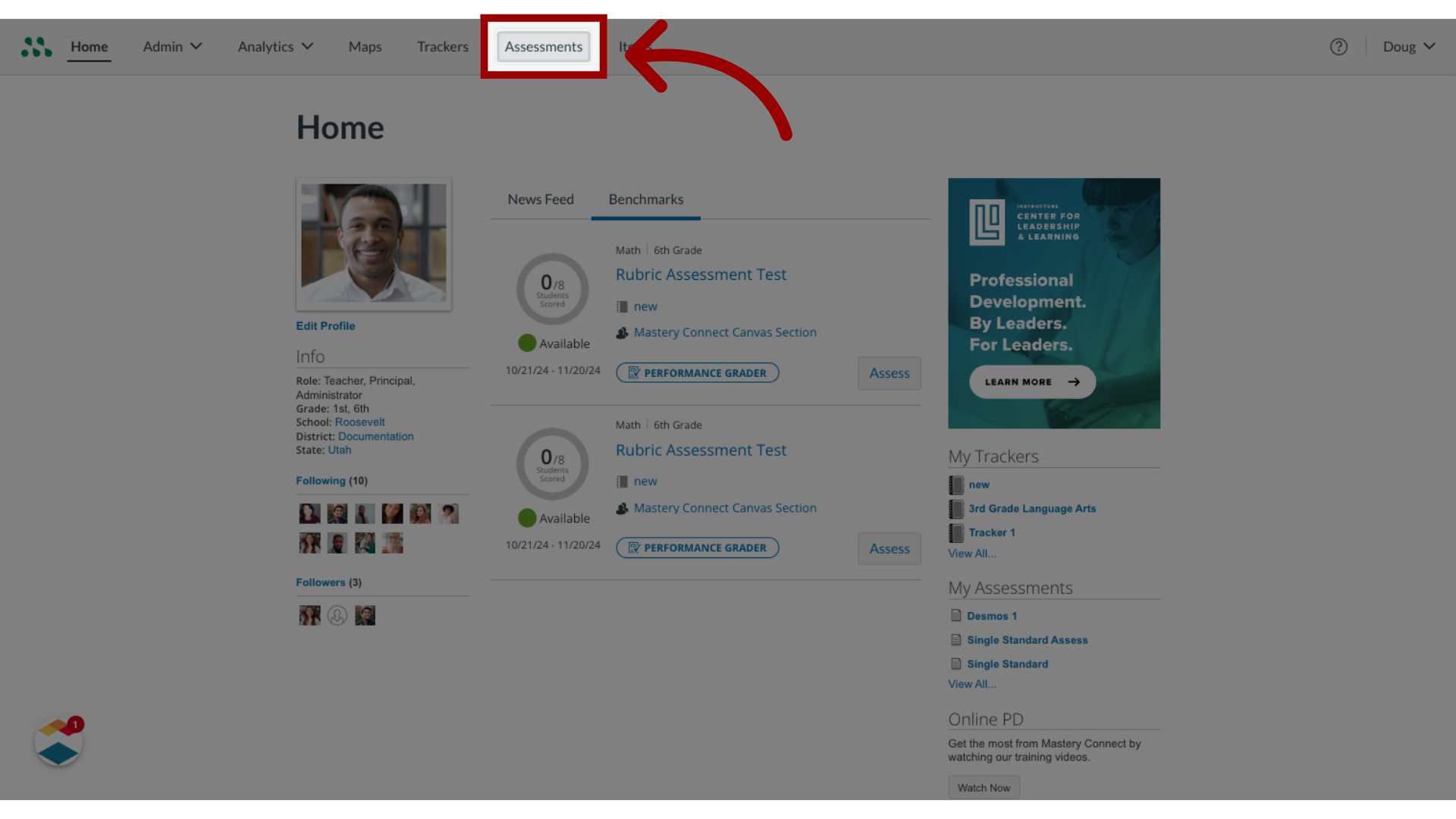
In the global navigation, click the Assessments link.
2. Add Formative Assessment
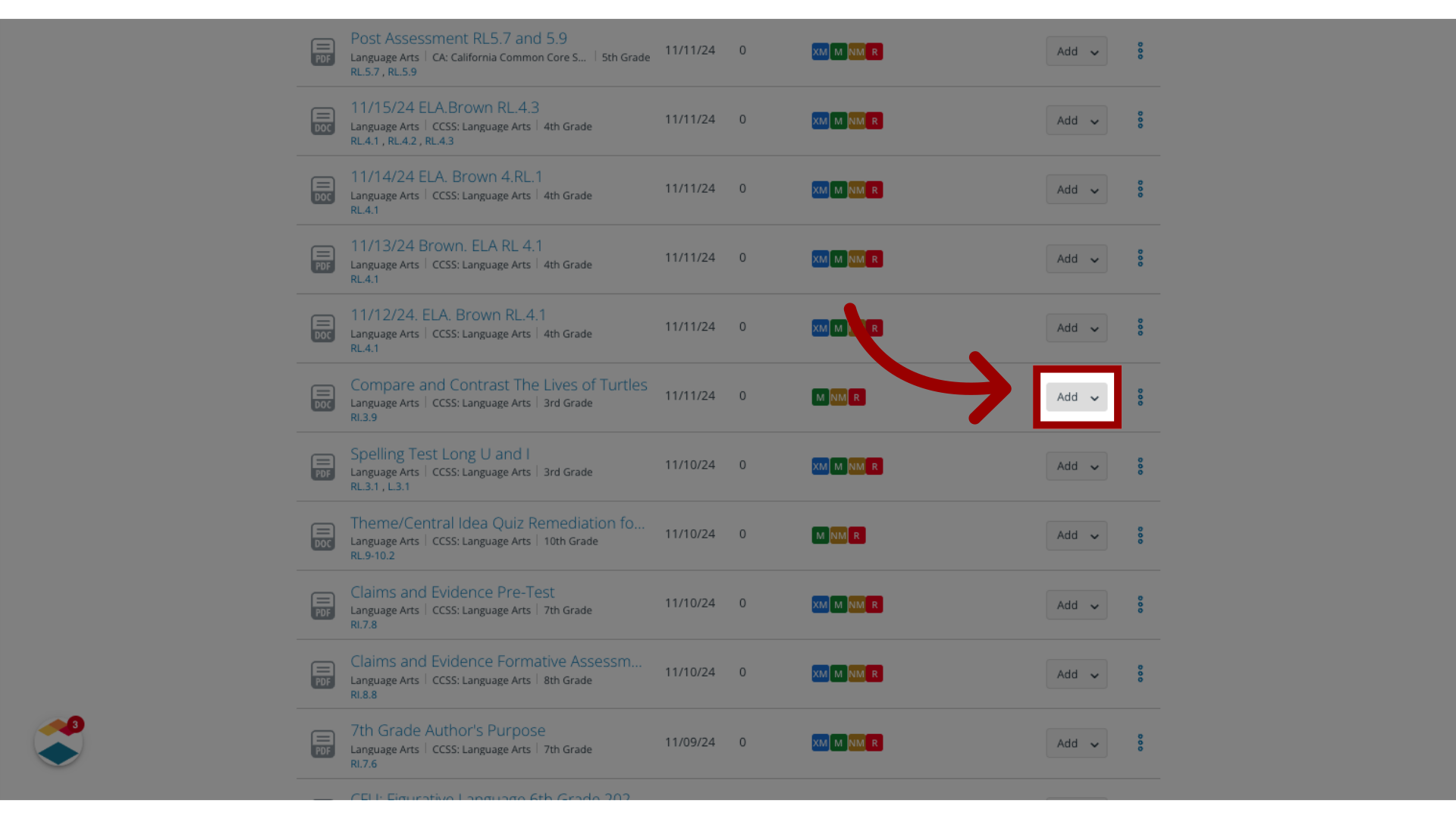
Locate the assessment you want to add and click the Add drop-down menu.
3. Add to Tracker
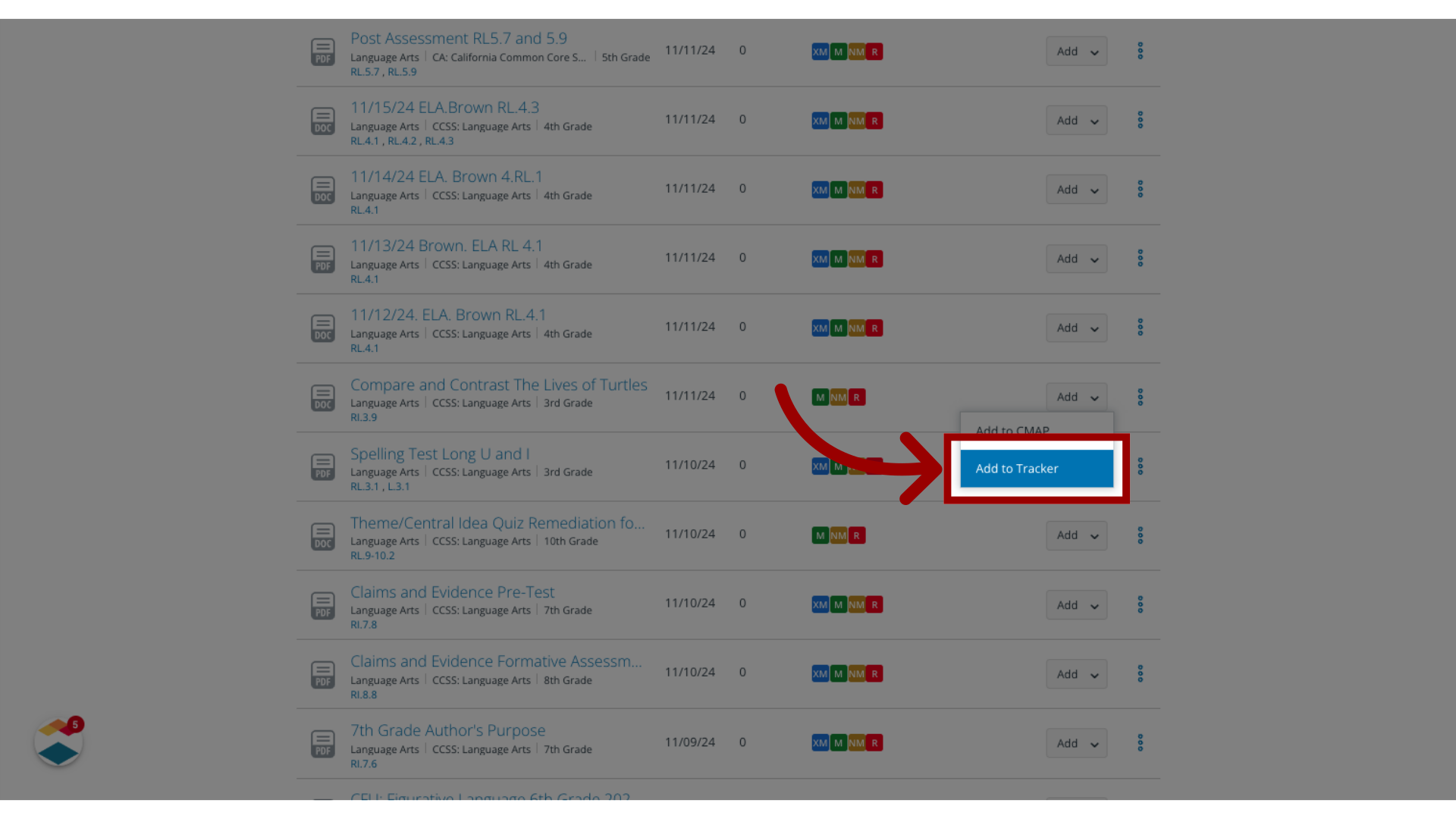
Click the Add to Tracker link.
4. Select Trackers
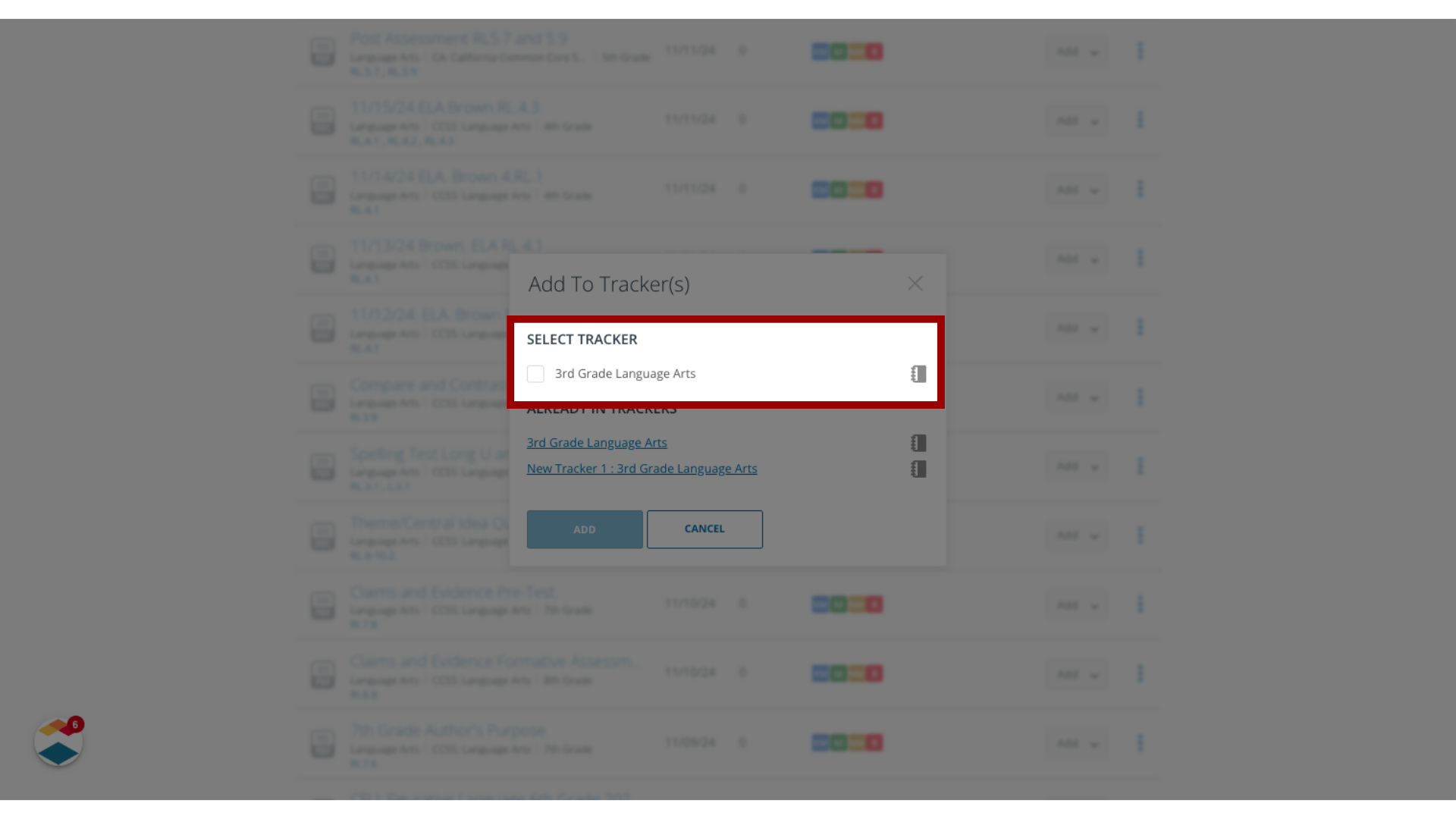
To select trackers for the assessment, click the checkboxes of one or more trackers.
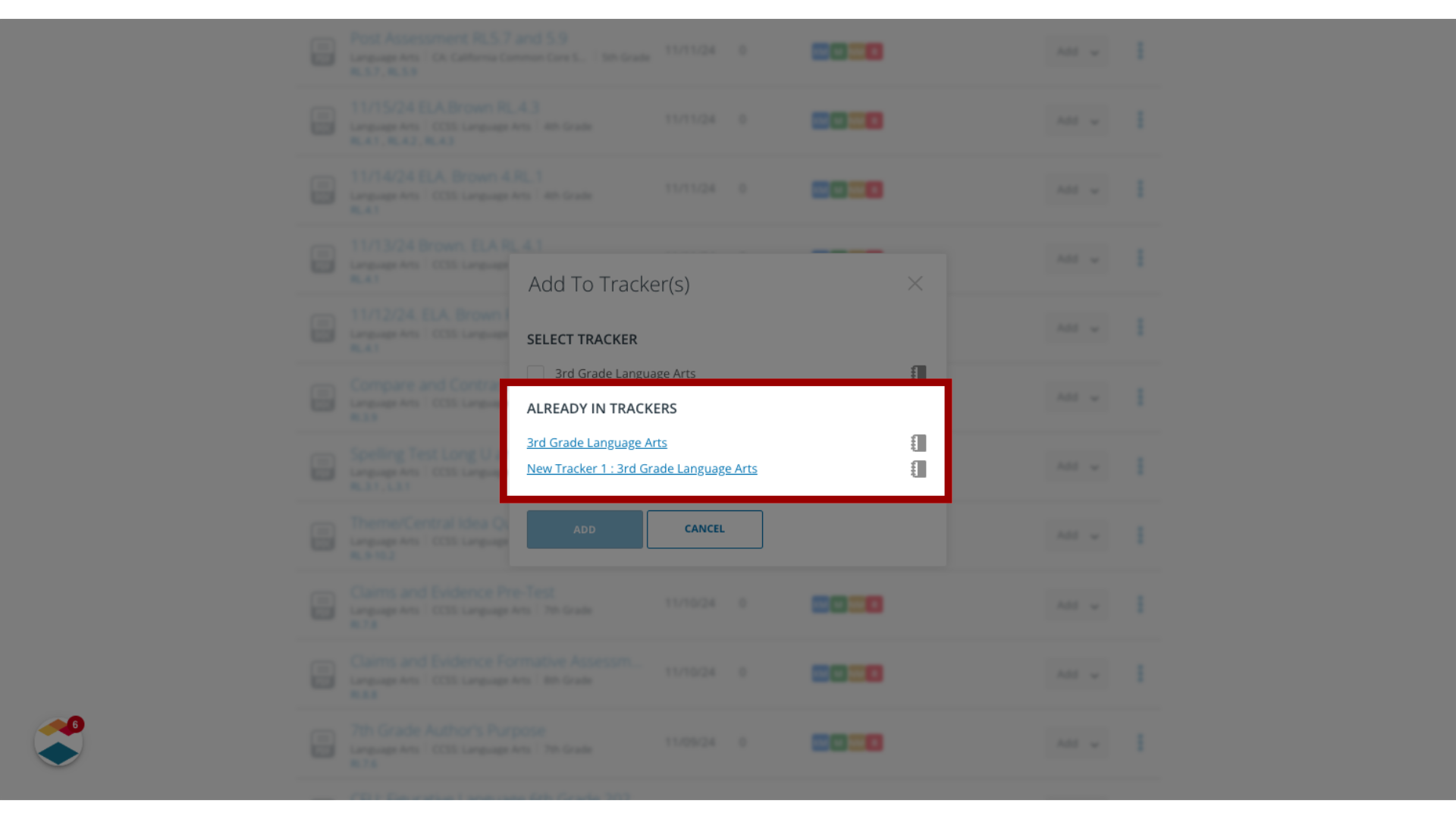
5. View Assessments Already in Trackers
If the assessment is already in a tracker, the tracker name displays in the Already in Trackers list.
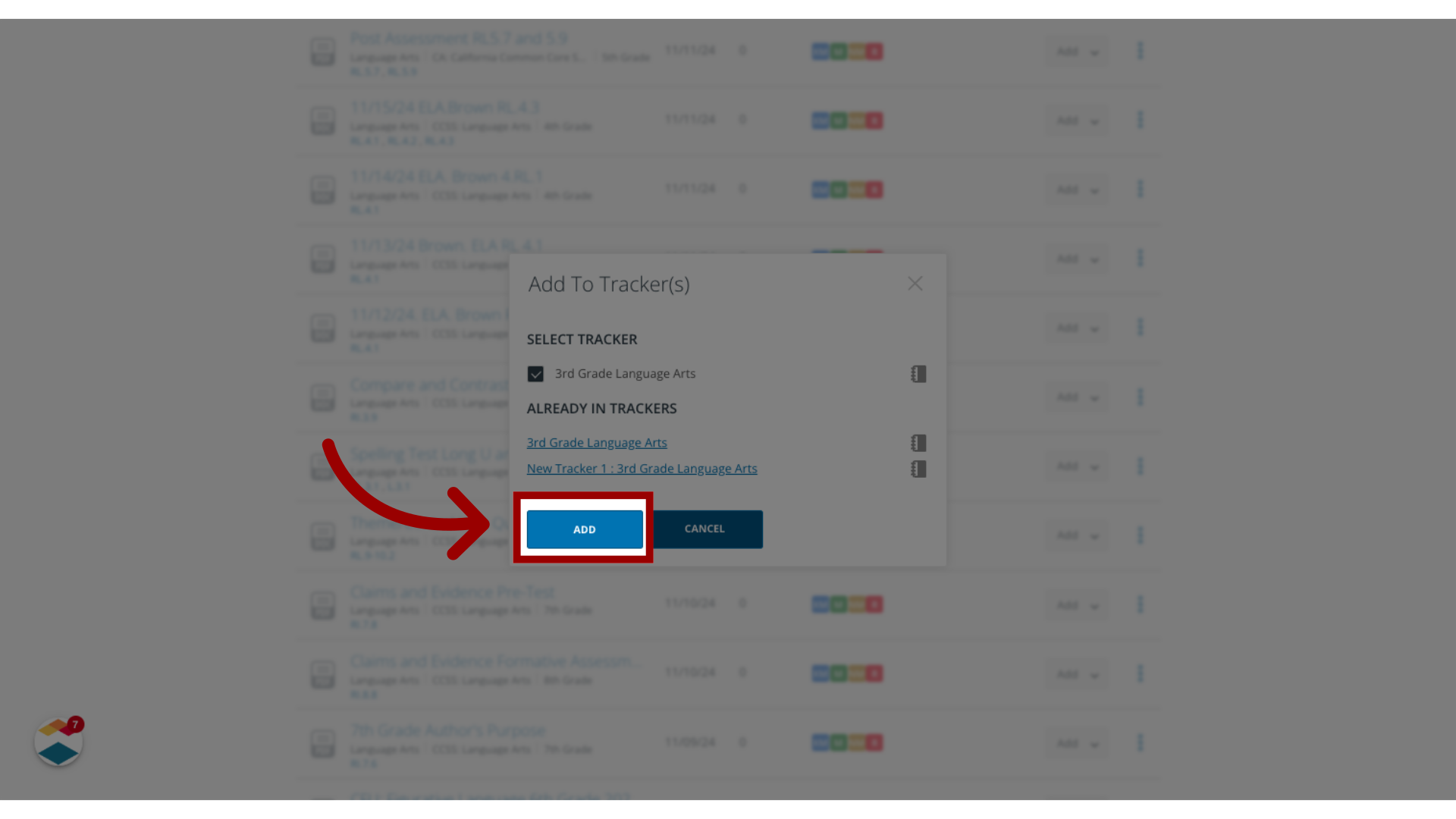
6. Add Assessment to Tracker
To add the assessment to the selected trackers, click the Add button.
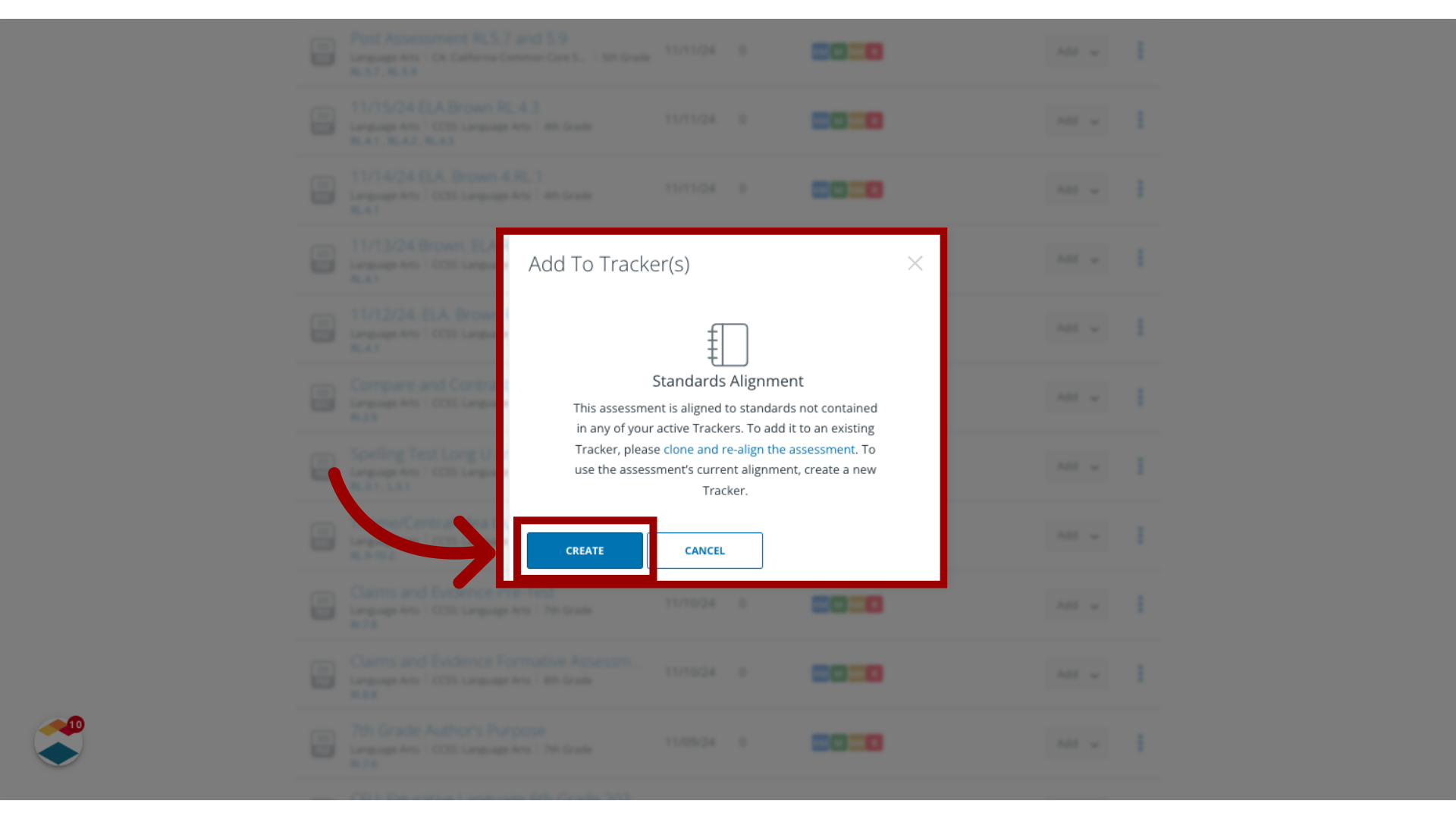
7. Create New Tracker
If you select an assessment that is not aligned to standards in any of your trackers, the Add to Tracker(s) window displays the Standards Alignment message.
To create a new tracker that aligns with the assessment, click the Create button.
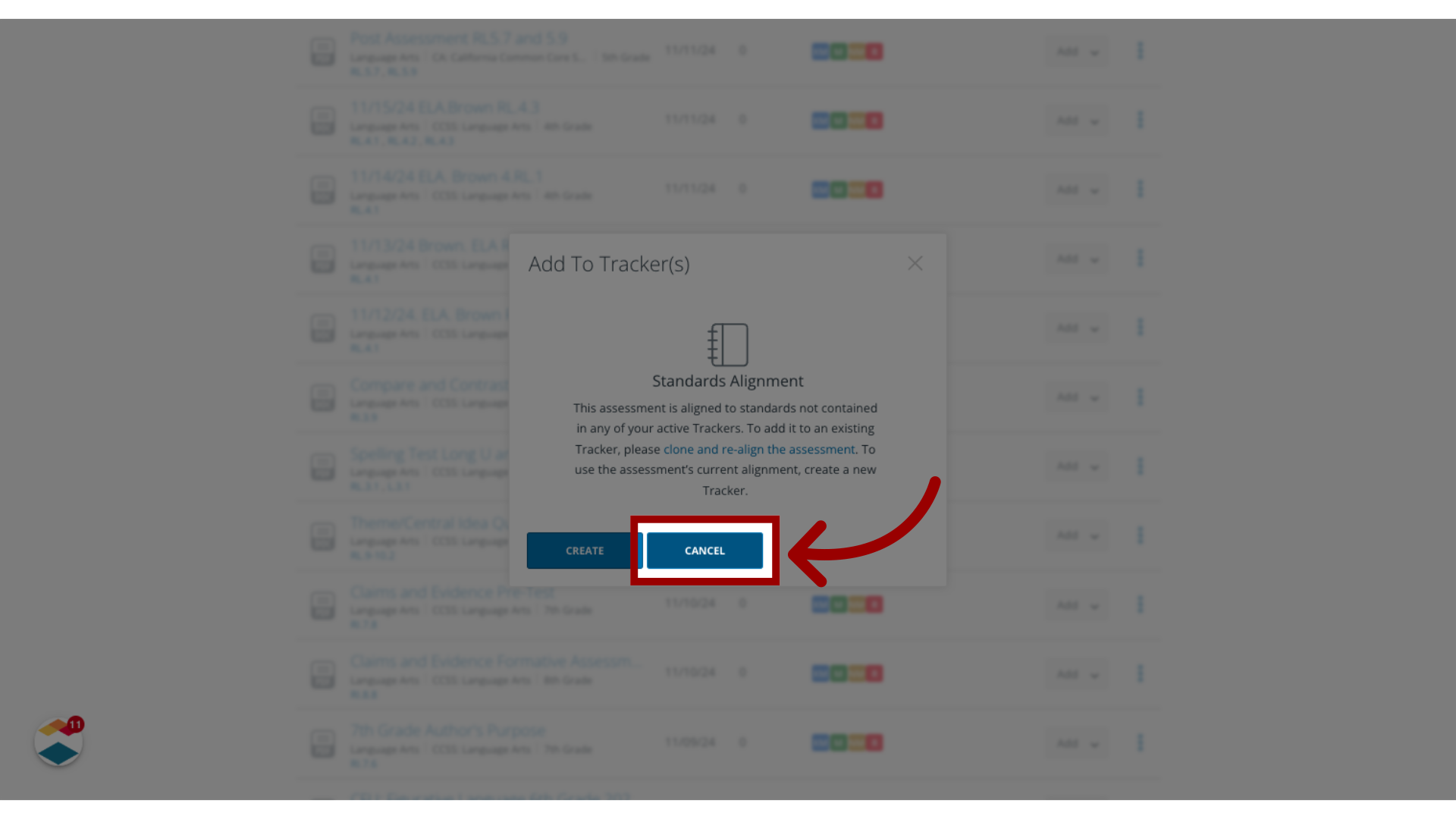
8. Cancel Add to Tracker
Alternatively, you can add the necessary standards to your tracker, or you can clone and re-align the assessment. To add standards to your tracker, click the Cancel button. Then add standards to your tracker.
To clone and re-align the assessment, click the Cancel button.Then clone the assessment and change the clone's standard's alignment.
9. View Mastery Level Message
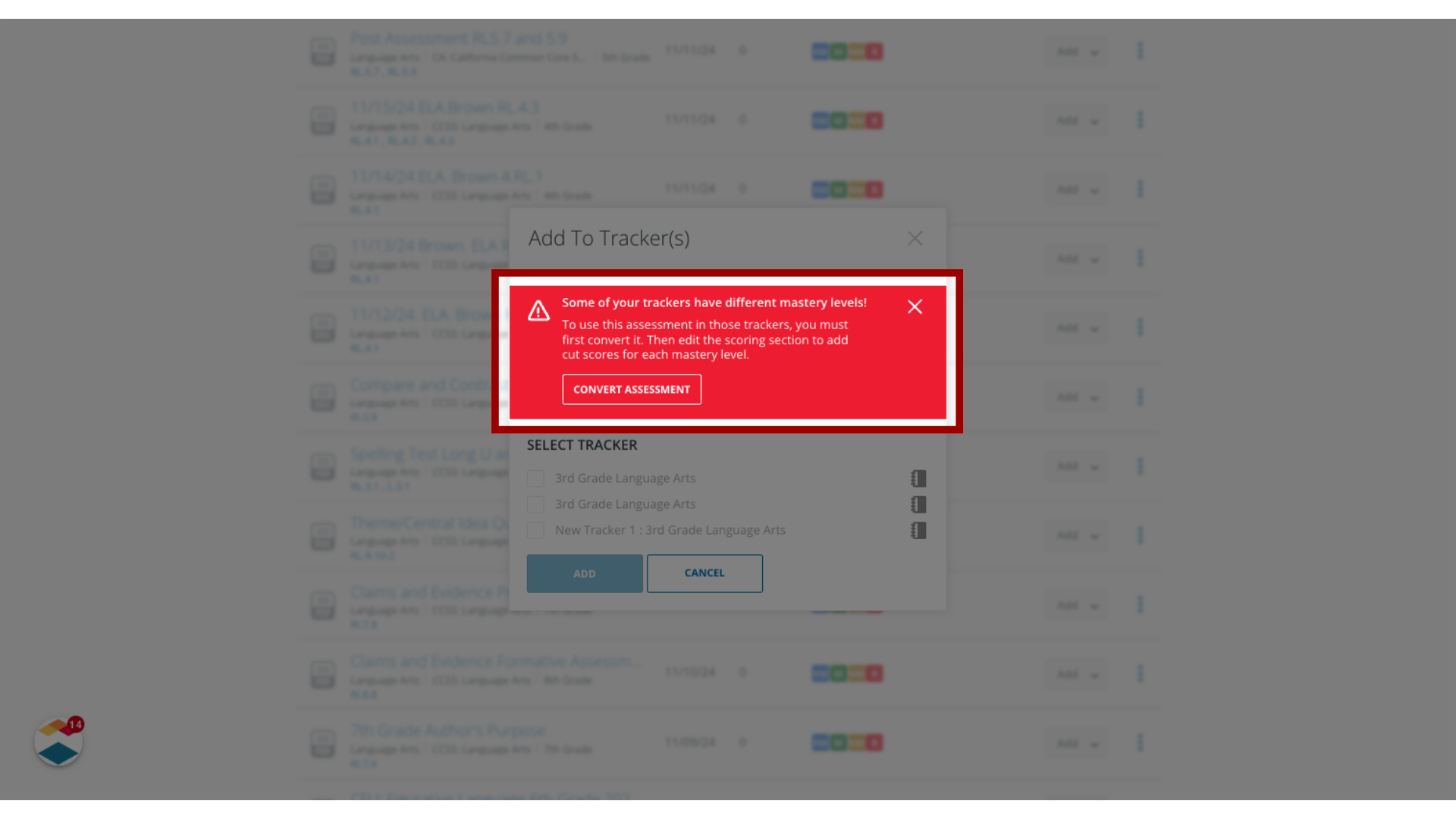
If you select an assessment whose mastery levels do not match the tracker mastery levels, a message displays. You can change the assessment's mastery levels to match your tracker, or you can select a different assessment.
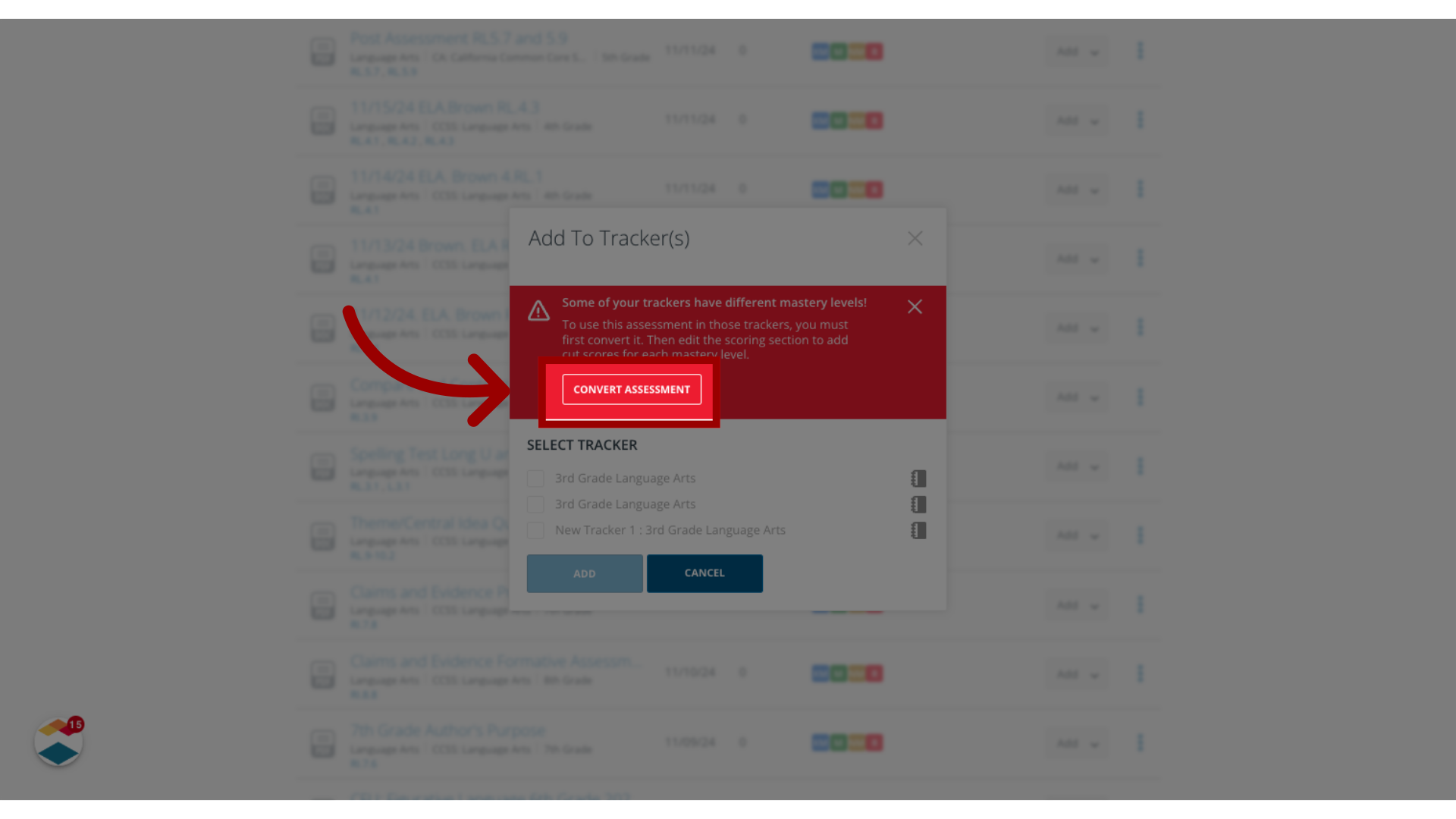
10. Convert Assessment
To change the assessment's mastery levels, click the Convert Assessment button.
This guide covered how to add formative assessments to trackers from the Assessments page.