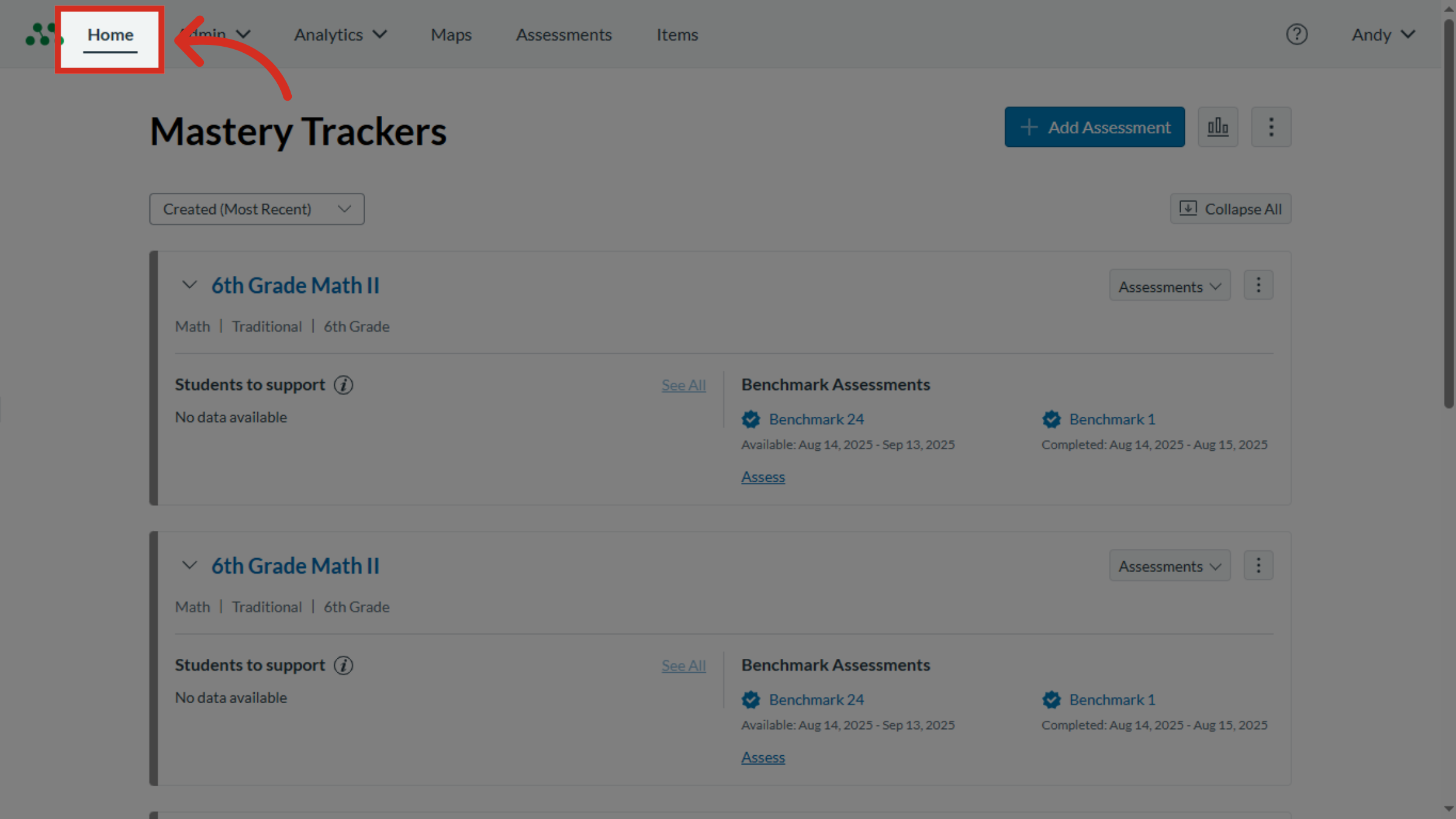
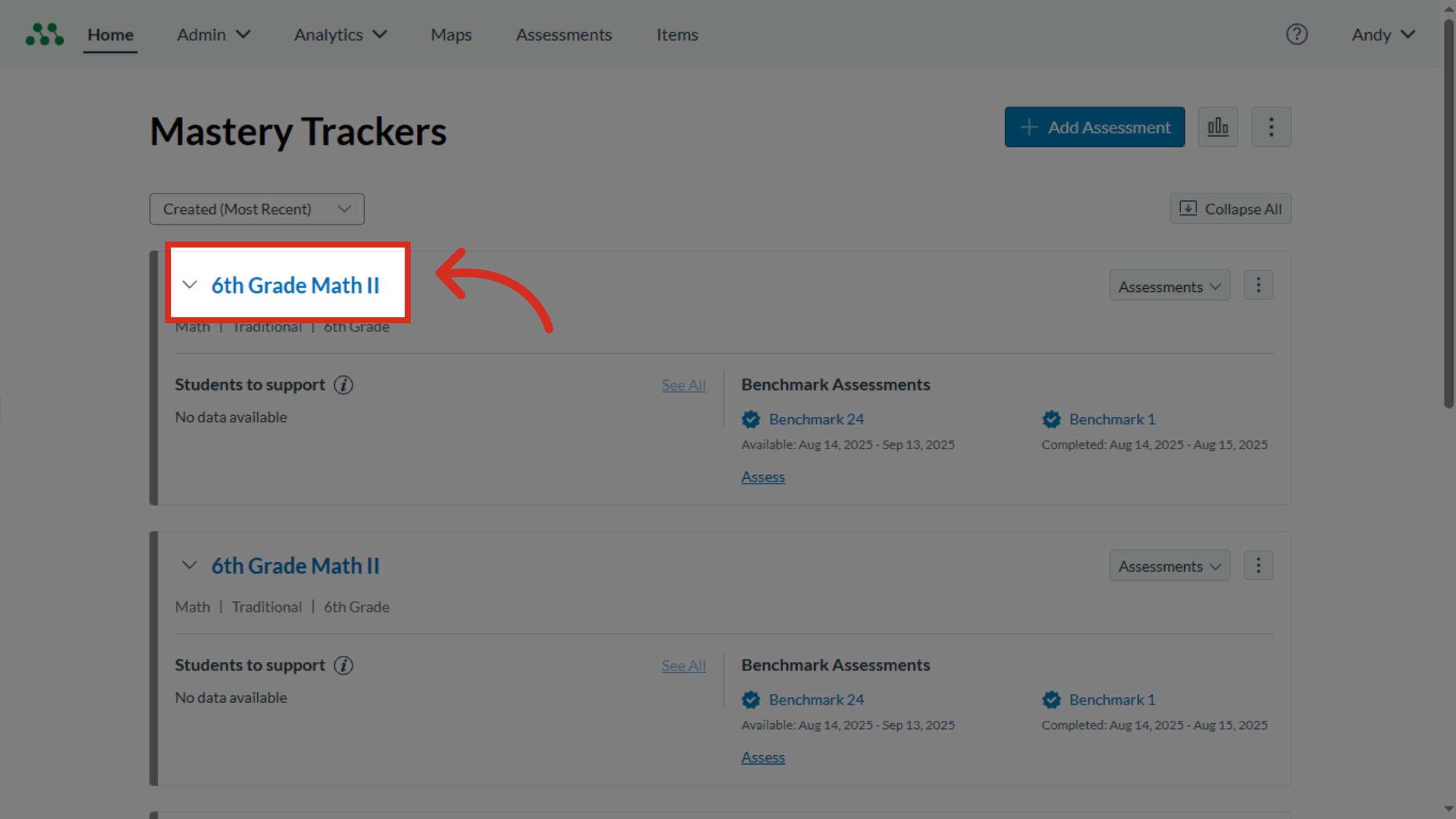
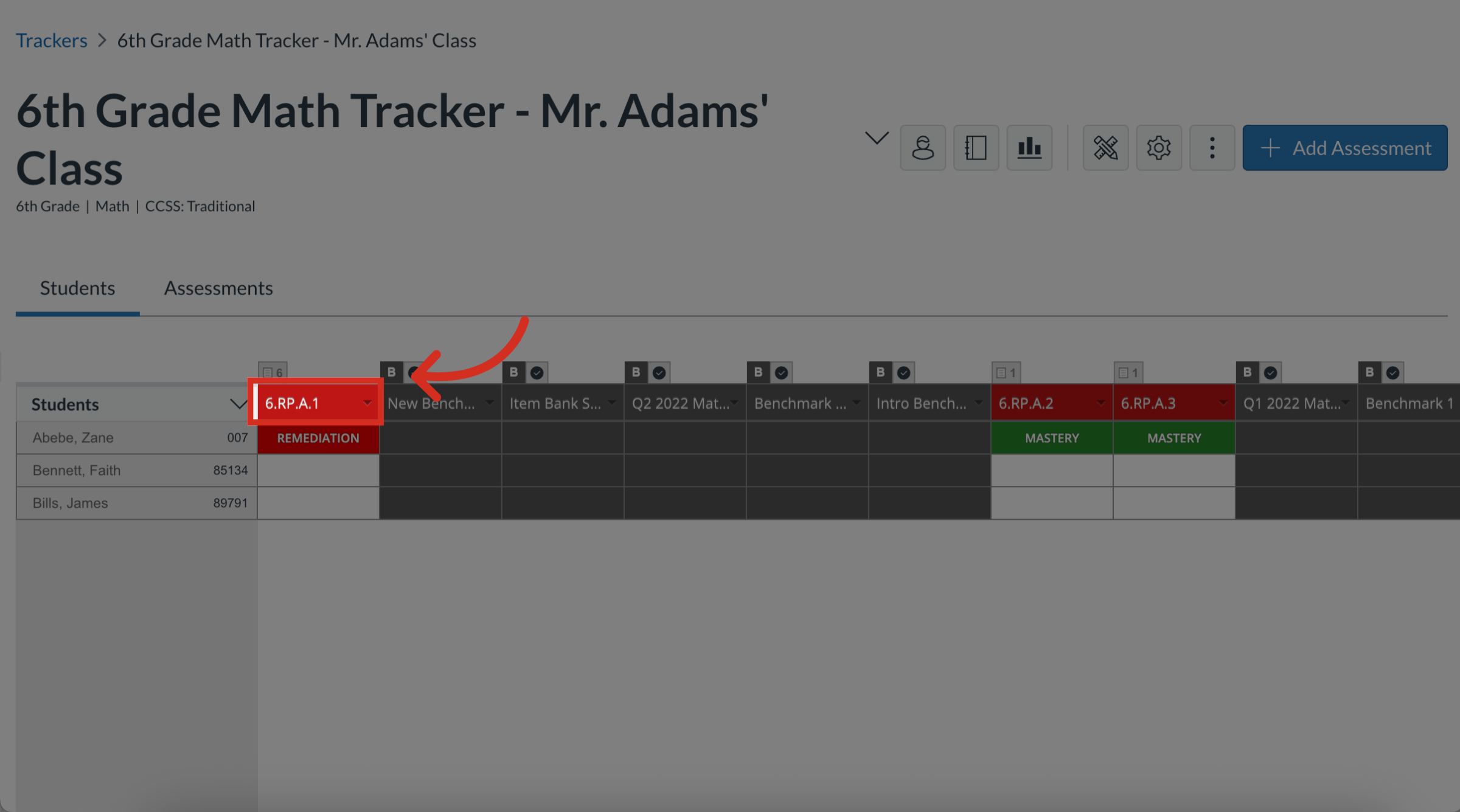
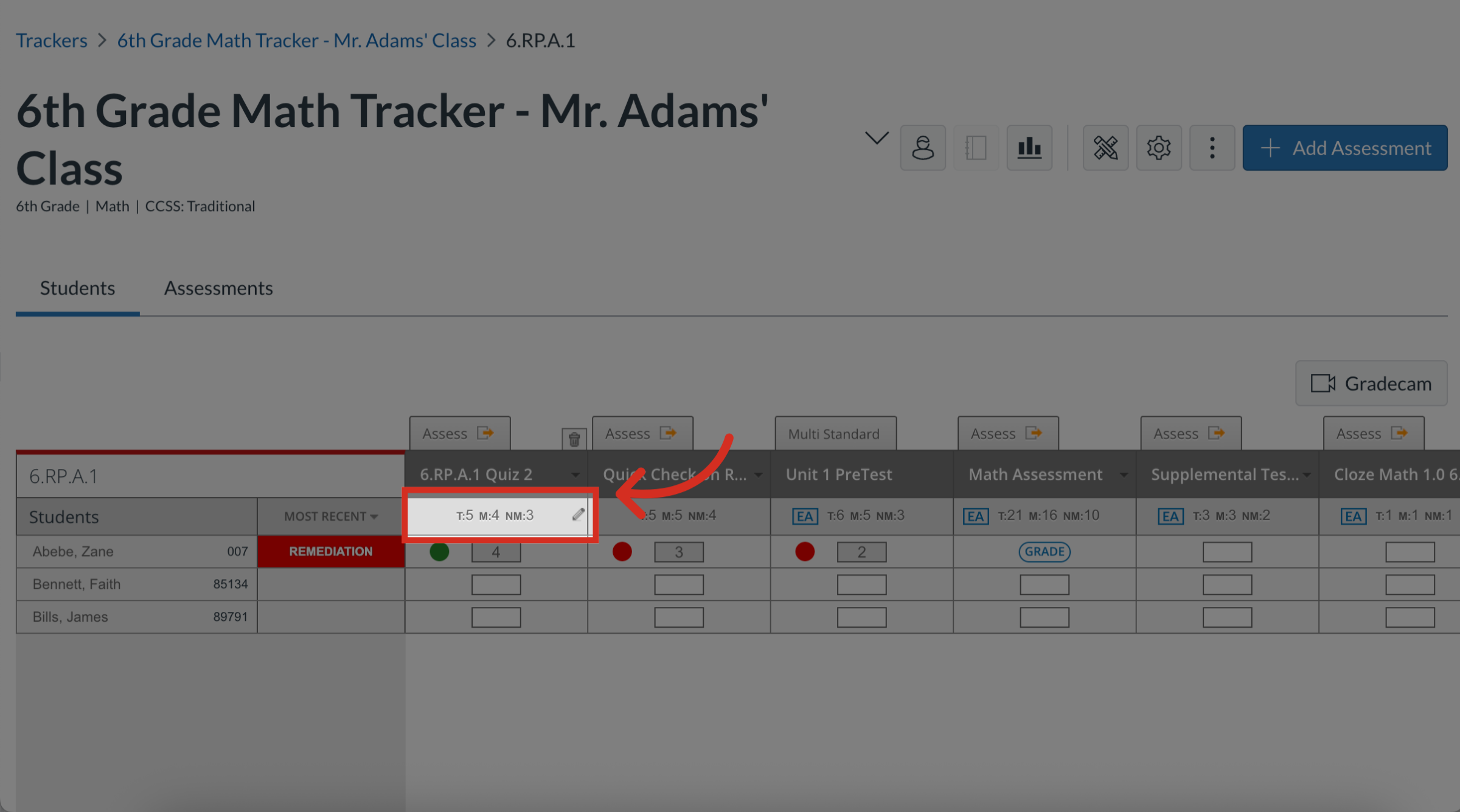
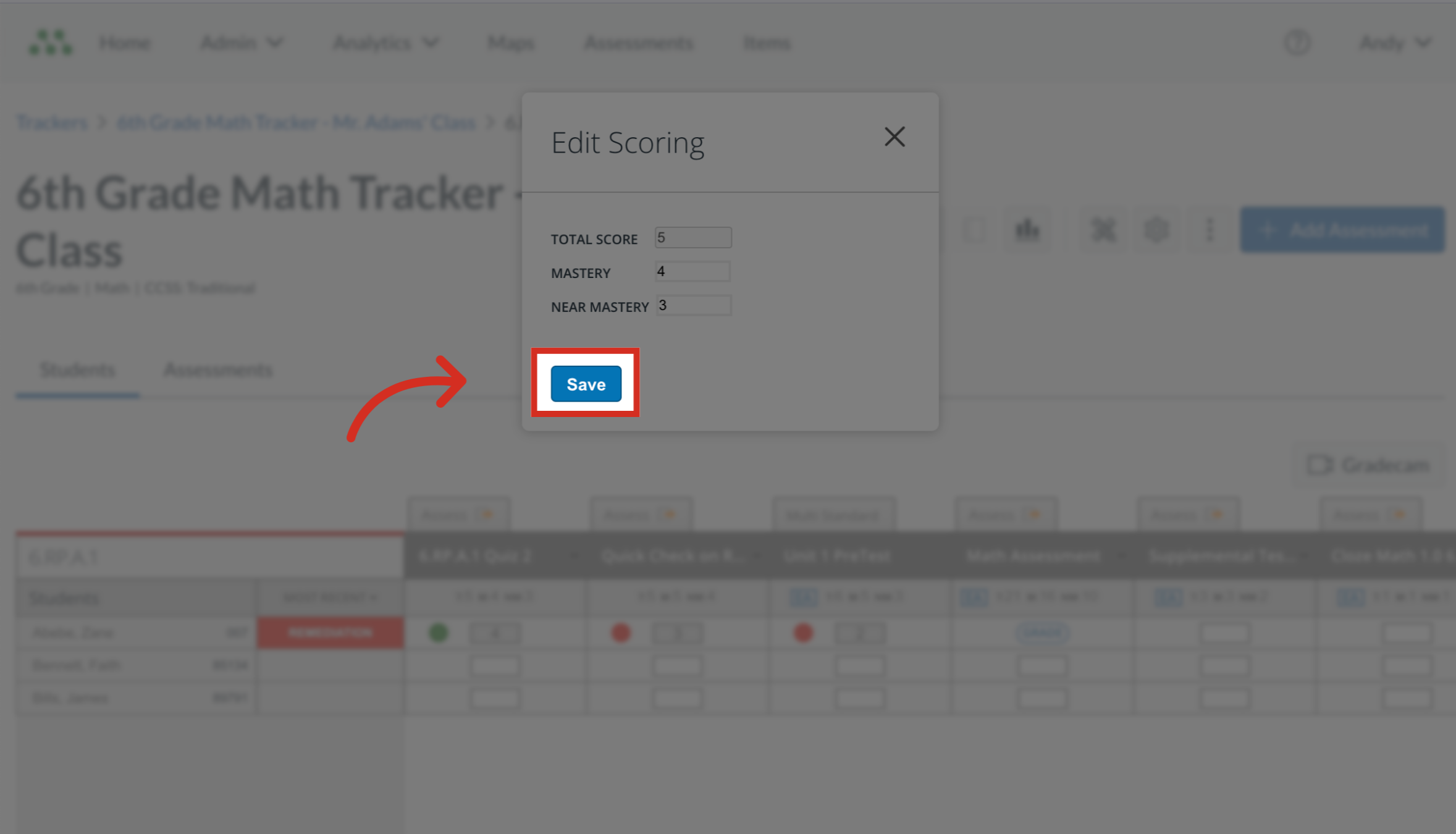
You can edit formative assessment mastery cut scores at any time, even after the assessment has been given and scored.Notes: Editing cut scores on a completed assessment automatically changes each student's mastery levels according to the new scores.If you are the author of an assessment, you can change assessment mastery cut scores in the assessment itself by editing the assessment. Scores then update on all trackers using the assessment.How do I change formative assessment mastery cut scores in a tracker? How do I change formative assessment mastery cut scores in a tracker?1. Access Mastery Trackers Go to the home page to access Mastery Trackers2. Select Tracker Name Click the tracker name to open the tracker.3. Select Standard In the Tracker View page, click the standard the assessment is associated with to work with a single-standard assessment.4. Open Scoring Edits Locate the assessment in the Standard Details page. Then, hover the cursor over the mastery level scores, and click the Edit icon.5. Edit Scoring In the Edit Scoring dialog box, enter new cut scores for the available mastery levels.6. Save Changes To save changes, click the Save button. This guide covered how to change formative assessment mastery cut scores in a tracker.