If your district is not actively syncing Mastery Connect with a student information system (SIS), you can import students to a tracker using a properly formatted CSV file.
Notes:
Create Tracker
In the Home page [1], click the Mastery Trackers Option icon [2]. Then click the Create New Tracker menu [3].
Note: You can also create a tracker from your curriculum maps page, from your shared curriculum maps page, or from another teacher's curriculum map.
Choose Tracker Option
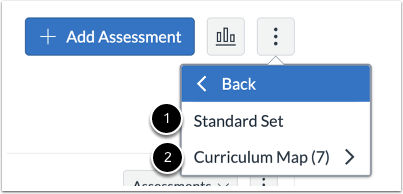
Select whether the new tracker will be from a Standard Set [1] or a Curriculum Map [2].
Select CSV File
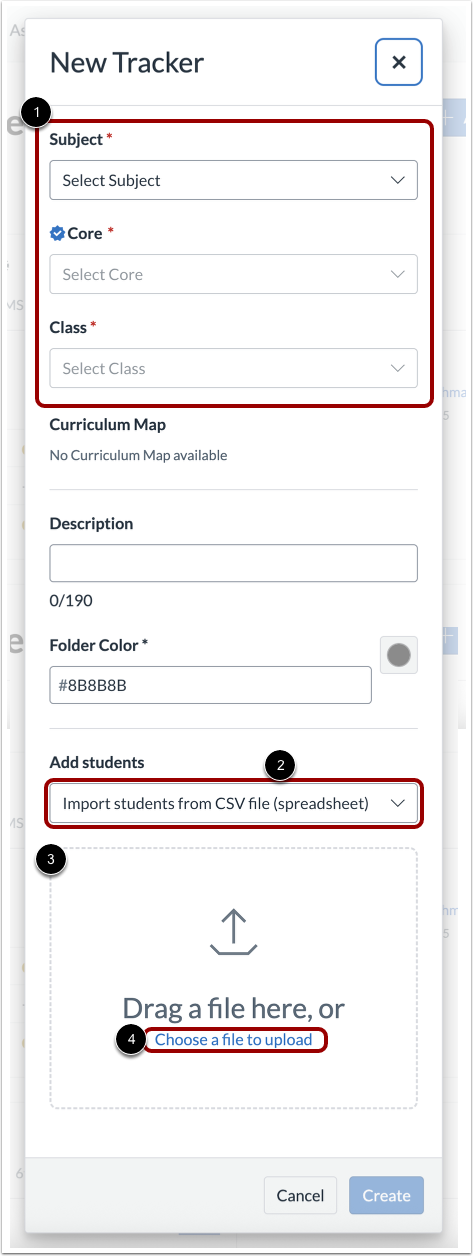
In the New Tracker window, enter details to create the mastery tracker [1].
In the Add Students drop-down menu, click the Import students from CSV file (spreadsheet) option [2].
To select the CSV file, click and drag the file from your computer [3]. Alternatively, to browse for the file you want, you can click the Choose File link [4]. Then, select a properly formatted CSV file.
Create Tracker
After you select a CSV file, the file name displays [1].
To import the file and create the tracker, click the Create button [2].
View New Tracker
Your newly create tracker displays in the View Tracker page.