You can add notes to your curriculum map. All owners of the curriculum map can view the notes, edit the notes, or add new notes.
You can add notes that are attached to the overall curriculum map, and you can add notes that are attached to specific standards and units within the curriculum map.
Note: If the steps in this lesson do not match what is displayed in your account, you may be using the Legacy View. For Legacy View steps, refer to How do I add notes to a curriculum map in Legacy view?.
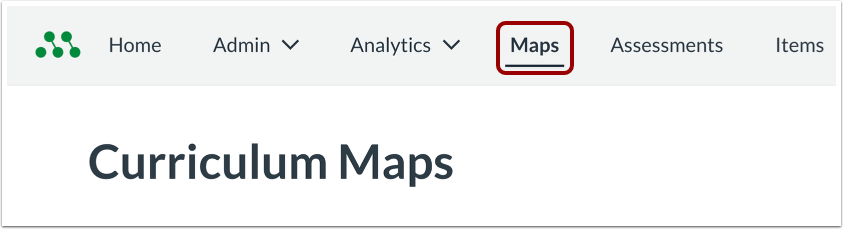
Open Maps
In the Global Navigation menu, click the Maps link.
Open Curriculum Map
Click the curriculum map name link.
Open Curriculum Map Notes
In the curriculum map, click the Create Map Note button.
Add Notes
Enter your note in the Note Content field [1].
To format your note, use the text formatting toolbar [2].
To save your note, click Save [3].
View Curriculum Map Notes
The note displays as a highlighted card in the curriculum map.
To edit or delete the note, click the More Options icon [1].
To edit the note, click Edit [2]. To delete the note, click Delete [3].
Add Unit Notes
You can also add notes directly to a unit within a curriculum map.
Hover over the Unit Options icon [1] and click the Notes link [2].
Enter your notes in the Unit Notes text field [1].
To format your notes, use the text formatting toolbar [2].
Save Unit Notes
To save your notes, click the Save button.
View Unit Notes
To view your unit notes, click the Unit Options icon [1], then click the Notes option [2].
The Edit Unit dialog opens to the Notes tab.
Edit Unit Notes
Edit your note in the Unit Notes editor.
To save your changes, click the Save button.
Add Standard Notes
You can add notes directly to a standard within a curriculum map.
If the standard is located in a unit, click the Expand Unit button [1].
Click the Standard Options icon [2], then click the Notes option [3].
The standard details dialog opens to the Notes tab.
Enter your notes in the Standard Notes field [1].
Use the formatting toolbar [2] to format your note as needed.
Click the Save button [3].
View Standard Notes
To view or edit your standard notes, click the Standard Options icon [2], then click the Notes option [3].
The standard details dialog opens to the Notes tab.
Edit Standard Notes
Edit your note in the Standard Notes field.
To save your changes, click the Save button.