How do I clone an item from within an assessment?
How do I clone an item from within an assessment?
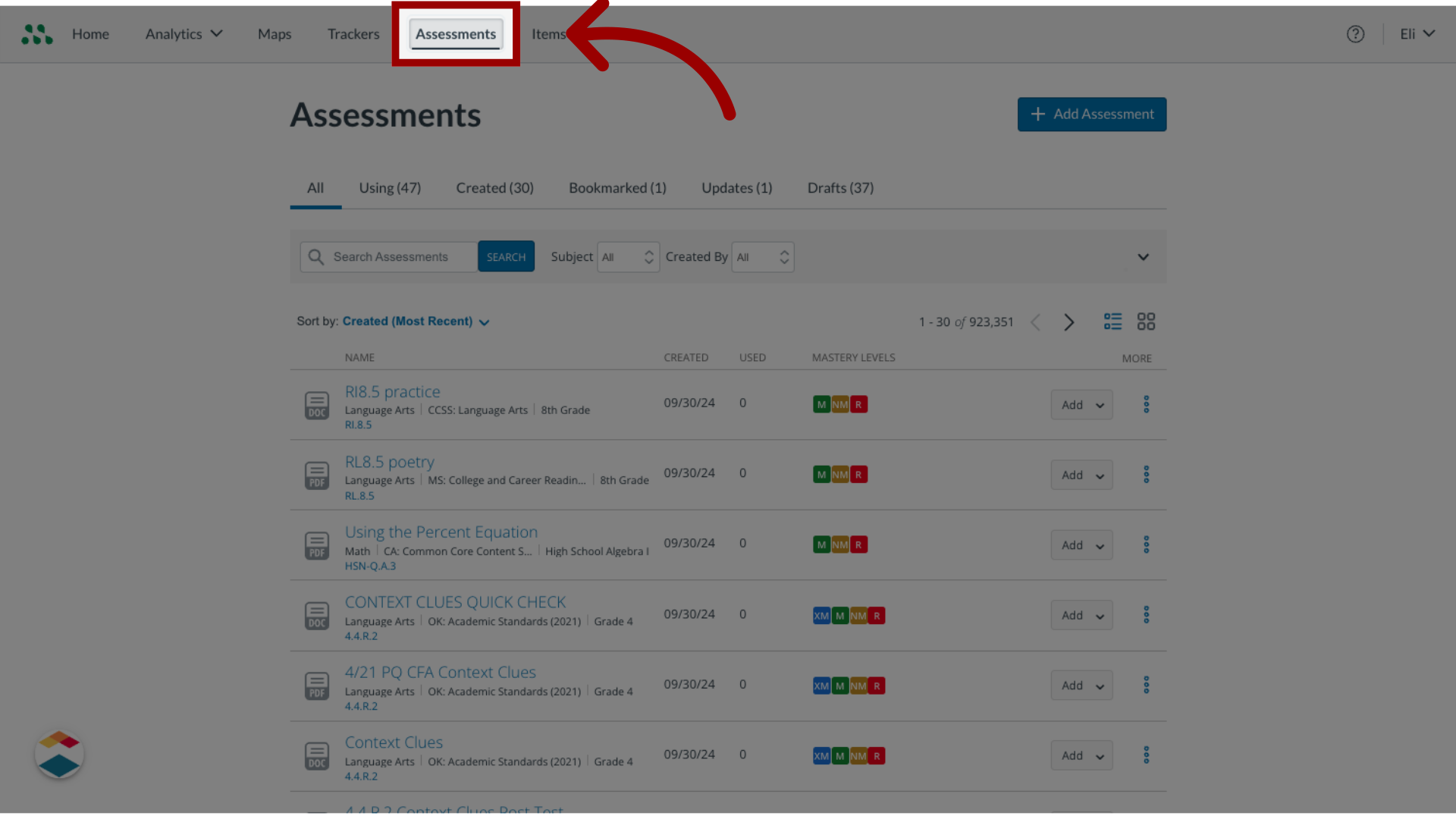
1. Open Assessments
In the global navigation, click the Assessments link.
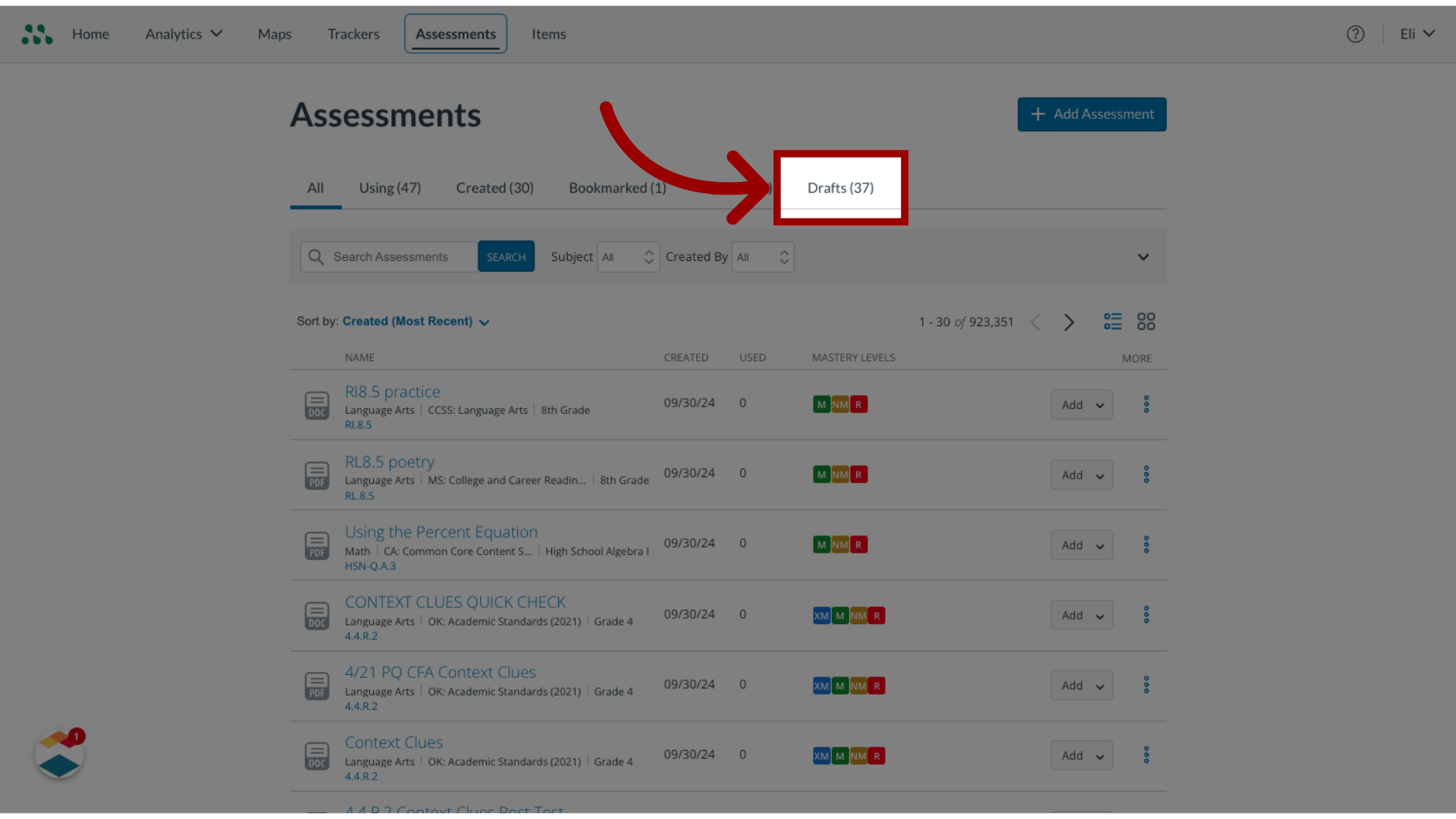
2. Open Drafts
Then, Click the Drafts tab.
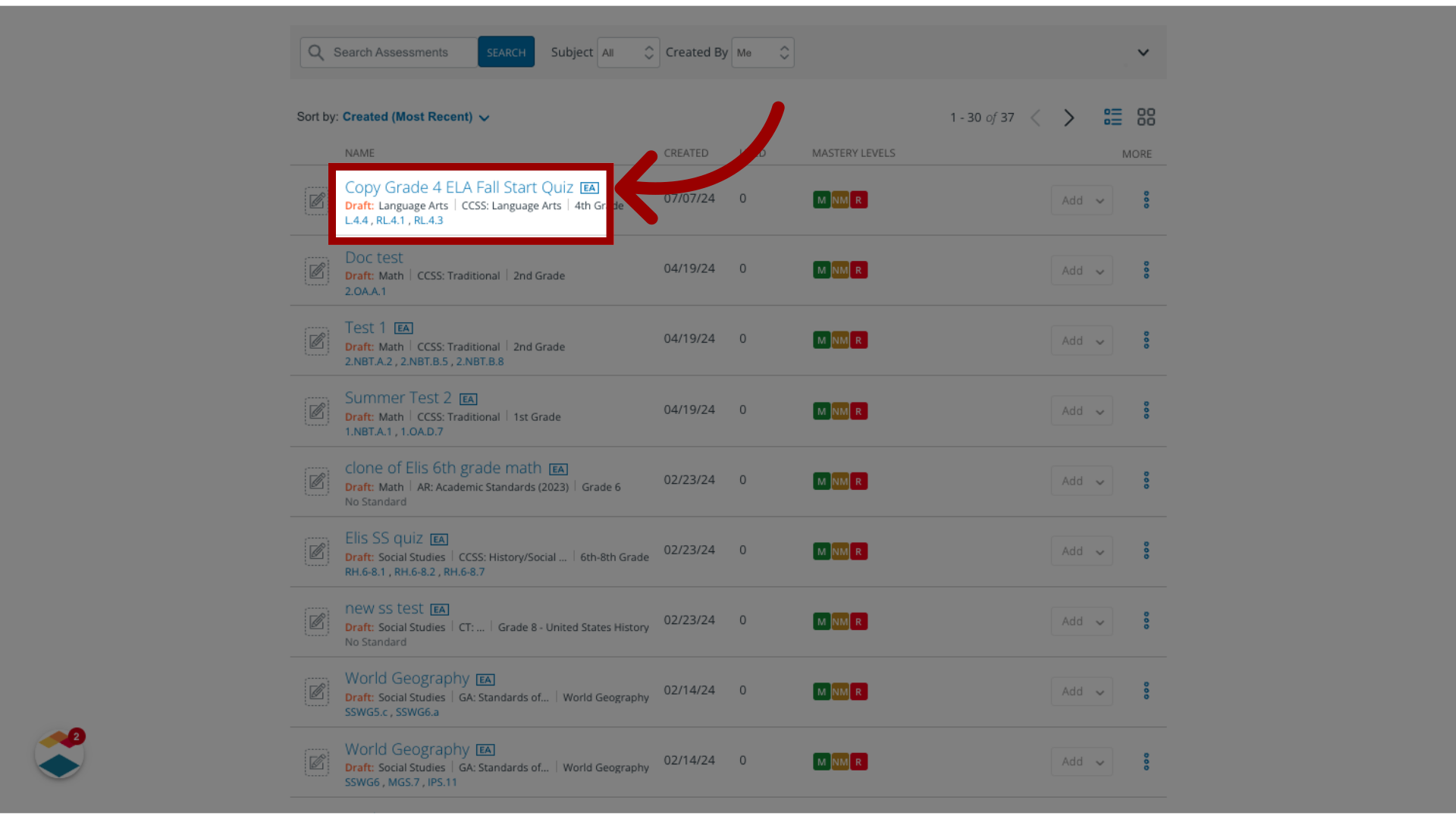
3. Open Assessments Name
Locate the assessment that contains the item you want to clone and click the assessment name link.
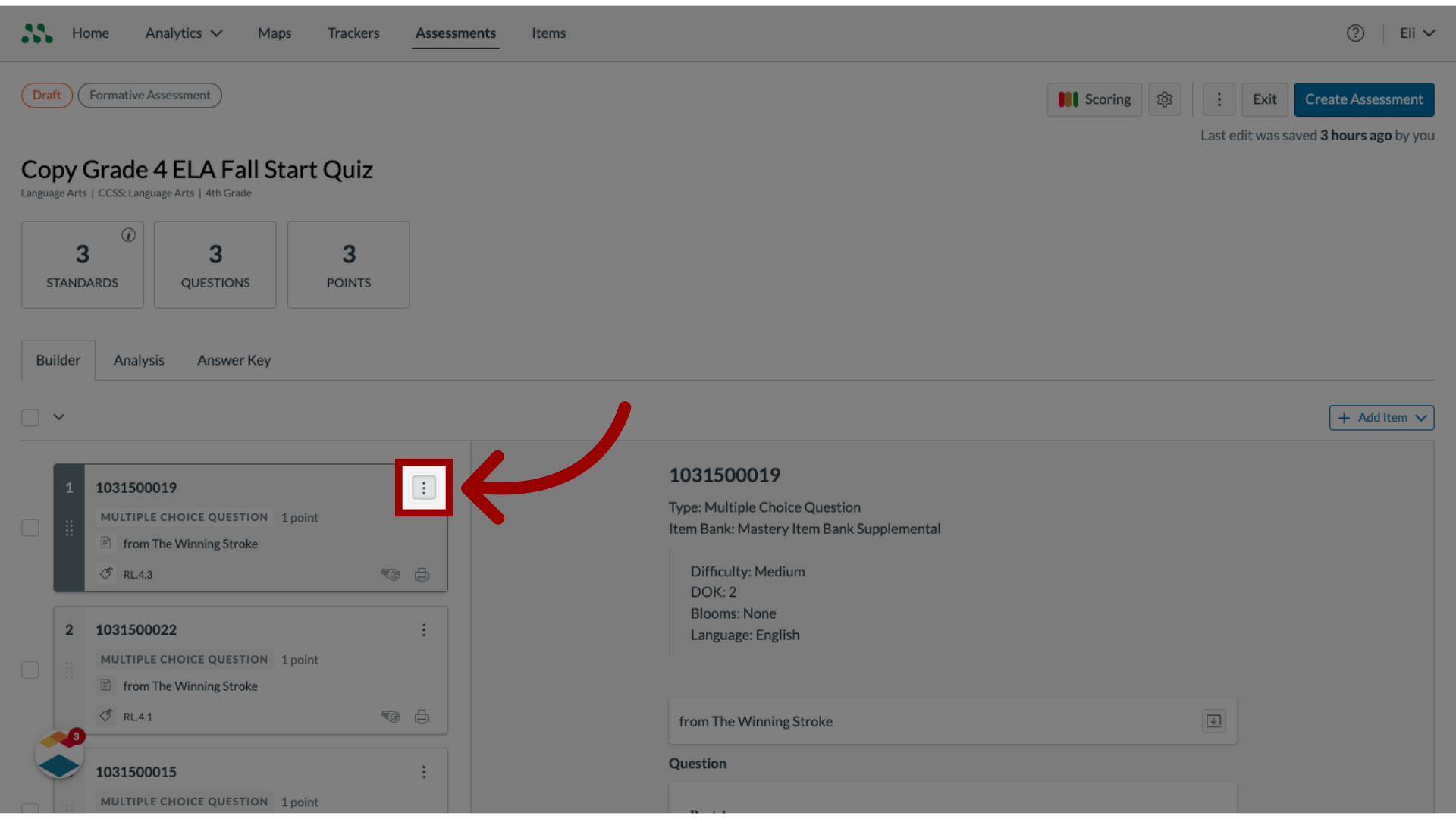
4. Open Options
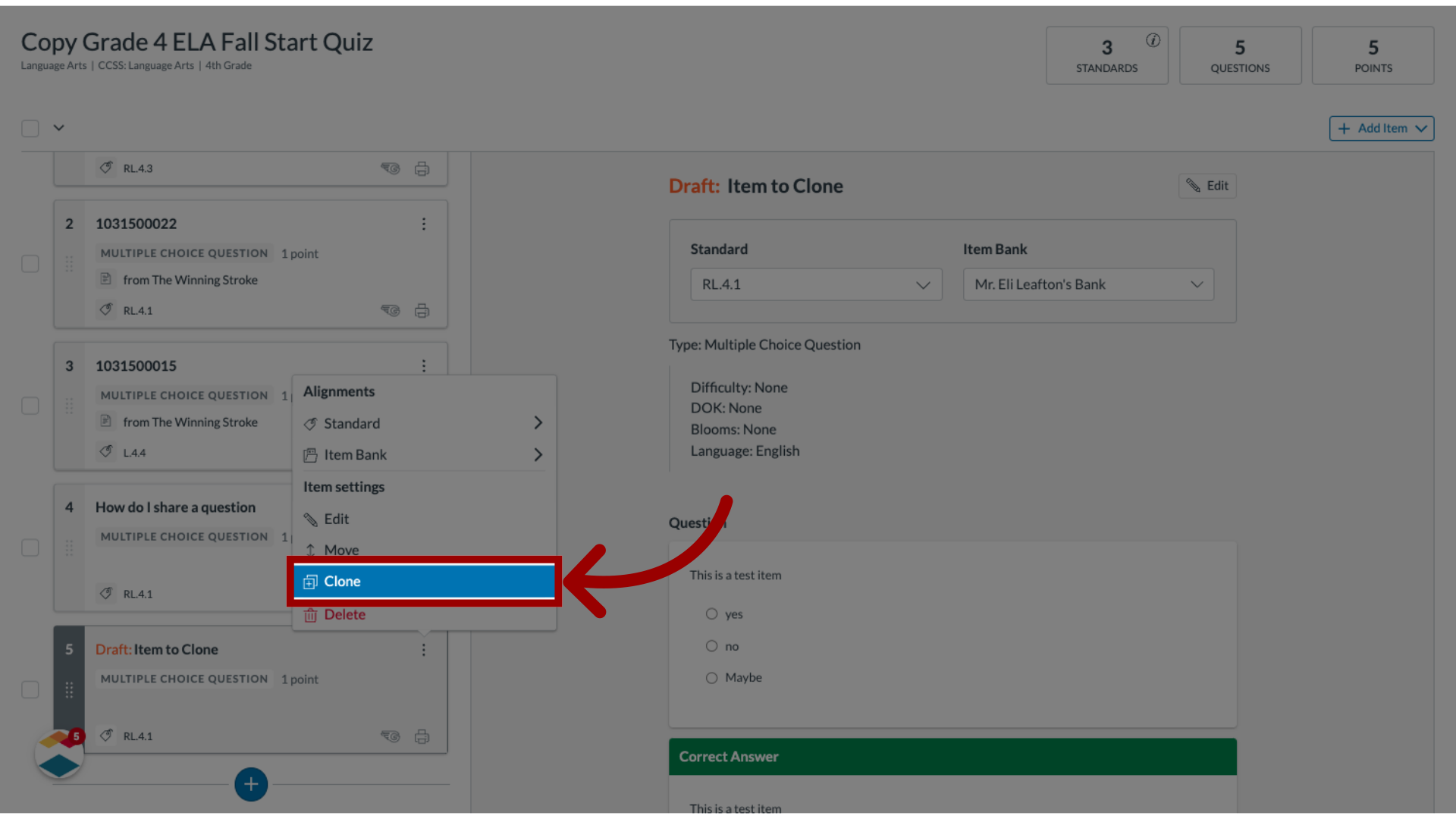
In the Item Organizer, locate the item you want to clone and click the Options icon.
5. Select Clone
In the Options drop-down, select the Clone option.
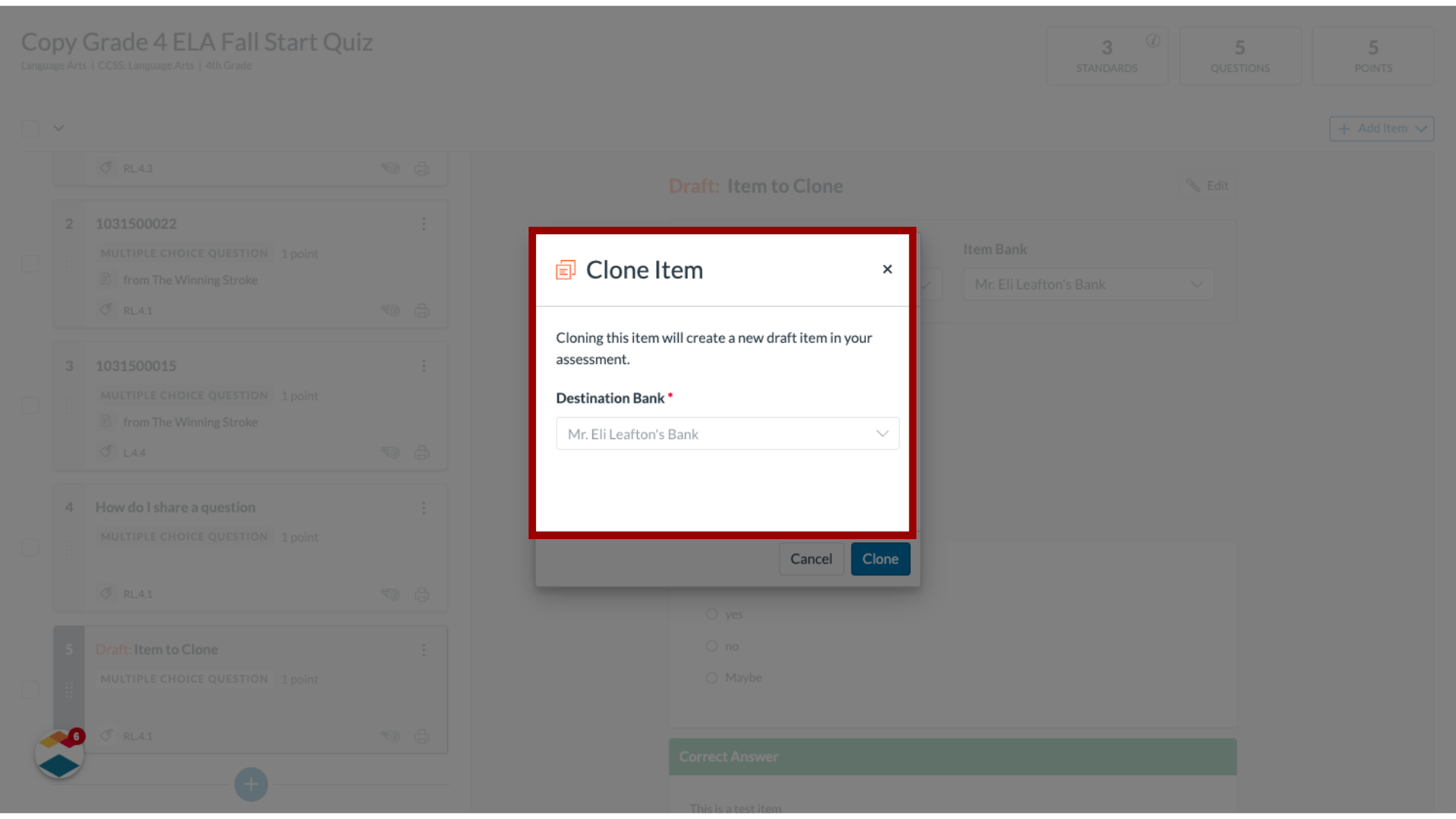
6. Select Destination Bank
To select the bank where you want to add the clone, click the Destination Bank drop-down window and click the item bank link.
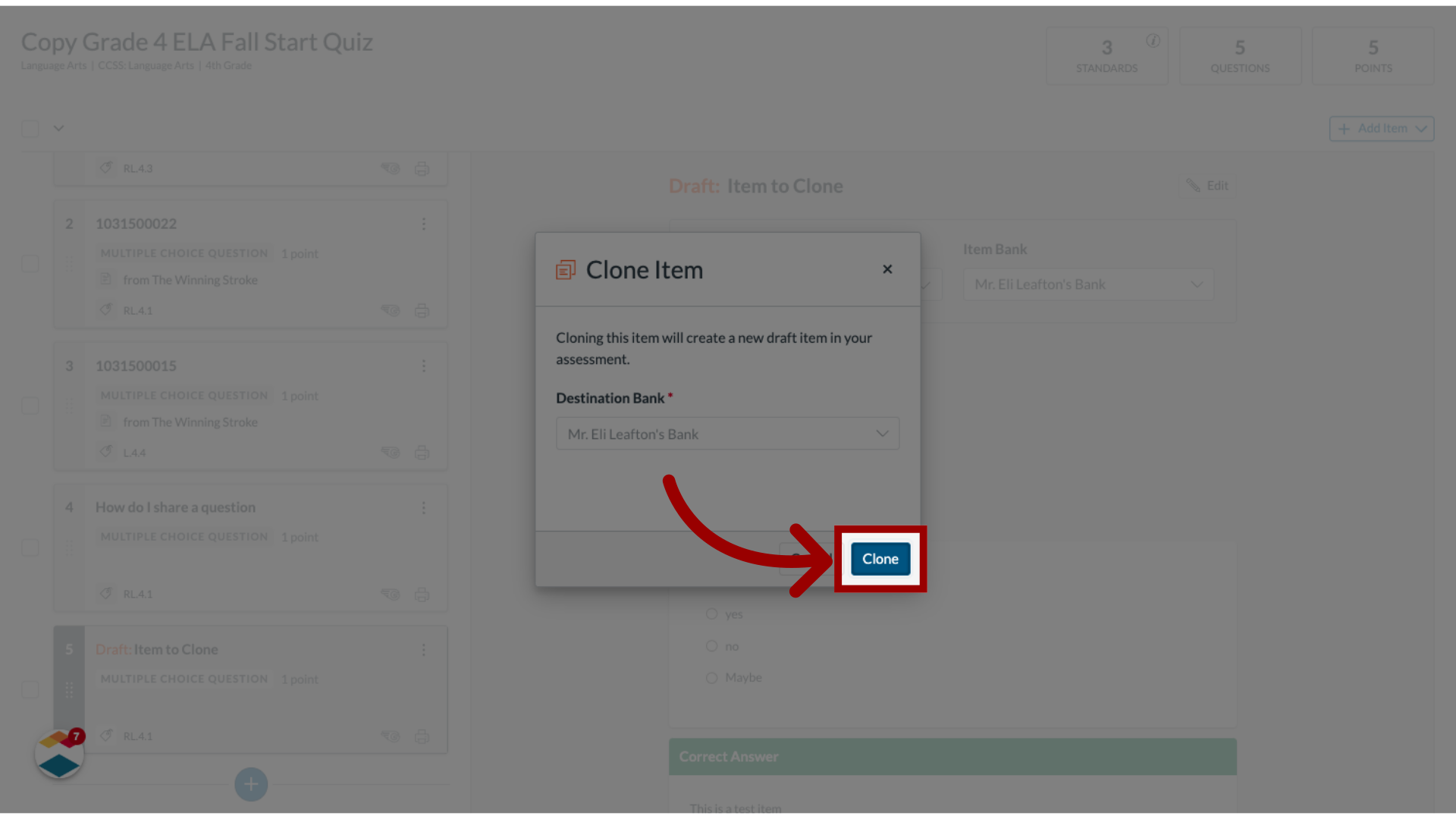
7. Clone Item
To confirm the cloning action, click the Clone button.
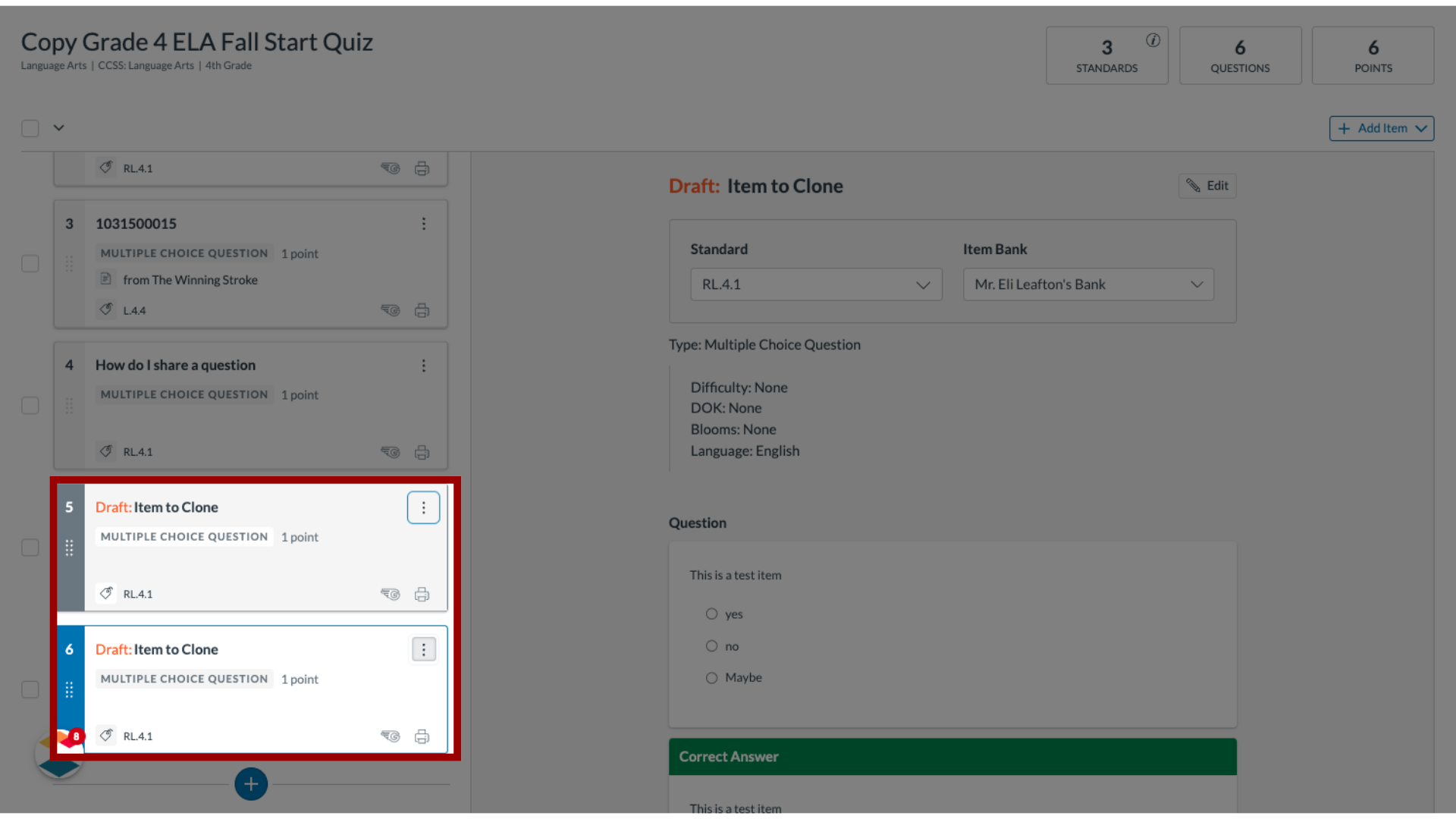
8. View Cloned Item
In the list, the cloned item displays in draft state below the source item.
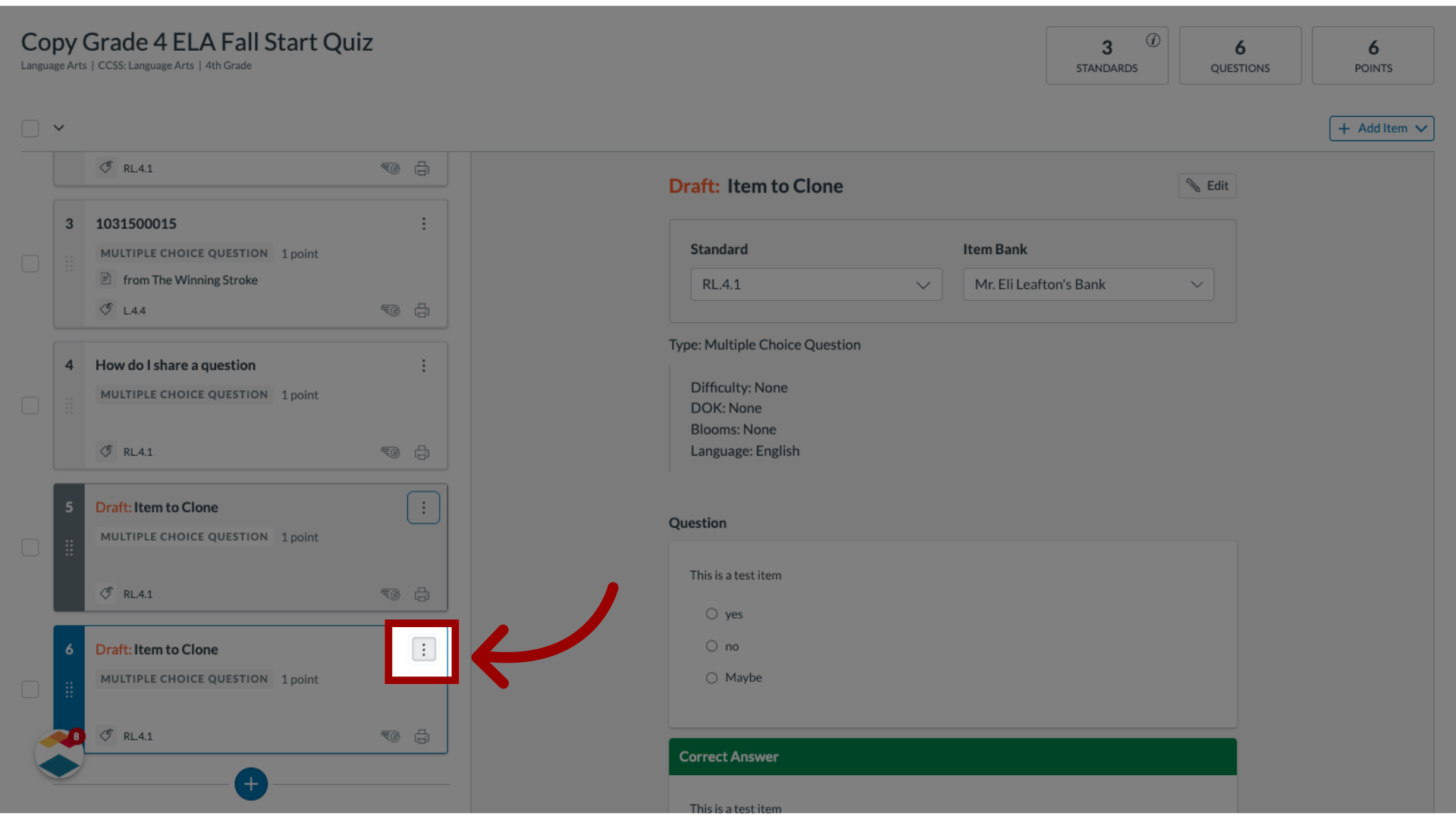
9. Edit Clone
To edit the clone, click the Options icon.
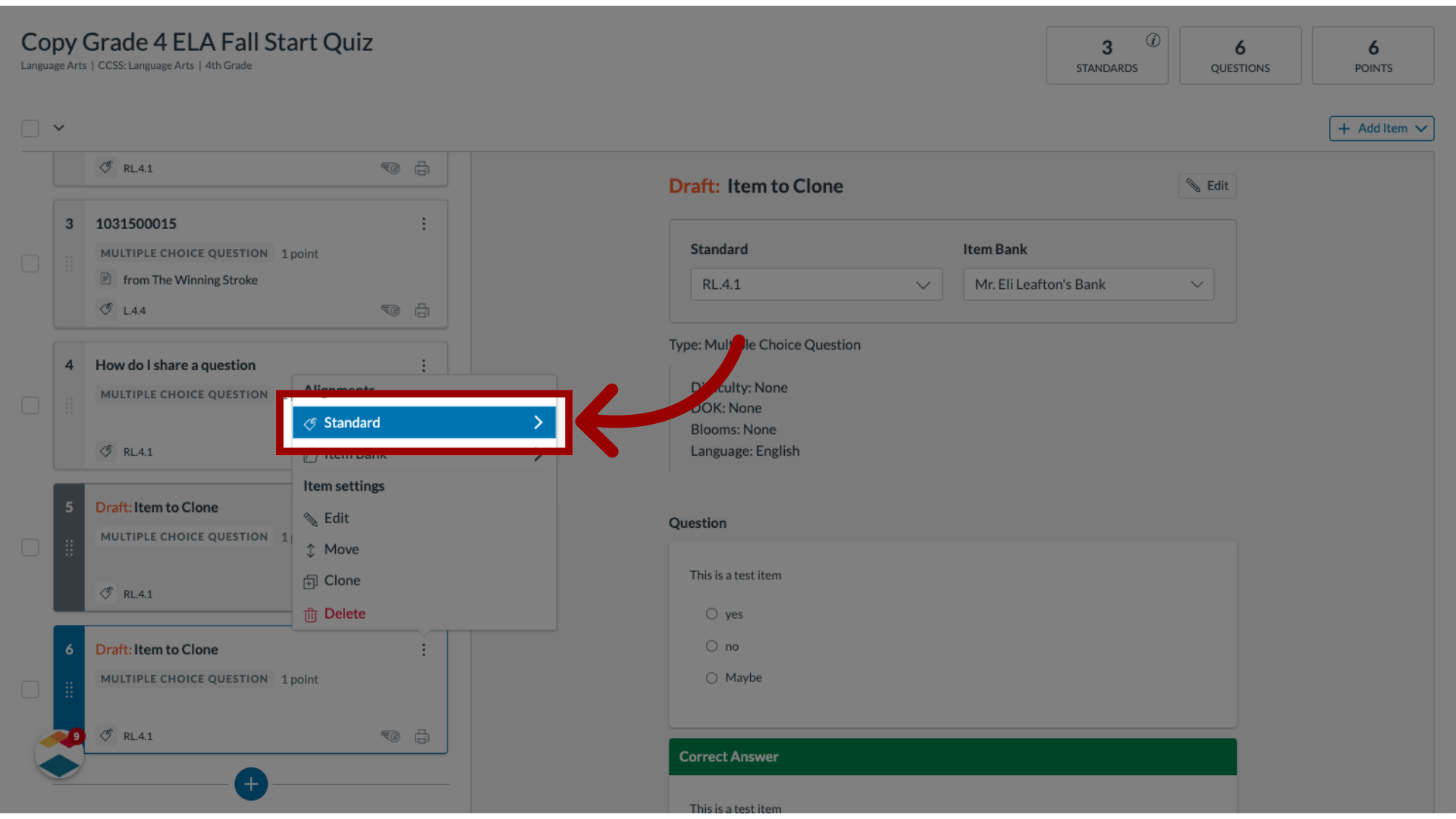
10. Select New Alignment
To select a new alignment for the clone, click the Standard drop-down menu.
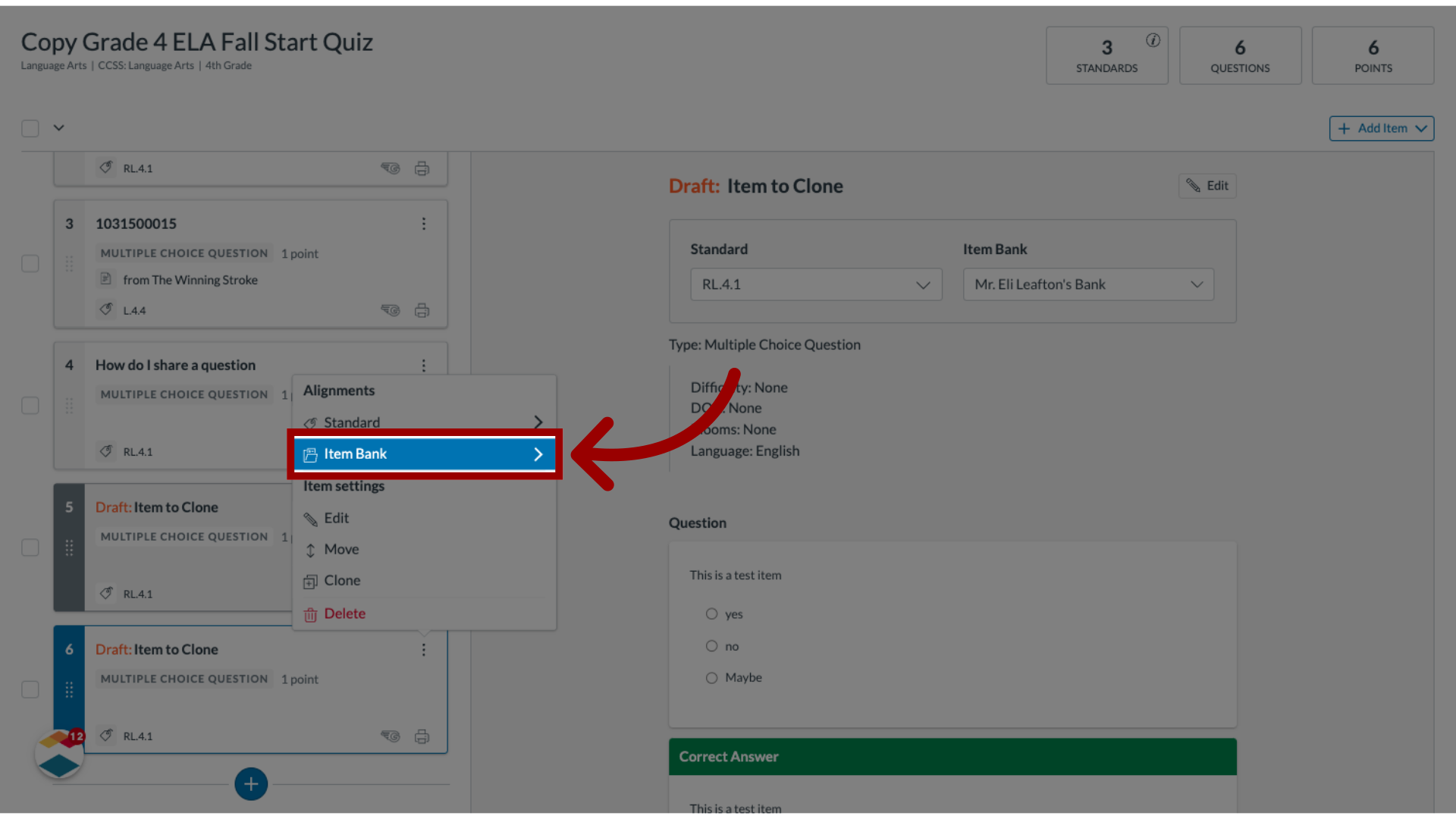
11. Move Item to Different Item Bank
To move the item to a different item bank, click the Item Bank drop-down menu.
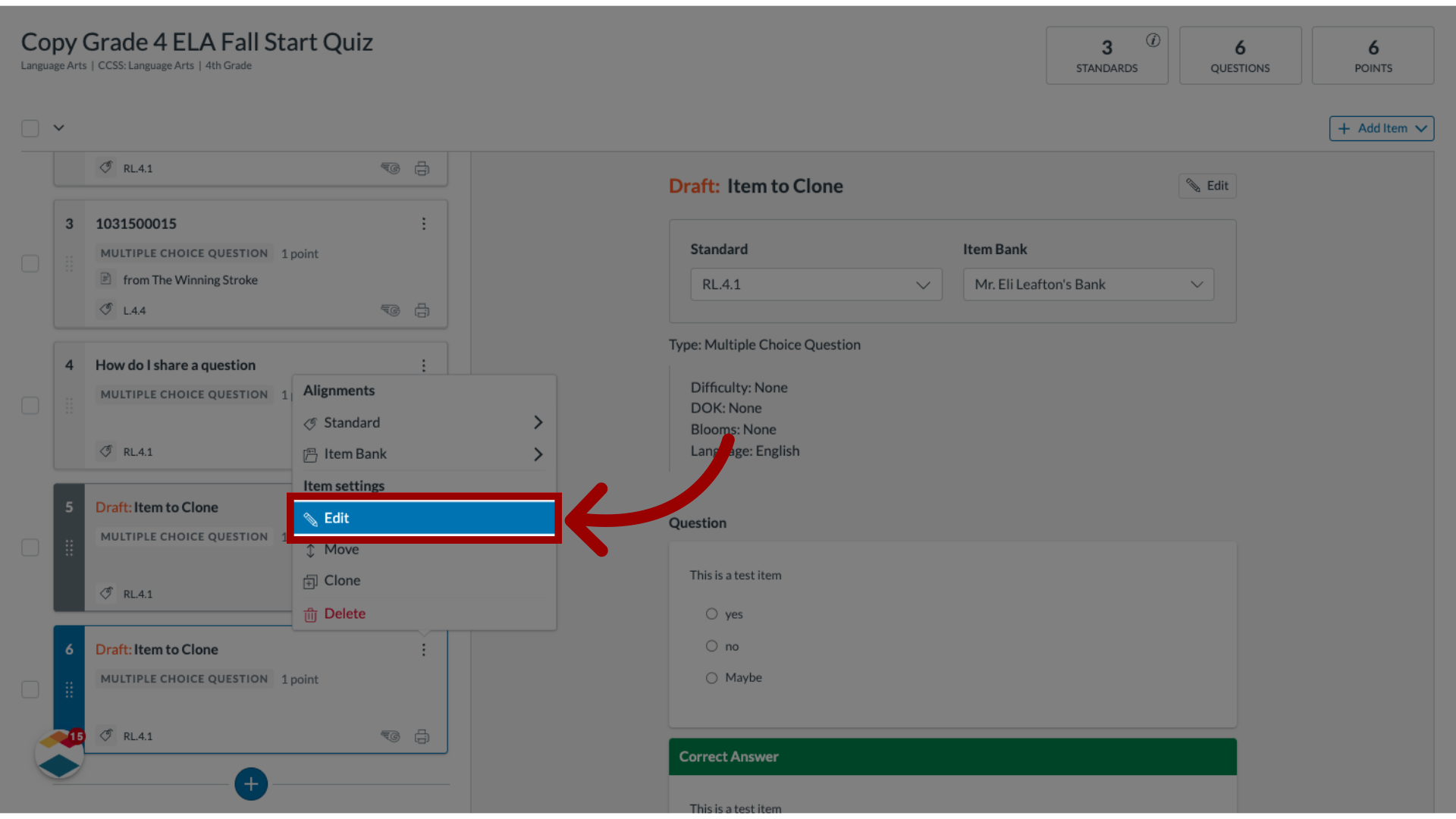
12. Edit Item
To edit the item, click the Edit link.
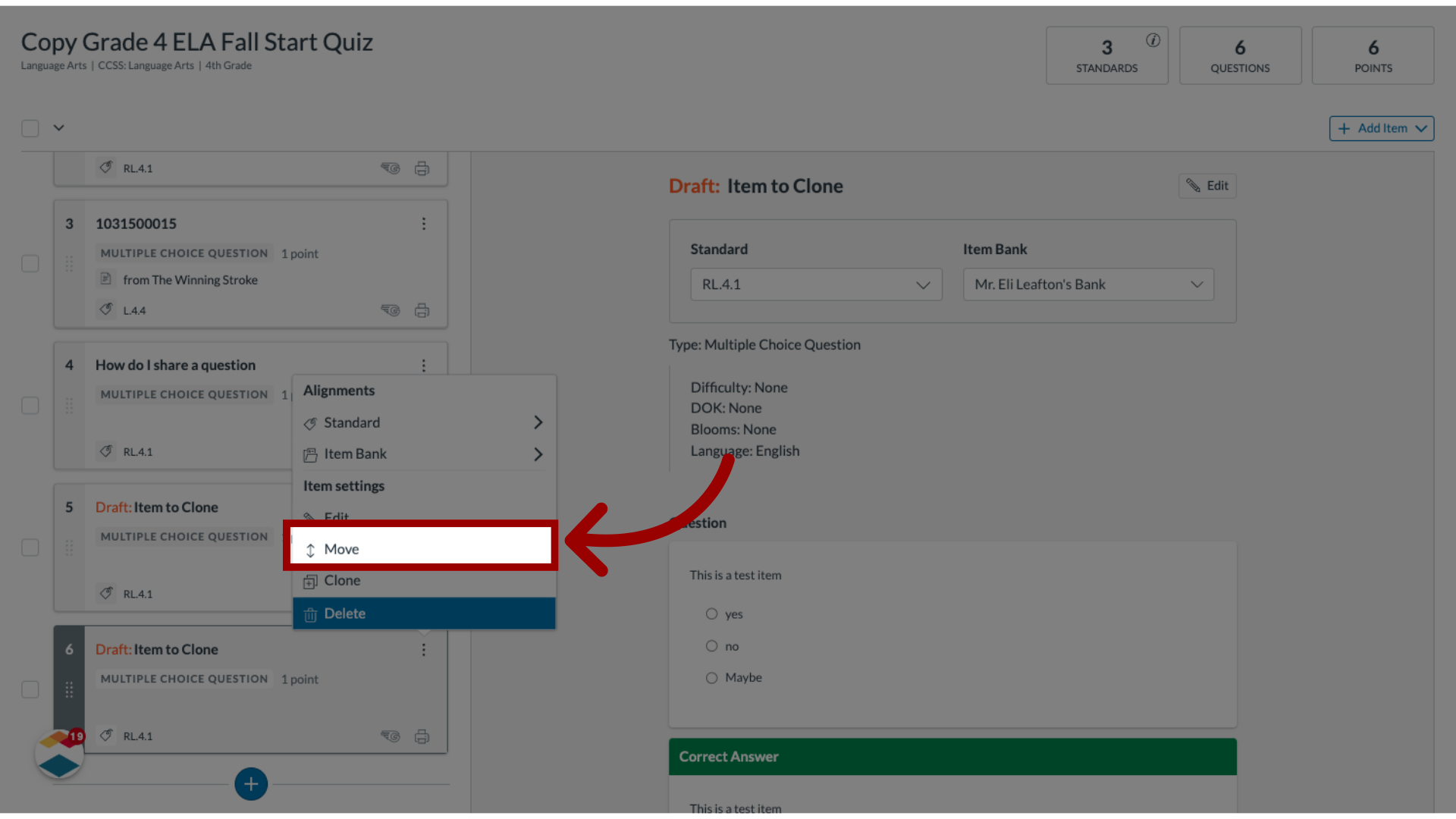
13. Move Item
To move the item within the list, click the Move link.
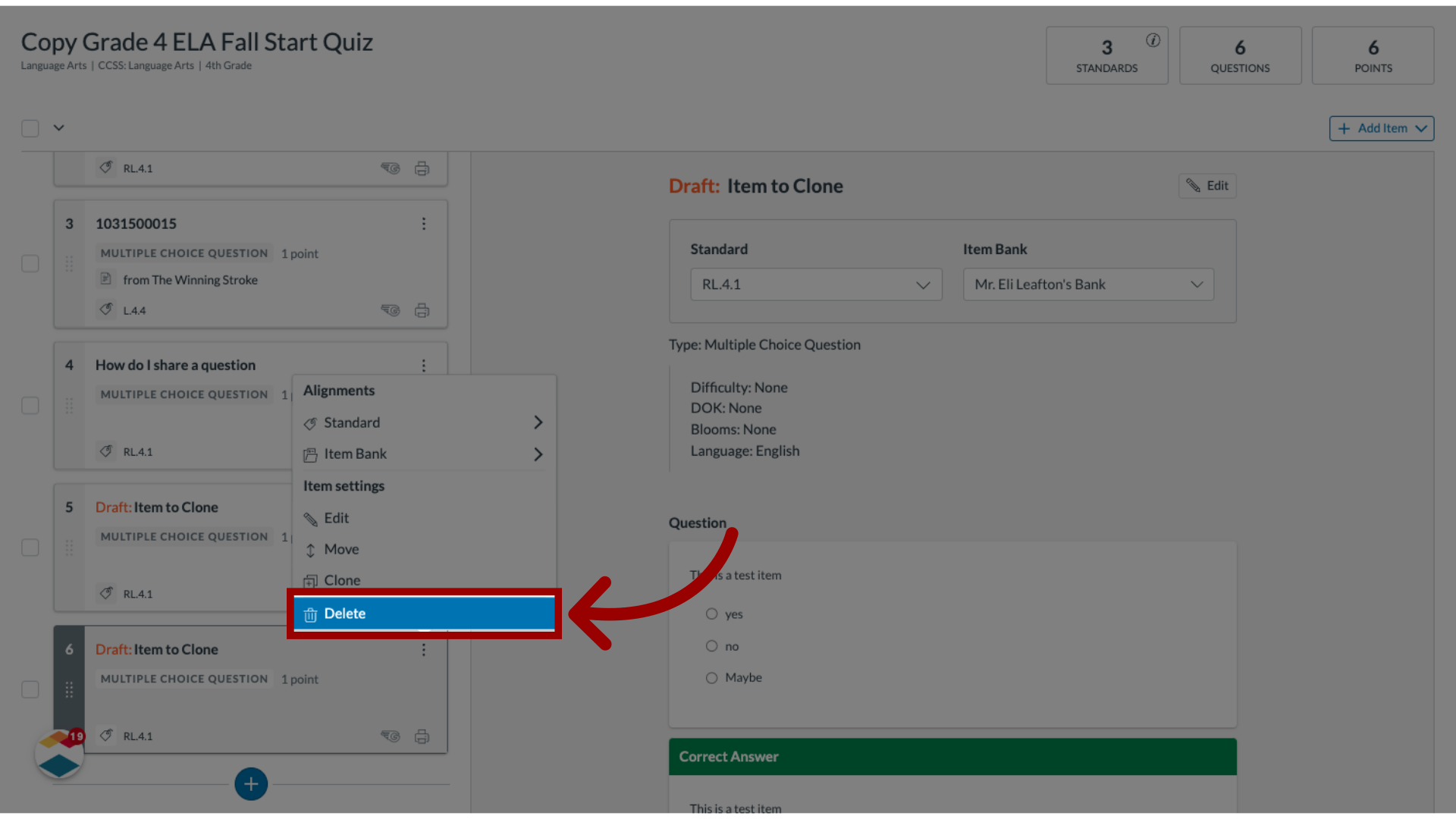
14. Remove Item
To remove the item from the assessment, click the Delete link.
This guide explained how to clone an item from within an assessment.