You can add existing assessments to a tracker. In the Tracker View page, you can add assessments that you created or that have been shared by other users in the Mastery Connect Community.
Notes:
Open Tracker
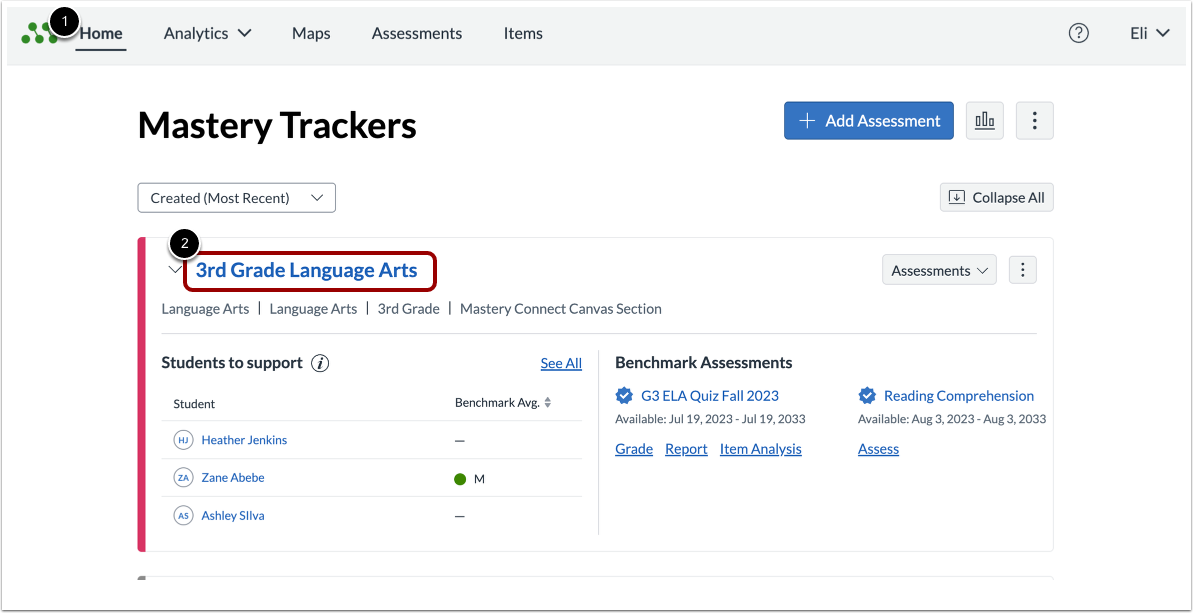
In the Mastery TrackersHome page [1], click the tracker name link [2].
Open Assessments
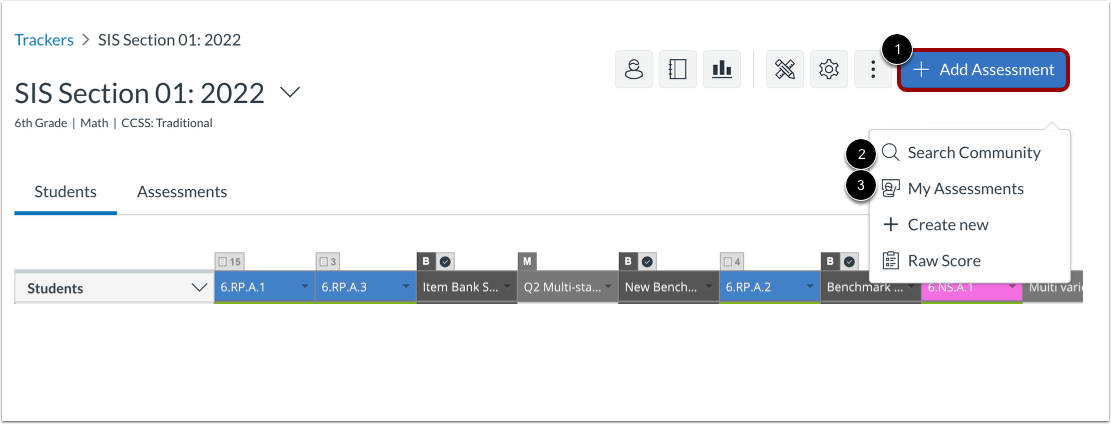
In the Tracker View page, click the Add Assessment button.
Then, to add an assessment from the Mastery Connect Community, click the Search Community link [2].
To add one of your own assessments, click the My Assessments link [3].
Note: You can also add an assessment from the Standard Details page.
View Assessments
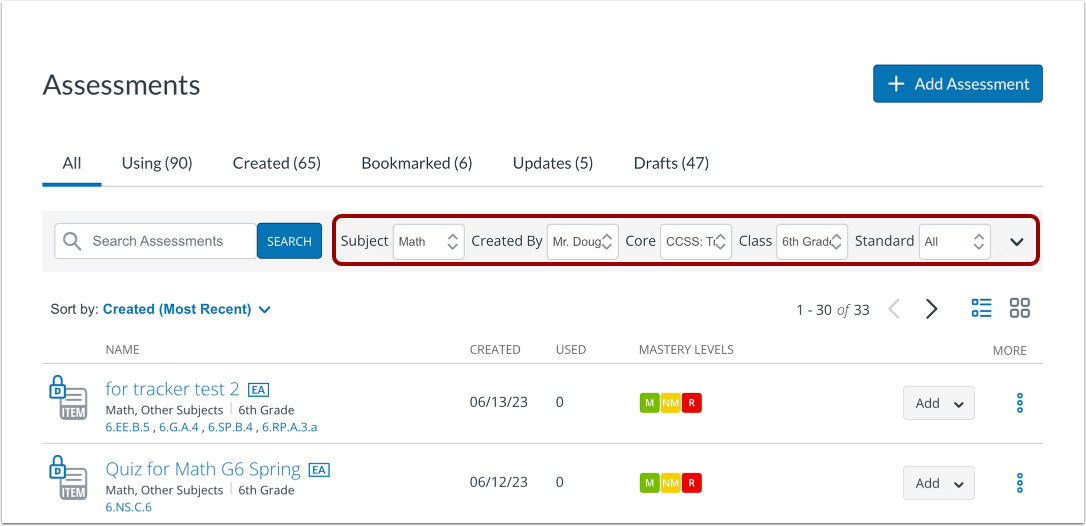
By default, filters on the Assessments page are selected to display assessments aligned to the subject, core, grade, and standards in the tracker.
If you are adding an assessment from the Mastery Connect Community, the page displays assessments created by any Community members. If you are adding one of your own assessments, the page displays only assessments created by you.
Search Assessments
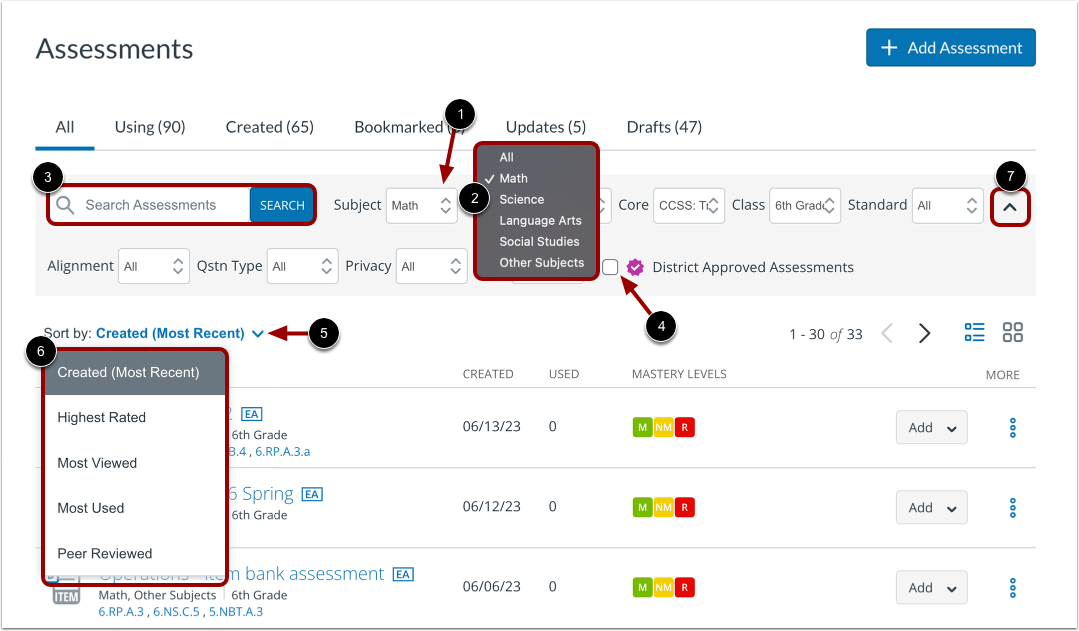
To find an assessment to add to the tracker, you can adjust the filters on the Assessments page. To adjust a filter, first click a filter name [1]. Then, click to select an option from the drop-down menu [2].
To find an assessment by name, enter all or part of the name in the search field [3].
To view only district-approved assessments, click the District Approved Assessments checkbox [4].
To sort search results, click the Sort by drop-down menu [5], then select a sort method [6].
To hide or show additional filters, click the expand or collapse icon [7].
Add to Tracker
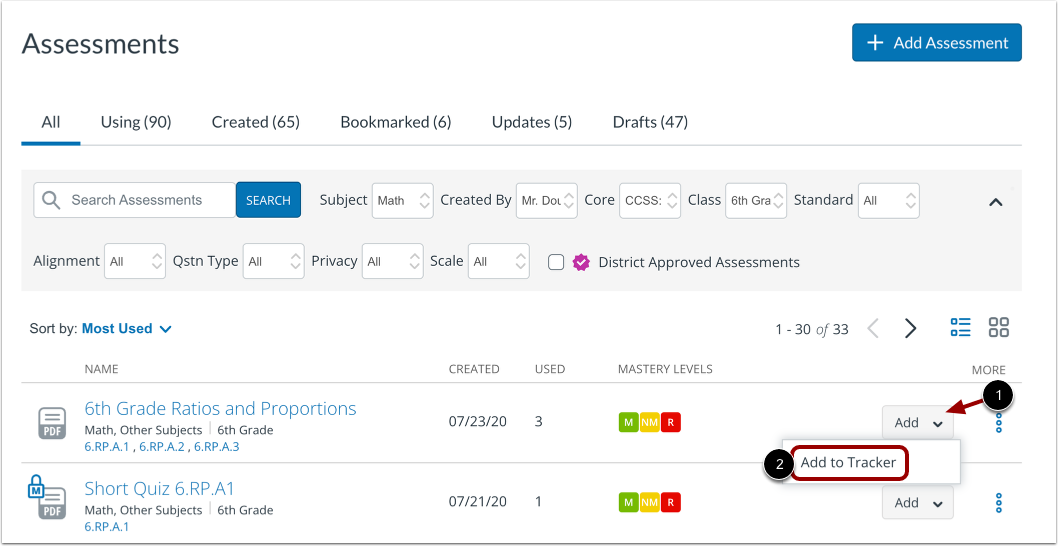
To add an assessment to the tracker, click the Add drop-down button [1], then click the Add to Tracker link [2].
Select Trackers
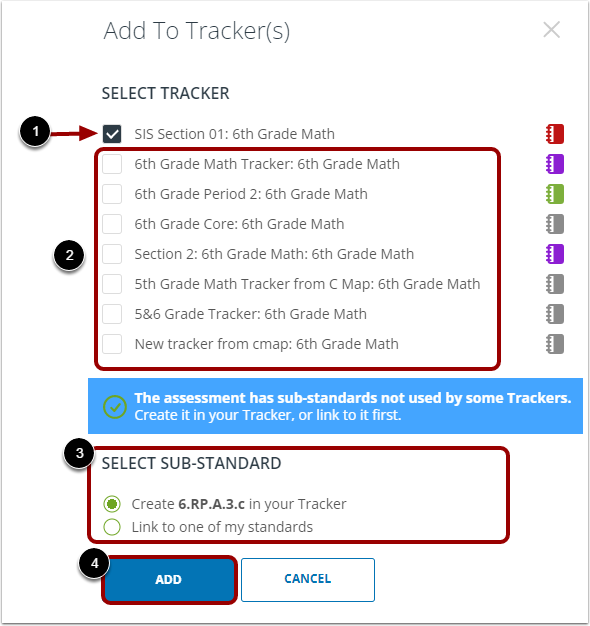
In the Add To Tracker(s) window, the open tracker is preselected [1].
To add the assessment to additional trackers, click the tracker checkboxes in the Select Tracker list [2].
If the assessment you have selected has sub-standards, you can create them in your tracker or link to one of your existing standards by clicking the radio buttons in the Select Sub-Standard list [3].
To save the selected trackers, click the Add button [4].
View Single Standard Assessment
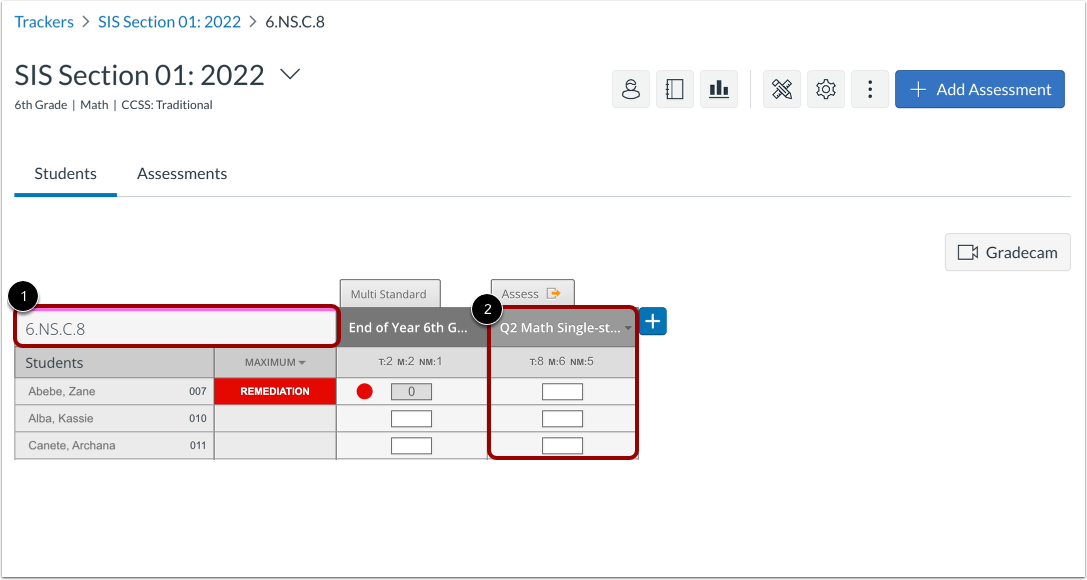
If you add an assessment aligned to a single standard, the Standard Details page displays. You can view the aligned standard [1] and the added assessment [2].
View Multi-Standard Assessment
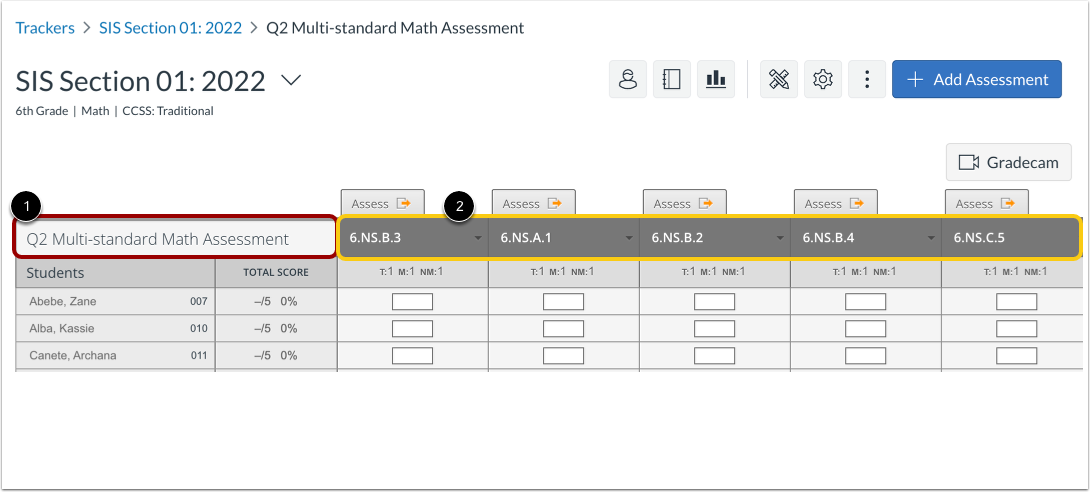
If you add a multi-standard assessment, the Assessment View page displays. You can view the added assessment [1] and the standards to which it is aligned [2].