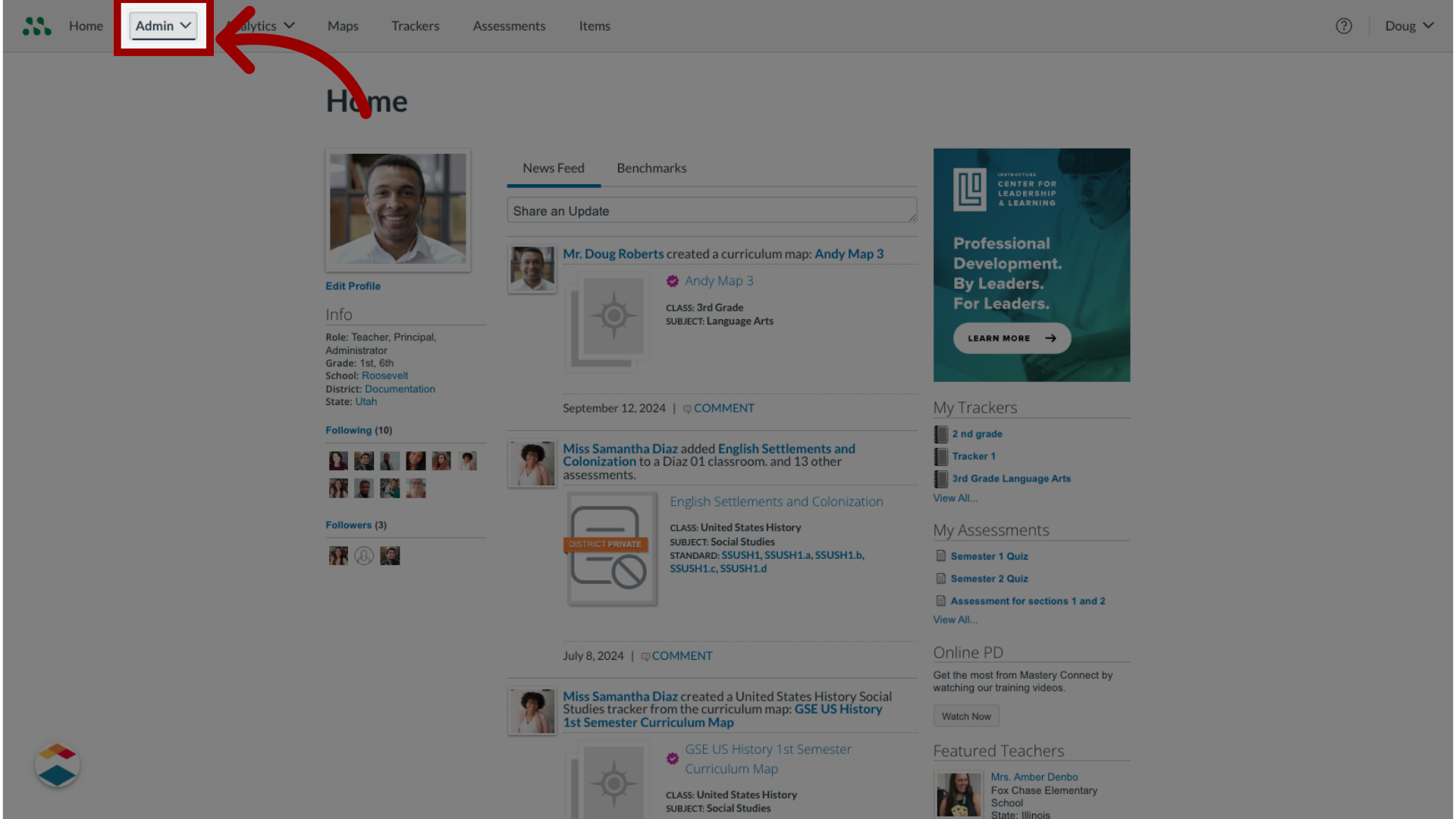
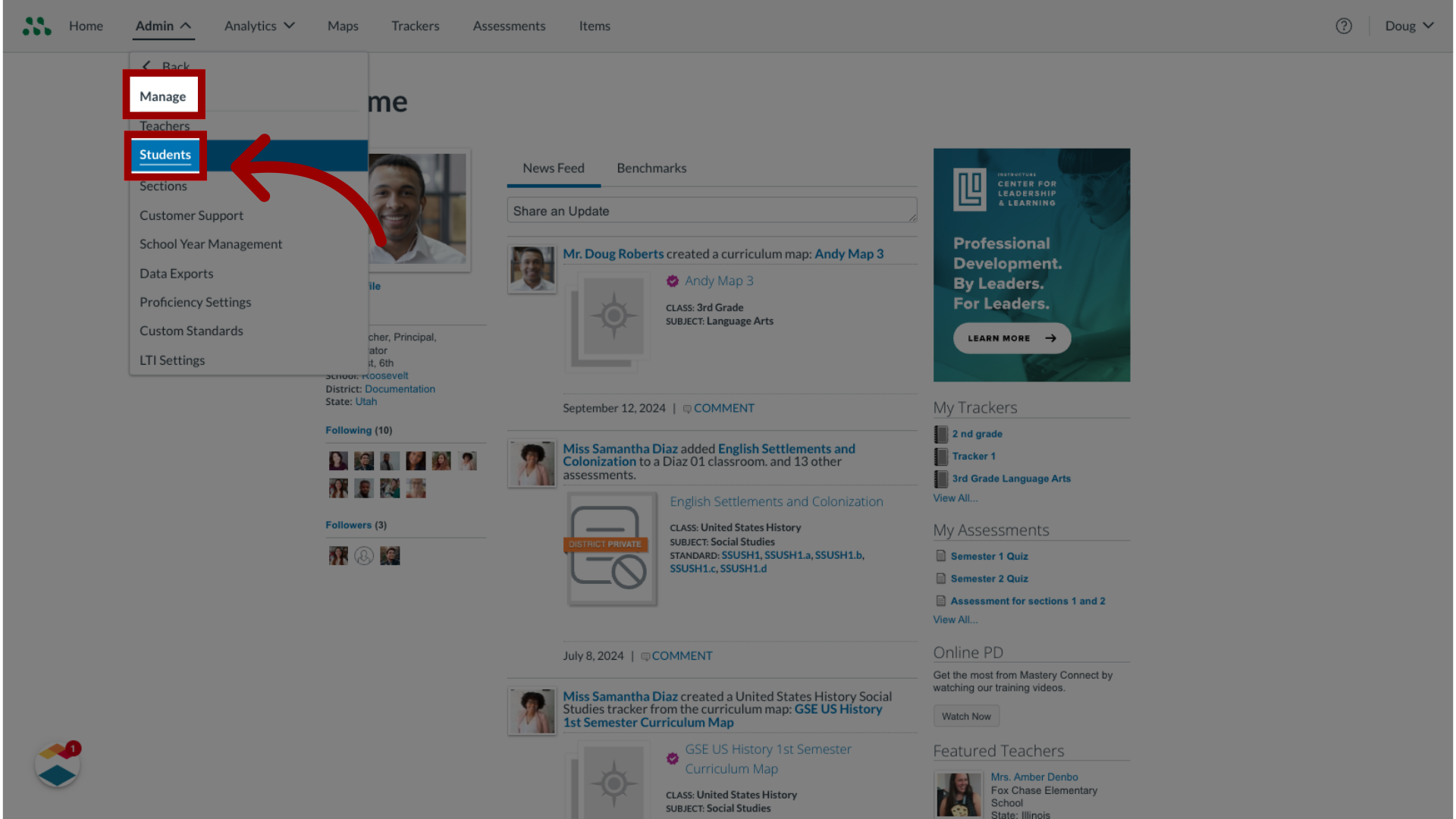
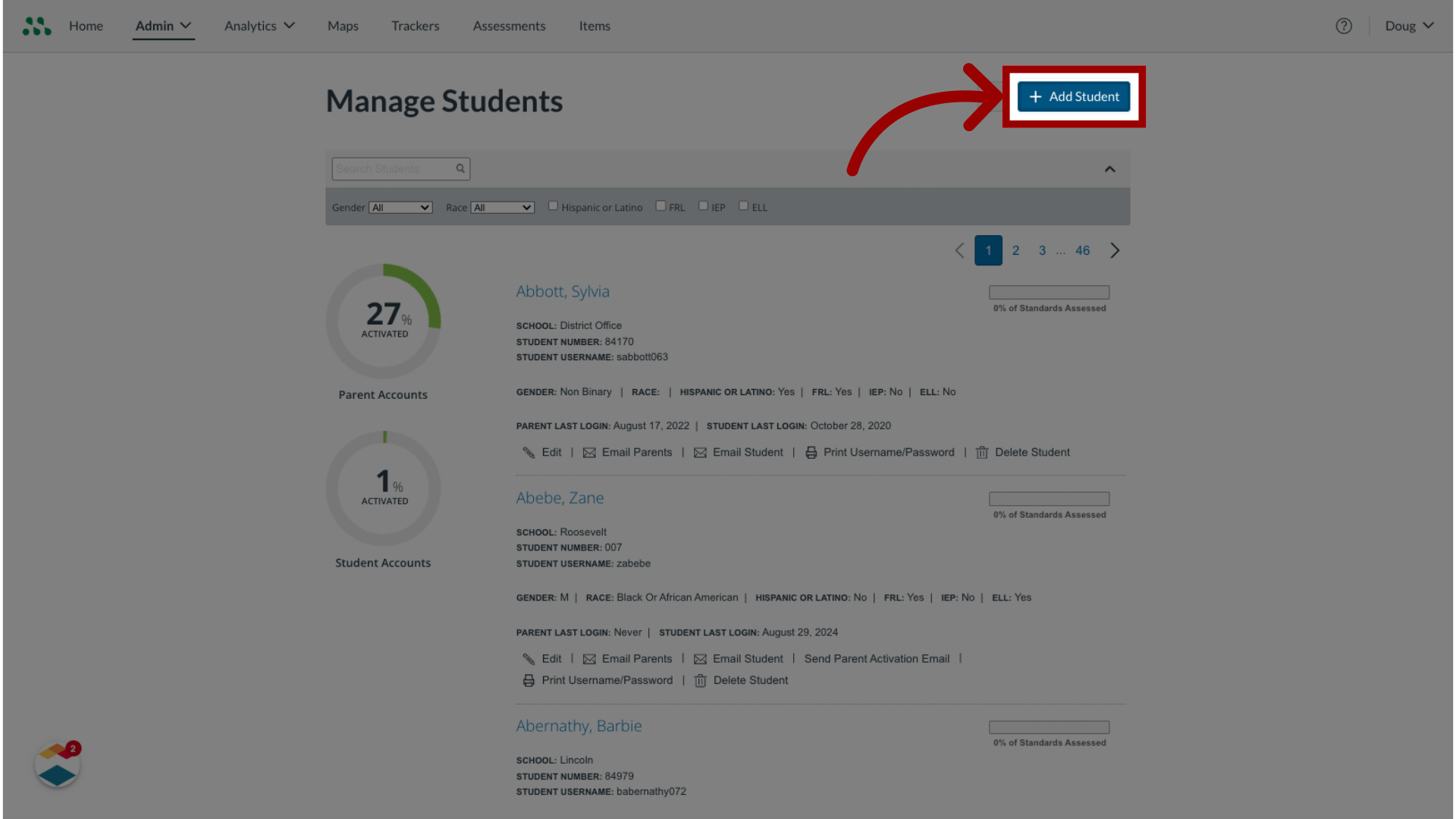
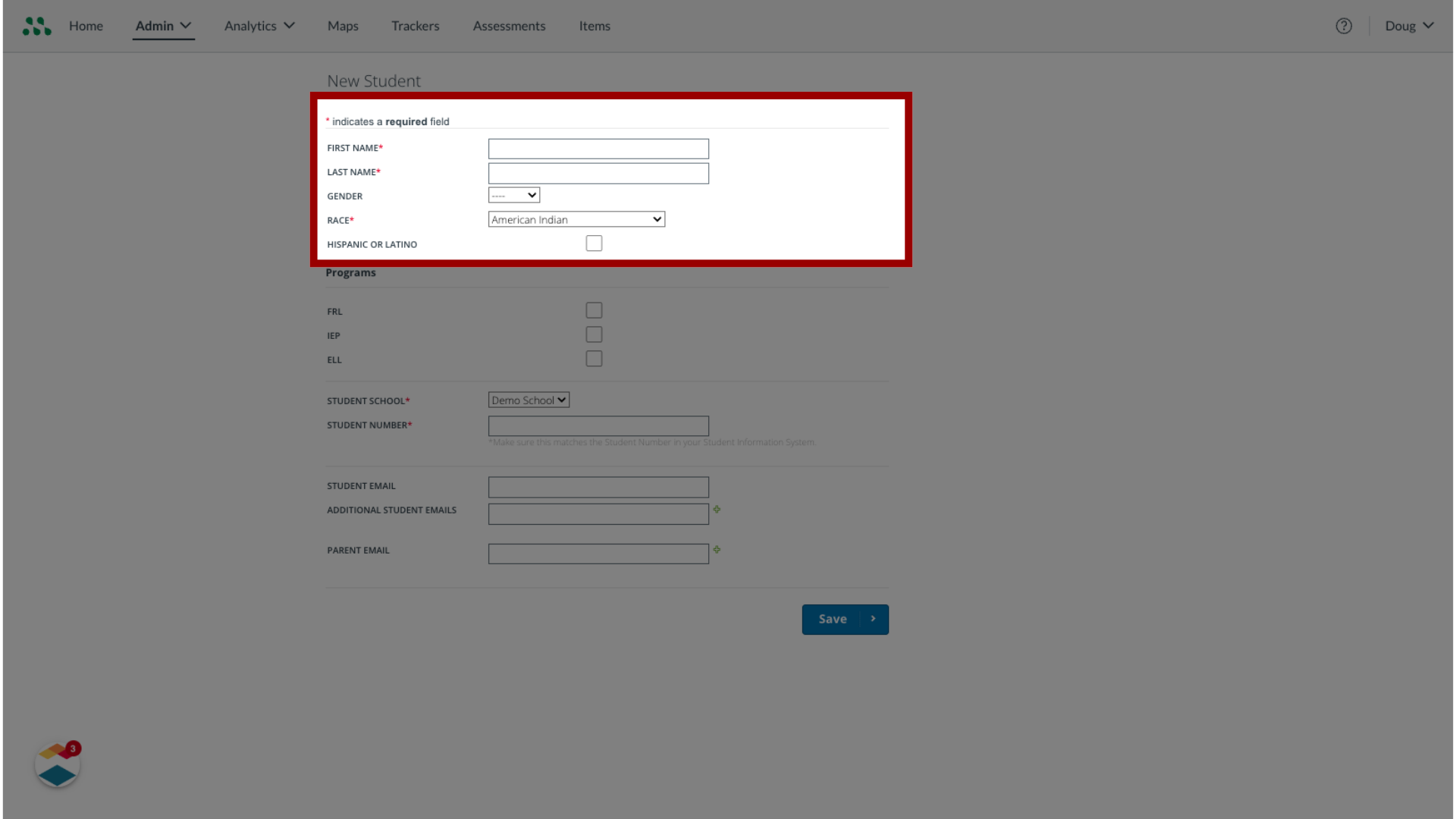
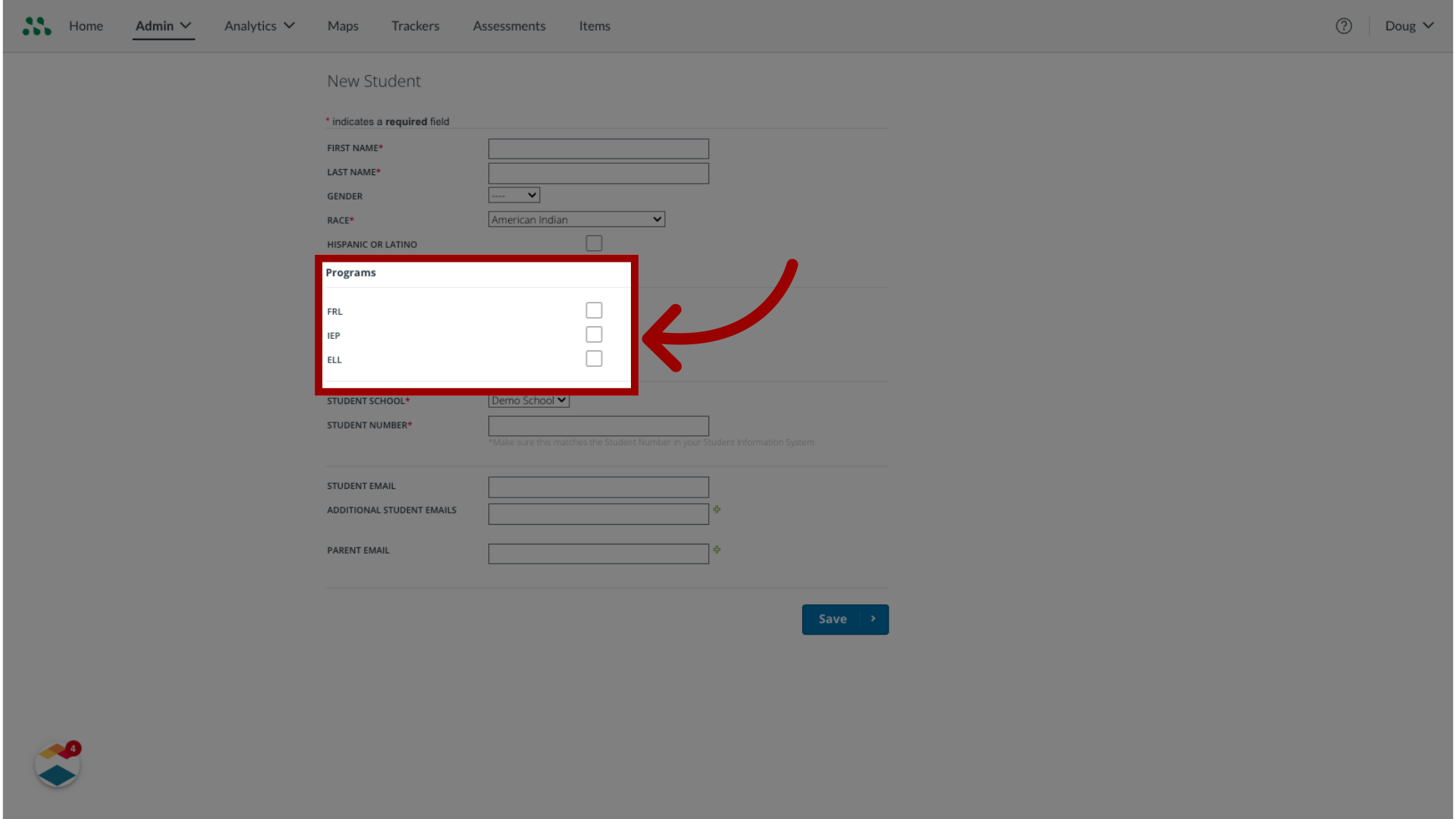
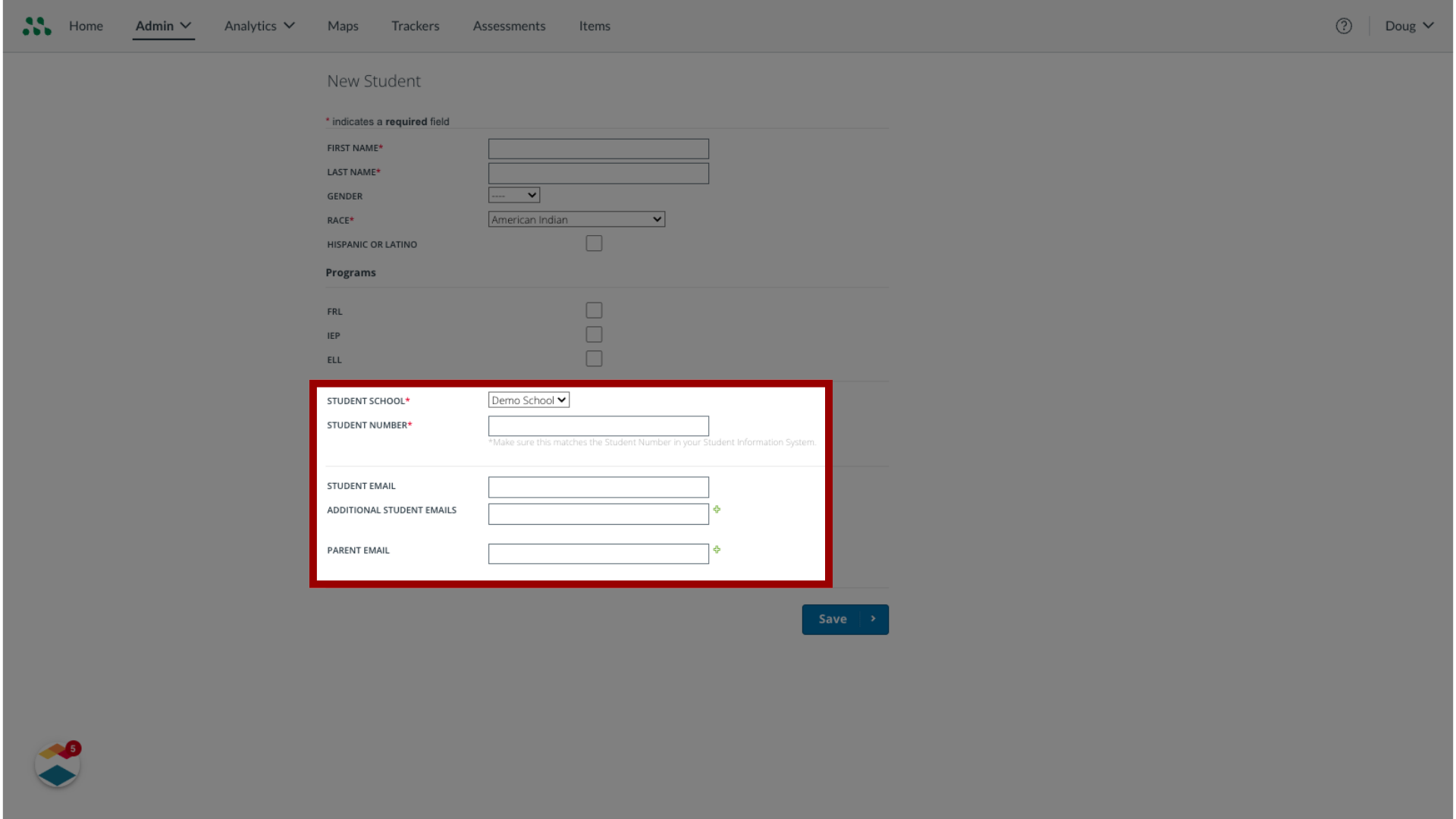
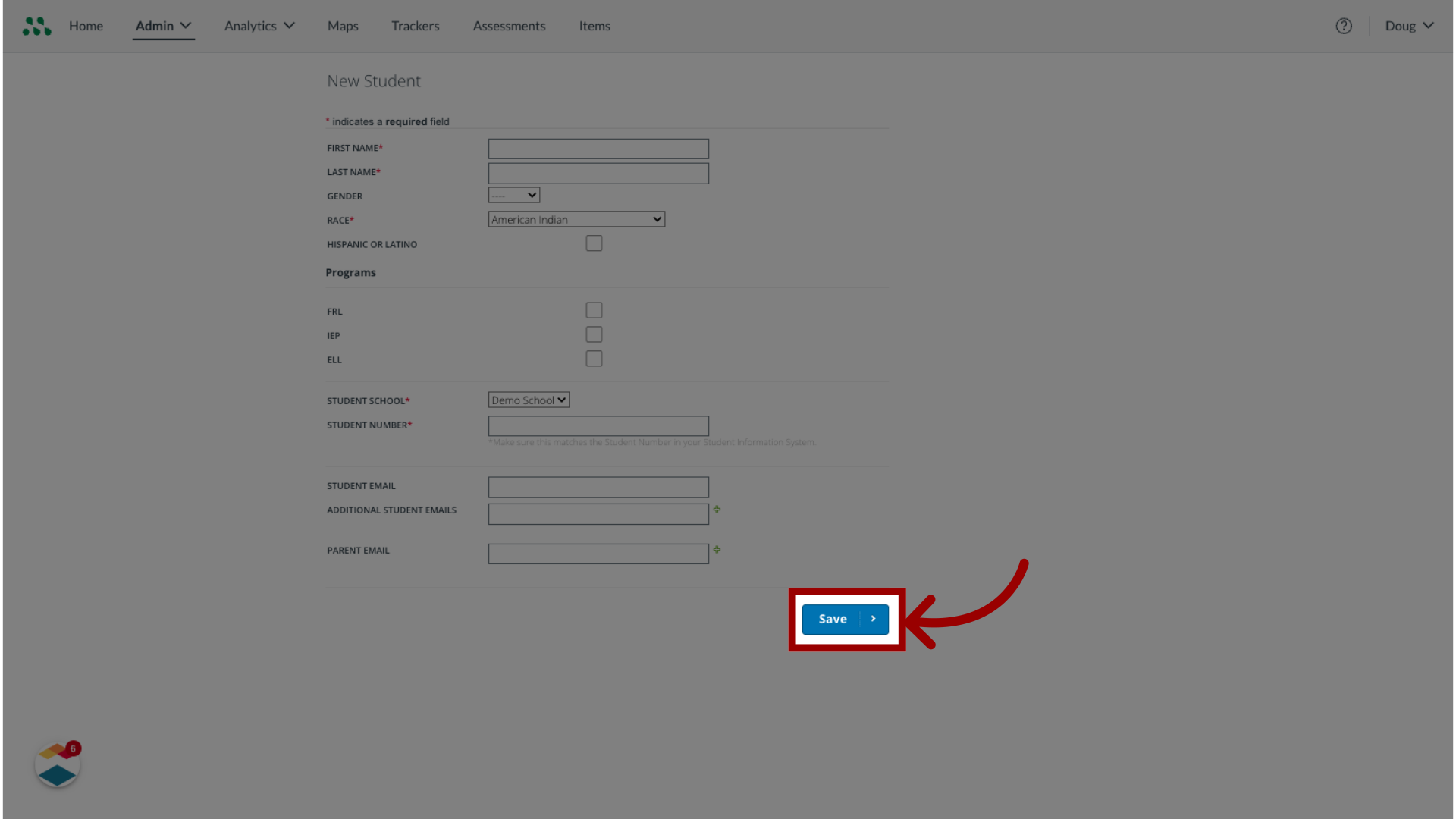
As a Mastery Connect admin, you can manually add a student to your institution's district or school. If you are a school admin, you can add students to your school. If you are a district admin, you can add students to any school in your district.How do I add a student to a school or district as a Mastery Connect admin?1. Open Admin MenuIn global navigation, click the Admin drop-down menu.2. Open Manage StudentsIn the drop-down menu, select the Manage option. Then, select the Students link.3. Add StudentIn the Manage Students page, click the Add Student button.4. Enter Student InformationIn the New Student page, enter student demographic information.5. Select ProgramsIf the student is enrolled in a program, select the Program checkbox. You can select Free or Reduced Lunch (FRL), Individualized Education Plan (IEP), or English Language Learner (ELL).6. Enter Additional Information Select a school from the Student School drop-down menu. Enter the student ID number and email information in the fields.7. Create AccountTo create the account, click the Save button. This guide covered how to add a student to a school or district as a Mastery Connect admin.