How do I clone and realign an assessment?
How do I clone and realign an assessment?
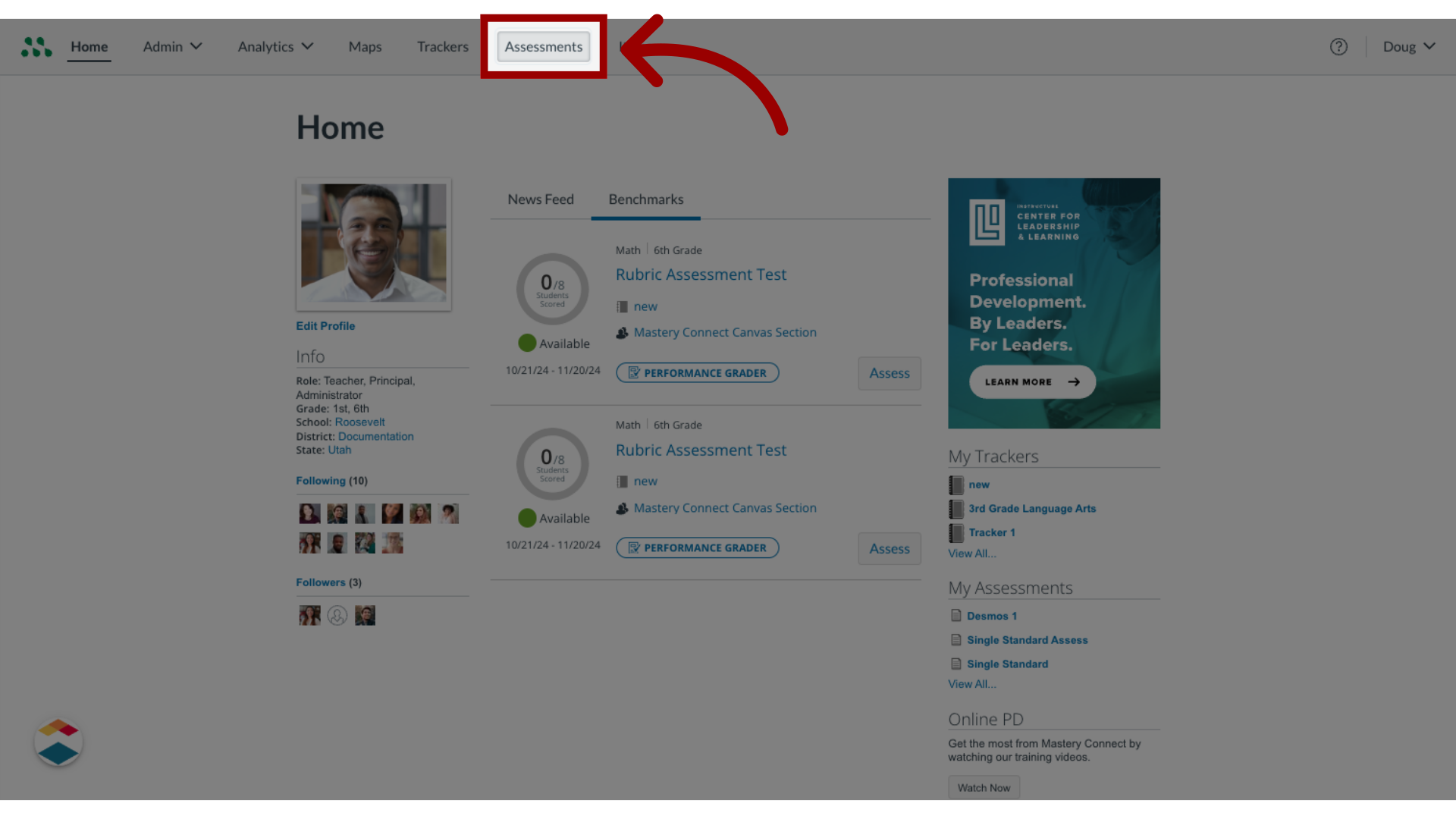
1. Open Assessments
In the global navigation, click the Assessments link.
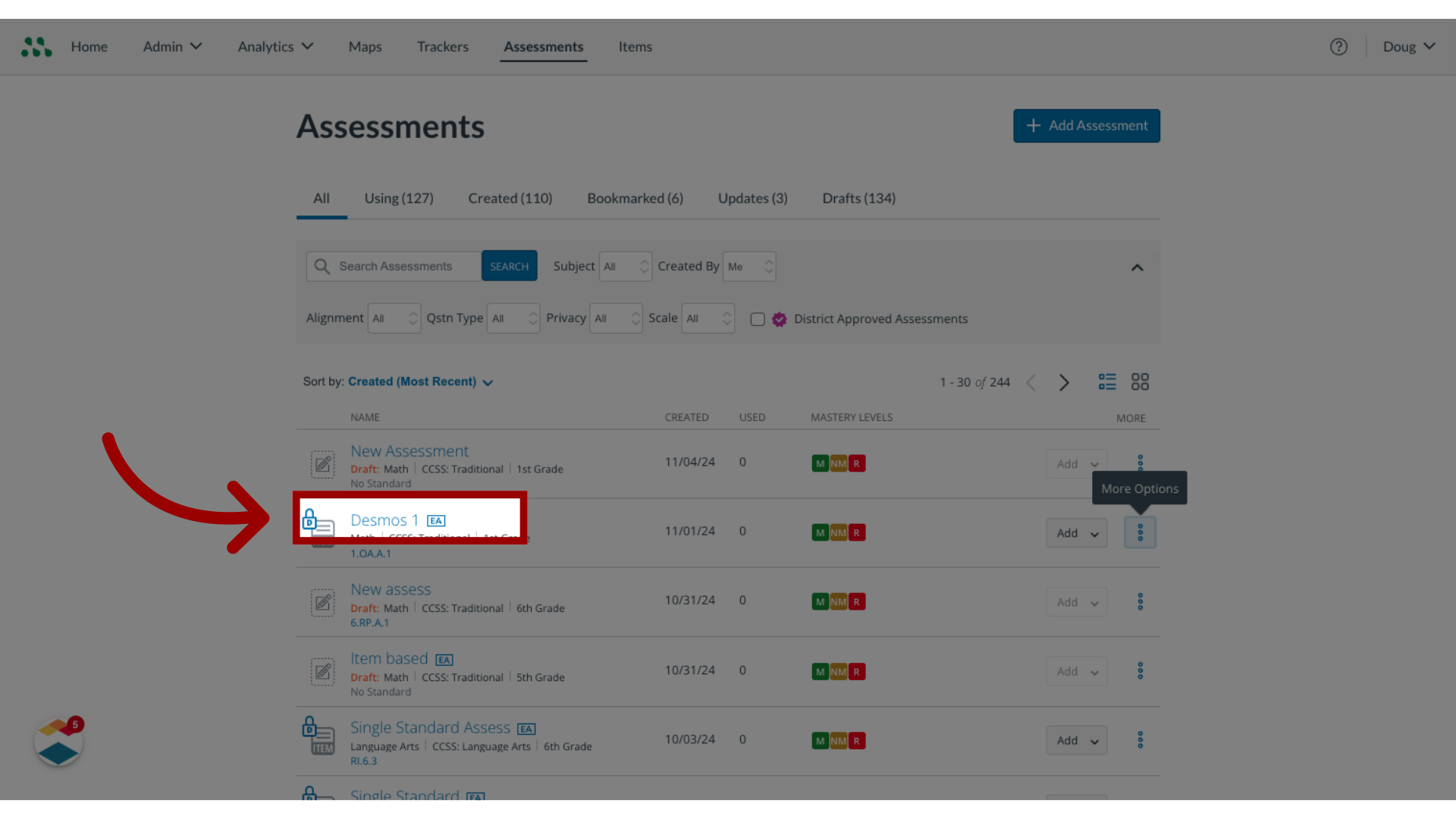
2. Find Assessment Title
In the assessments page, find the assessment name.
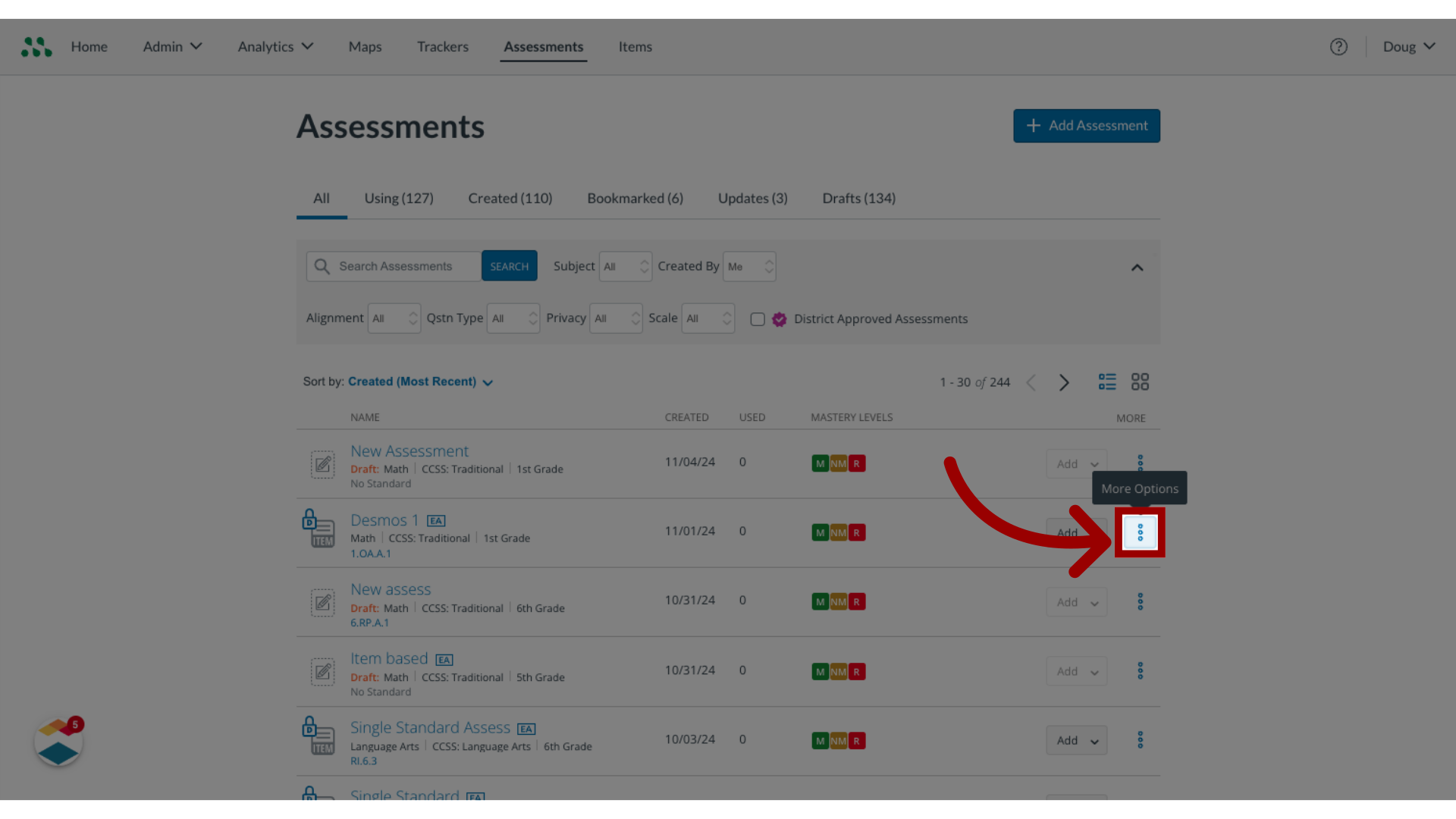
3. Open More Options
Click the More Options icon.
4. Select Clone
To clone the assessment, click the Clone link.

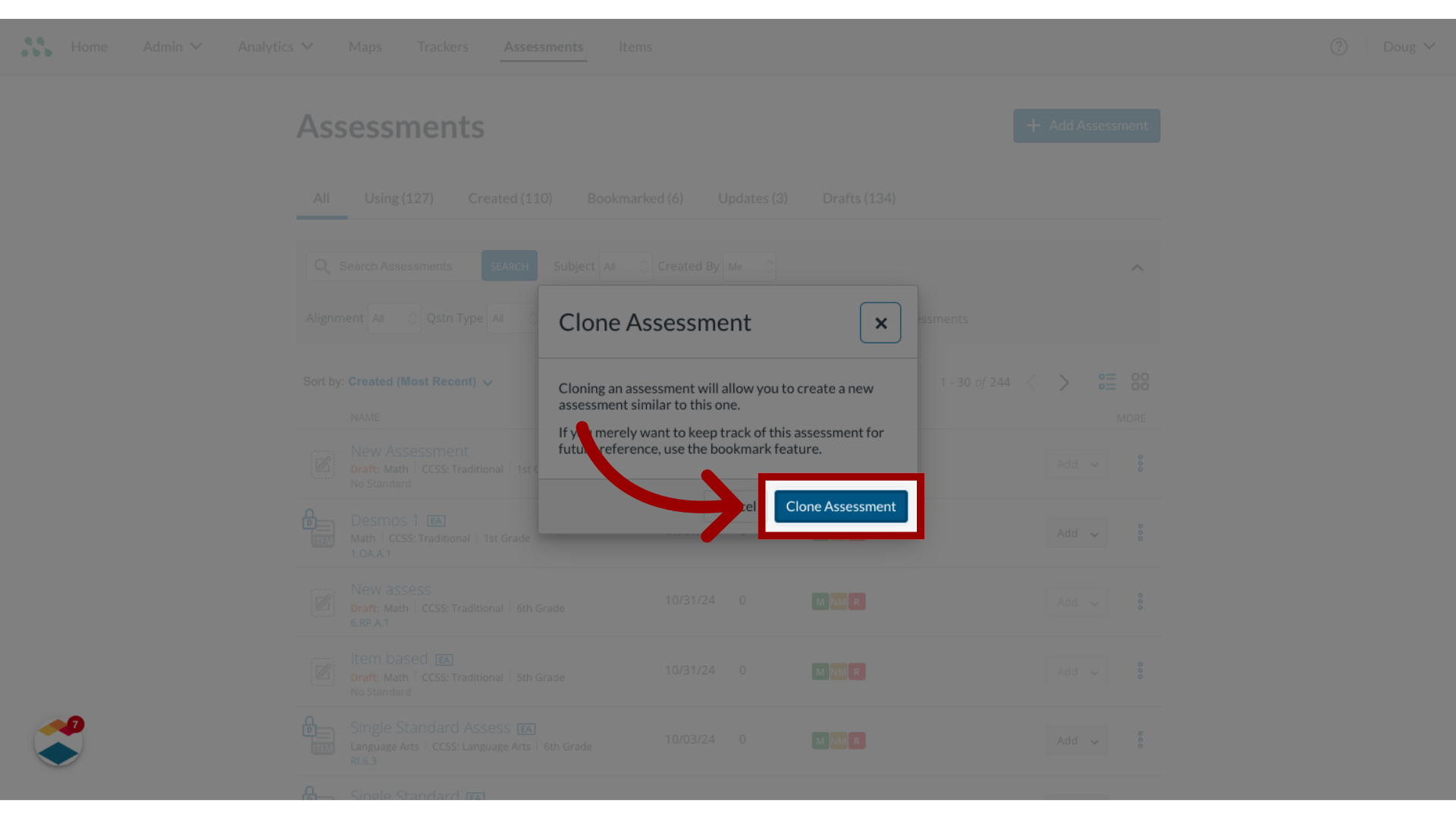
5. Clone Assessment
In the confirmation window, click the Clone Assessment button.
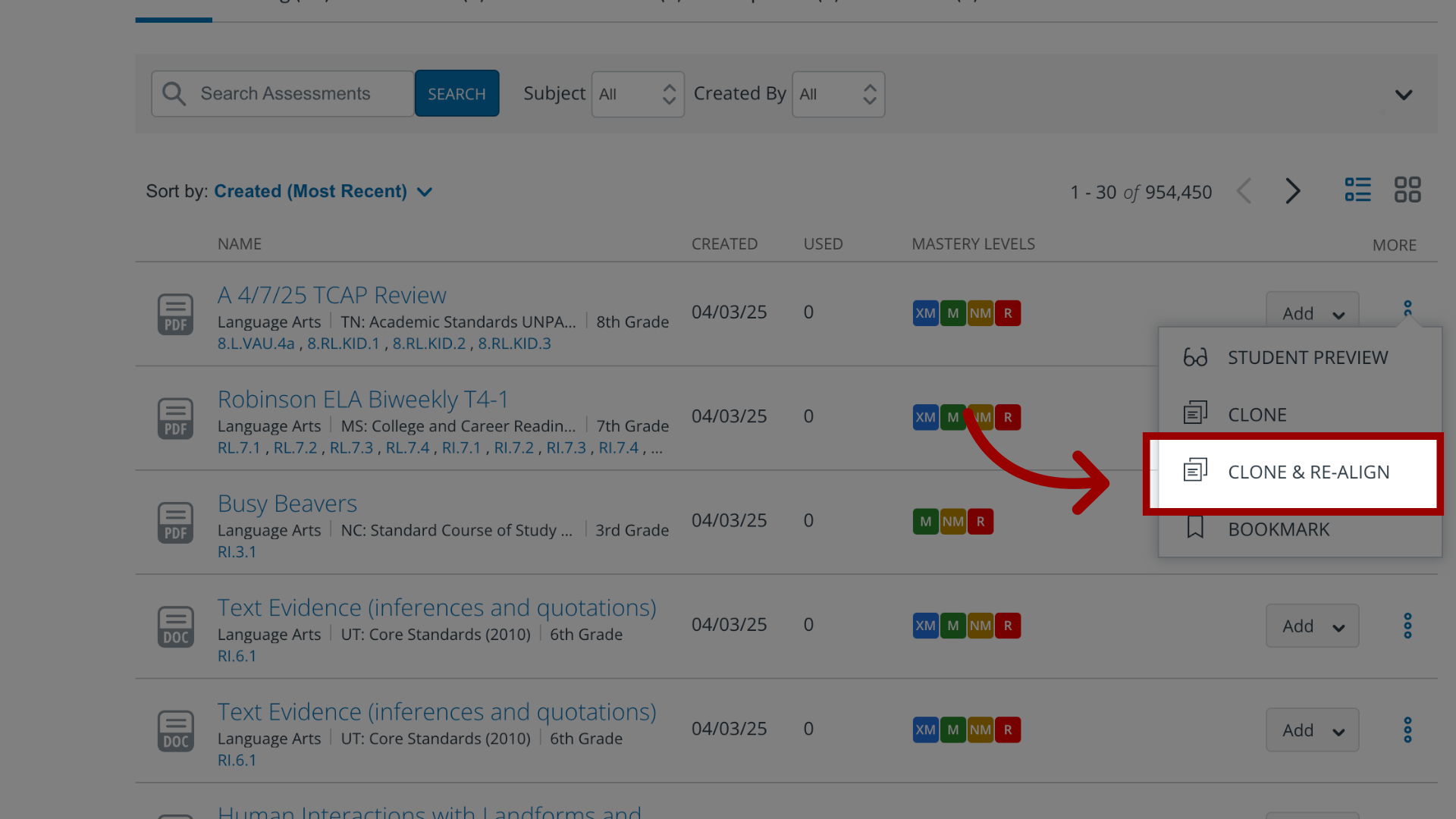
6. Select Clone & Re-align
To clone and re-align an assessment, click the Clone & Re-align button.
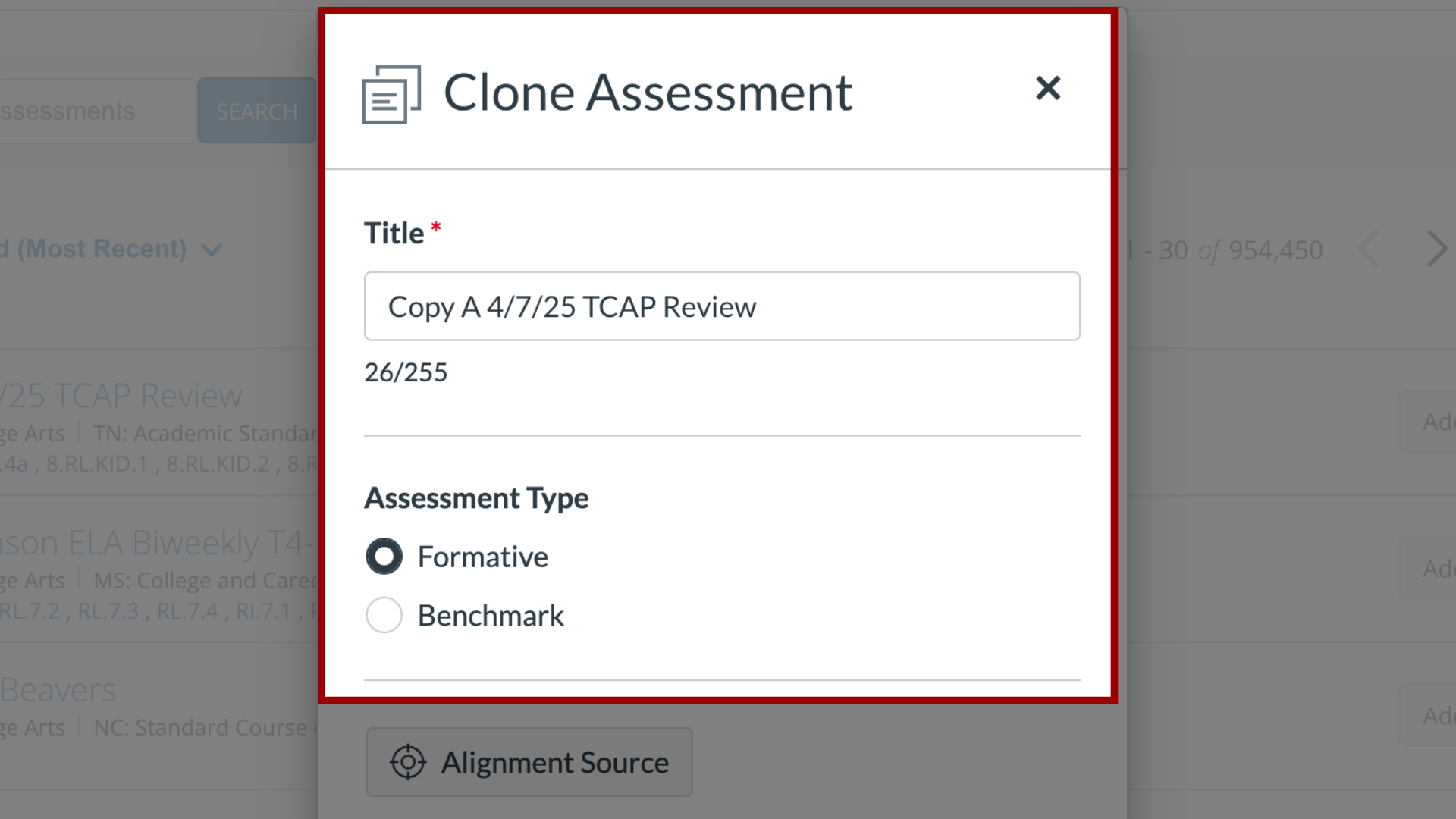
7. View Details Window
In the pop-up window, confirm the Title and Assessment Type.
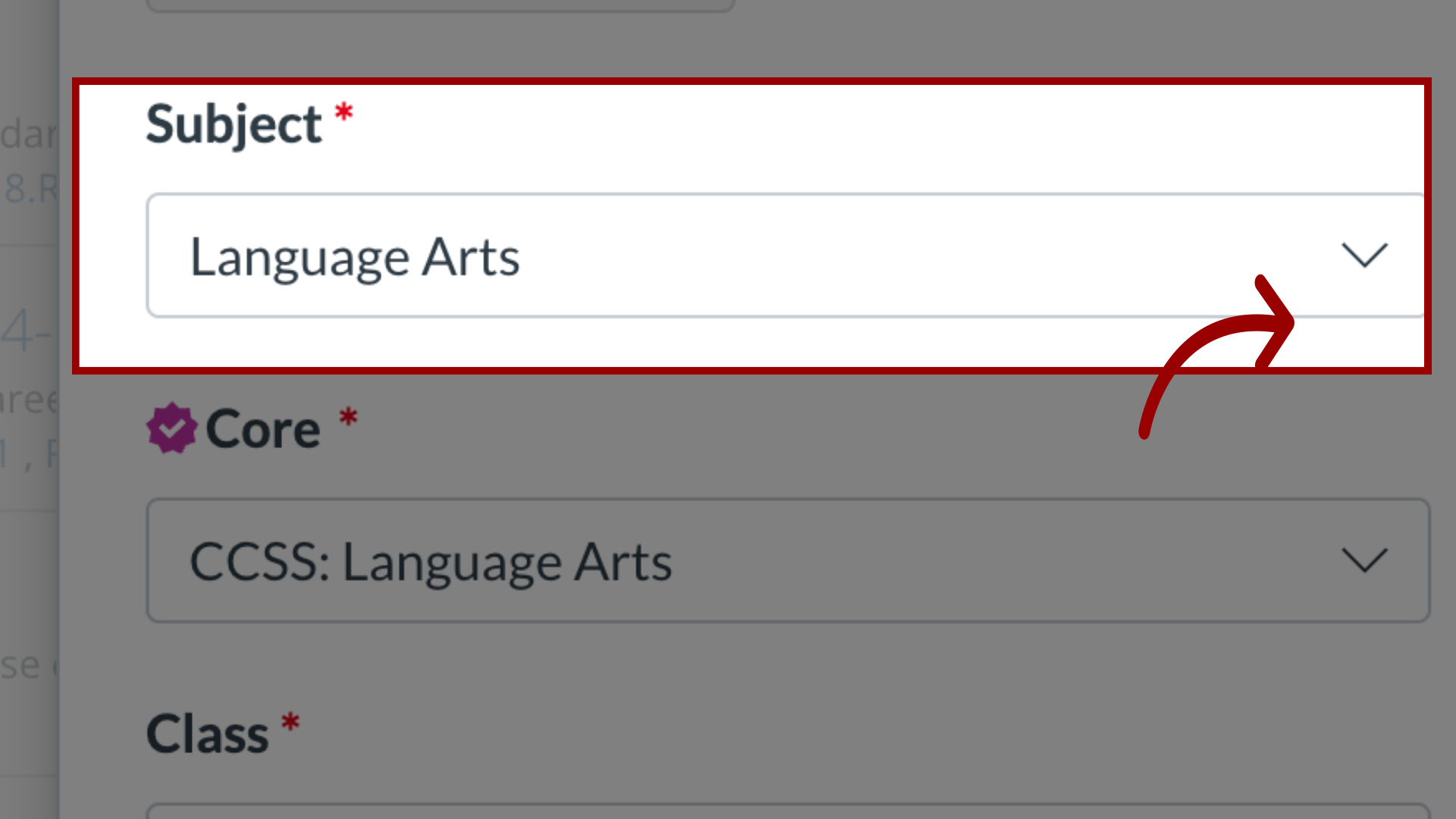
8. Realign by Subject
To re-align the assessment by Subject, click the Subject drop-down menu and select a new subject.
9. Realign by Core
To re-align the assessment by core, click the Core drop-down menu and select a new core.

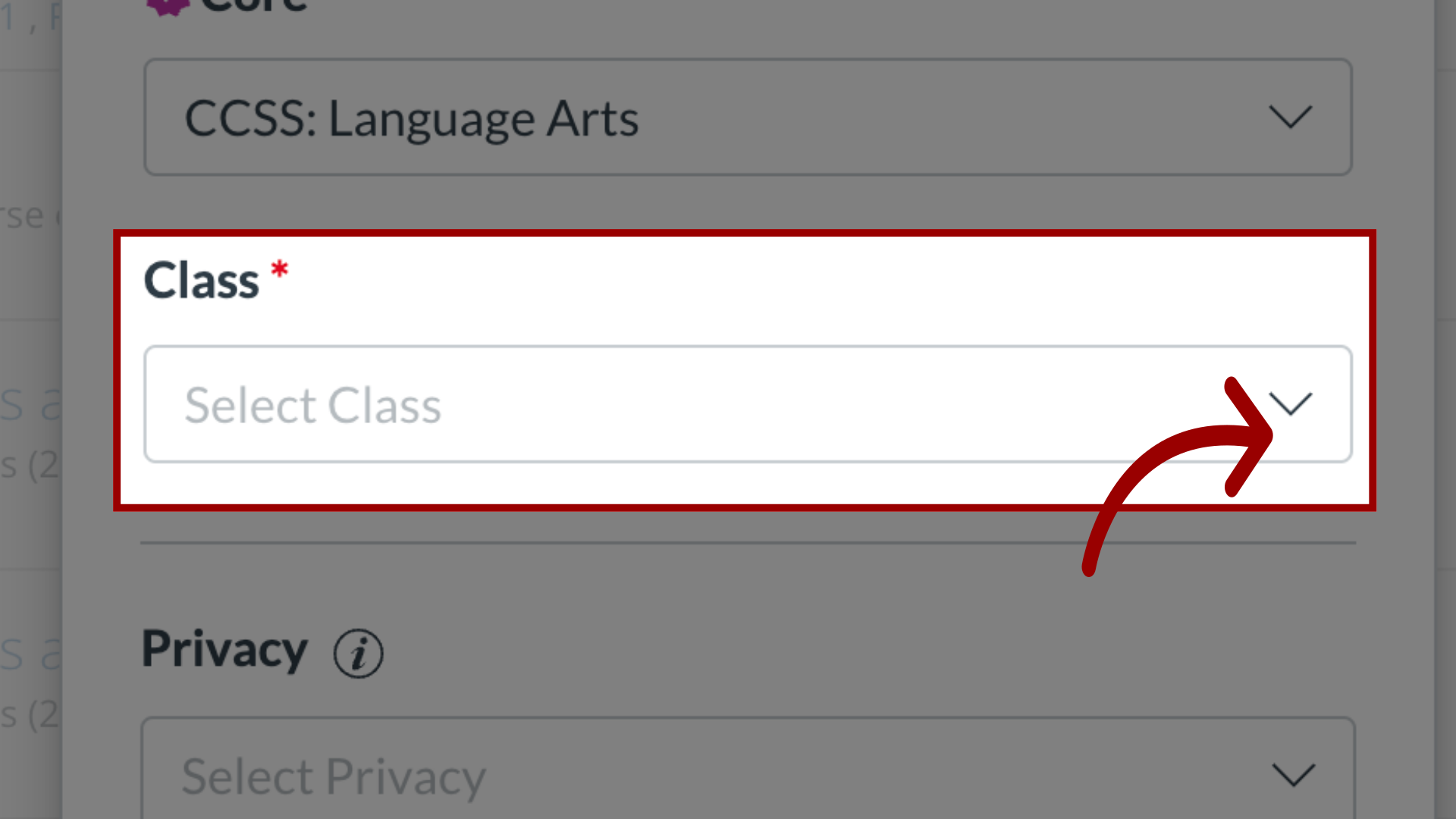
10. Select Class
To select a class for the assessment, click the class drop-down.
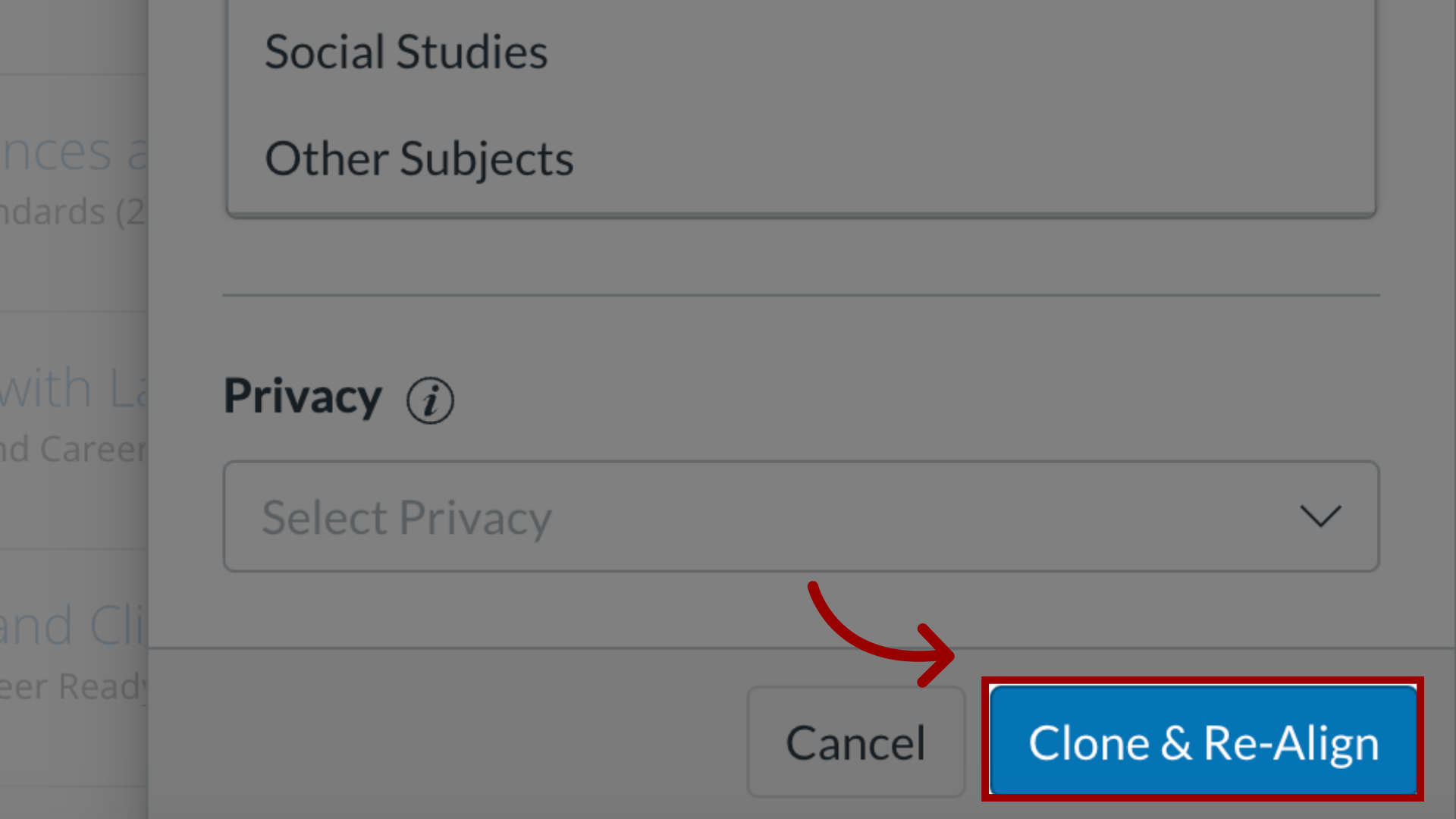
11. Clone & Re-Align
To clone and re-align the assessment, click the Clone & Re-Align button.
This guide covered how to clone an assessment.