In Mastery Connect, the Students tab of a tracker displays student assessment master data for the standards in the tracker. You can use the links on the tracker Students tab to open details about students, standards, and assessments.
Open Tracker
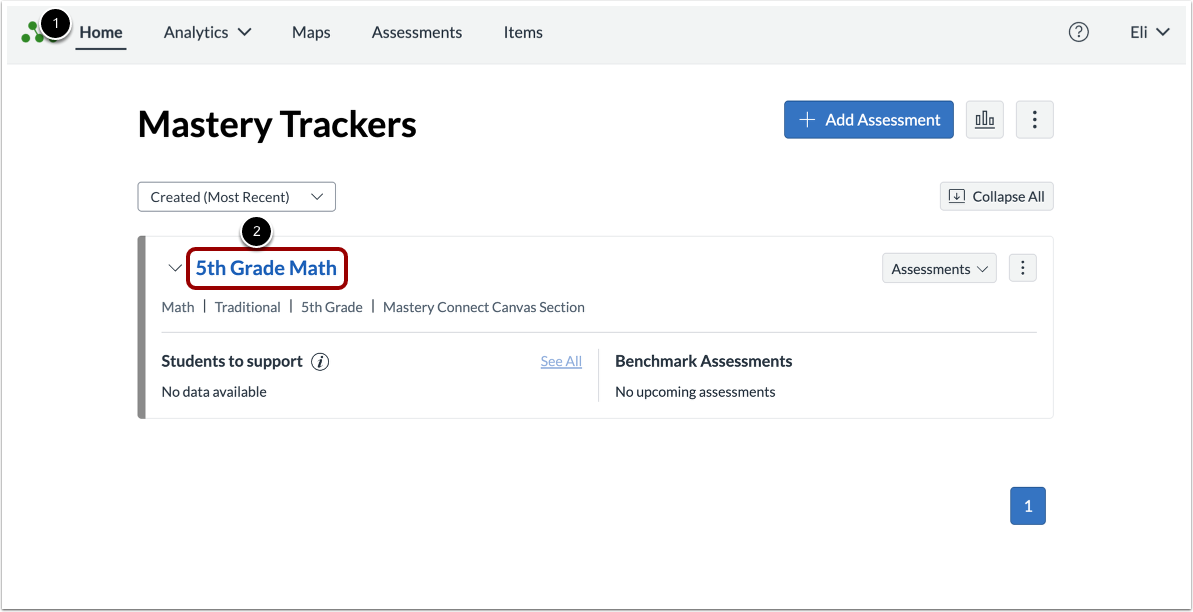
In the Home page [1], click a tracker name link [2].
Open Tracker Student View
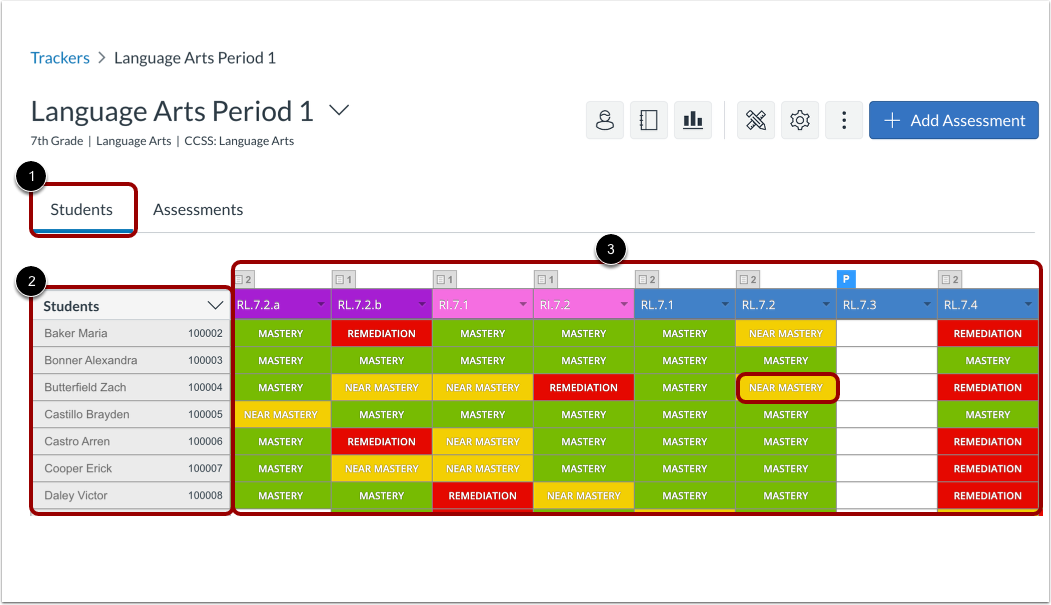
In the Tracker View page, click the Students tab [1].
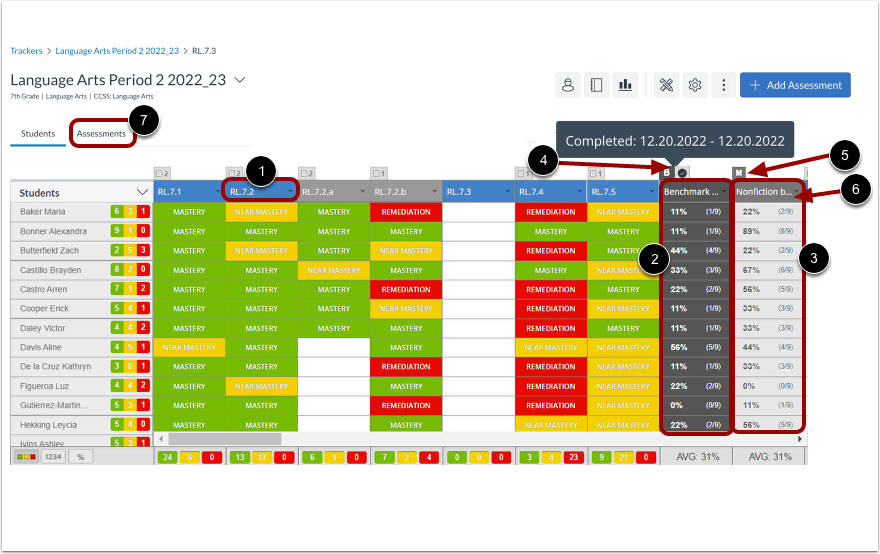
The Student View displays a list of students in the class [2]. It also displays standards and assessment mastery [3].
View Students
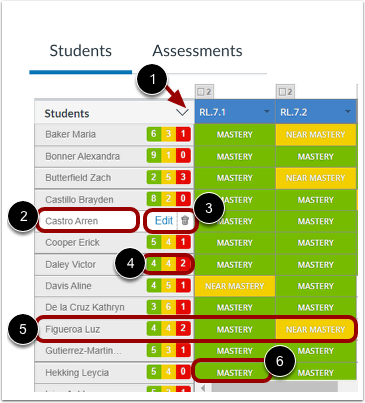
To sort the student list, you can click the Students drop-down menu icon [1].
To view a student report, you can click a student name link [2].
To edit a student account or remove a student from a tracker, hover the cursor over the student name. Then, click the Edit link or the Remove icon [3].
For each student, you can view the total number of standards in each mastery level [4].
You can also view each student's individual mastery levels in the student's row [5]. To view the student's assessment results, click a mastery level [6].
View Standards
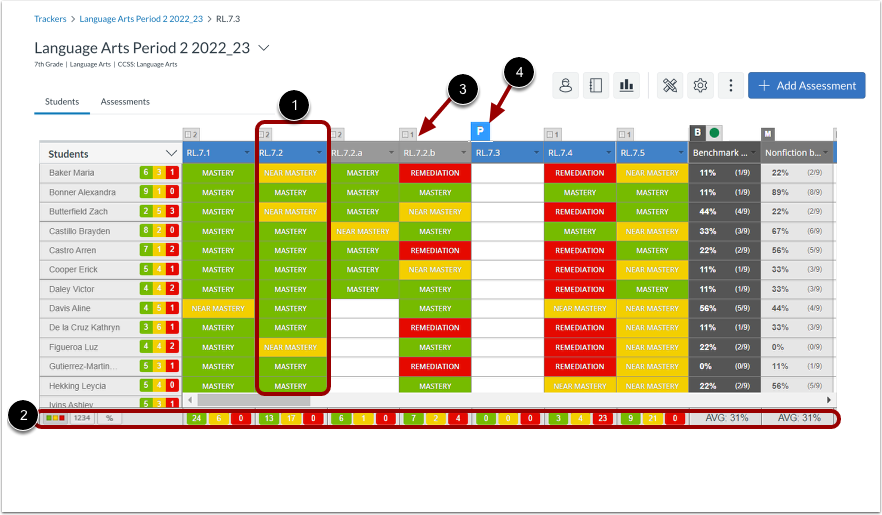
The Tracker View page displays student mastery levels in columns under a standard's name [1].
You can also view summarized mastery data [2].
The number of assessments for a standard displays above the heading [3].
Power standards display aP label [4].
View Assessments
To view the assessments for a standard, open the Standard Details page by clicking the standard name link [1].
In the tracker Student View, you can view benchmark assessments [2] and multi-standard assessments [3].
Benchmark assessments are shaded dark gray and labeled with a B and a status icon. The benchmark status icon indicates whether the benchmark is active, paused, delivered, or pending. To view the benchmark status, hover the cursor over the Benchmark Status icon [4].
Multi-standard assessments are shaded gray and marked with an M [5].
To view the standards associated with a benchmark or multi-standard assessment, click the assessment heading [6].
Notes:
- You can choose to hide benchmarks and multi-standard assessments from the Tracker View page. Learn more about customizing the tracker display.
- Benchmark assessments are set by your district, and can only be deleted from your tracker if this action has been enabled at the district level.
- Benchmark and multi-standard assessments display as percentages only, not by mastery level.
- You can also view and access assessments by clicking the tracker Assessments tab [7]
View Groups and Units
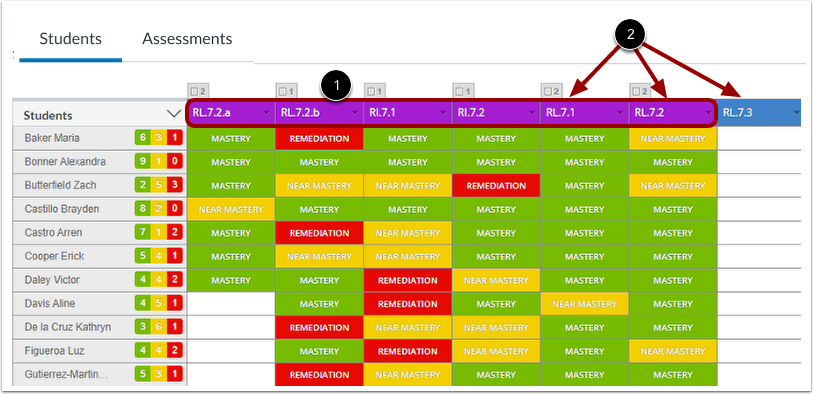
In the Tracker View page, you can view standards grouped as a unit [1]. A unit is identified by the color of the standard headings.
Standards are also grouped by topic. Groups are often identified by the first part of the standard abbreviation [2].
You can hide or display units or groups in the Trackers View page. Learn more about managing tracker displays.