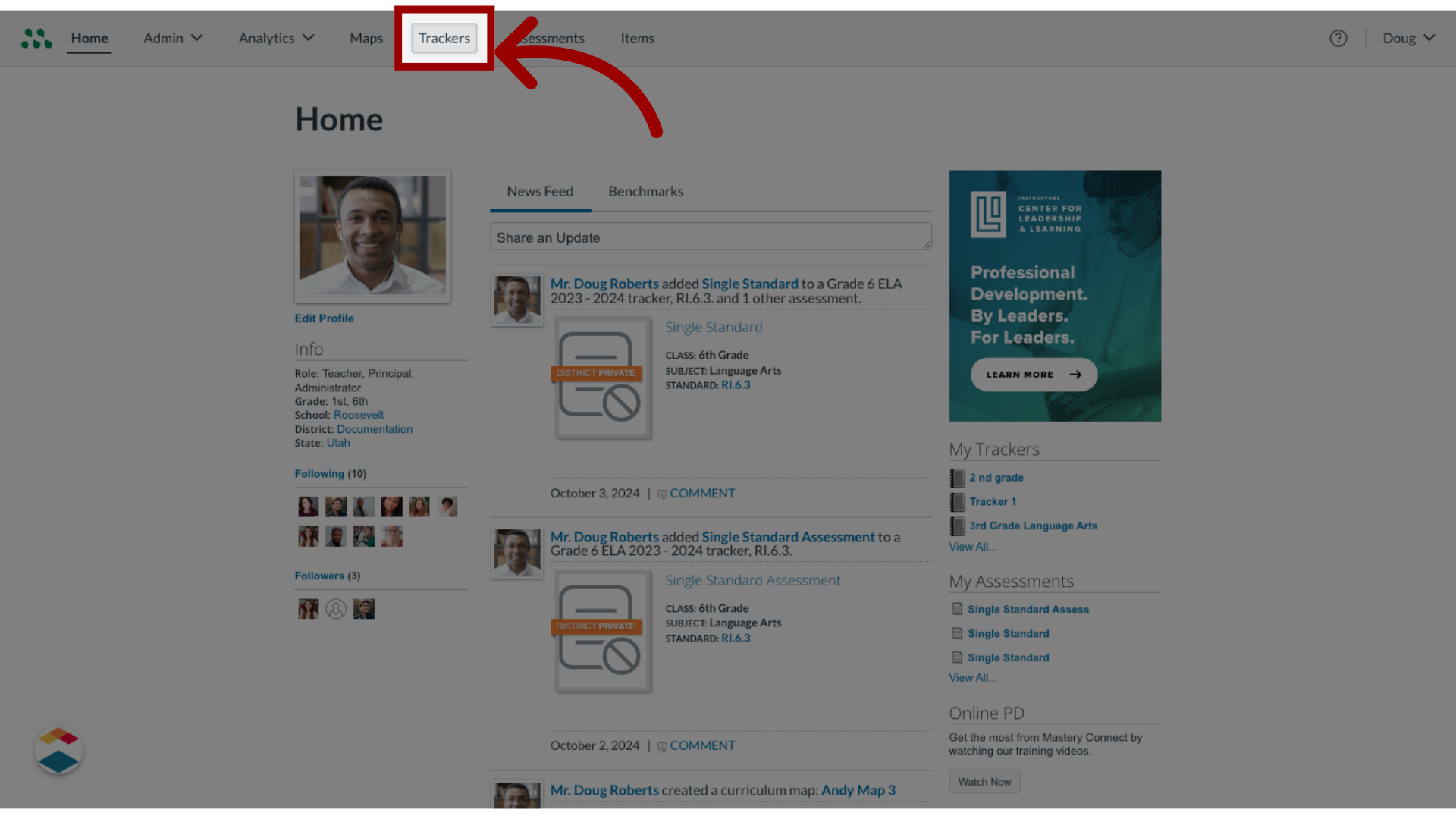
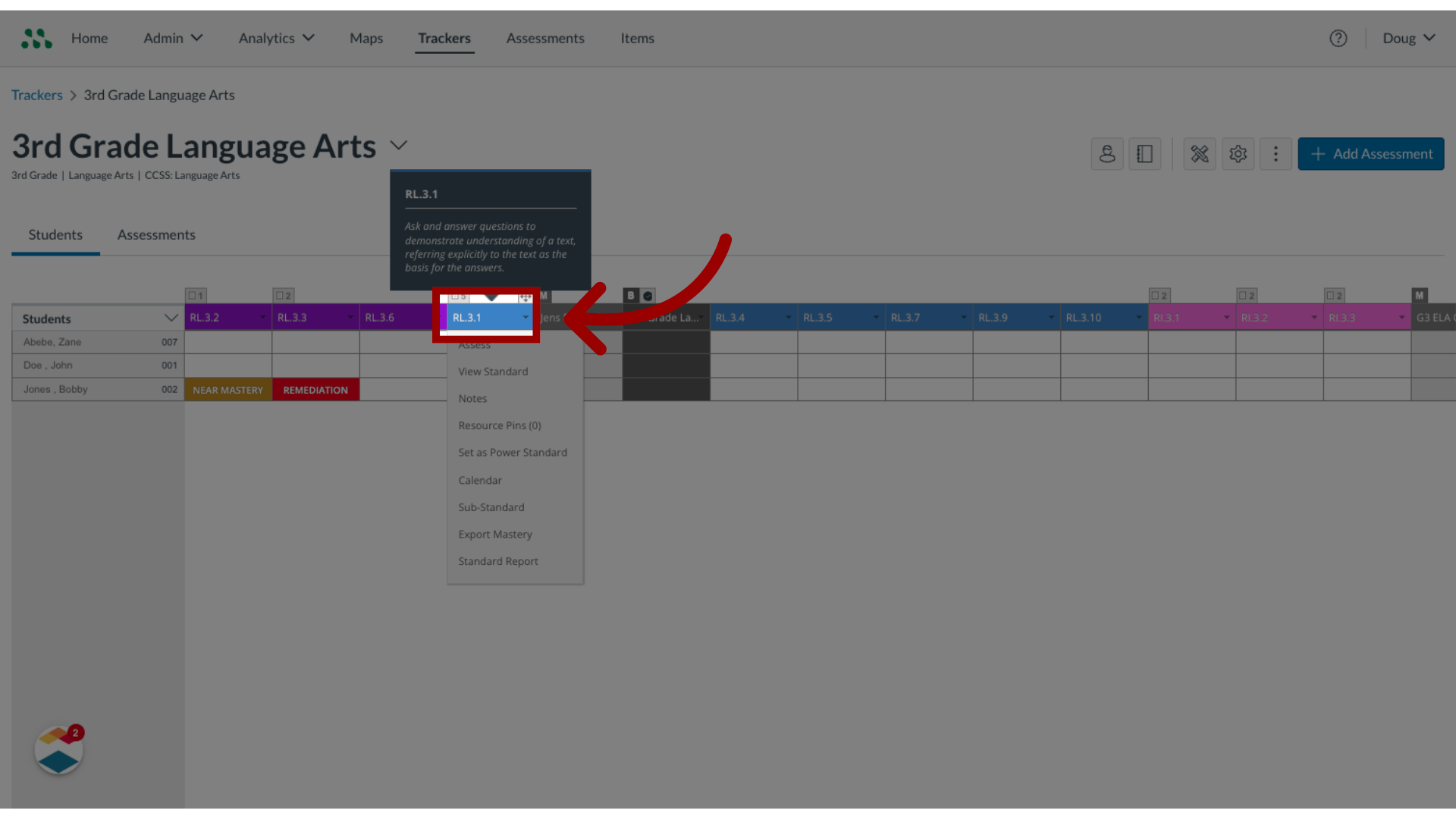
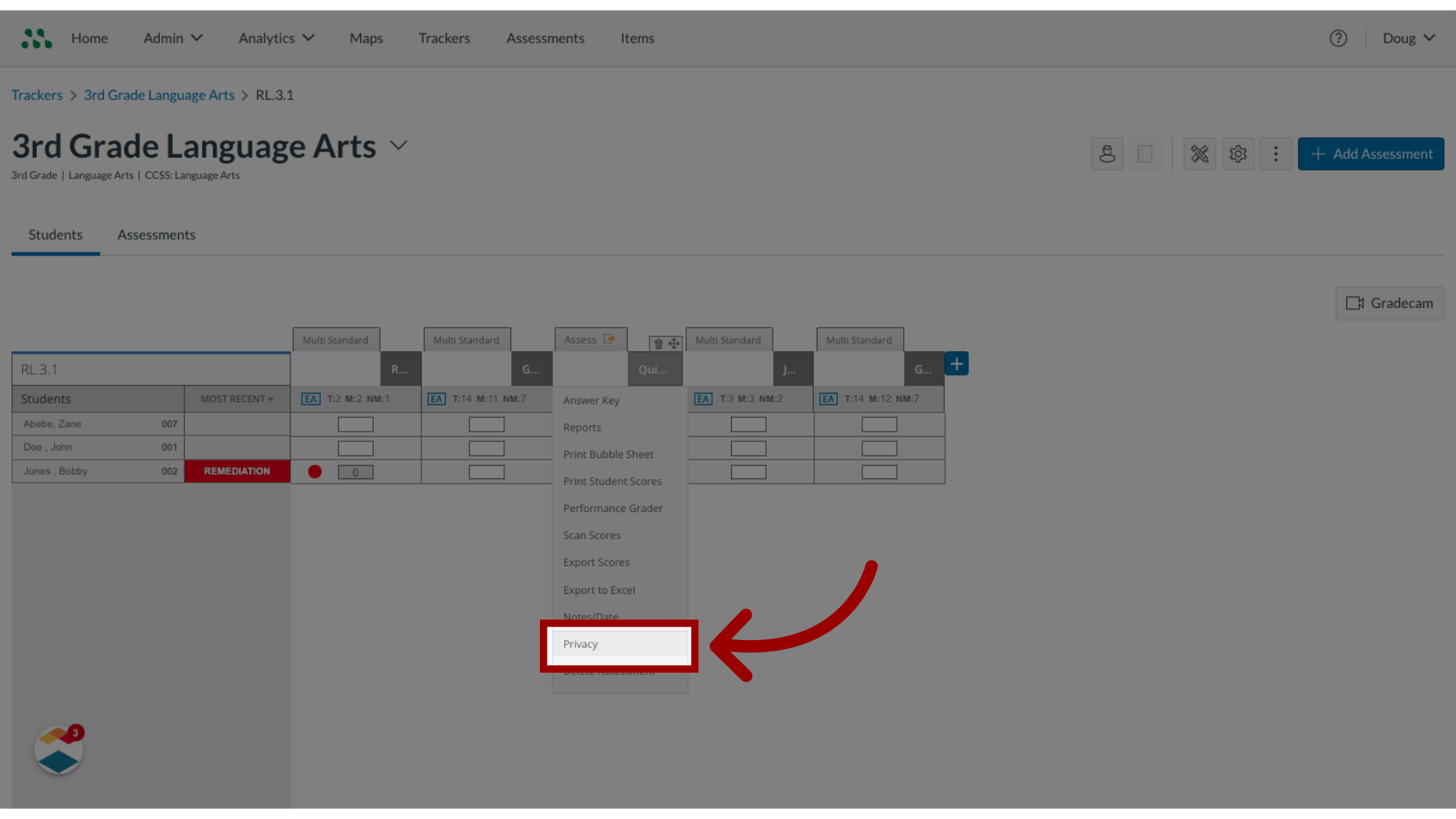
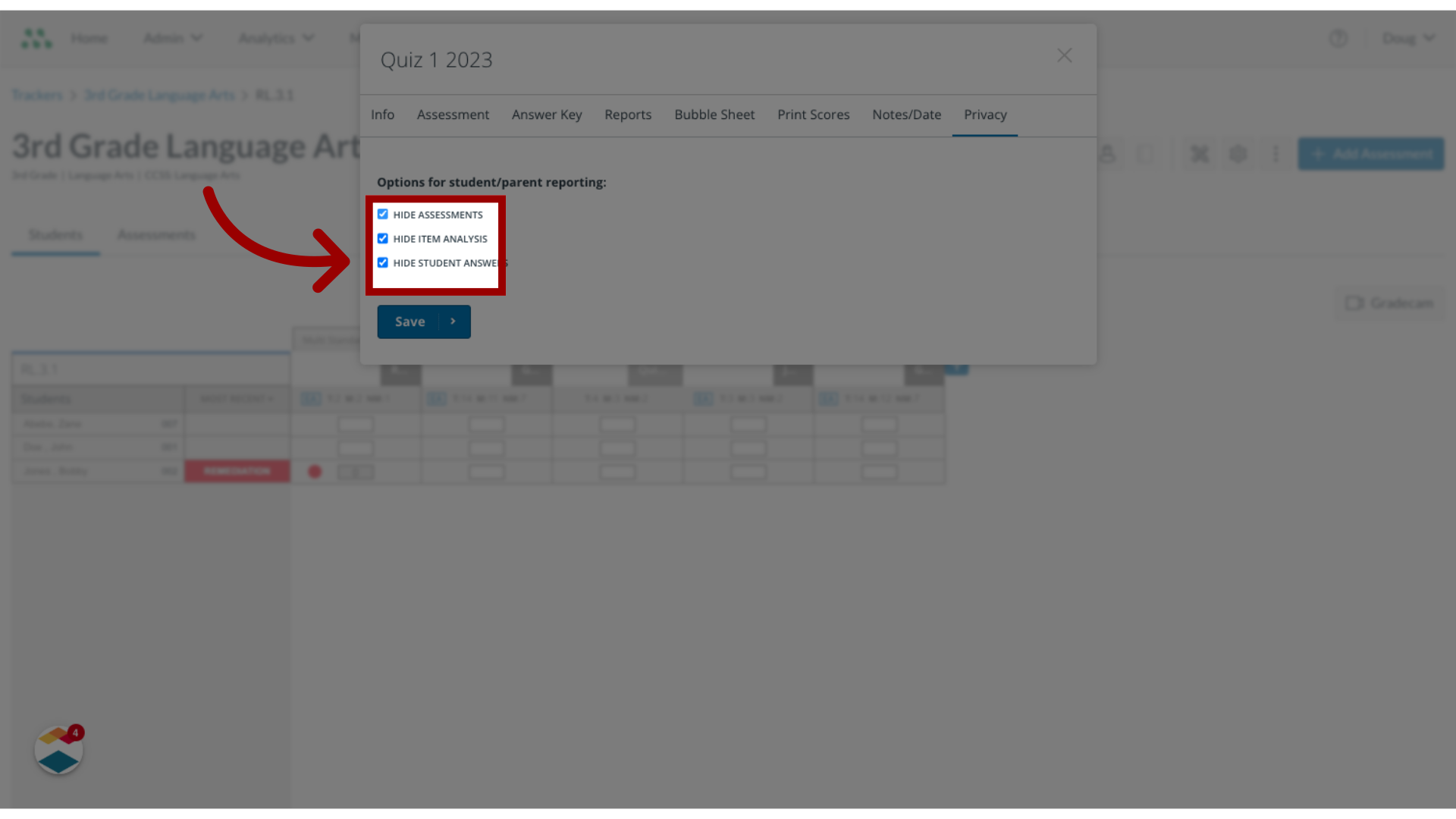
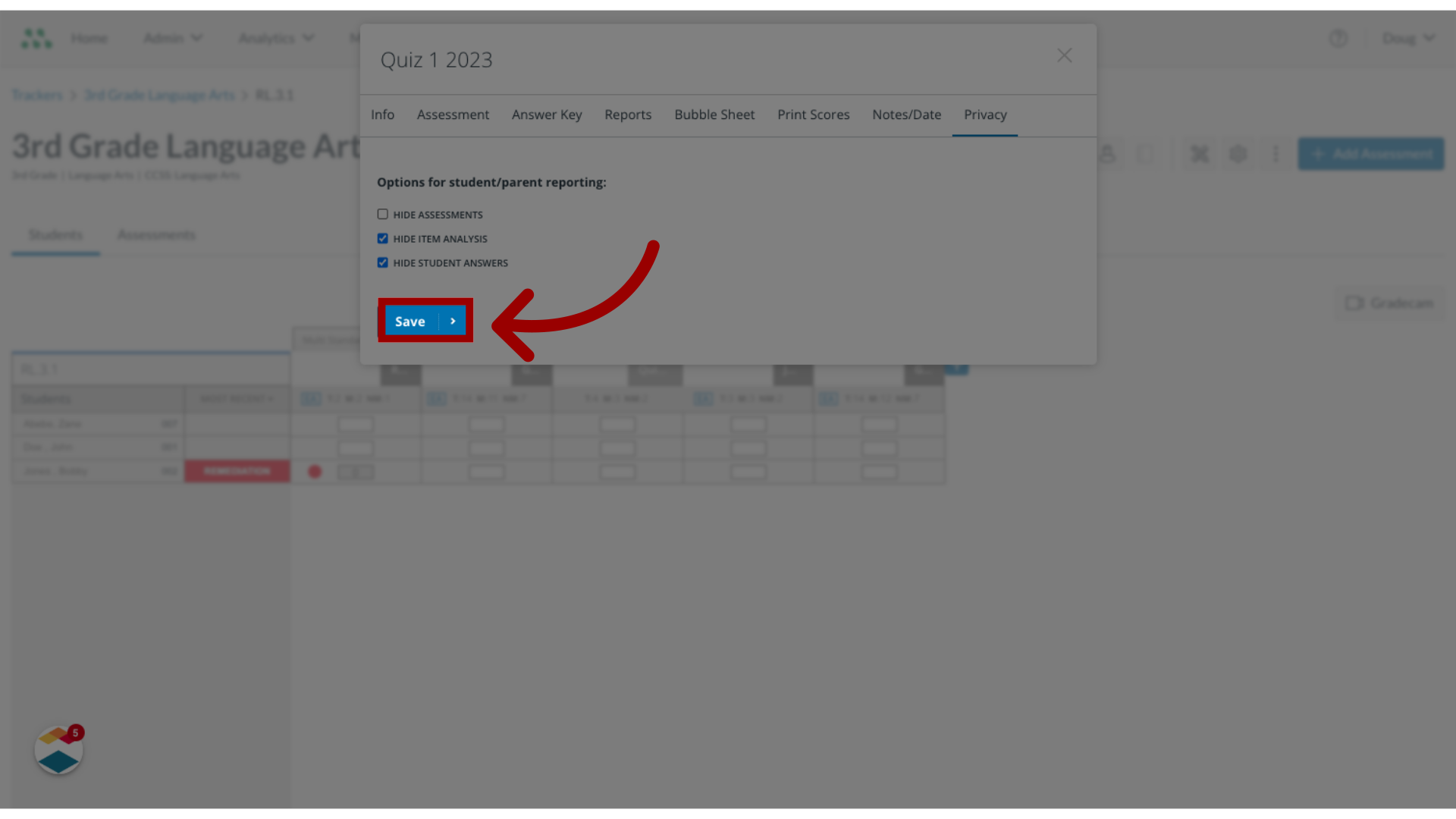
In Mastery Connect, you can manage privacy settings for single-standard assessments. You can choose to make the assessment, item analysis, and student answers visible or hidden in the parent and student portals. Notes:Assessments are not available in the portals until the assessment has been completed by the student, or if the teacher changes the assessment settings.If the steps in this lesson do not match what is displayed in your account, you may be using the Legacy View. For Legacy View steps, refer to How do I manage privacy settings for single-standard assessments in the parent and student portals in Legacy view?How do I manage privacy settings for single-standard assessments in the parent and student portals ? 1. Open Trackers In the Home page, click a tracker.2. Select Single Standard Once in the tracker, find the standard you want to open and click the Options icon. Then, click the Assess link.3. Select Privacy In the Standard View page, click the Options icon and then click the Privacy link.4. Select Student/Parent Reporting In the Options for student/parent reporting list, click the appropriate checkboxes.5. Save Privacy Settings To apply the privacy settings to the assessment, click the Save button.