How do I print student multi-standard formative assessment scores from a tracker?
How do I print student multi-standard formative assessment scores from a tracker?
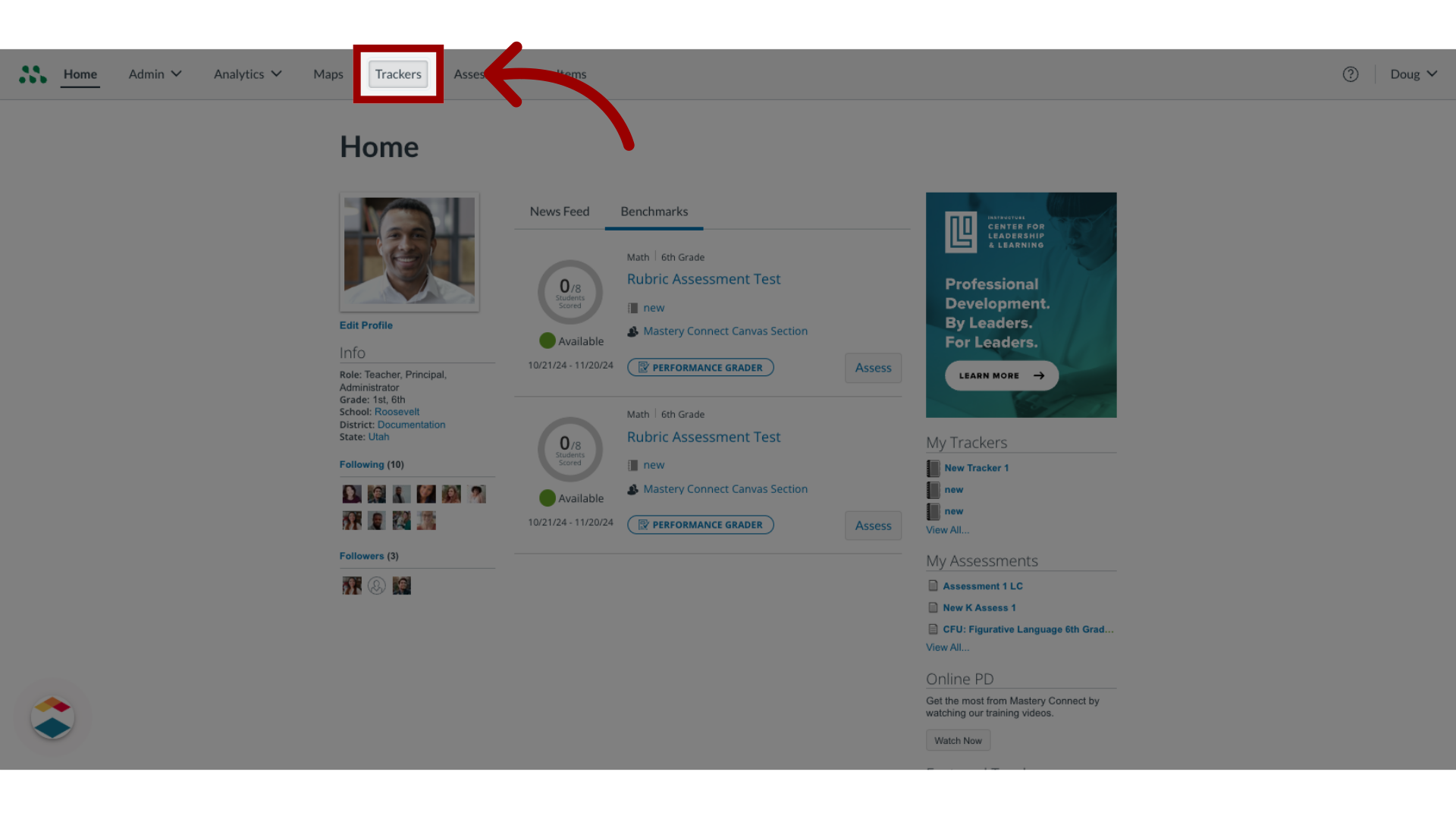
1. Open Mastery Trackers
In the global navigation, click the Home link.
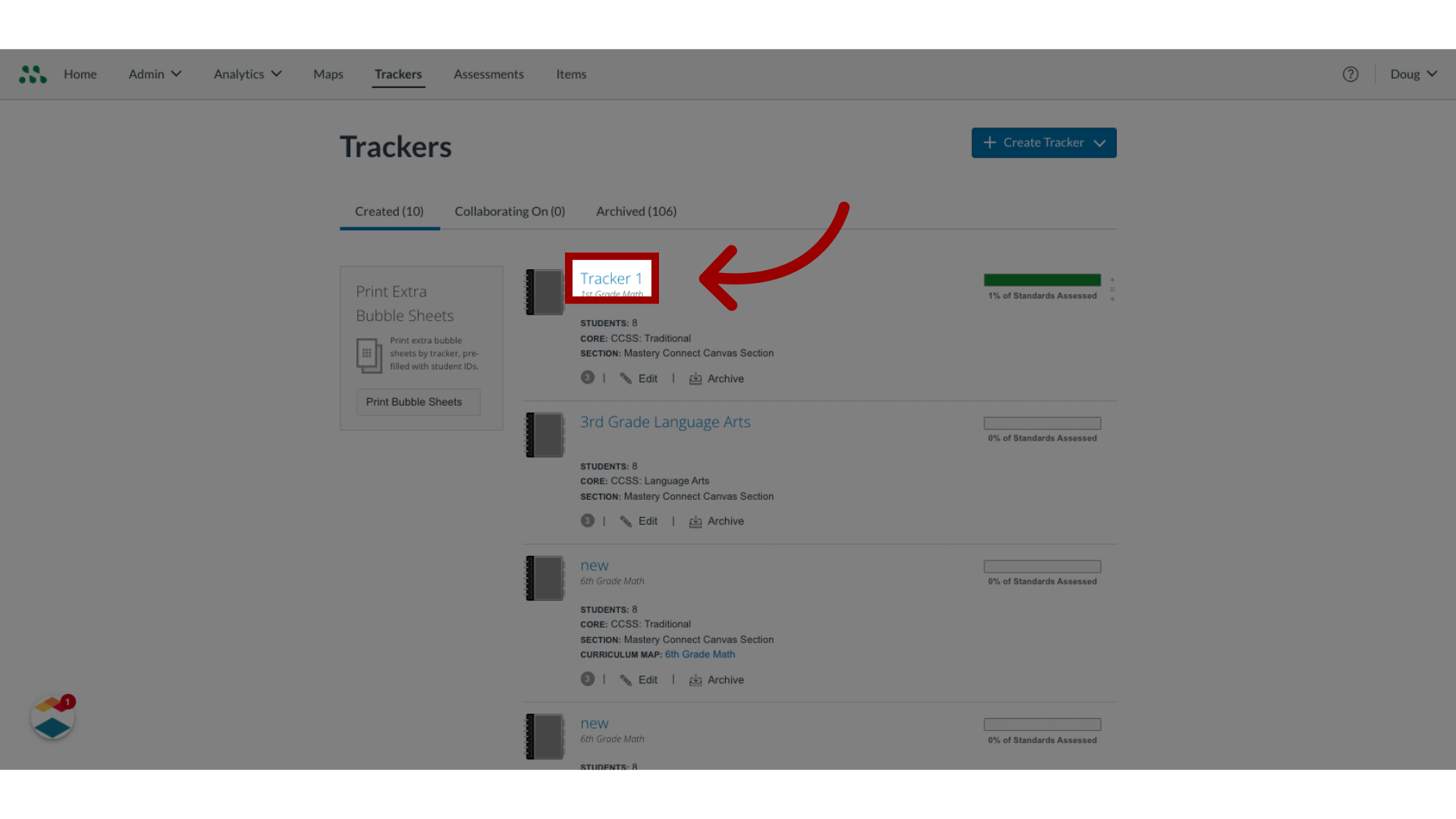
2. Open Tracker
Locate the tracker you want to open, and click the tracker name link.
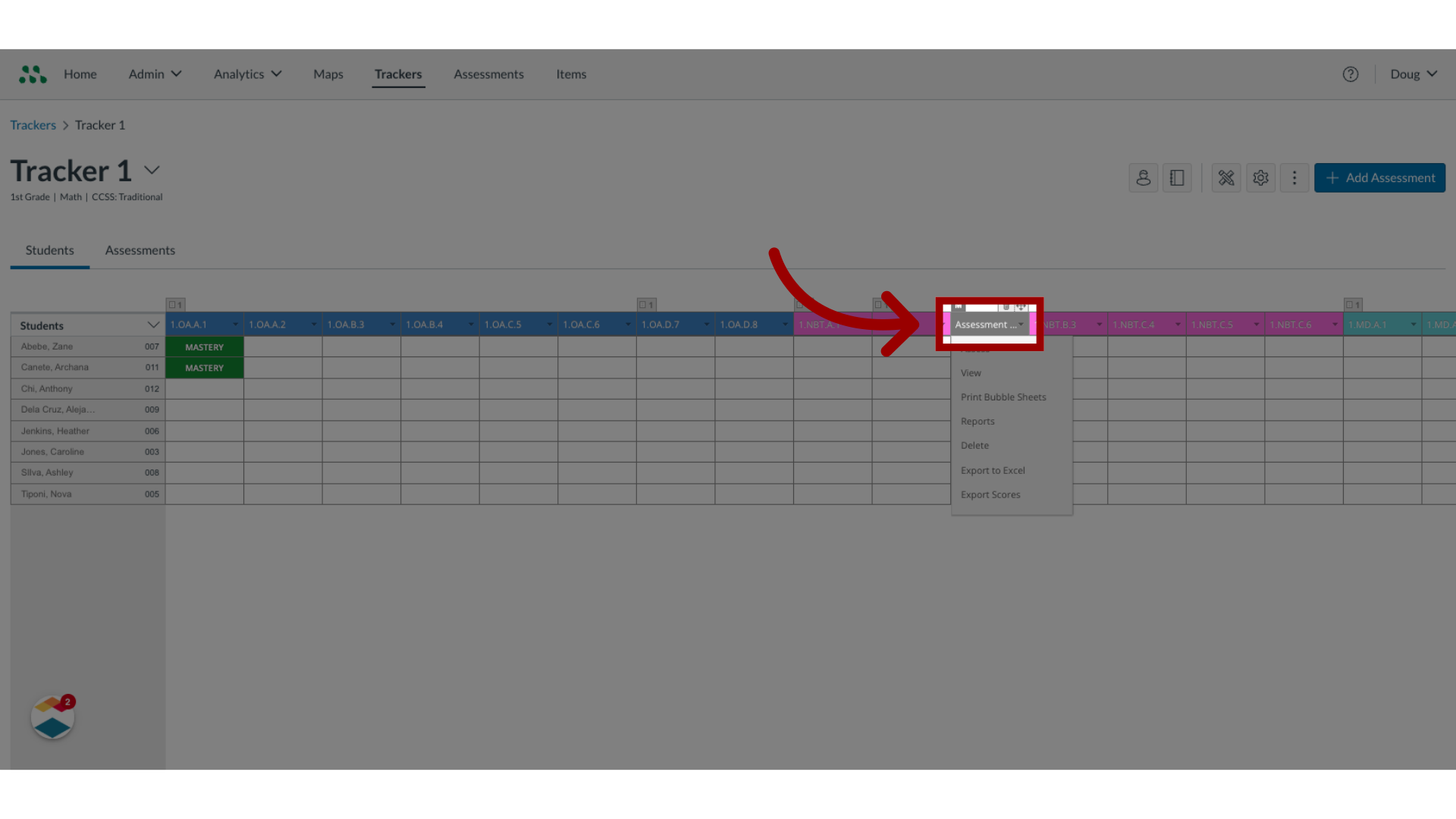
3. Open Assessment
In the Tracker View page, locate the multi-standard assessment, and click the assessment name.
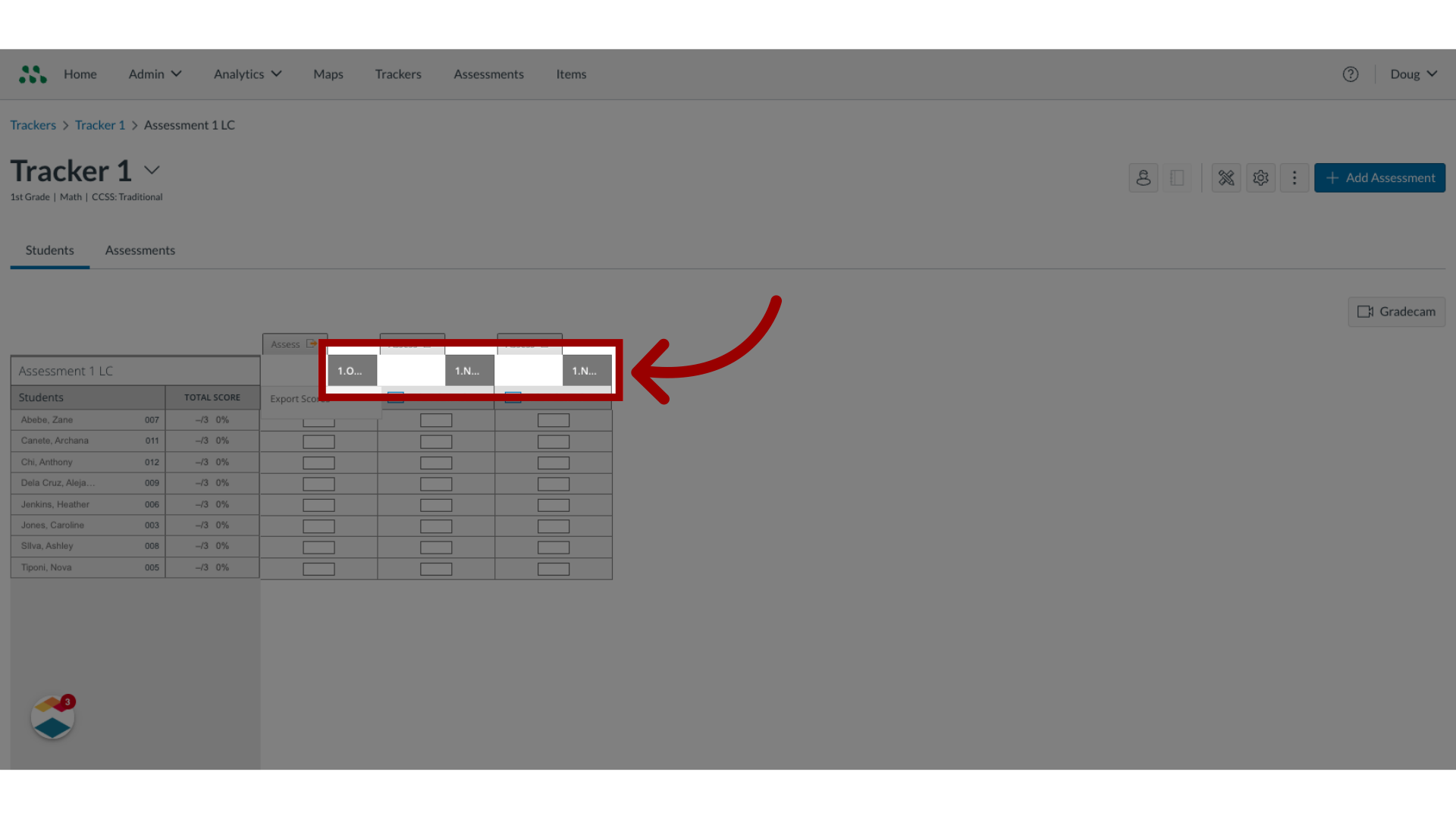
4. Open Standard
The Assessment Details page displays all standards associated with the assessment. To view assessment options and print assessment scores, click a standard name link.
5. Open Print Options
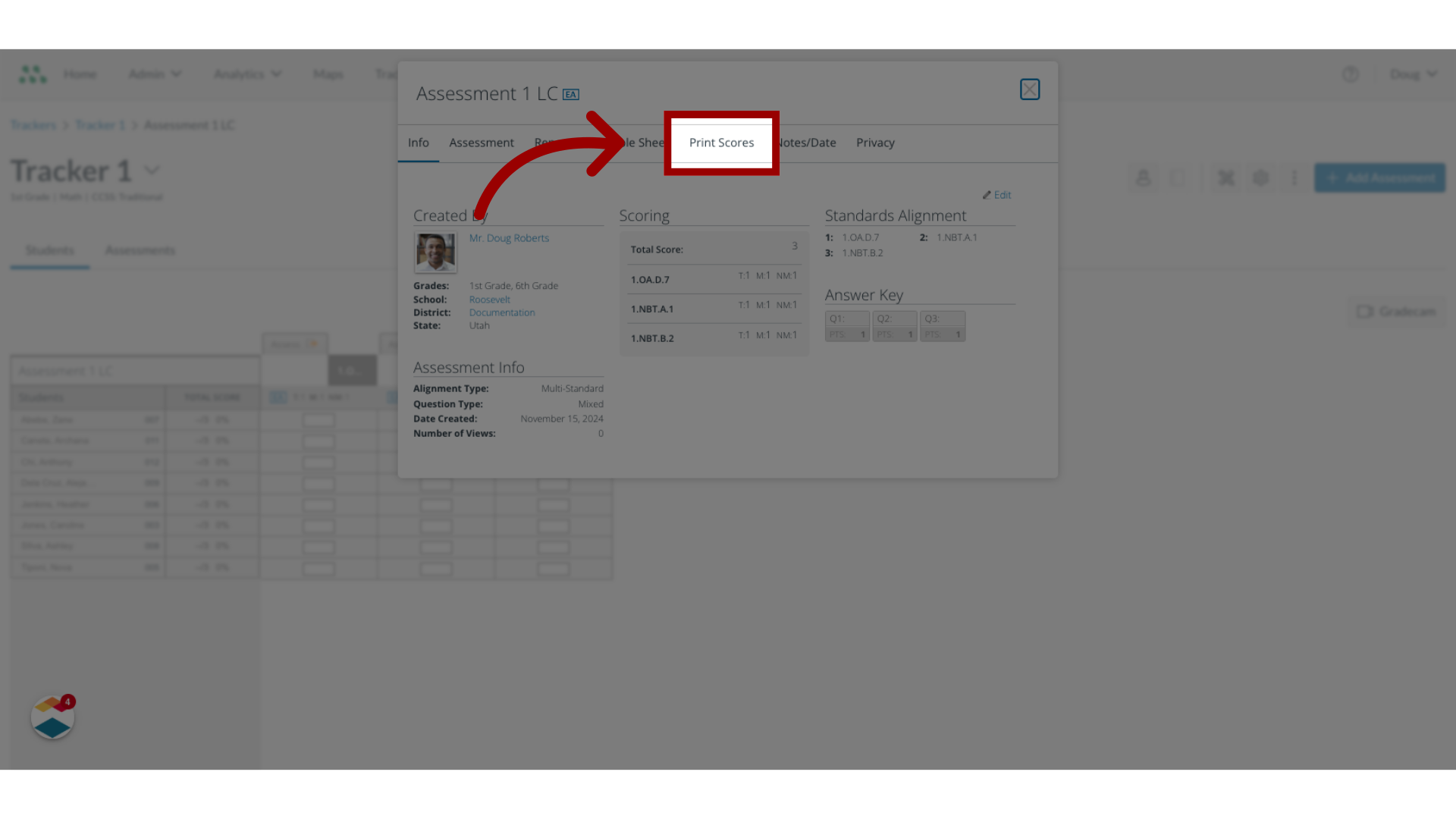
In the assessment details window, click the Print Scores tab.
6. Deselect Students and Questions
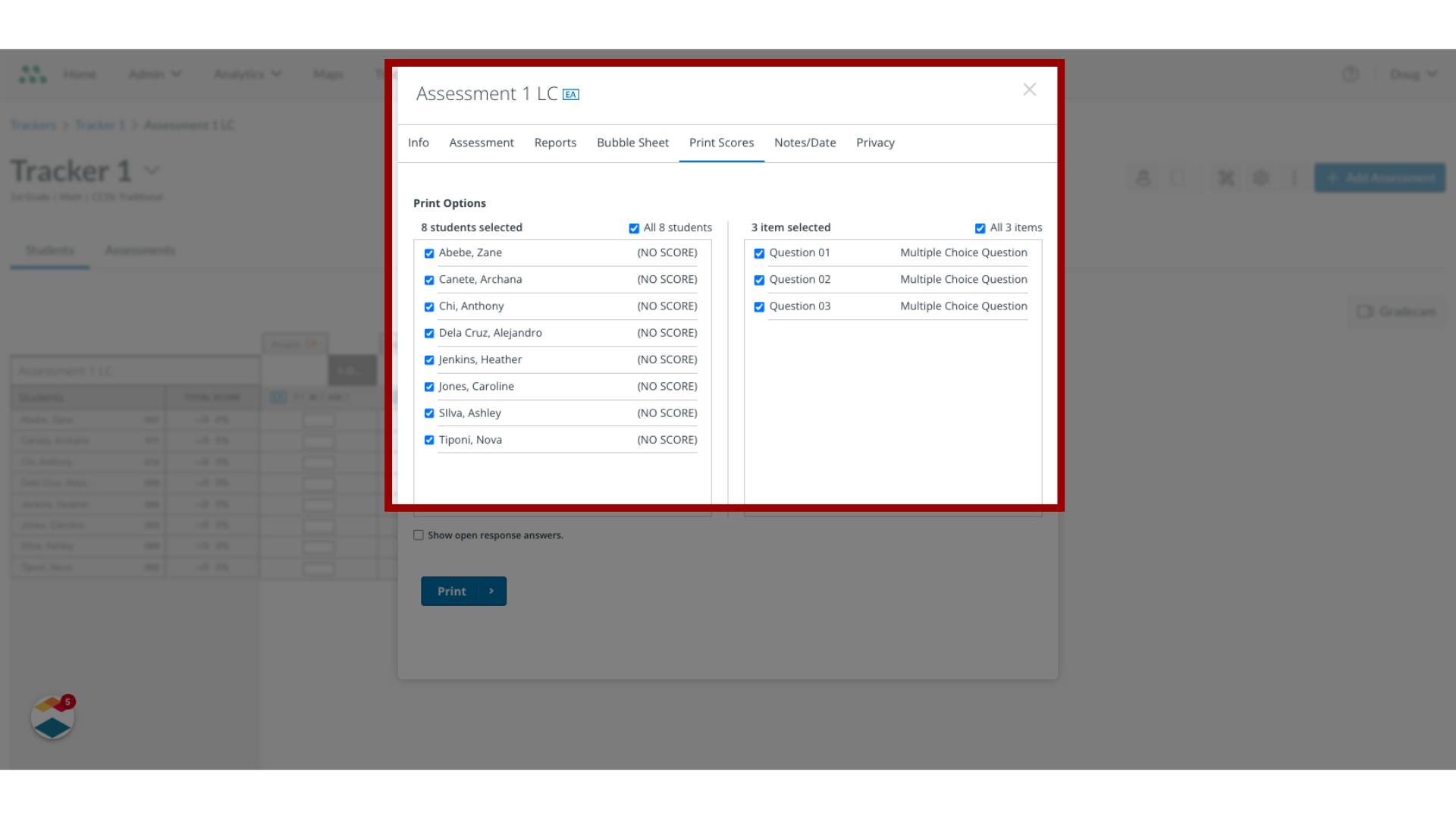
In the Print Scores window, all student names and all assessment questions are selected for the printout. To remove students or questions from the printout, click the appropriate checkboxes.
7. Select Additional Print Options
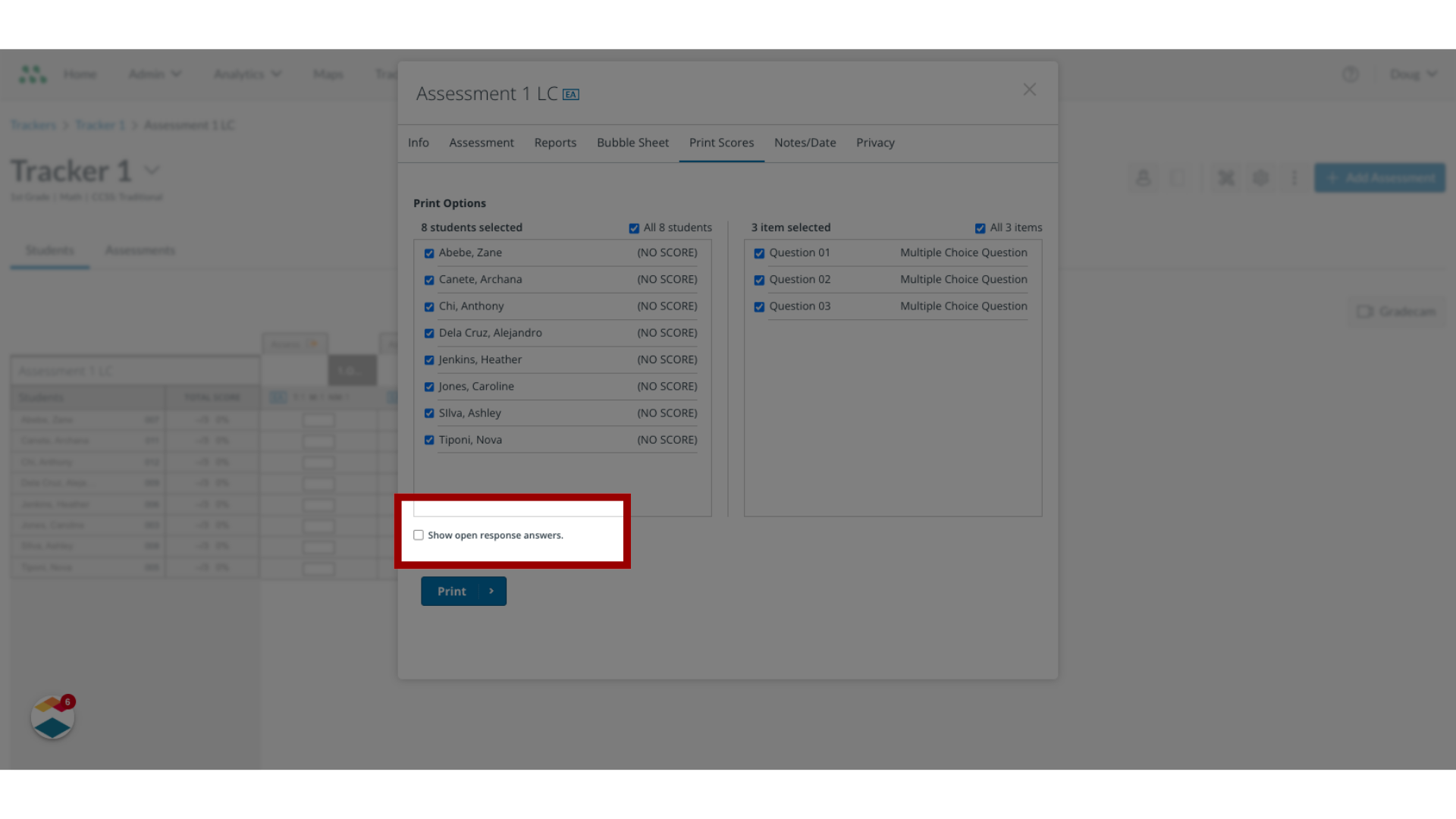
To select other print options, click the checkboxes.
8. Print Scores
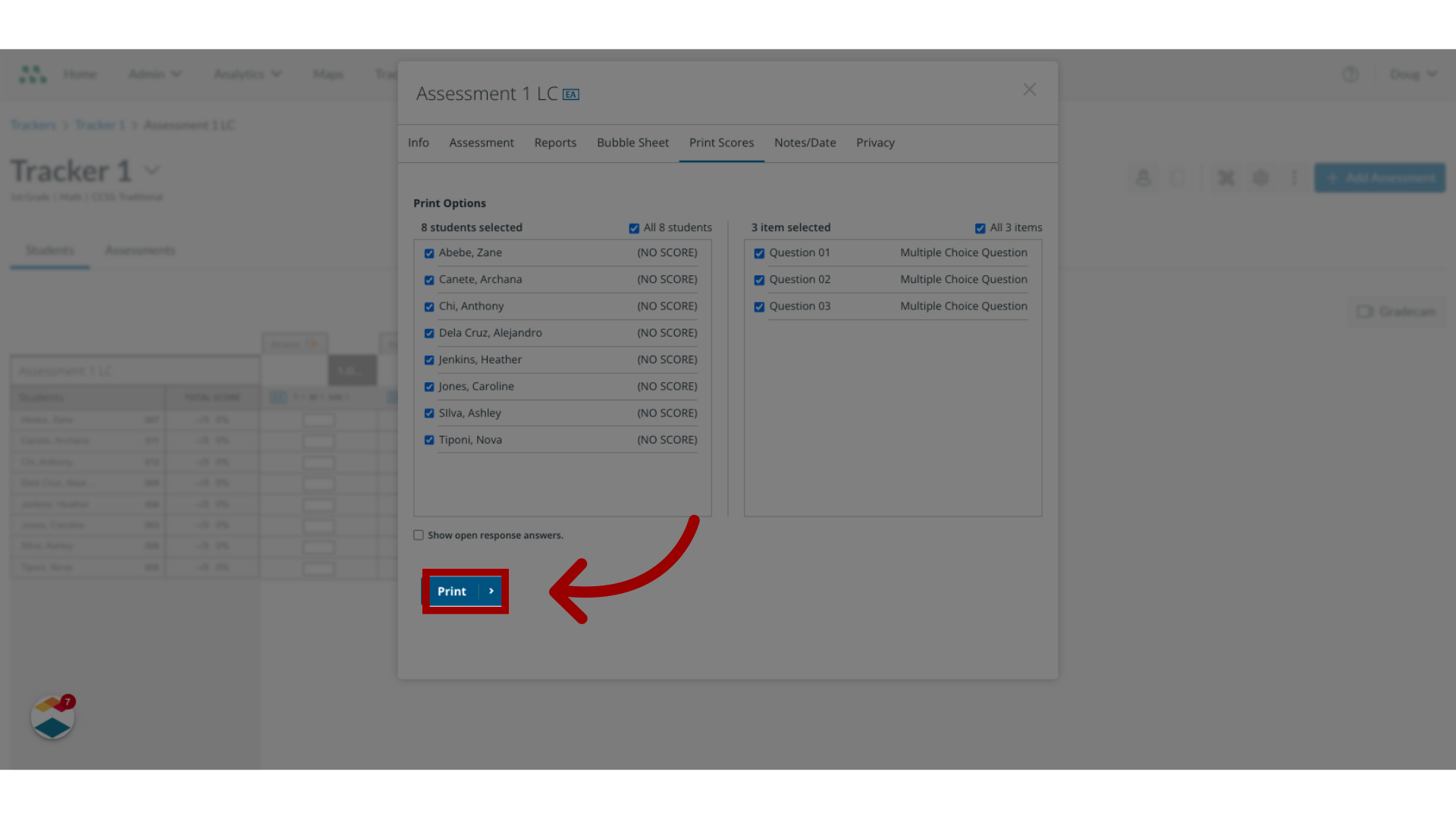
To print the selected information, click the Print button.
9. View and Print
In a new browser window, view the assessment scores for the selected students.
To format and print the scores, use your browser's print options.

This guide covered how to print student multi-standard formative assessment scores from a tracker.