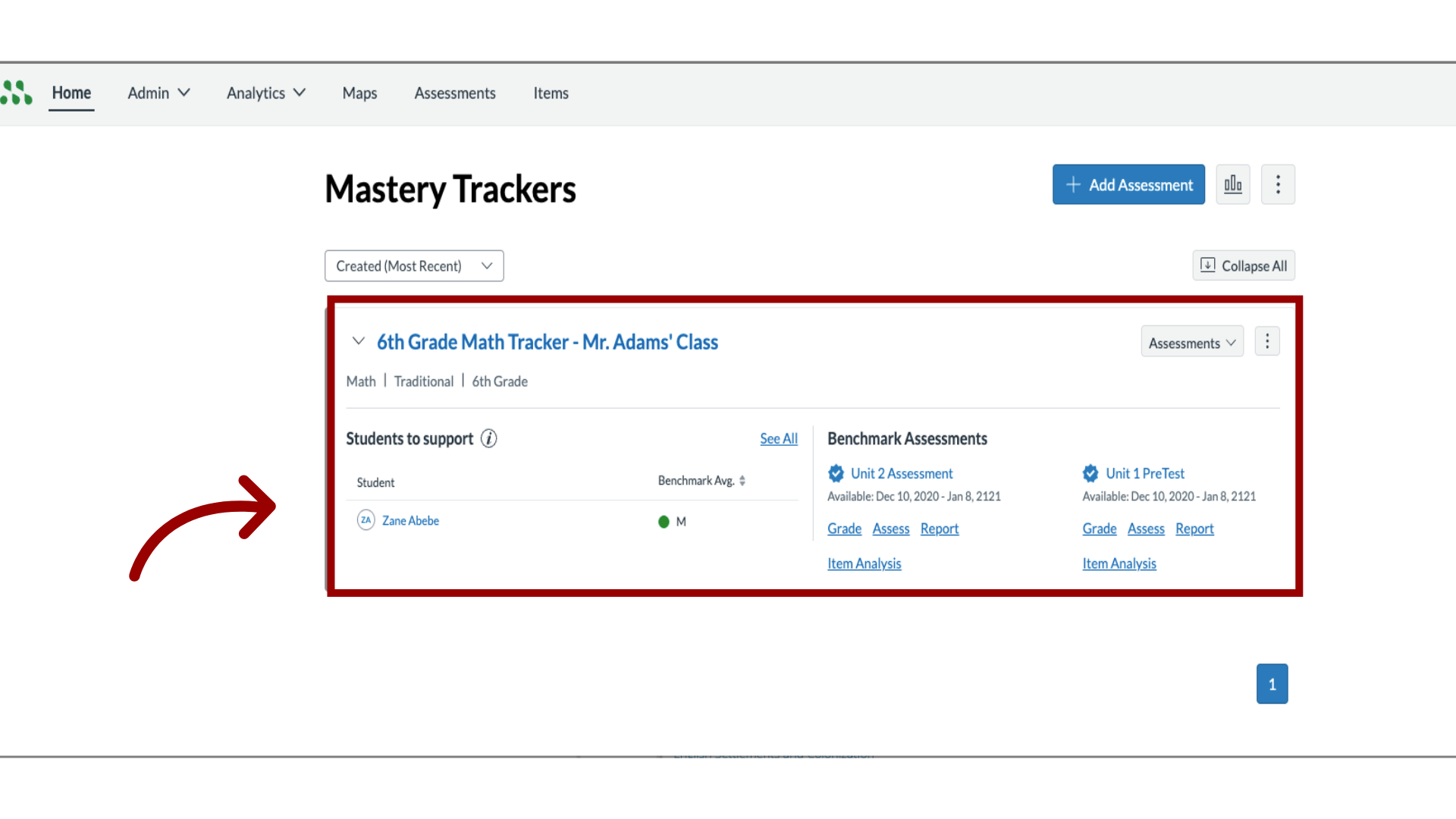
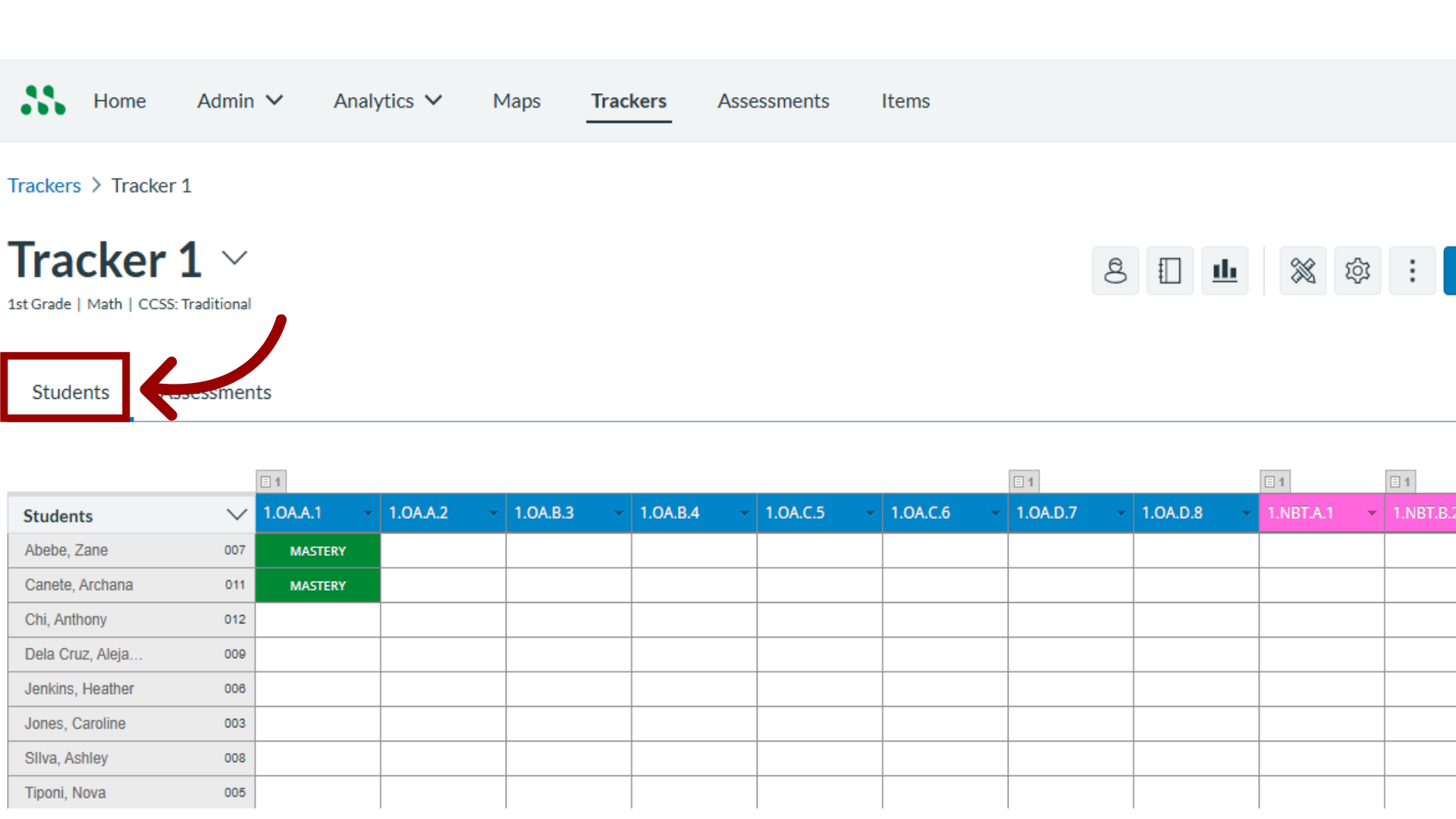
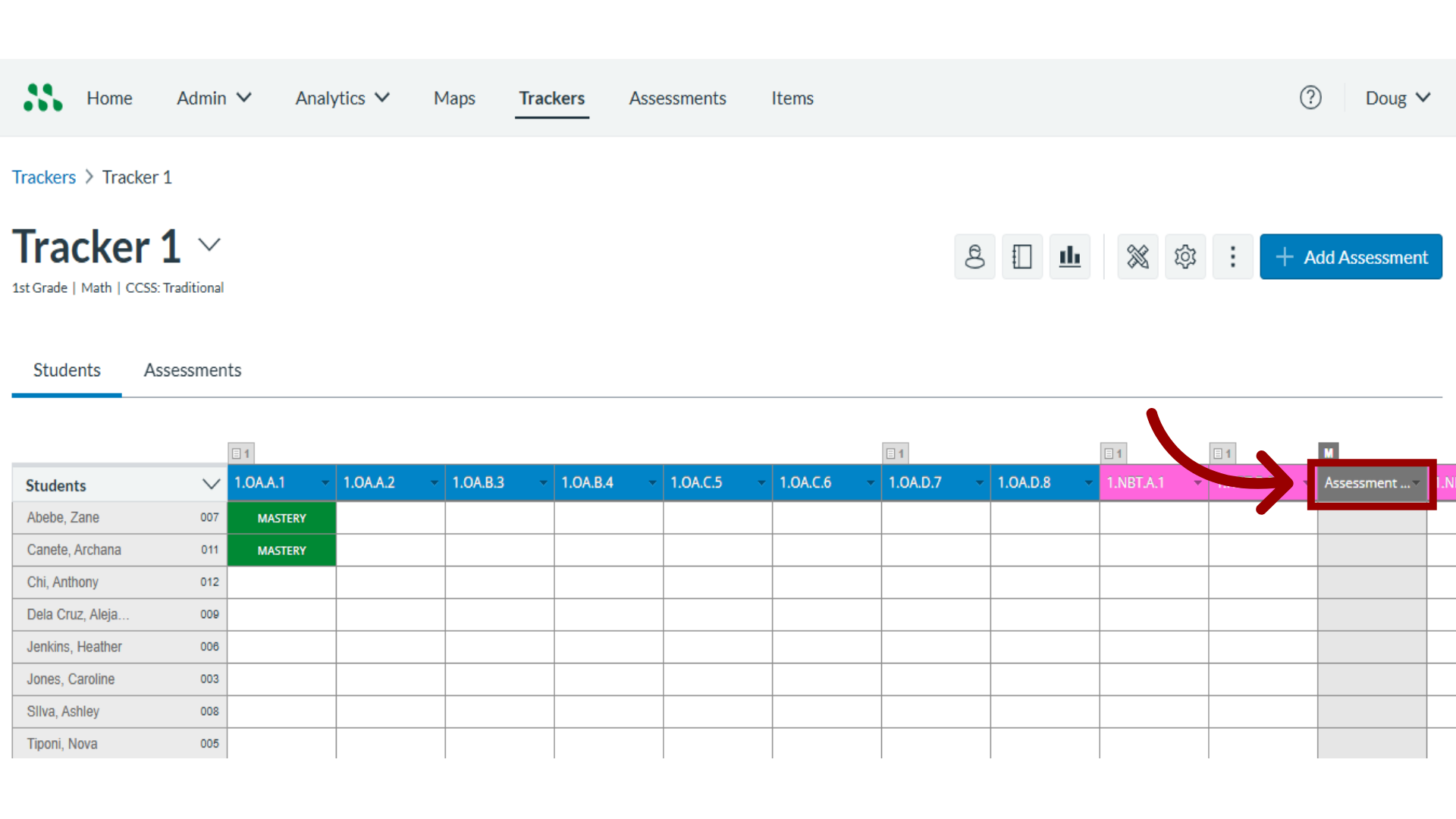
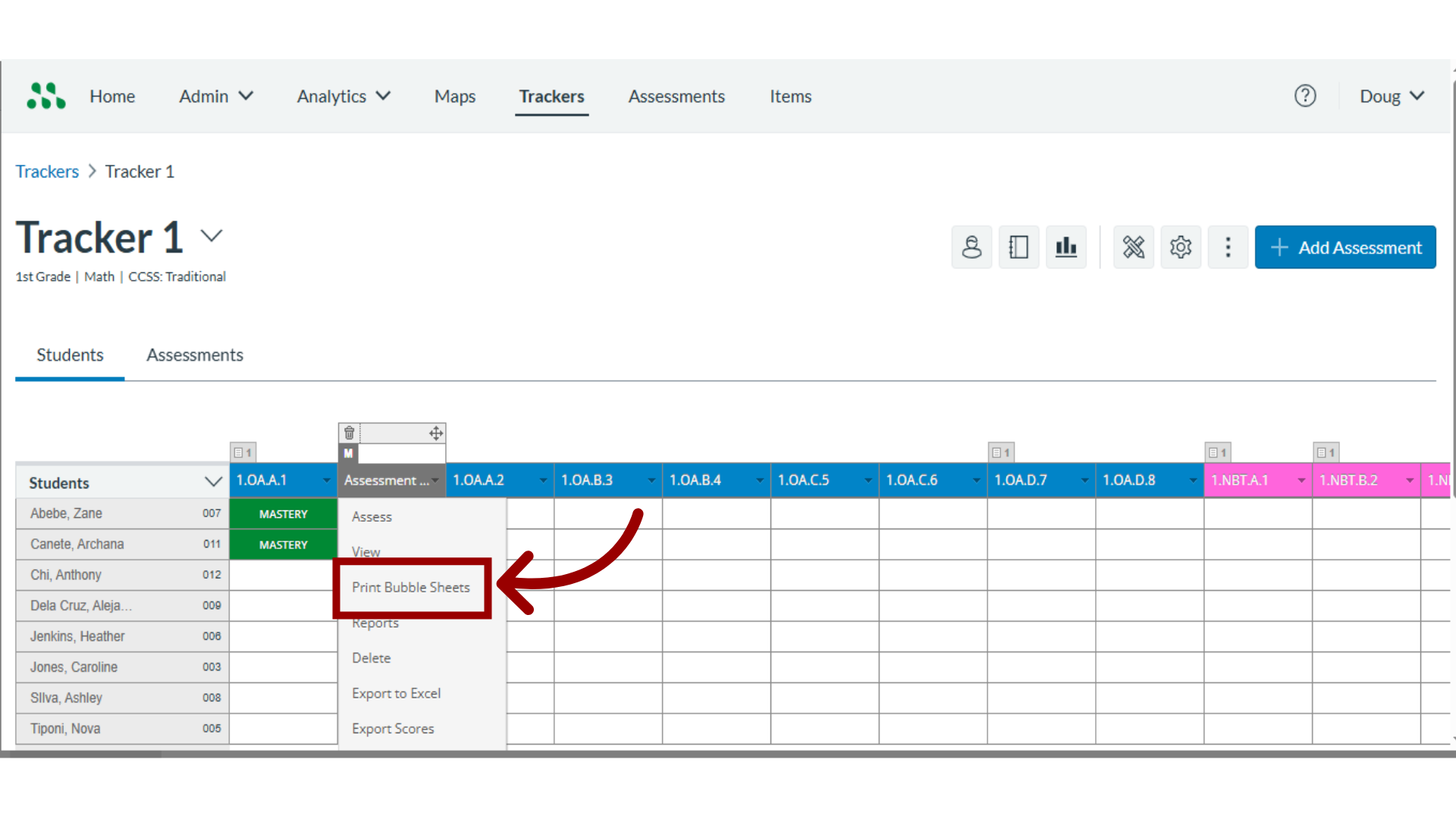
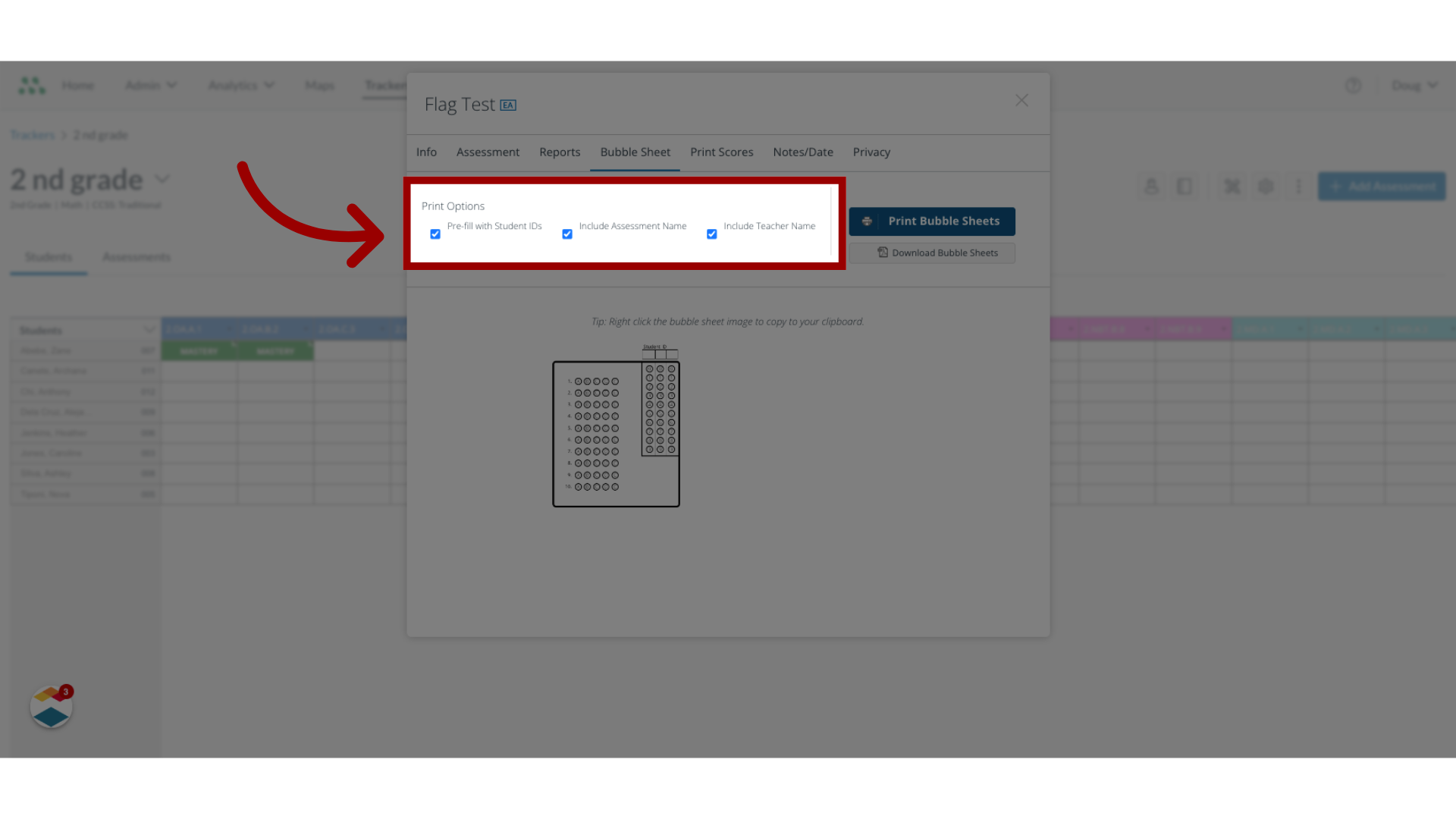
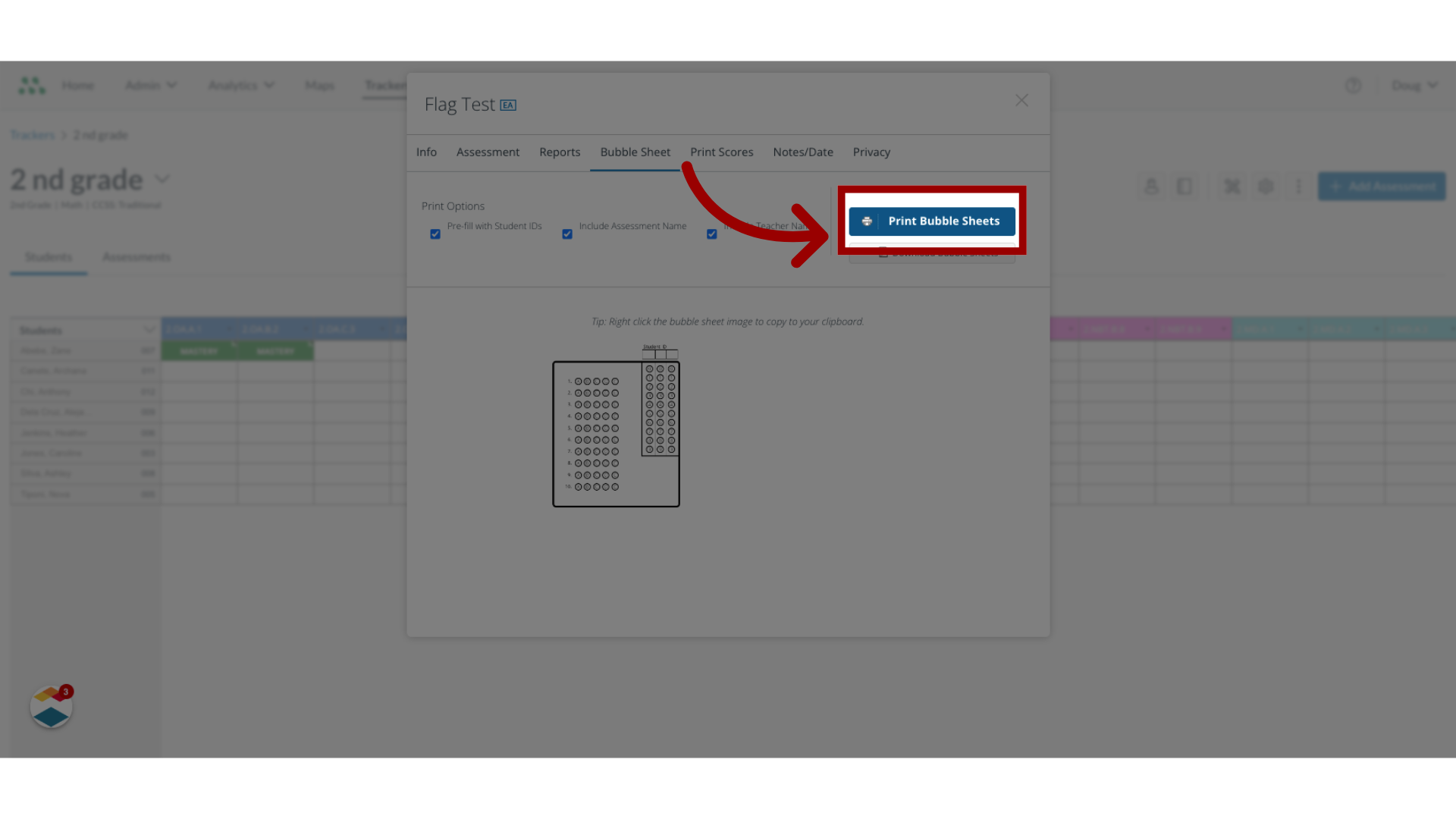
In Mastery Connect, you can print bubble sheets for single-standard assessments to be scored with GradeCam.Notes:Bubble sheet scoring is not available for assessments that contain rubric criteria or technology enhanced items (TEIs). TEIs must be assessed electronically and cannot be scanned in a bubble sheet.If the steps in this lesson do not match what is displayed in your account, you may be using the Legacy View. For Legacy View steps, refer to How do I print bubble sheets for a single-standard assessment in Legacy view?. How do I print bubble sheets for a single-standard assessment?1. Open Trackers In the Home page, click a tracker. 2. Open Students Tab After opening the tracker, click the Students tab.3. Locate Assessment Locate the assessment and click the Options icon.4. Select Print Bubble Sheets In the drop-down menu, click the Print Bubble Sheet option. 5. Select Print Options To select pre-fill options for the bubble sheets, click the Print Options checkboxes.6. Print Bubble Sheets Then, Click the Print Bubble Sheets button.