In Mastery Connect, you can create an essay question with plain text. An essay with plain text item allows the student to enter text in response to a prompt.
You can create any item type through the Item Editor. You can also add passages to items, add item-level tools, and save the item. To open and use the Item Editor to add passages, add item-level tools, and save the item, learn more about:
Enter Essay Prompt
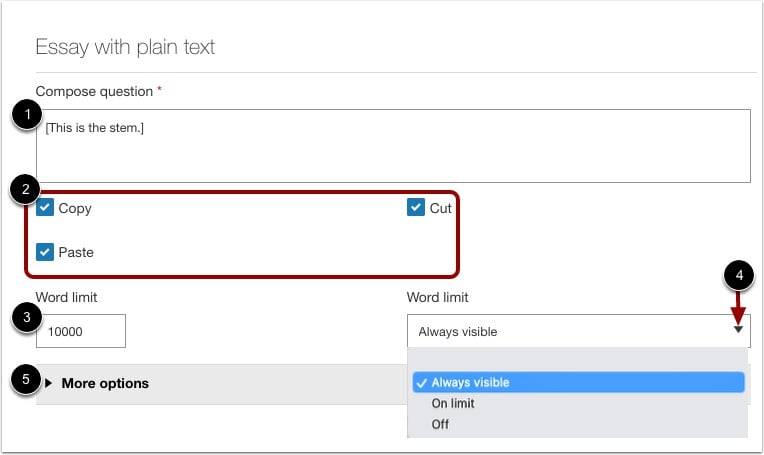
In the Item Editor, enter the essay question or prompt in the Compose question text field [1].
By default, copy, cut, and paste options are enabled for student answers. To disable the copy, cut, or paste options click the checkbox(es) to de-select [2].
To set a word limit for the response, enter a maximum word count in the Word limit text box [3]. To select how the word limit will display in the student view, click the Word limit drop-down menu and select a display option [4].
To add additional scoring, layout, formatting, and labeling options for the item, click the More options drop-down menu [5].