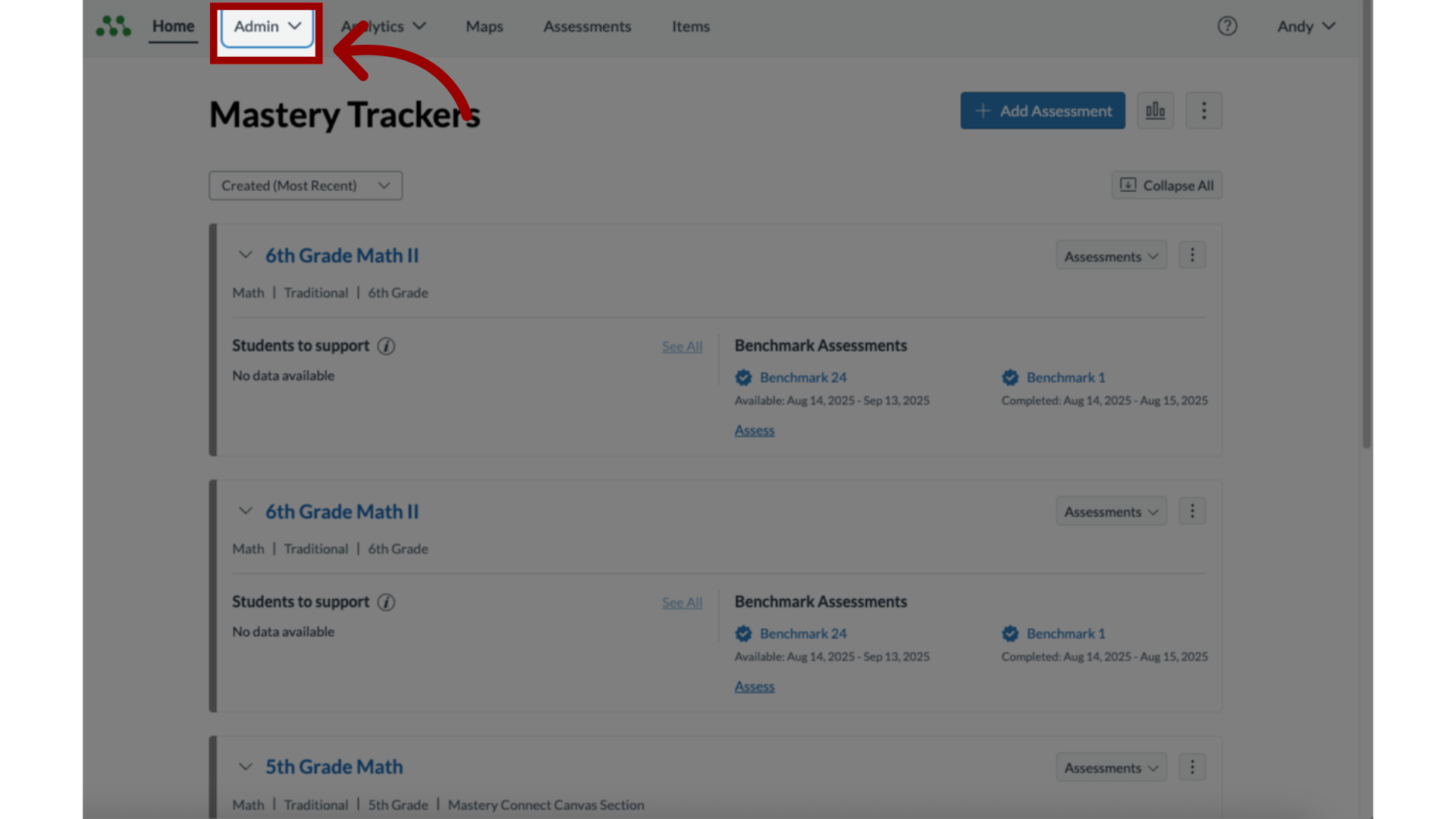
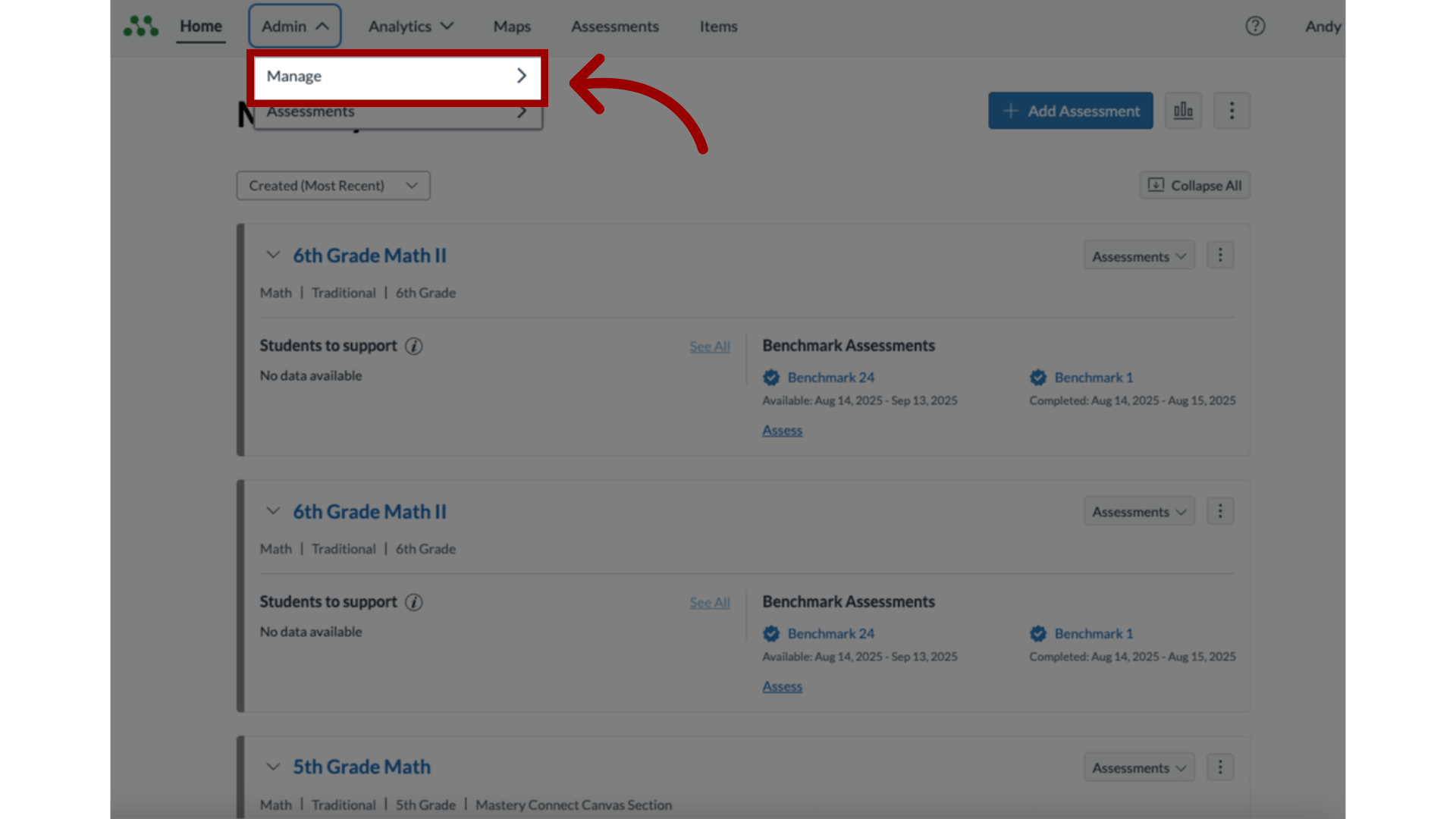
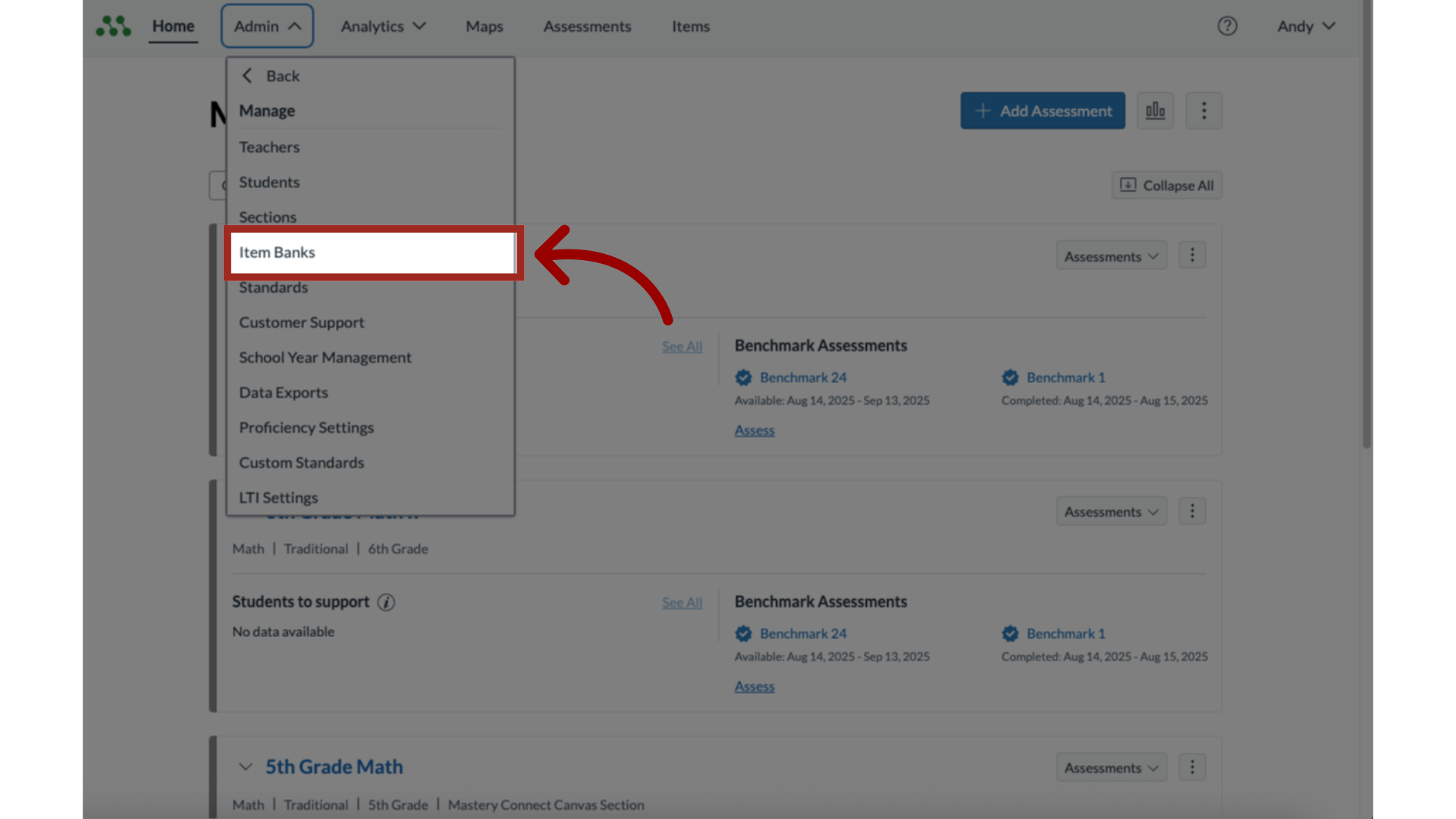
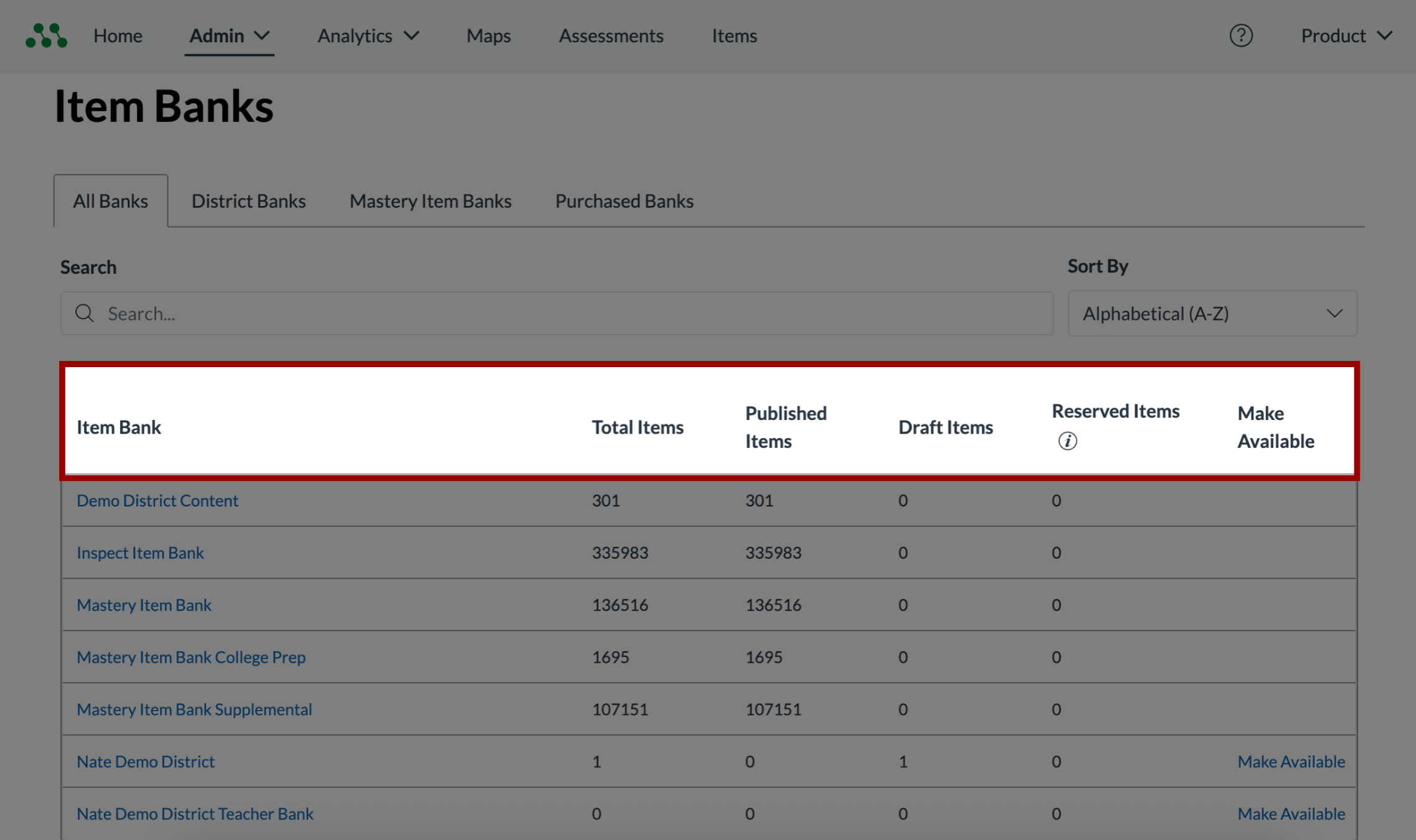
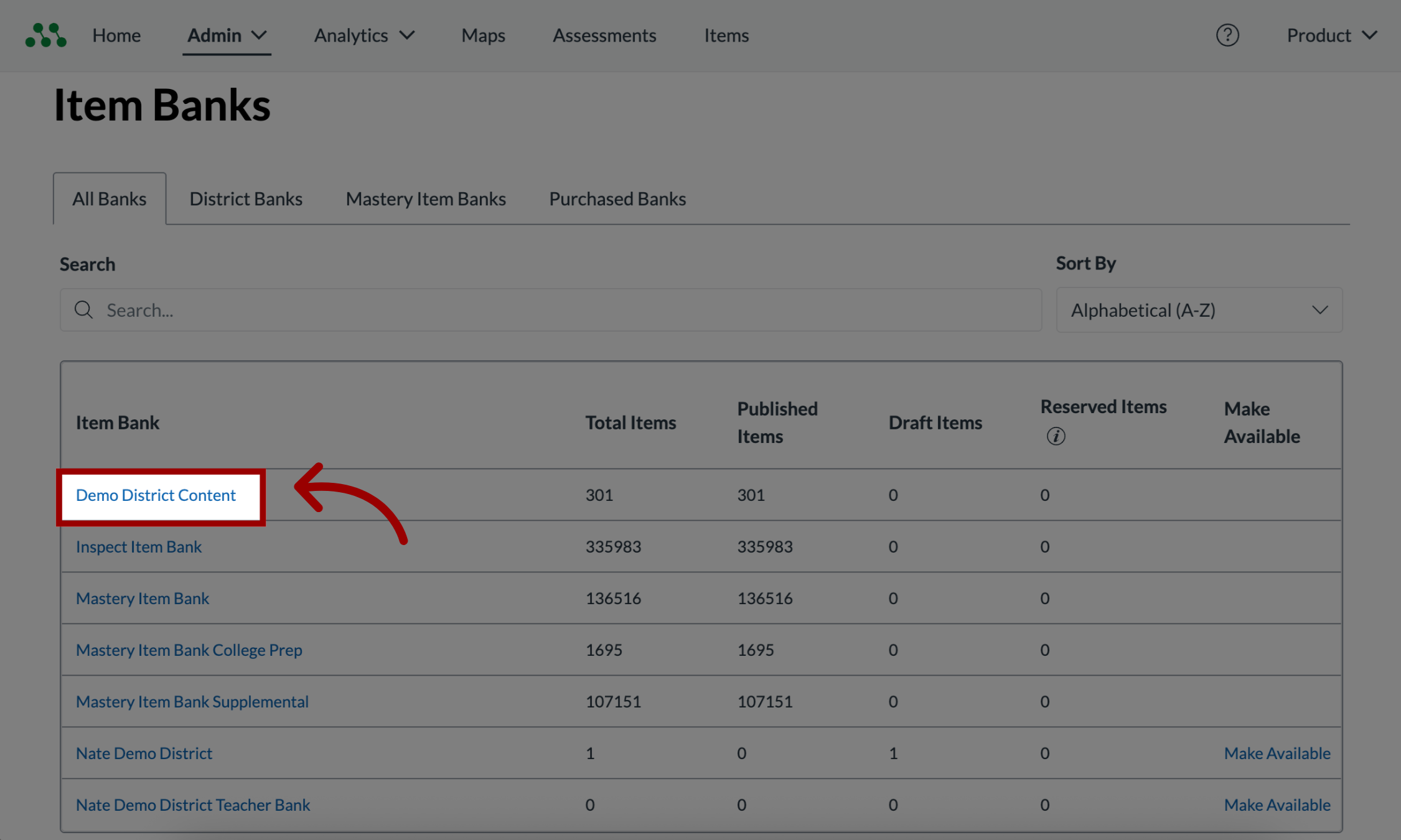
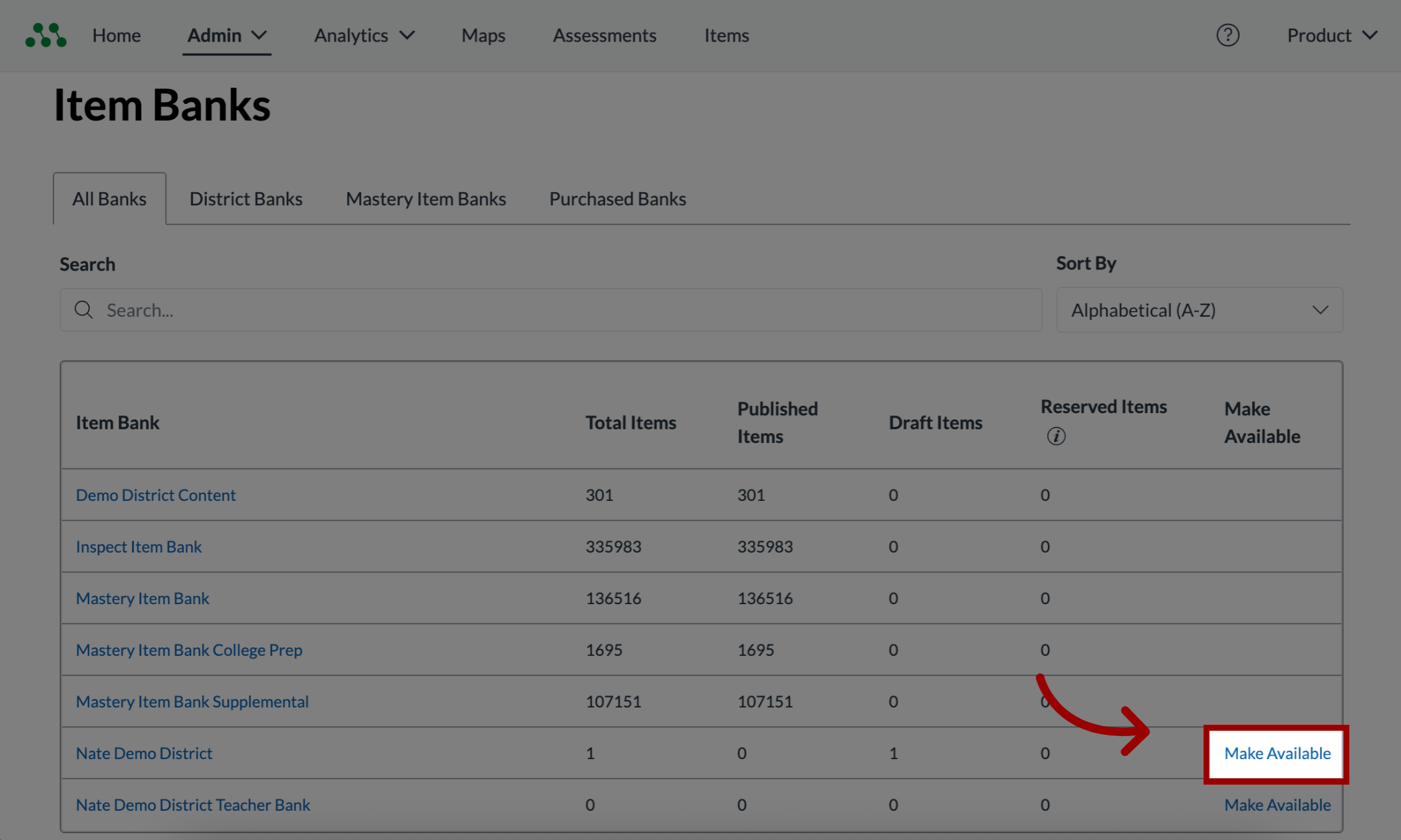
As a Mastery Connect district admin, you can view and manage item banks. By default, every district has a district item bank and a district teacher item bank. Your district may also purchase additional item banks. How do I manage item banks as a Mastery Connect admin?1. Open Admin MenuIn the global navigation menu, click the Admin drop-down menu.2. Open ManageIn the drop-down menu, click the Manage link.3. View Item Bank ListingThe Item Banks page displays your default item banks and item banks that have been purchased by your district.4. View Item Bank Details The item bank table displays the title, total items, published items, draft items, and reserved items. Additionally, as an admin you can make an item bank available to teachers and schools.5. Open Item BankTo open an item bank, click the item bank title.6. Make Item Available to TeachersTo make an item bank available to teachers and schools in your district, click the MakeAvailable button. This guide covered how to manage item banks as a Mastery Connect admin.