How do I use the Curriculum Maps page?
How do I use the Curriculum Maps page?
1. Open Maps
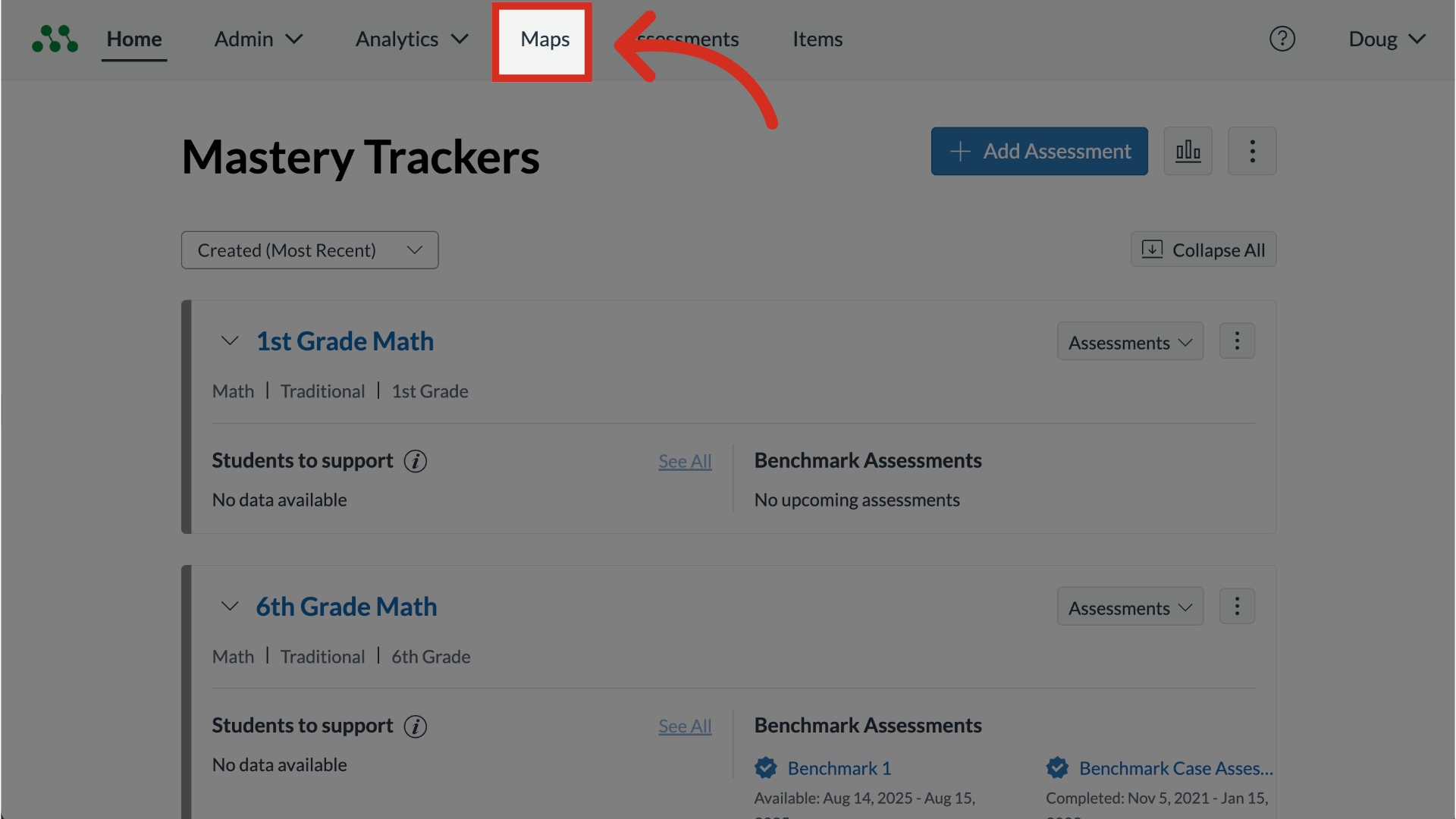
Navigate to the Maps section.
2. View Curriculum Maps Page
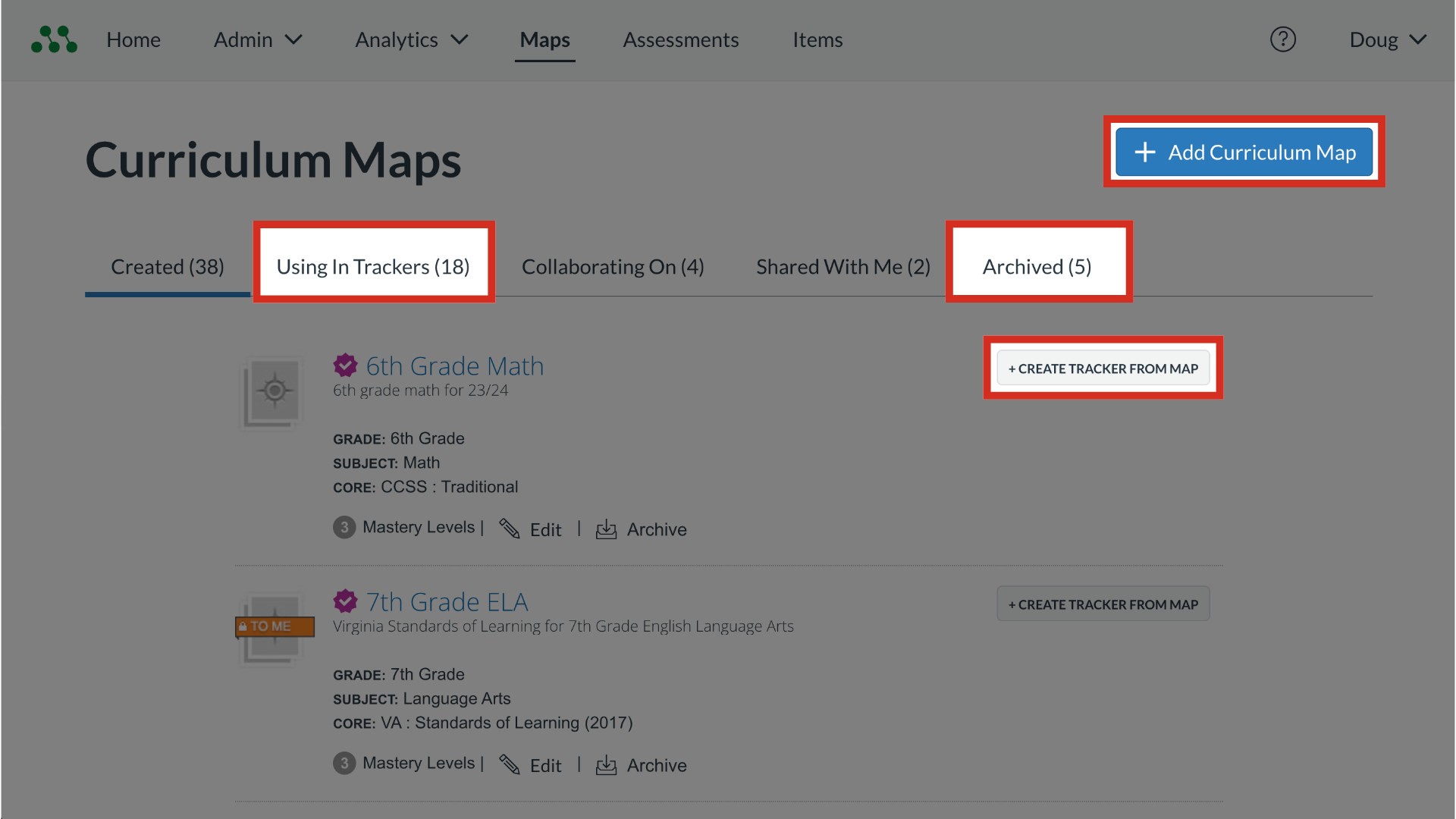
By default, the Curriculum Maps page displays a list of curriculum maps you created. To view curriculum maps that are in use in trackers, click the Using in Trackers tab. To view curriculum maps that have been archived, click the Archived tab. To create a new curriculum map click the Add Curriculum Map button. To create a tracker from the curriculum map, click the Create Tracker from Map button.
3. Select Tab
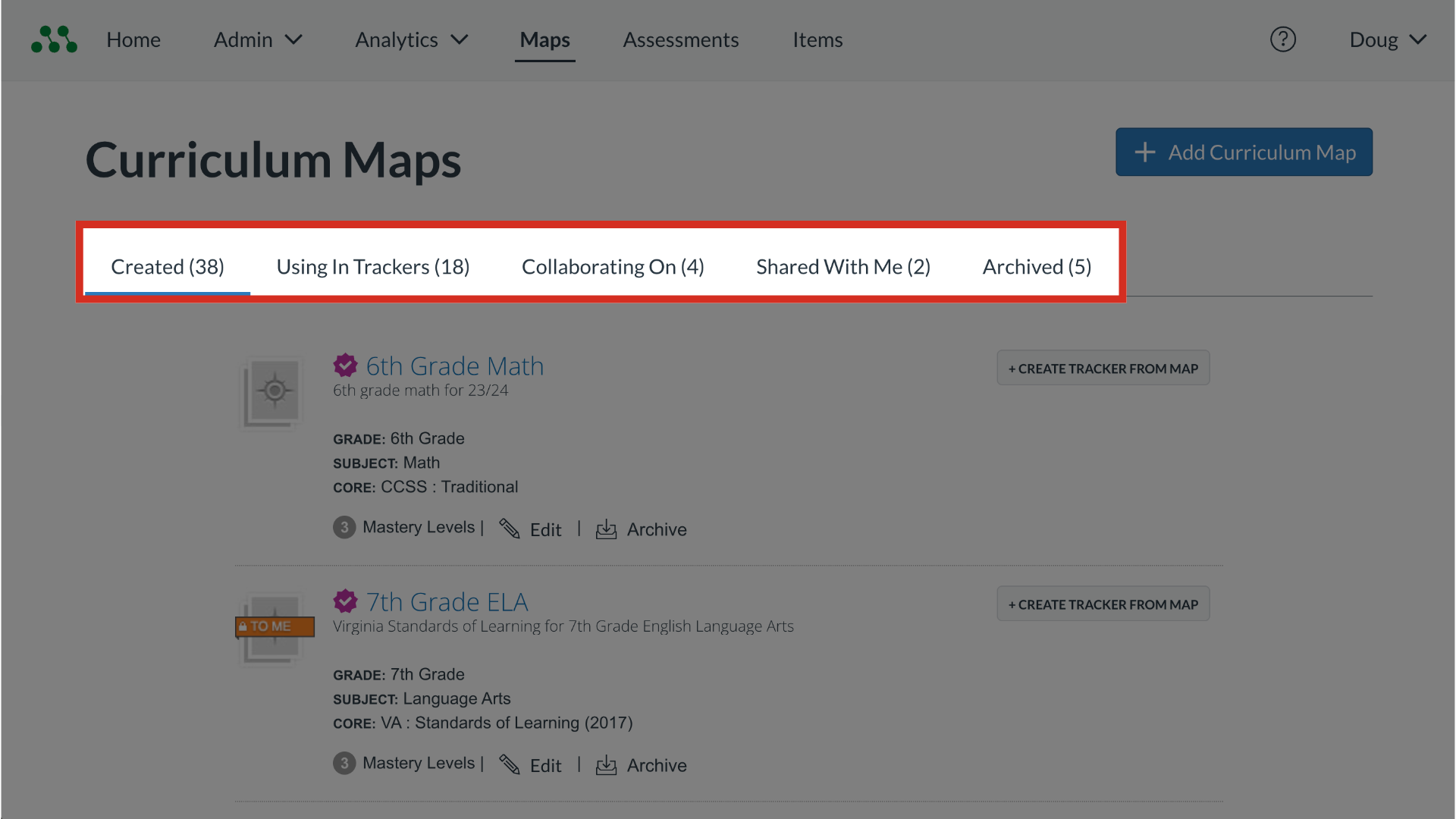
In the Curriculum Maps page, you can view your curriculum maps listed by the following categories: Maps you created, Maps from which you created a tracker, Maps you are collaborating on with a team of collaborators, and Maps another user shared with you. To view curriculum maps in a category, click a Category tab.
4. View Curriculum Map Listing
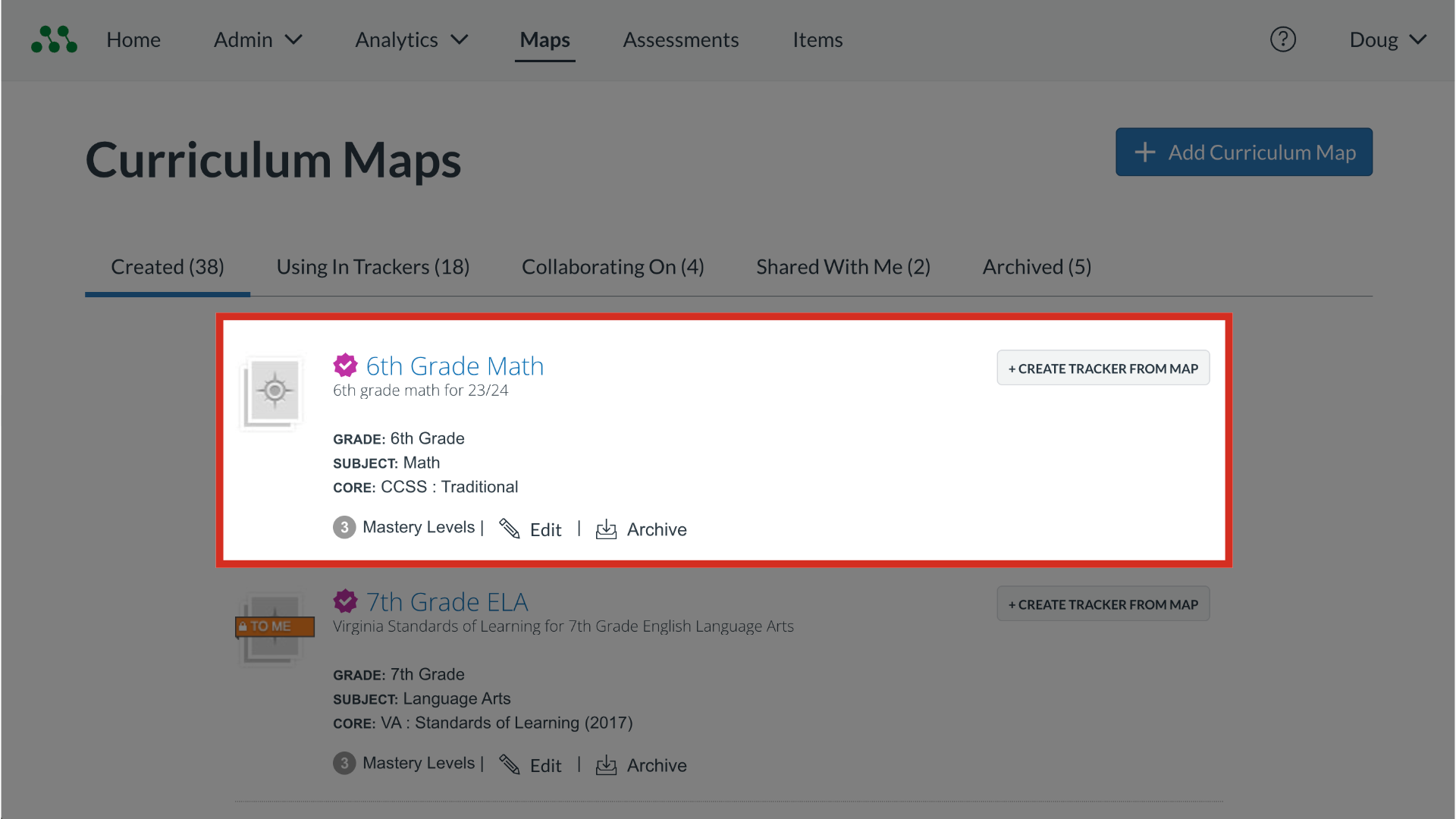
Each curriculum map listing in the Curriculum Maps page displays a map icon the map name, and the map description. The listing also displays the map's designated grade level, subject, and standard core. You can also view the map's number of mastery levels.
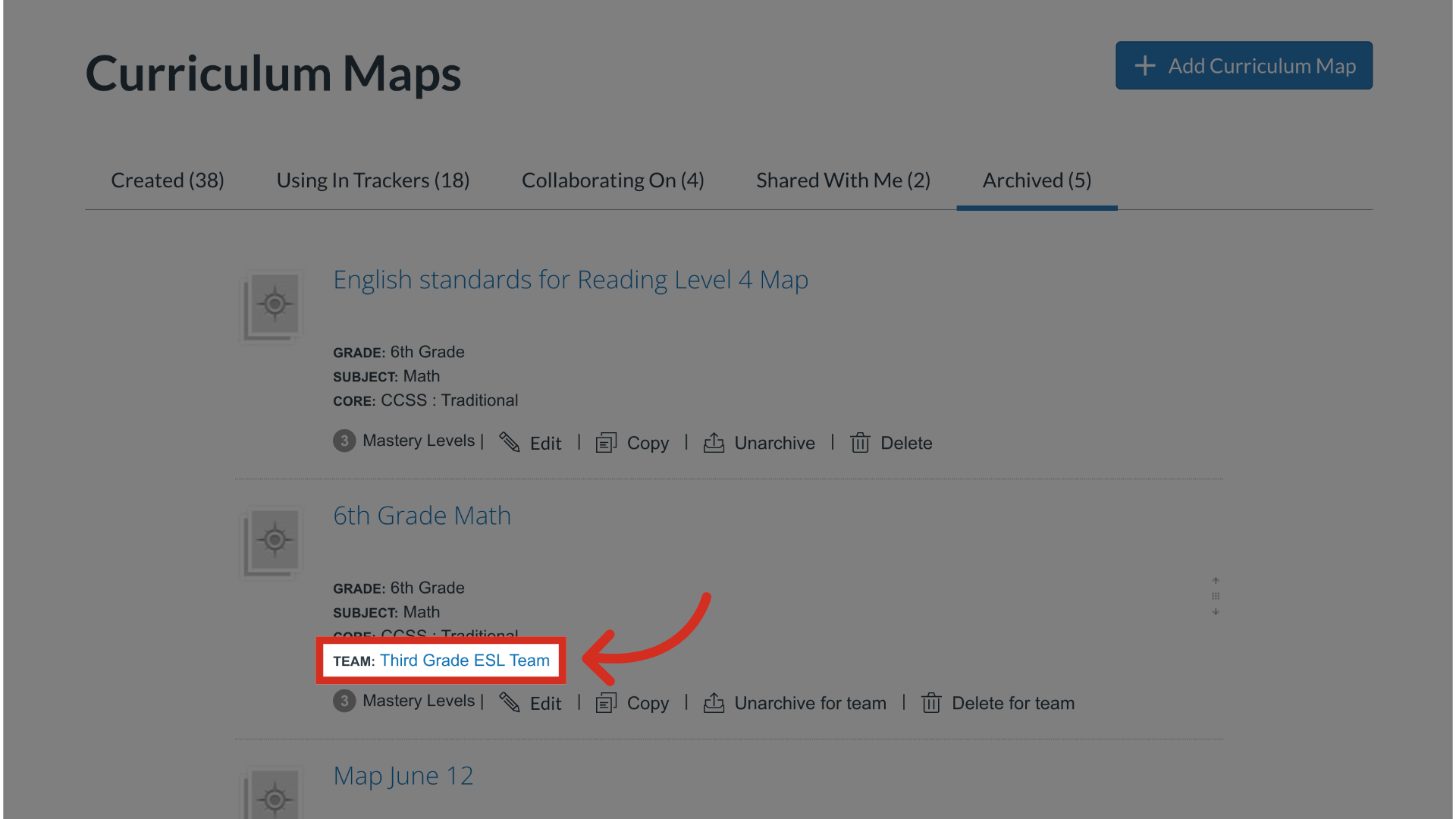
5. Click Team Link
If you own the map as part of a collaborating team, the map listing displays the collaborating team name. To view details about the team, including a list of its members, click the team name link.
6. Manage Maps
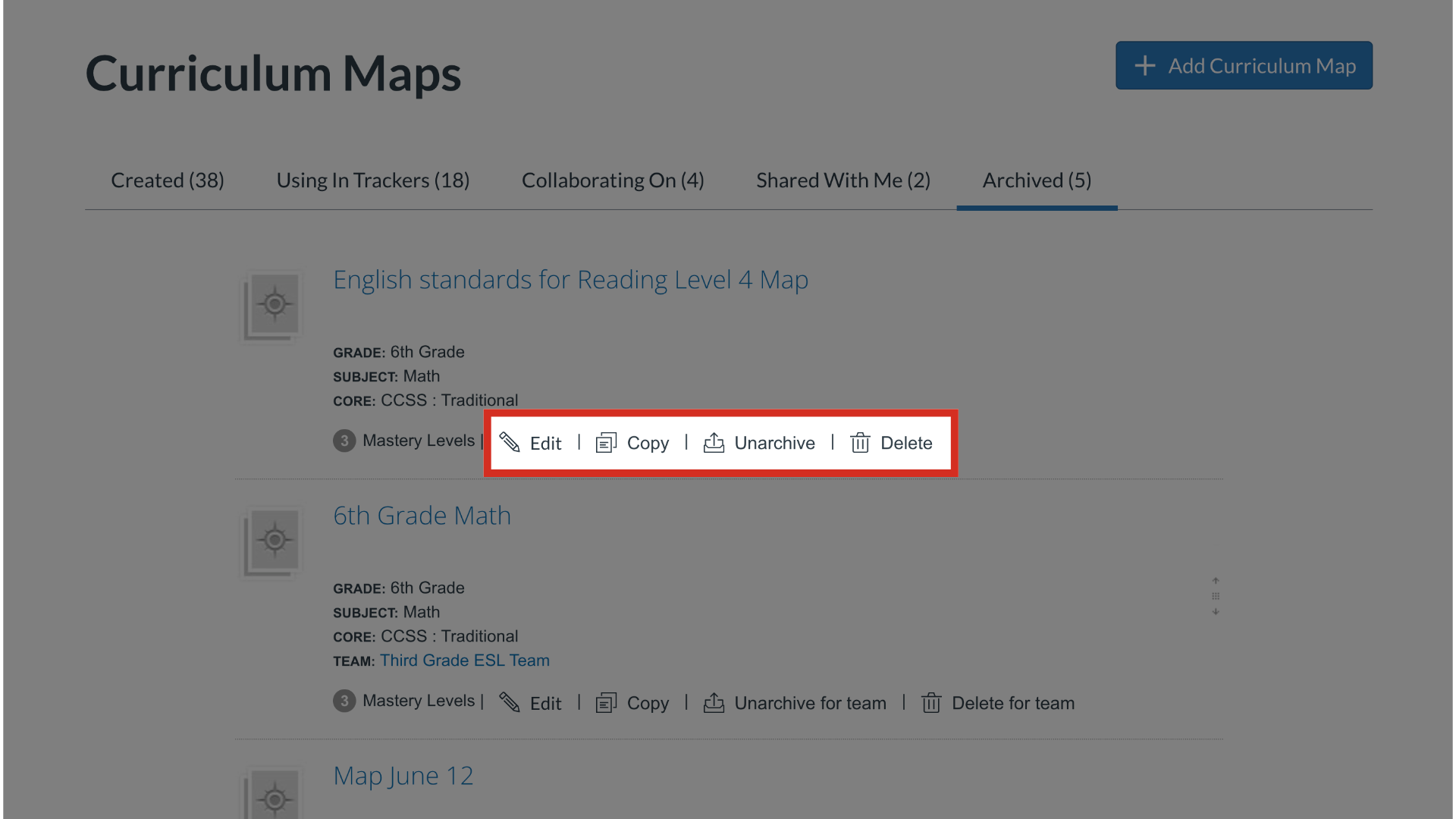
Map listings may display options for managing the curriculum map. Depending on whether you own the map, and depending on the map's status, you may able to edit, copy, archive or delete the map.
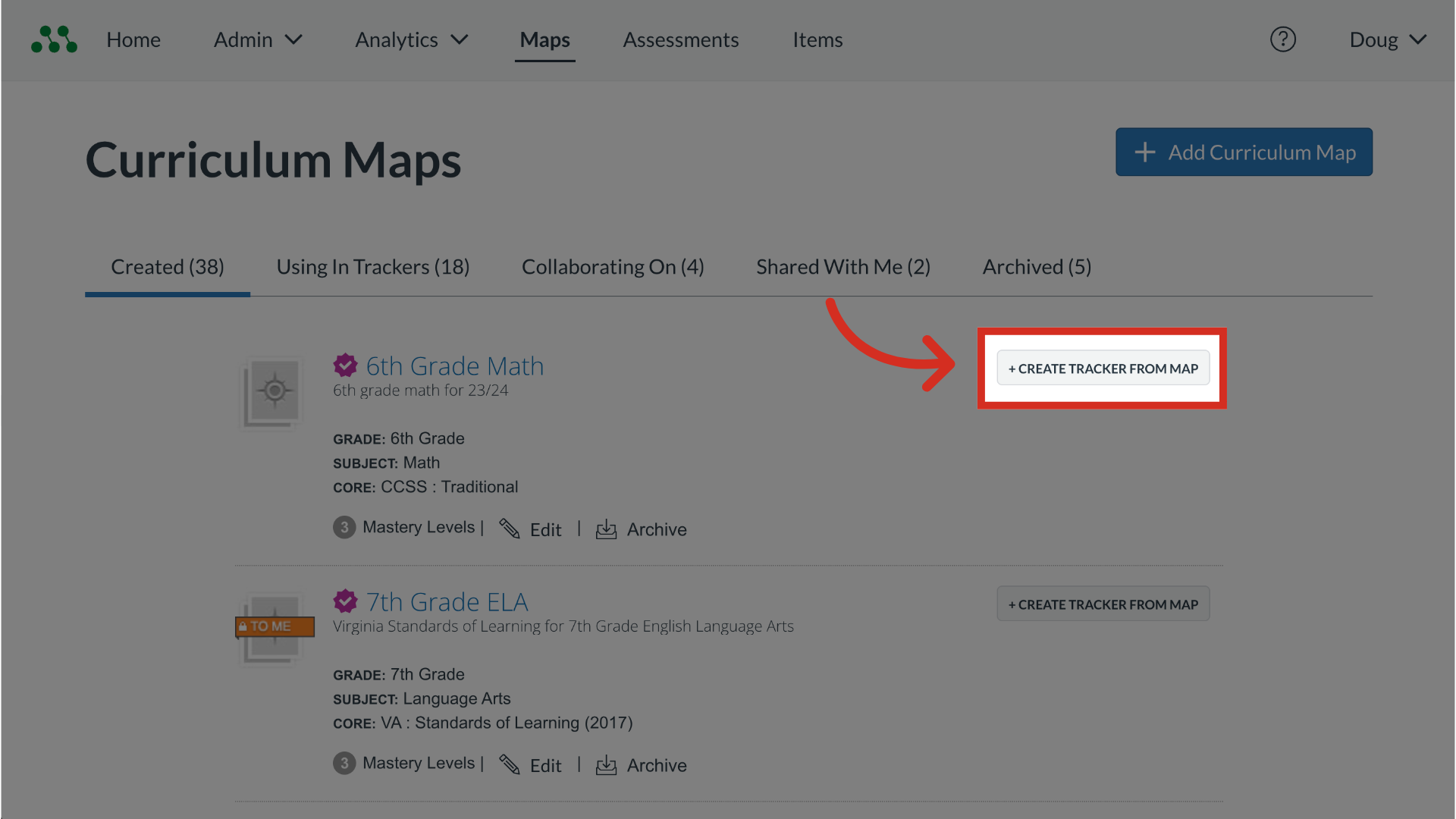
7. Create Tracker From Map
To create a tracker from a curriculum map, click the Create Tracker From Map button.
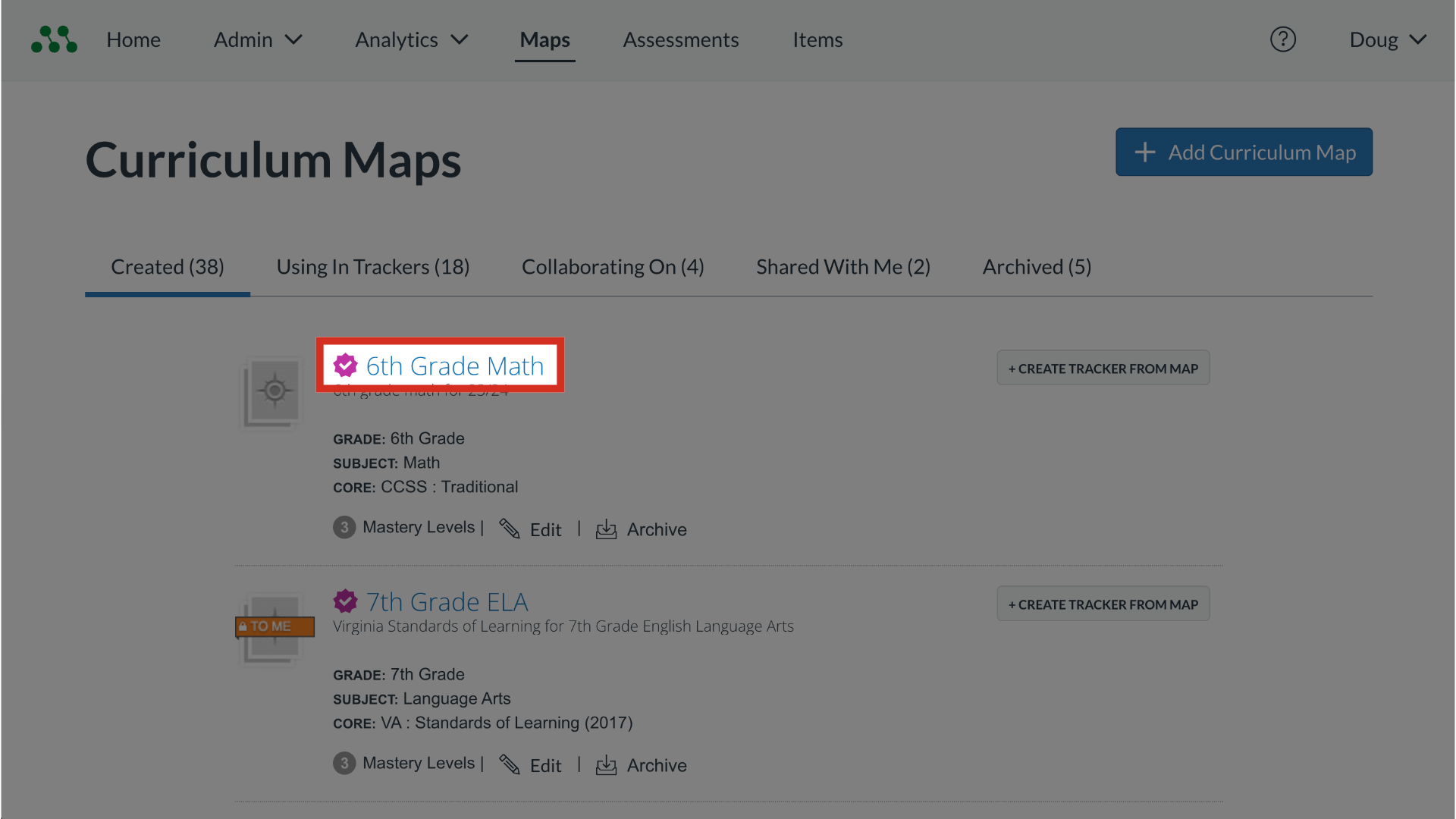
8. Create Map Link
To view a curriculum map, click the map name link.
This guide covered how to use the curriculum maps page.