How do I remove a benchmark assessment from an individual tracker as an admin?
How do I remove a benchmark assessment from an individual tracker as an admin?
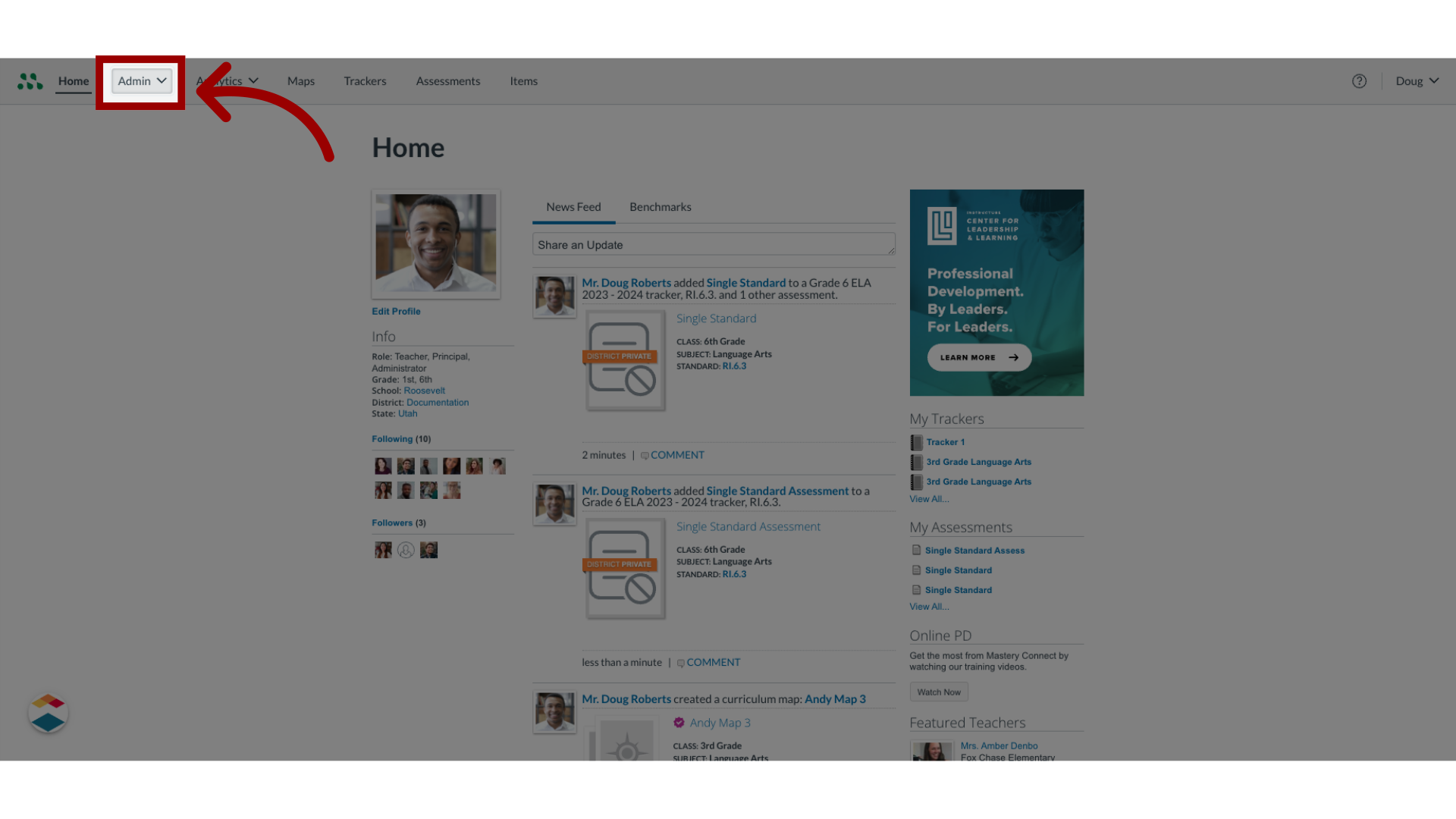
1. Open Admin
In the Global Navigation menu, click the Admin drop-down menu.
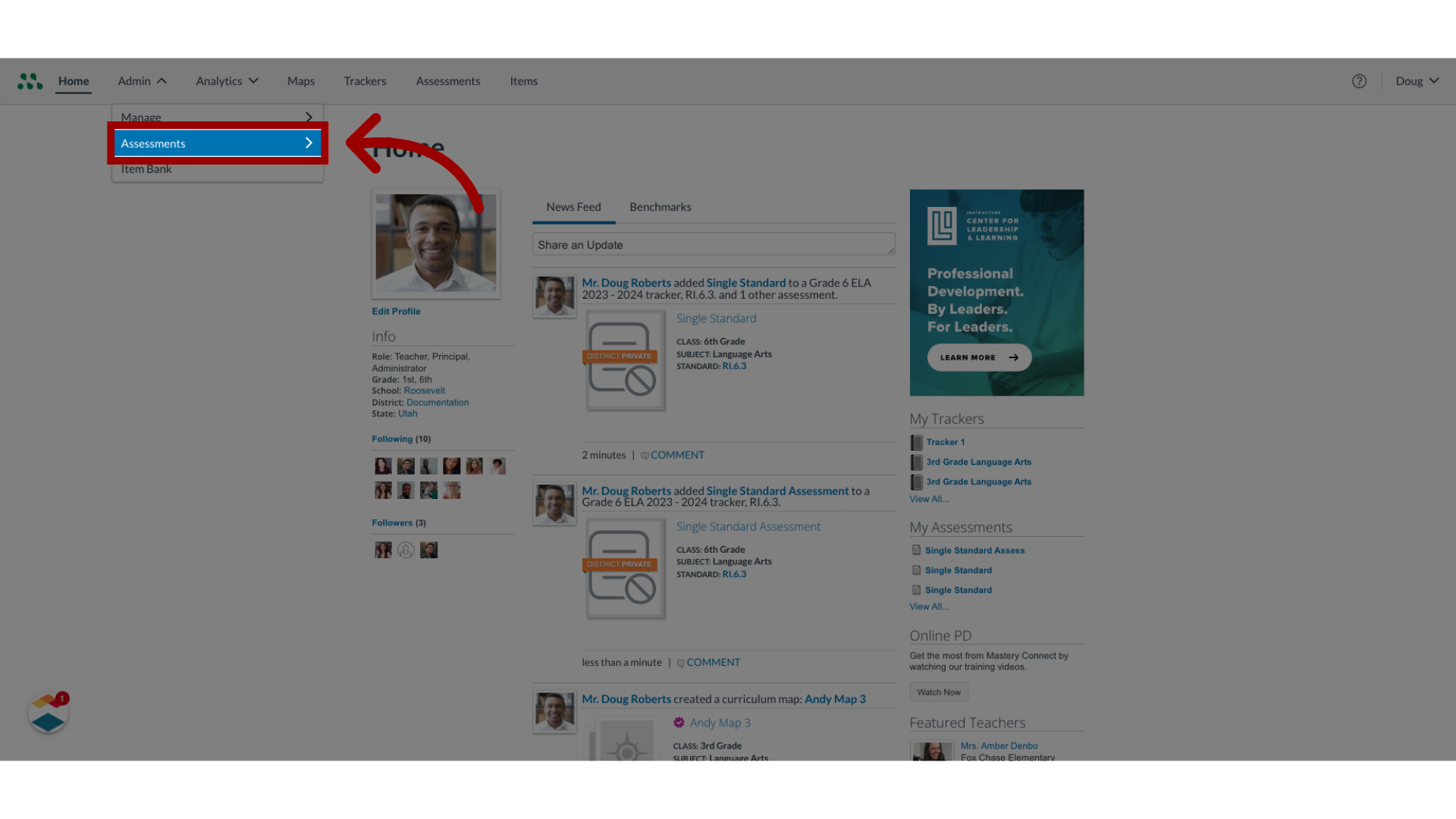
2. Open Assessments
Then, click the Assessments link.
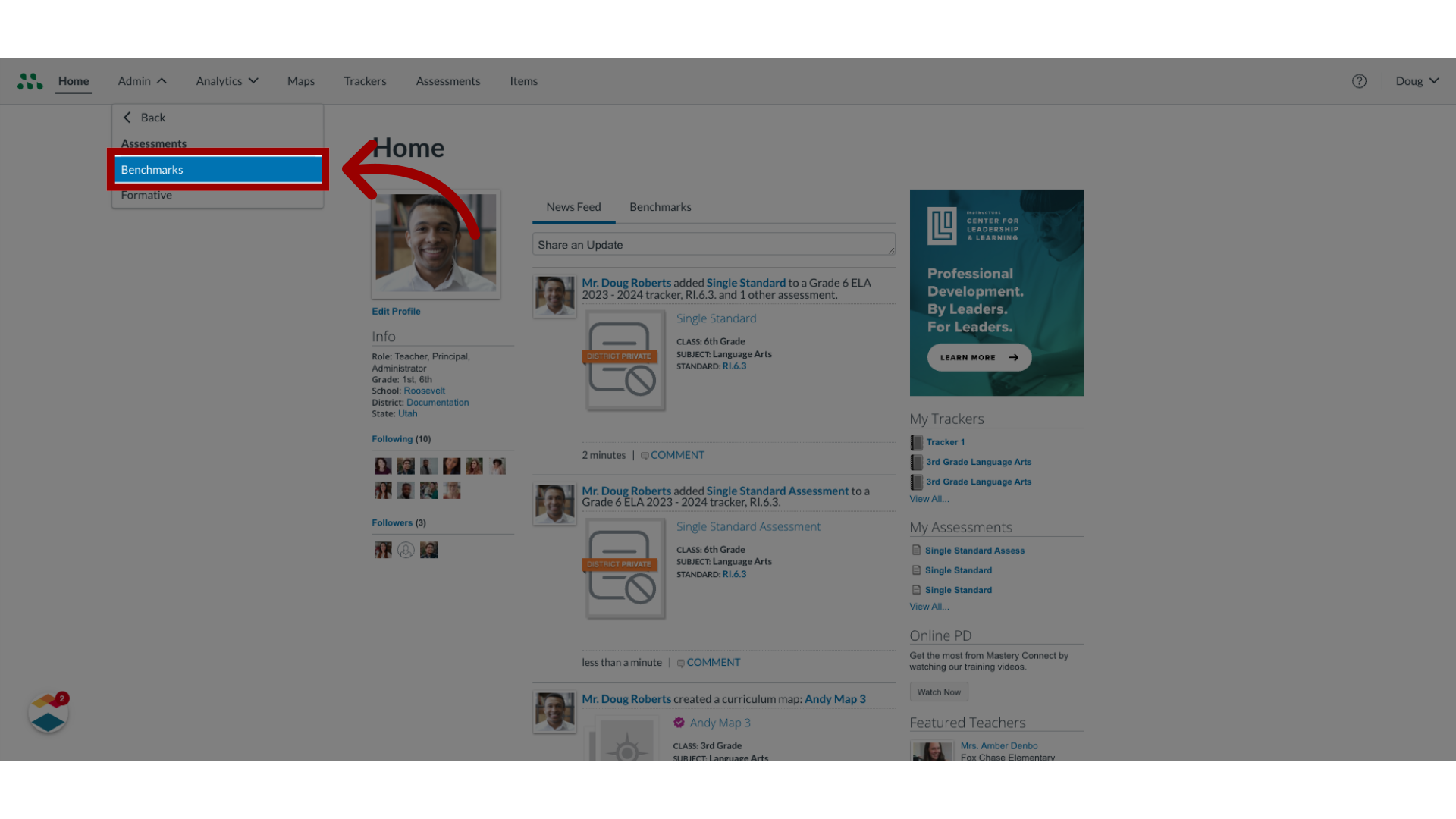
3. Open Benchmarks
In the Assessments list, click the Benchmarks link.
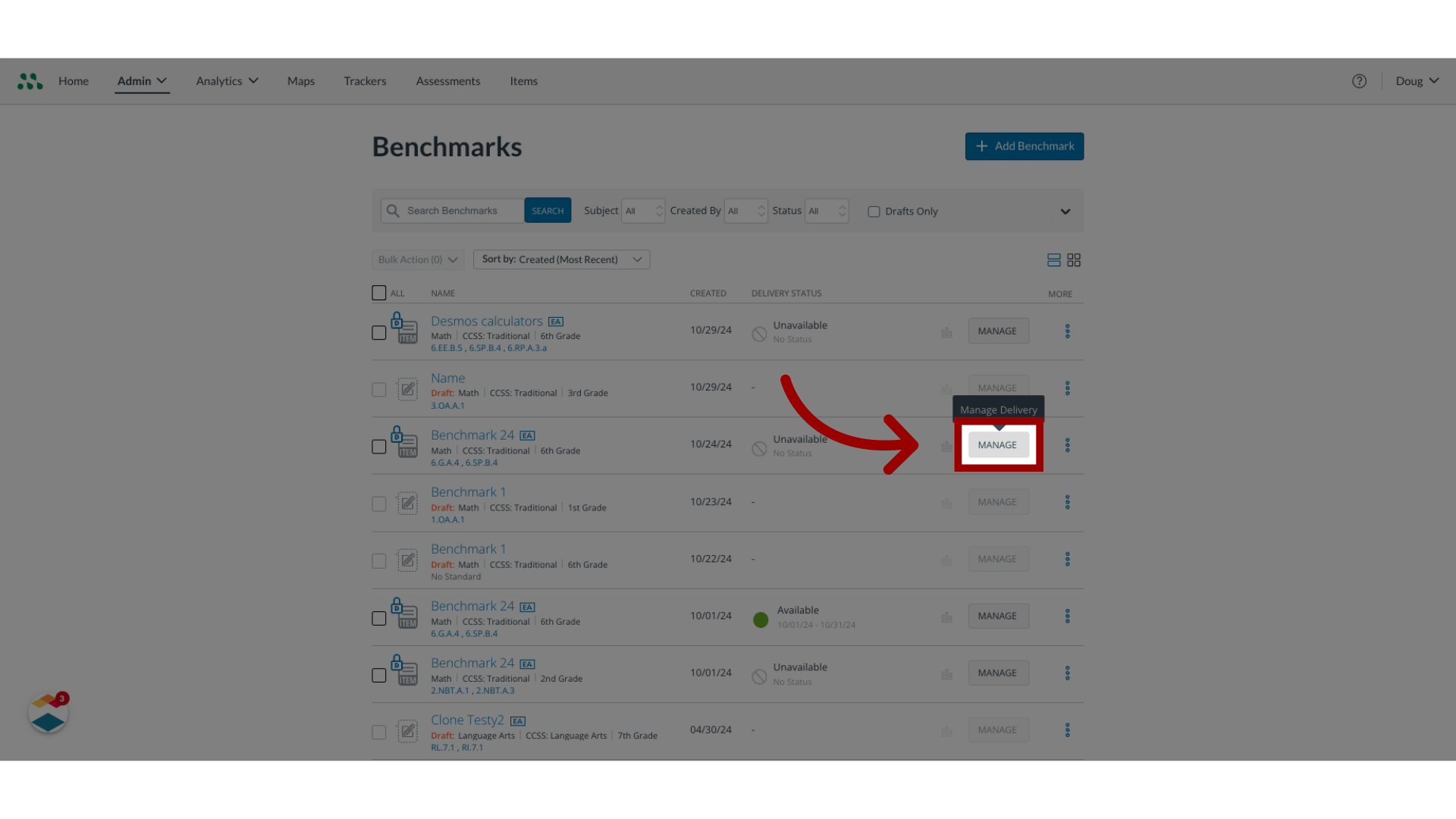
4. Open Assessment Manager
Locate the benchmark you want to remove and click the Manage button.
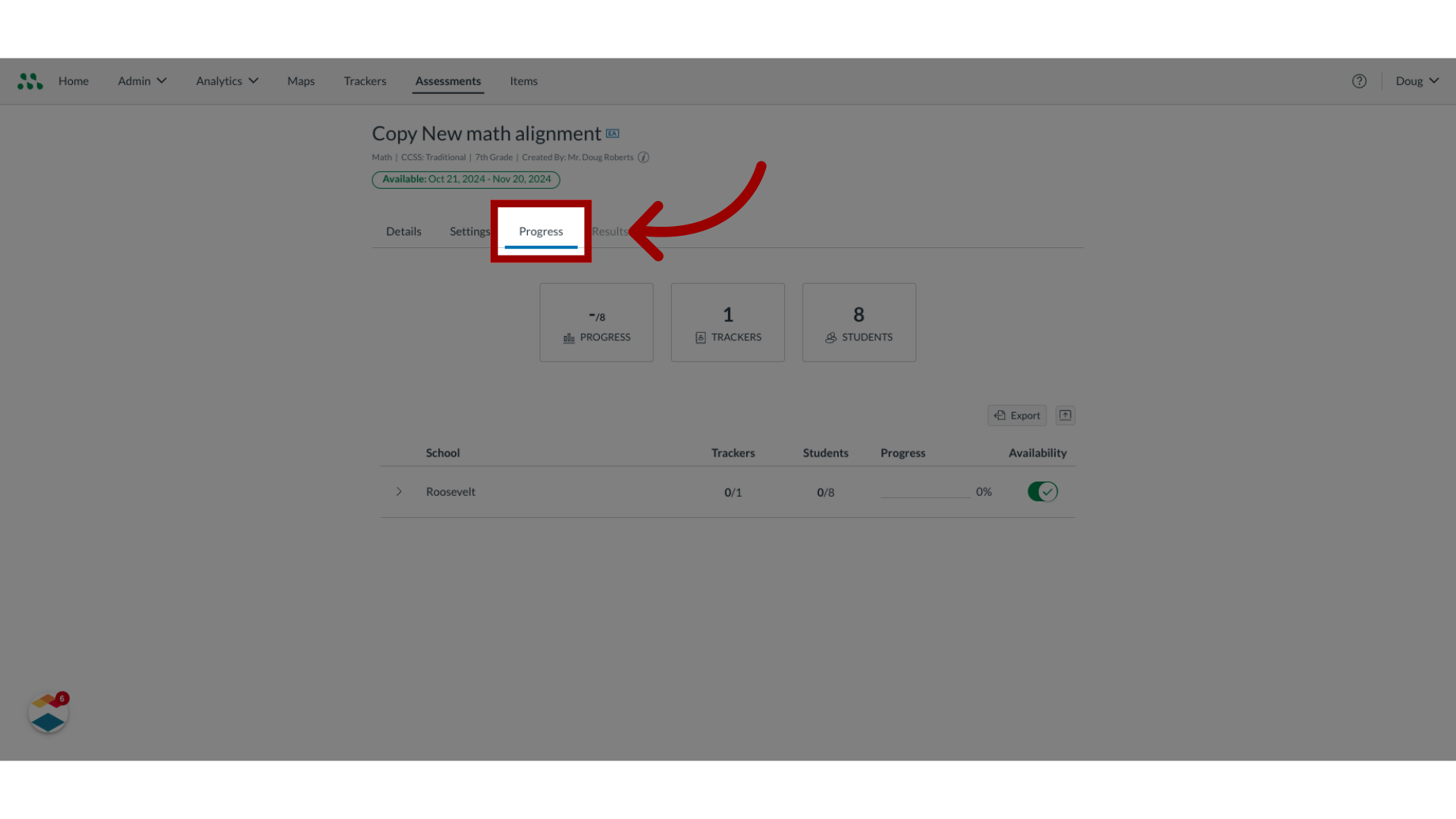
5. Open Progress
Click the progress tab.
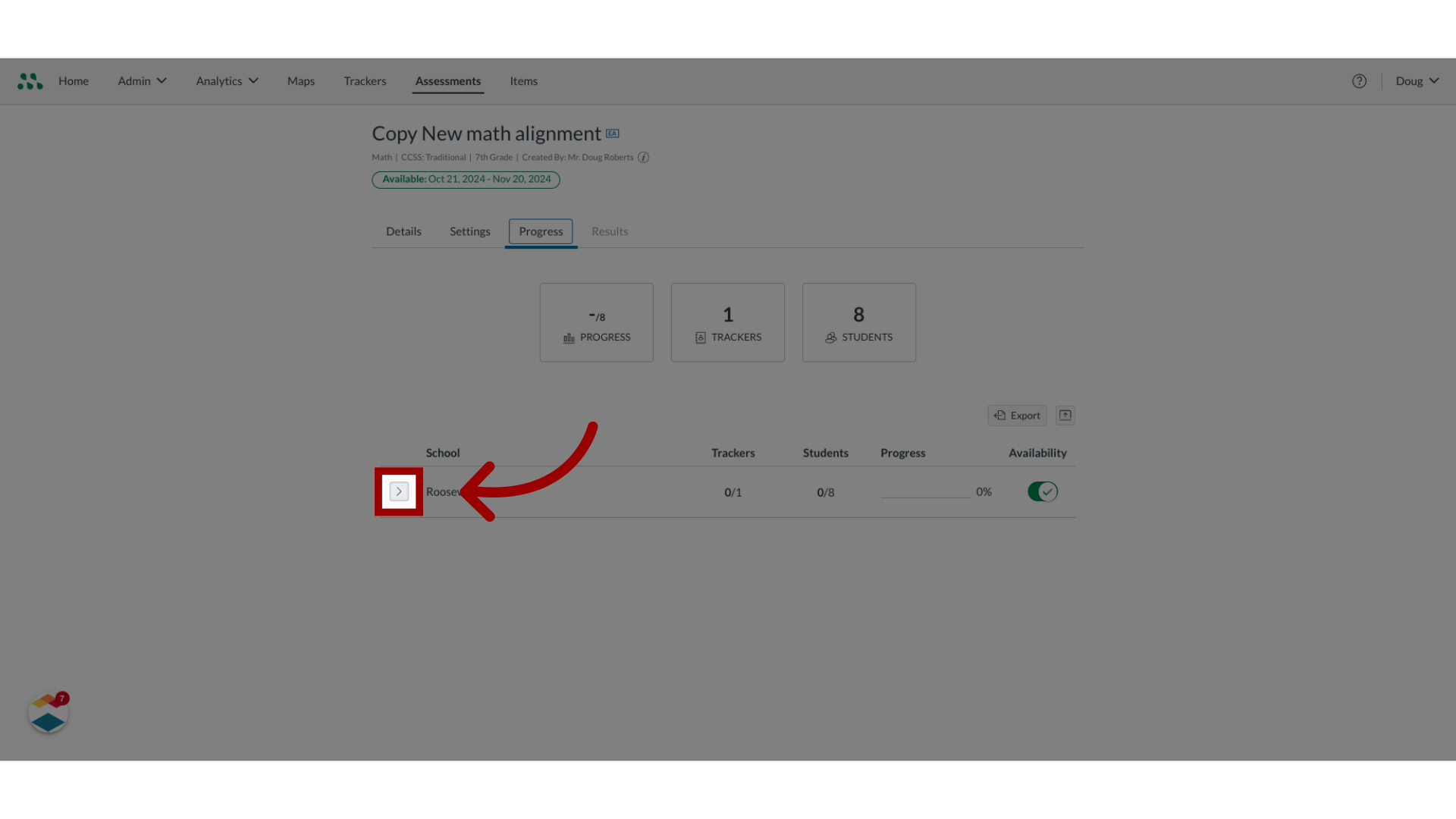
6. Open School Info
Click the Expand icon for the school where you want to remove the benchmark.
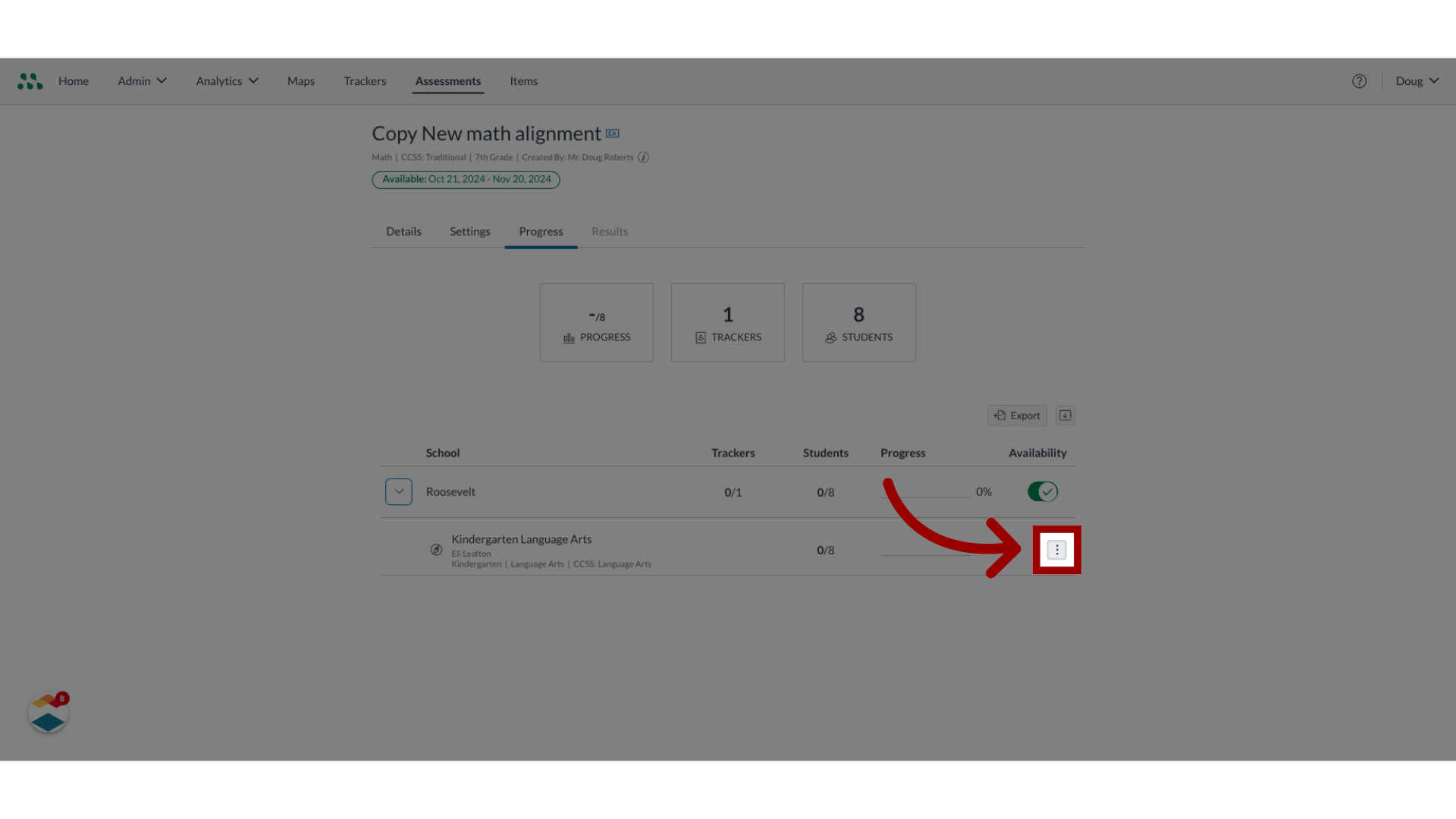
7. Open Benchmark Options
Locate the benchmark you want to remove, and click the Options icon.
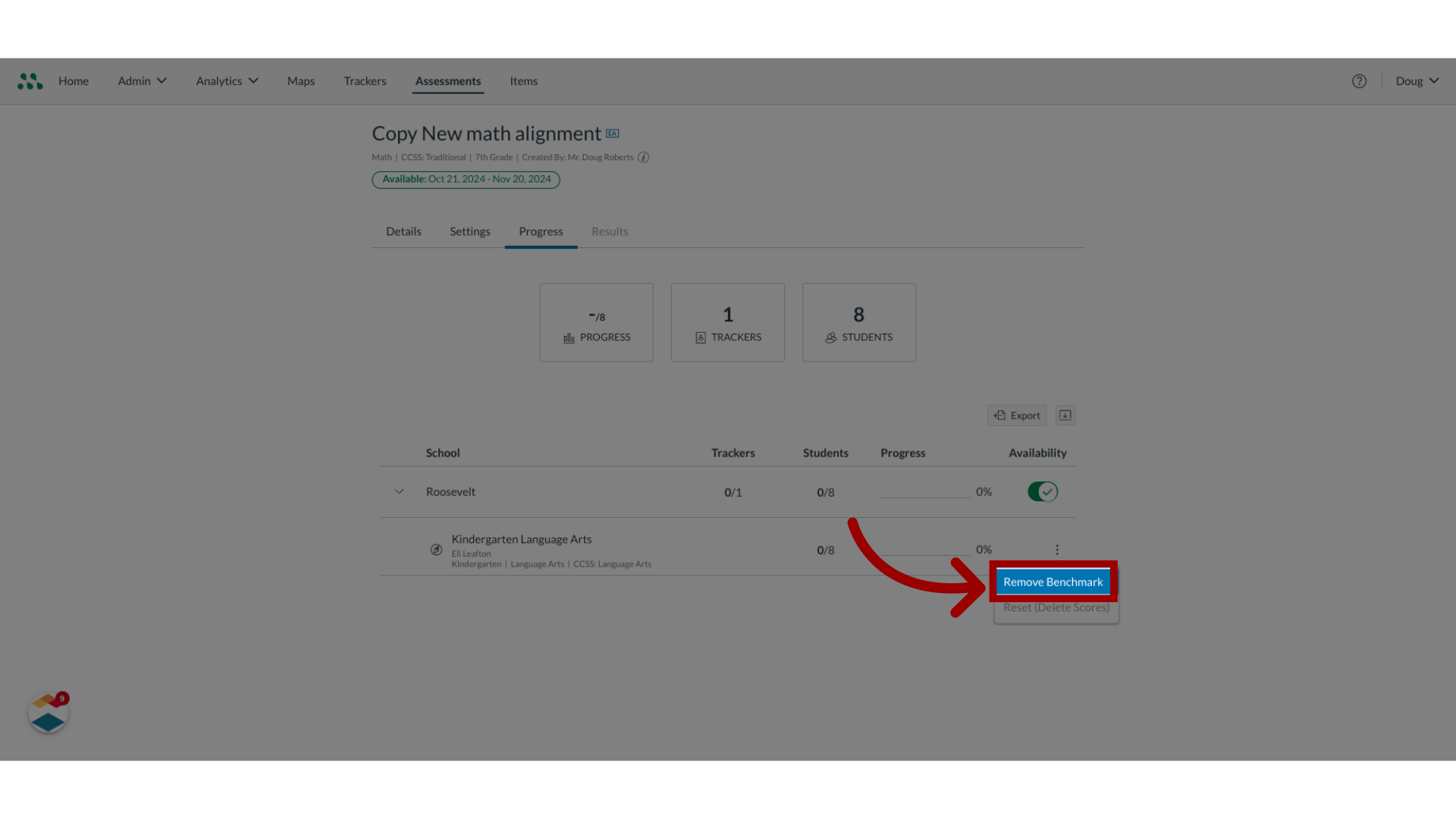
8. Remove Benchmark
Click the Remove Benchmark option.
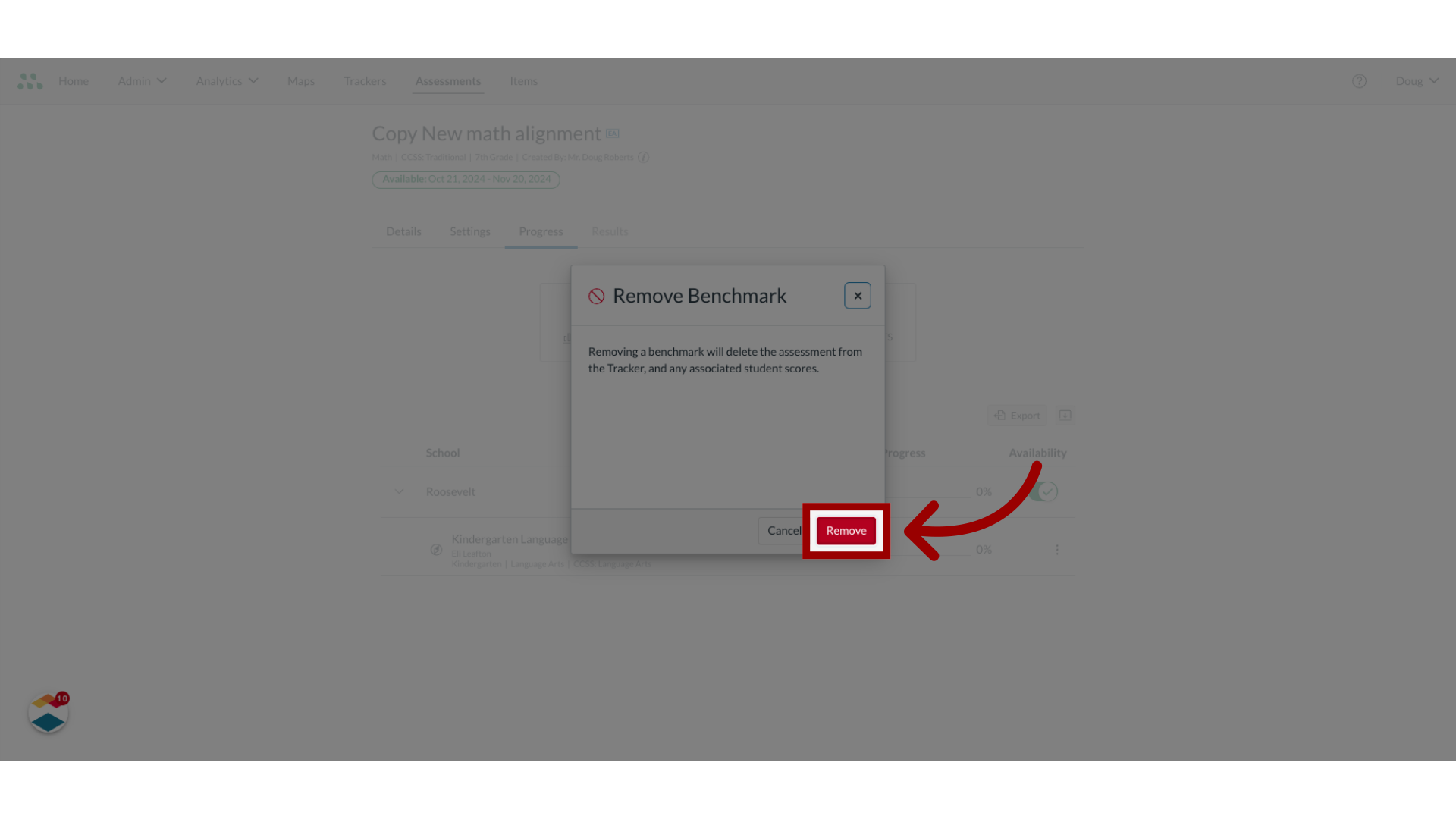
9. Confirm Benchmark Removal
Confirm and complete the removal process.
This guide covered how to remove a benchmark assessment from a tracker as a Mastery Connect admin.