You can adjust the settings to hide and display student in a tracker based on their demographics. You can filter by Race, Ethnicity, or Group status for students with an individualized education plan (IEP) or an English language learner (ELL).
If your tracker is linked to a Canvas course with multiple sections, you can also filter students by section.
Notes:
- The demographic information is based on data provided by your students or by your district.
- If the steps in this lesson do not match what is displayed in your account, you may be using the Legacy View. For Legacy View steps, refer to How do I filter students in a tracker in Legacy view?
Open Tracker
In the Mastery TrackersHome page [1], click the tracker name link [2].
Open Students Menu
Click the Students tab [1]. Then, click the Students button [2].
Adjust Student Filters
If your tracker is linked to a Canvas course with multiple sections, you can filter students by section. To display students in a section, click a section radio button [1].
To filter the displayed student list by demographics, select or deselect the checkboxes in the Gender [2], Race [3], Ethnicity [4], or Groups [5] categories.
Note: Demographic information displayed is based on the data provided by the students or the district.
Restore Default Settings or Save Changes
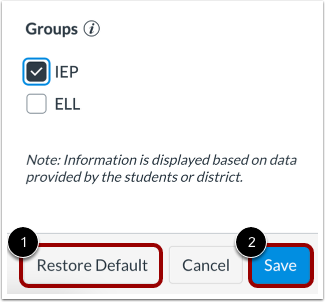
To clear changes and return to the default display options, click the Restore Default button [1].
To save your changes, click the Save button [2].