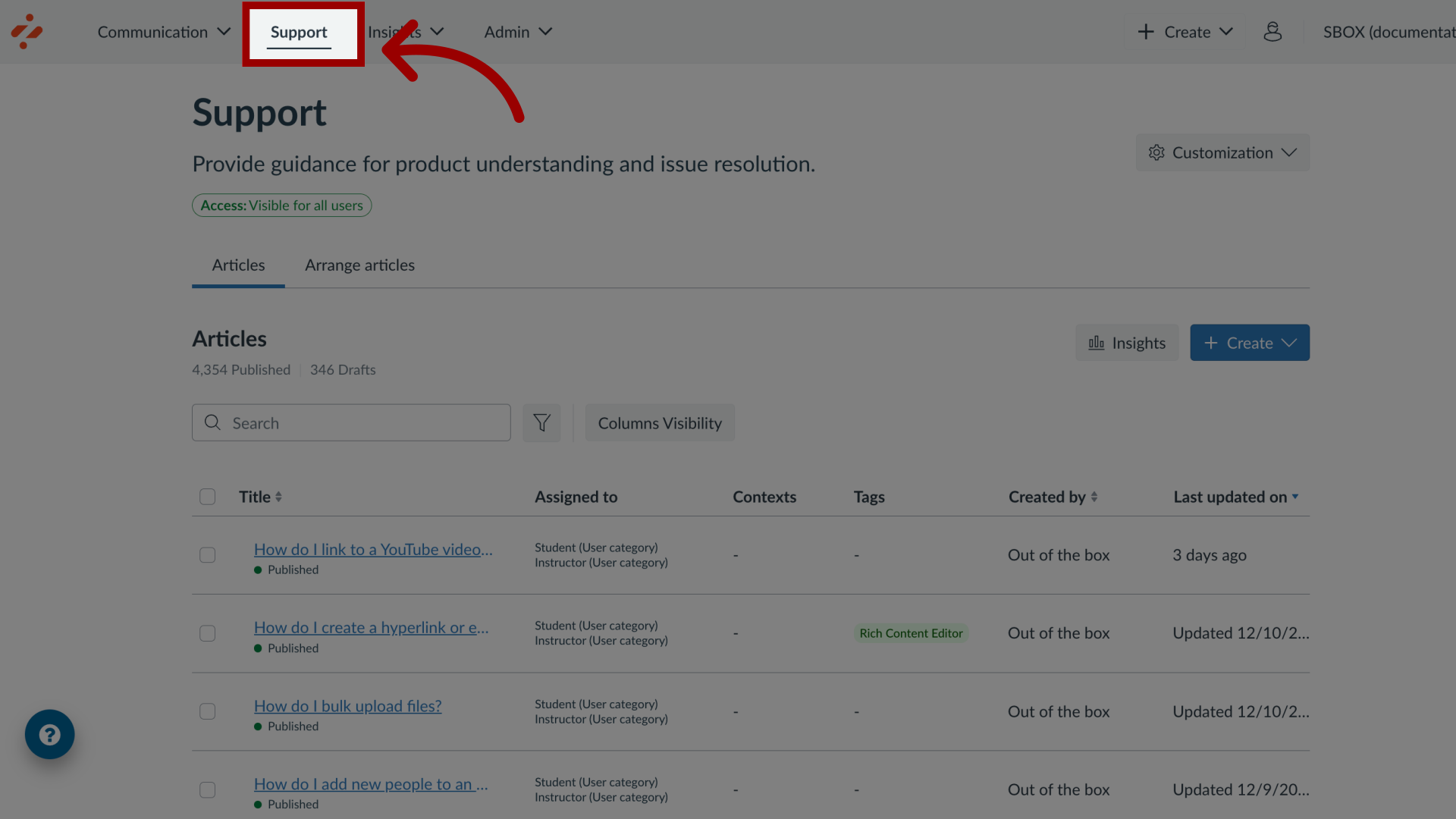
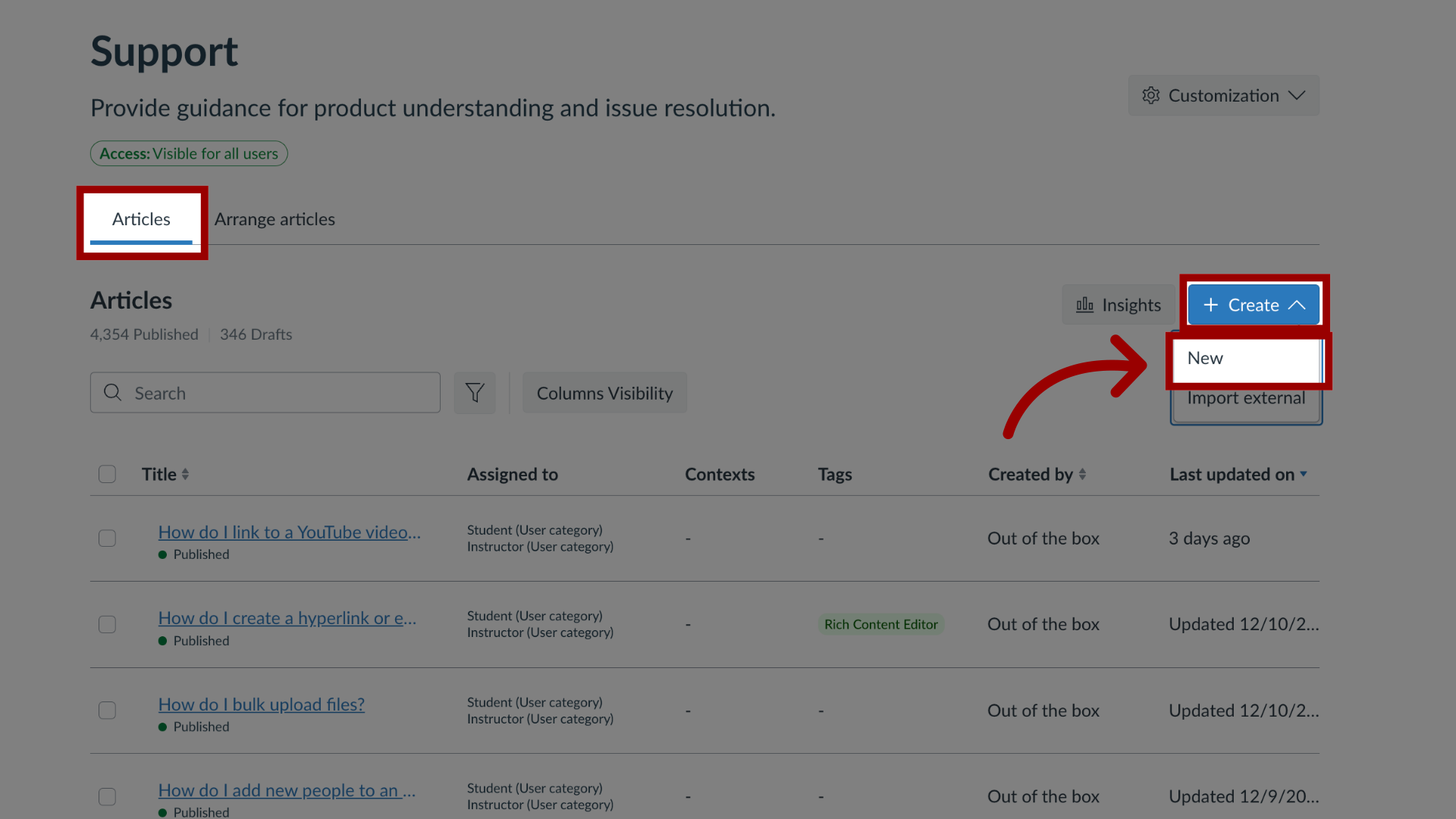
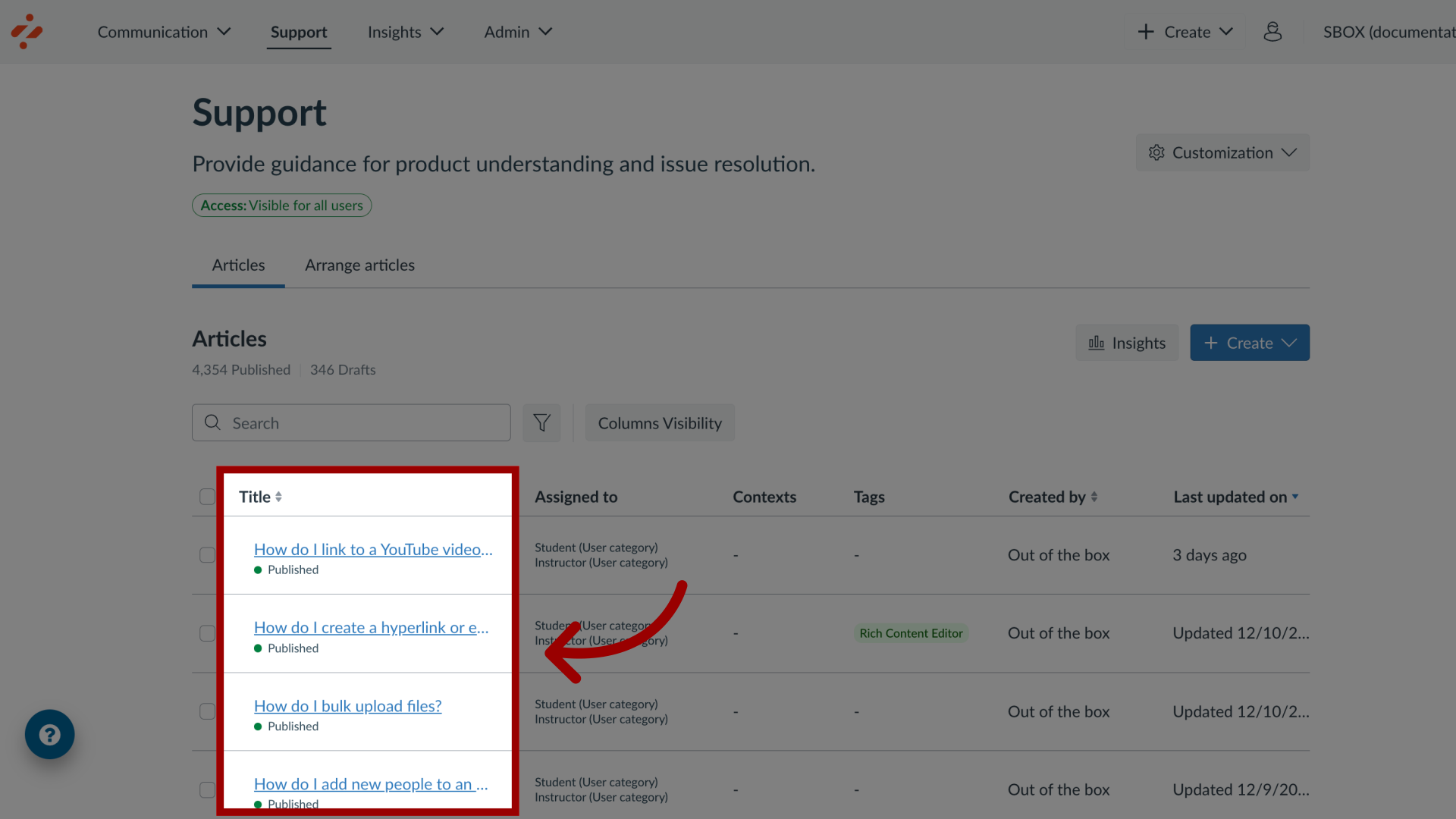
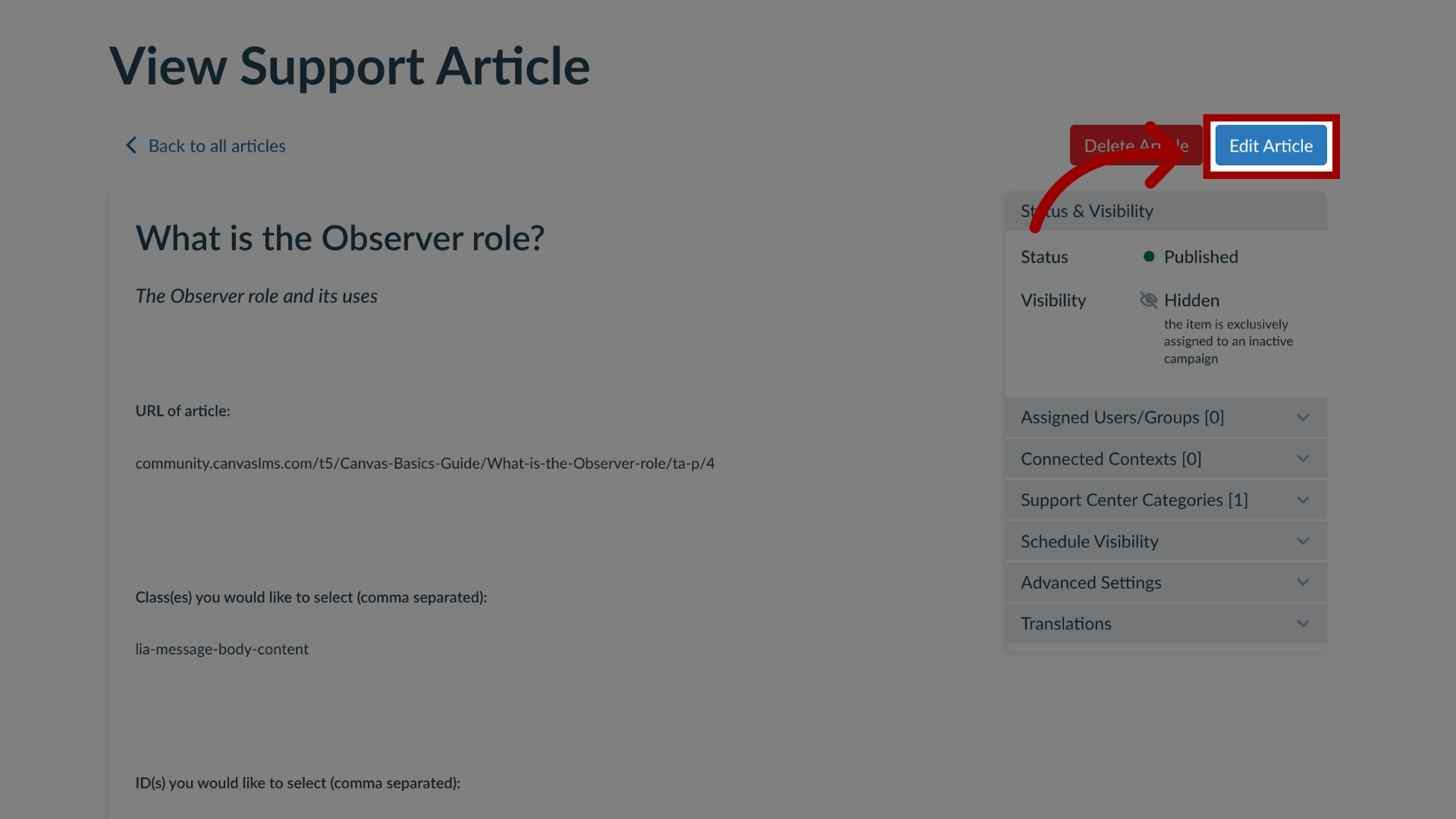
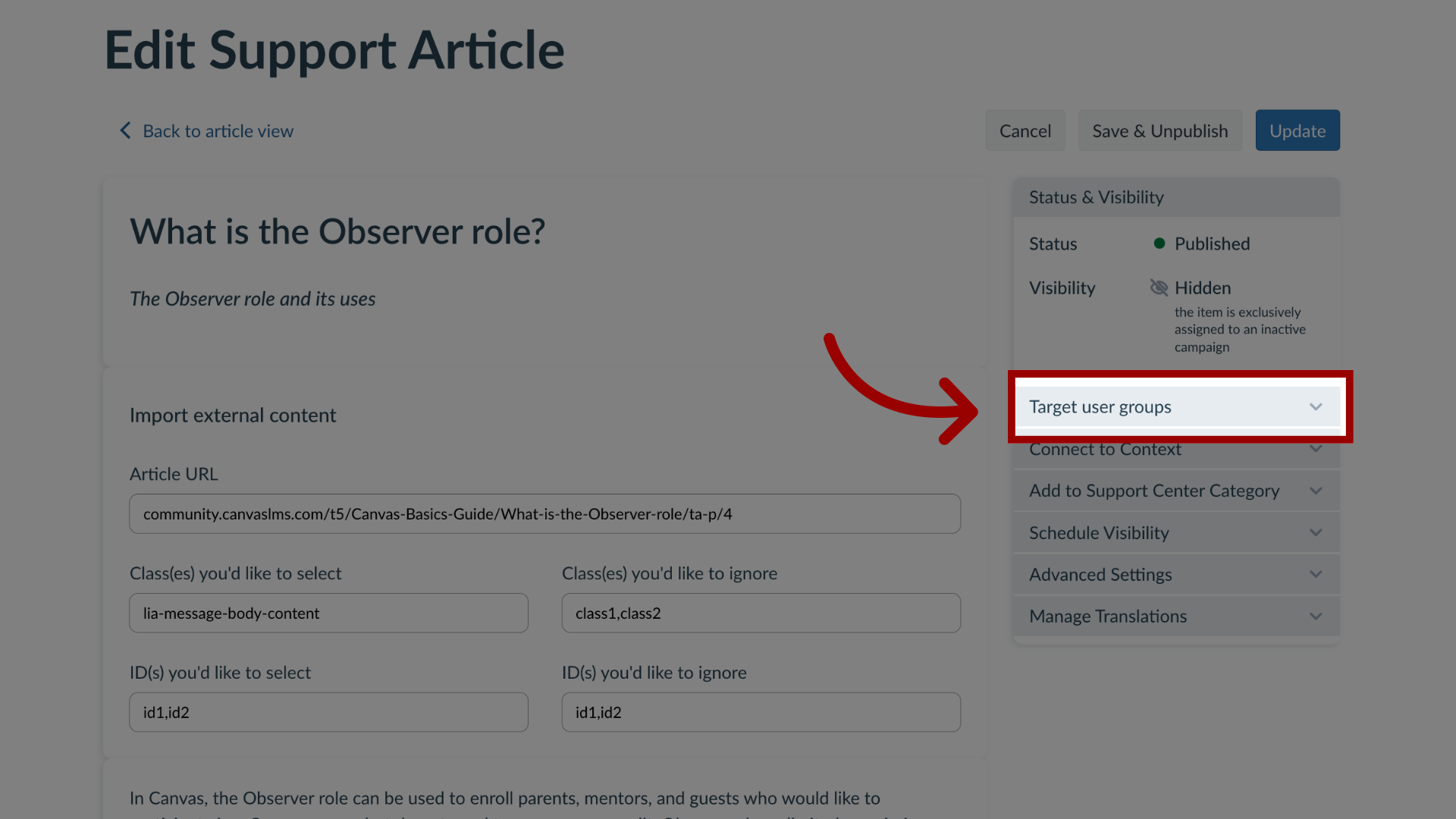
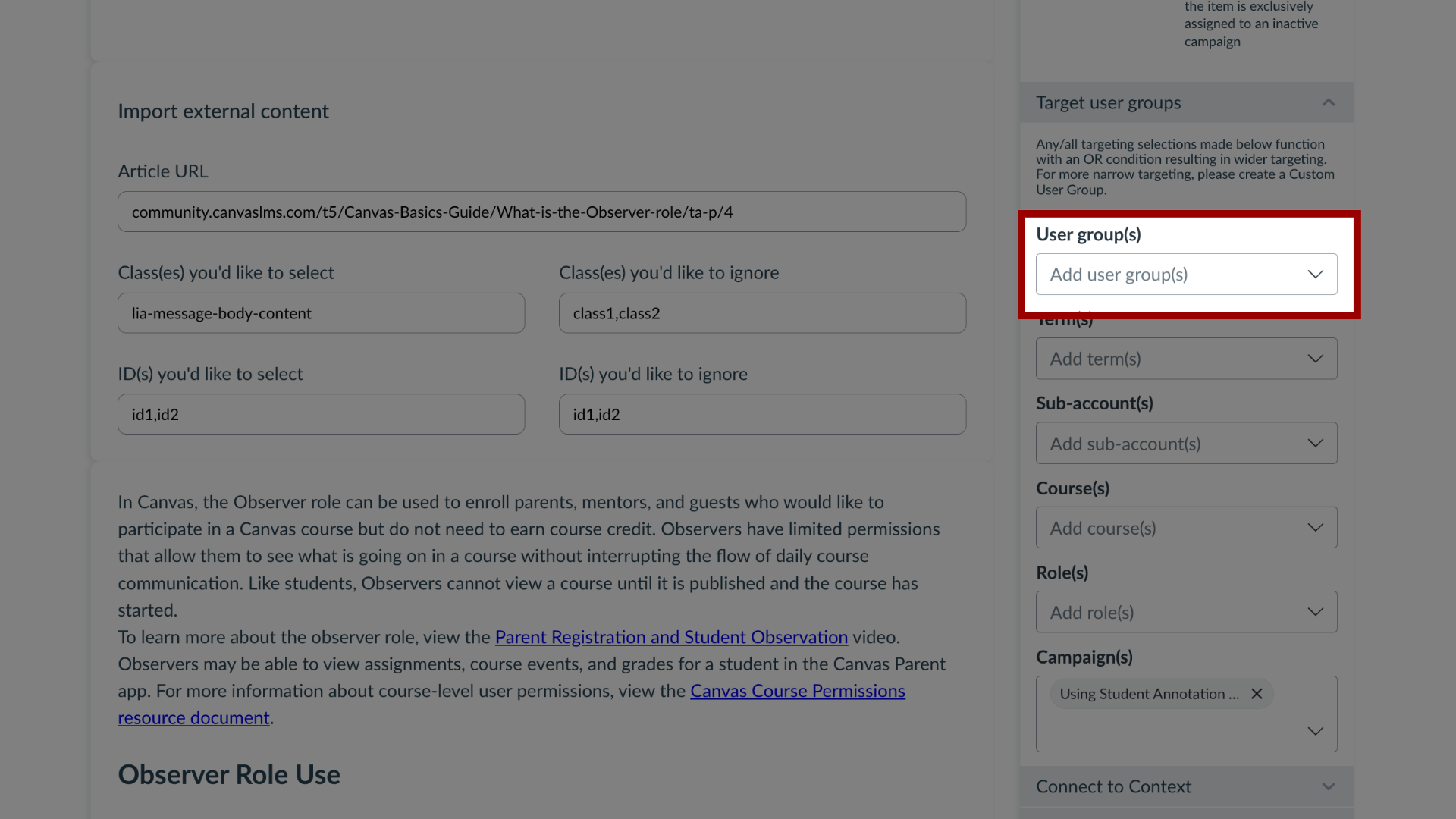
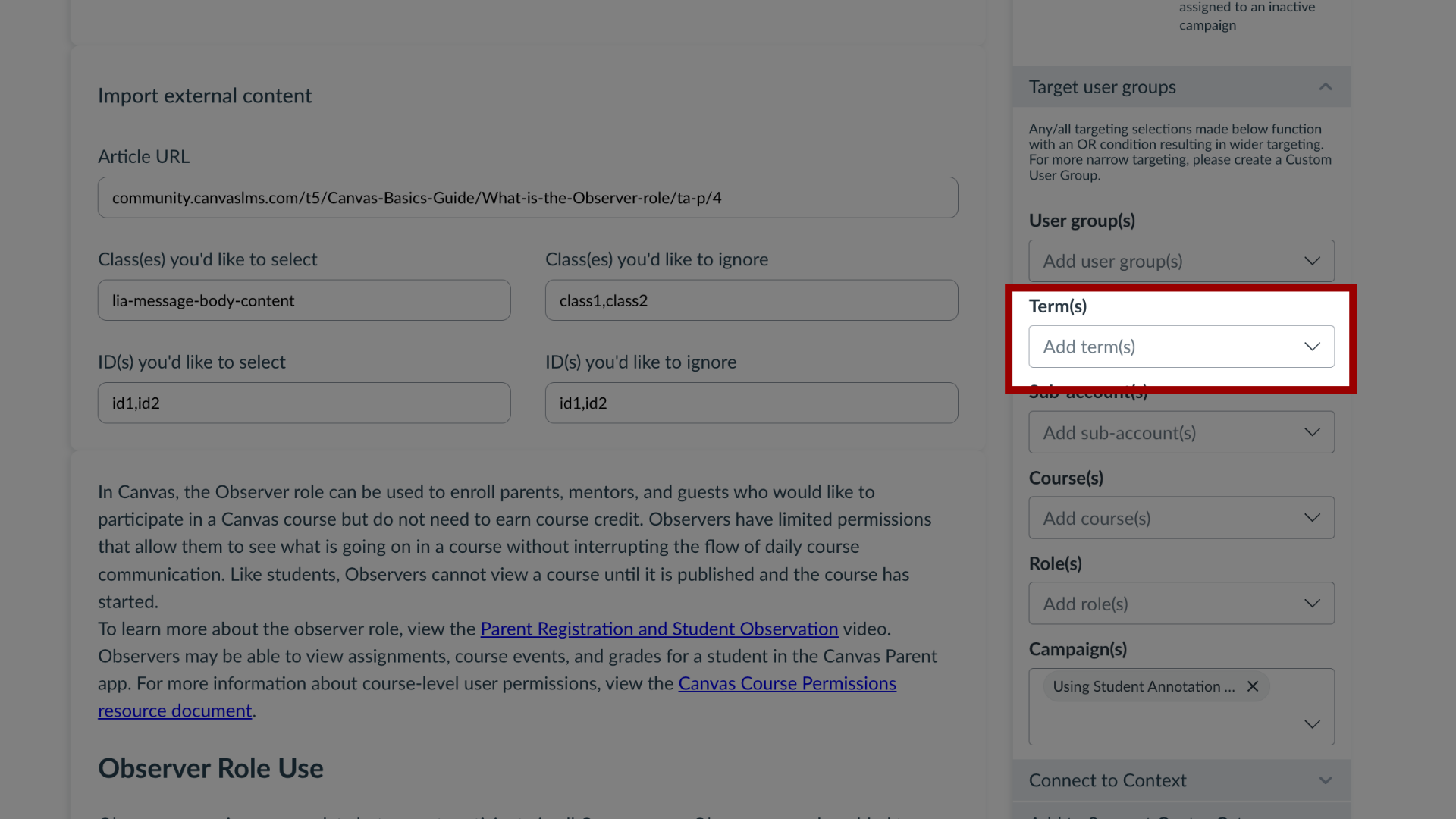
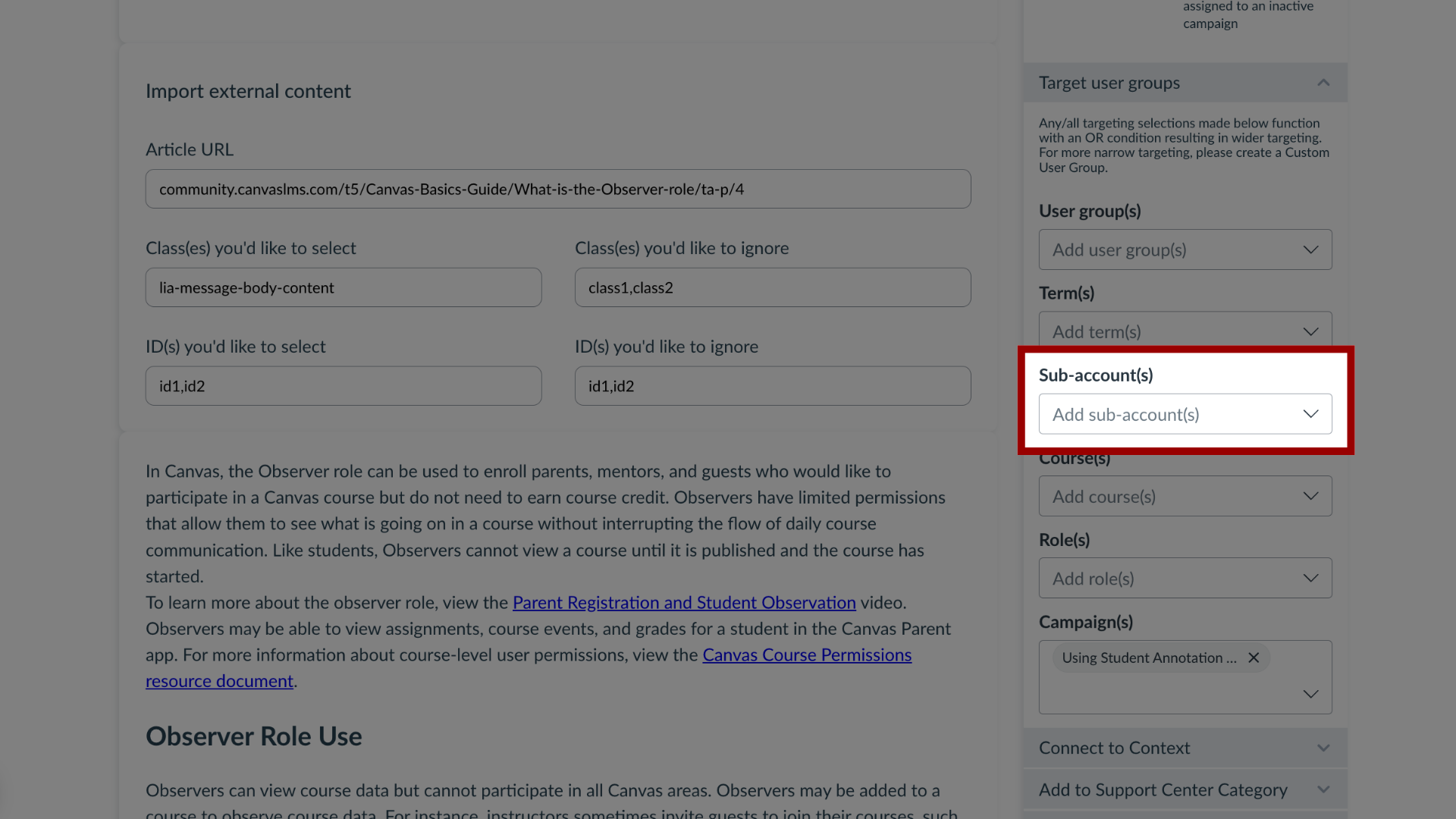
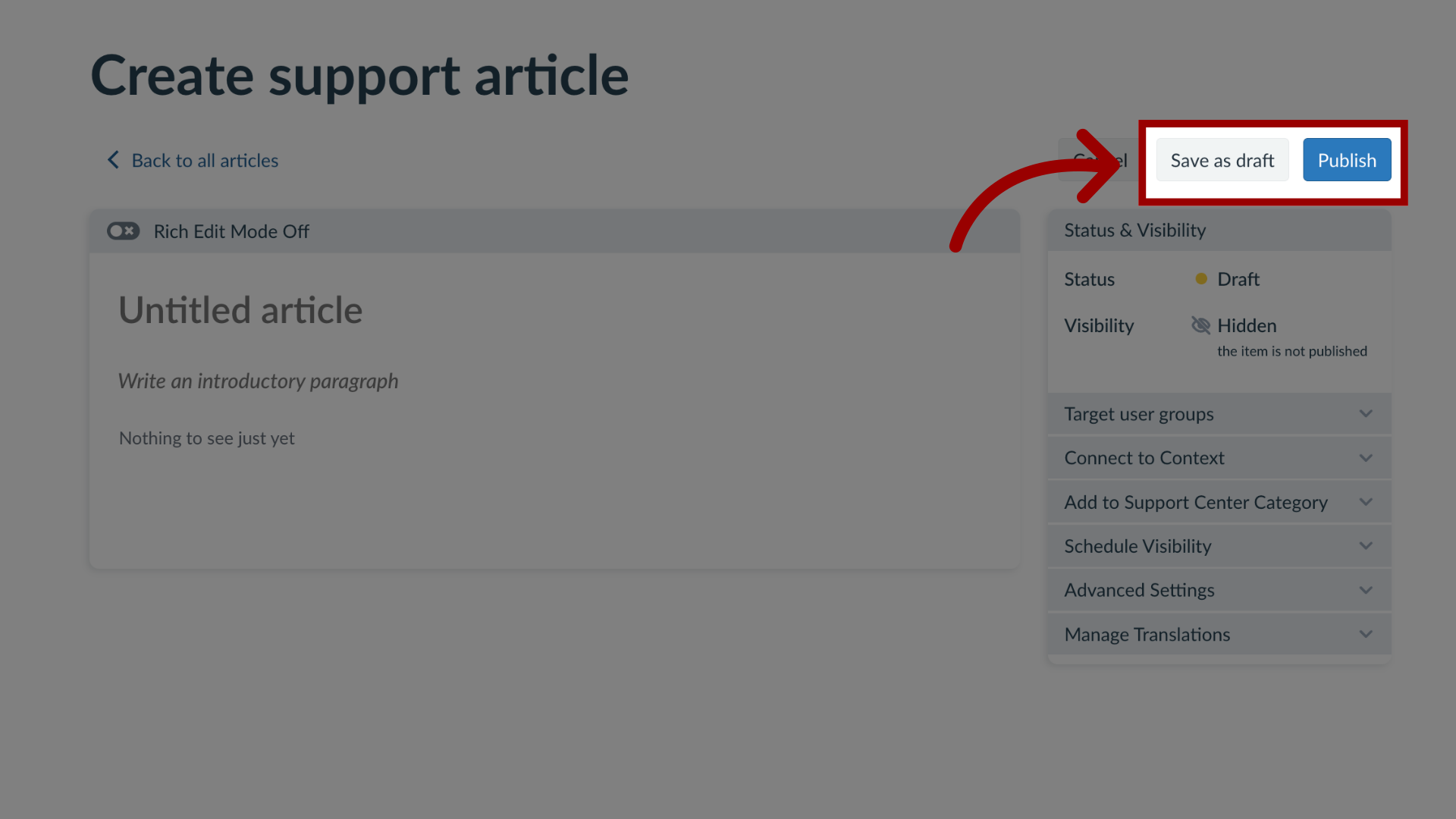
By assigning users to an article, you control for which users, groups, or campaign audiences will see your article.Please note that there are multiple factors that impact article visibility. Please review our article on What factors determine support article visibility? if you are unsure.How do I display a support article to specific groups of users in the Impact Dashboard?1. Open SupportIn Global Navigation, click the Support link.2. Create New Support ArticleIn the Articles tab, to create a new article, click the Create drop-down button and click the New link.3. Manage Existing ArticleTo add a support article to an existing campaign, locate and click the support article name.4. Edit Support ArticleIn the View Support Article page, click the Edit Article button.5. Target User GroupsIn the sidebar, click the Target User Groups drop-down menu.6. User GroupsTo add a User Group, click the User Group(s) drop-down menu.7. TermsTo add a Term, click the Term(s) drop-down menu.8. Sub-accountsTo add a sub-account, click the Sub-account(s) drop-down menu.9. CoursesTo add a course, click the Course(s) drop-down menu.10. RolesTo add a role, click the Role(s) drop-down menu.11. CampaignsTo add a campaign, click the Campaign(s) drop-down menu.12. Update Support ArticleIf you are editing a support article, click the Save & Unpublish button or the Update button13. Save or Publish Support ArticleIf you are creating a new support article, the Save as Draft button will create a draft of your support article so you can publish it later. If you would like to make it visible, click the Publish button.For more information on the following referenced topics:Create a new support article: Visit How do I create support articles in the Impact Dashboard?